Week 11: WorkManager
WorkManager is a library for deferrable background work.
WorkManageris the recommended task scheduler on Android for deferrable work.
Blur-o-matic app
These days, smartphones are almost too good at taking pictures. Gone are the days when a photographer might take a reliably blurry picture of something mysterious.
In this codelab, you’ll work on Blur-O-Matic, an app that blurs photos and saves the results to a file. Was that the Loch Ness monster or just a blur sotong? With Blur-O-Matic, no one will ever know!
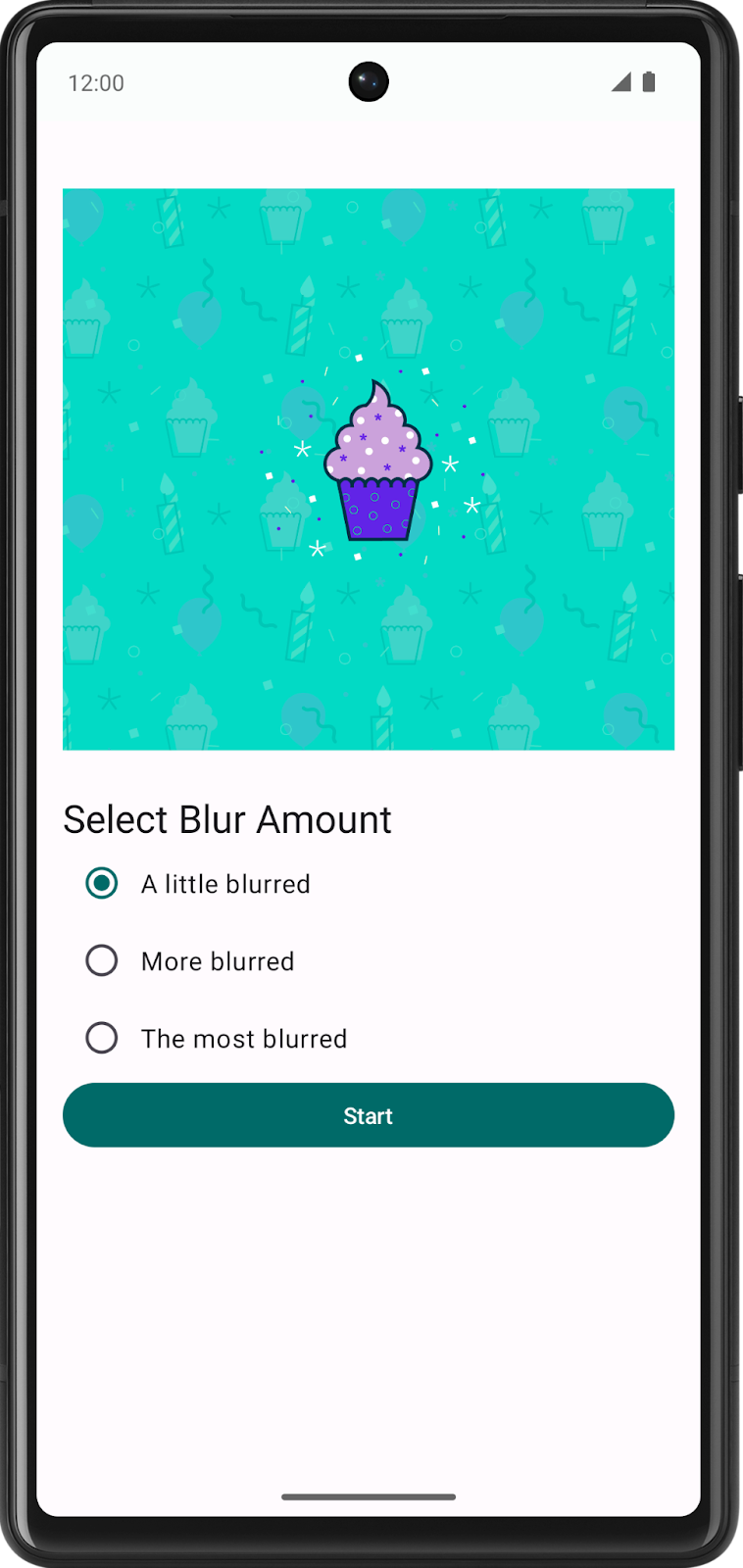
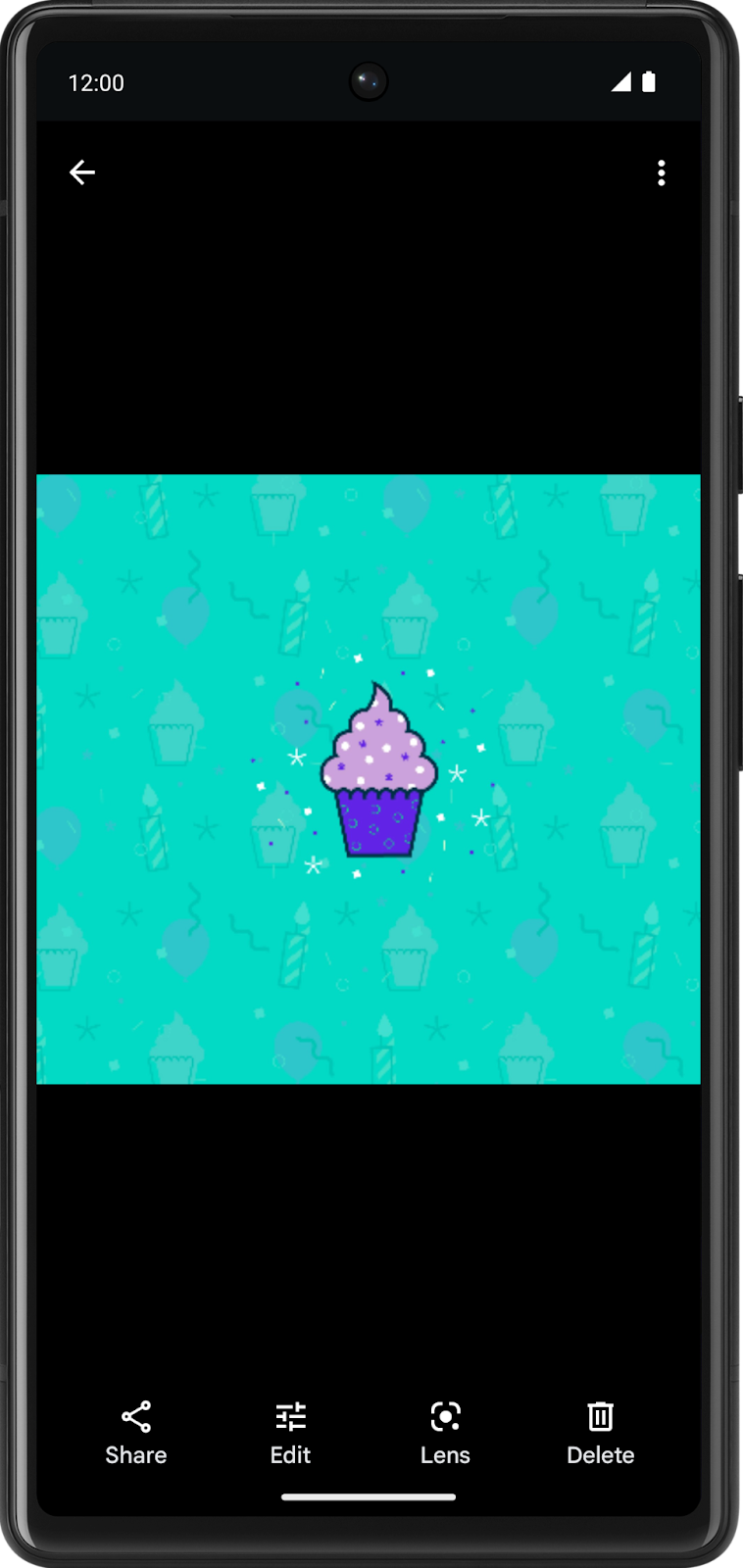
The screen has radio buttons where you can select how blurry you’d like your image to be. Right now, the app does nothing. In the final app, clicking the Start button blurs and saves the image.
Starter code: Blur-O-Matic app
Branch: starter
Clone:
$ git clone https://github.com/google-developer-training/basic-android-kotlin-compose-training-workmanager.git
$ cd basic-android-kotlin-compose-training-workmanager
$ git checkout starter
Open the project with the starter code in Android Studio. Run the app on an Android device or an emulator.
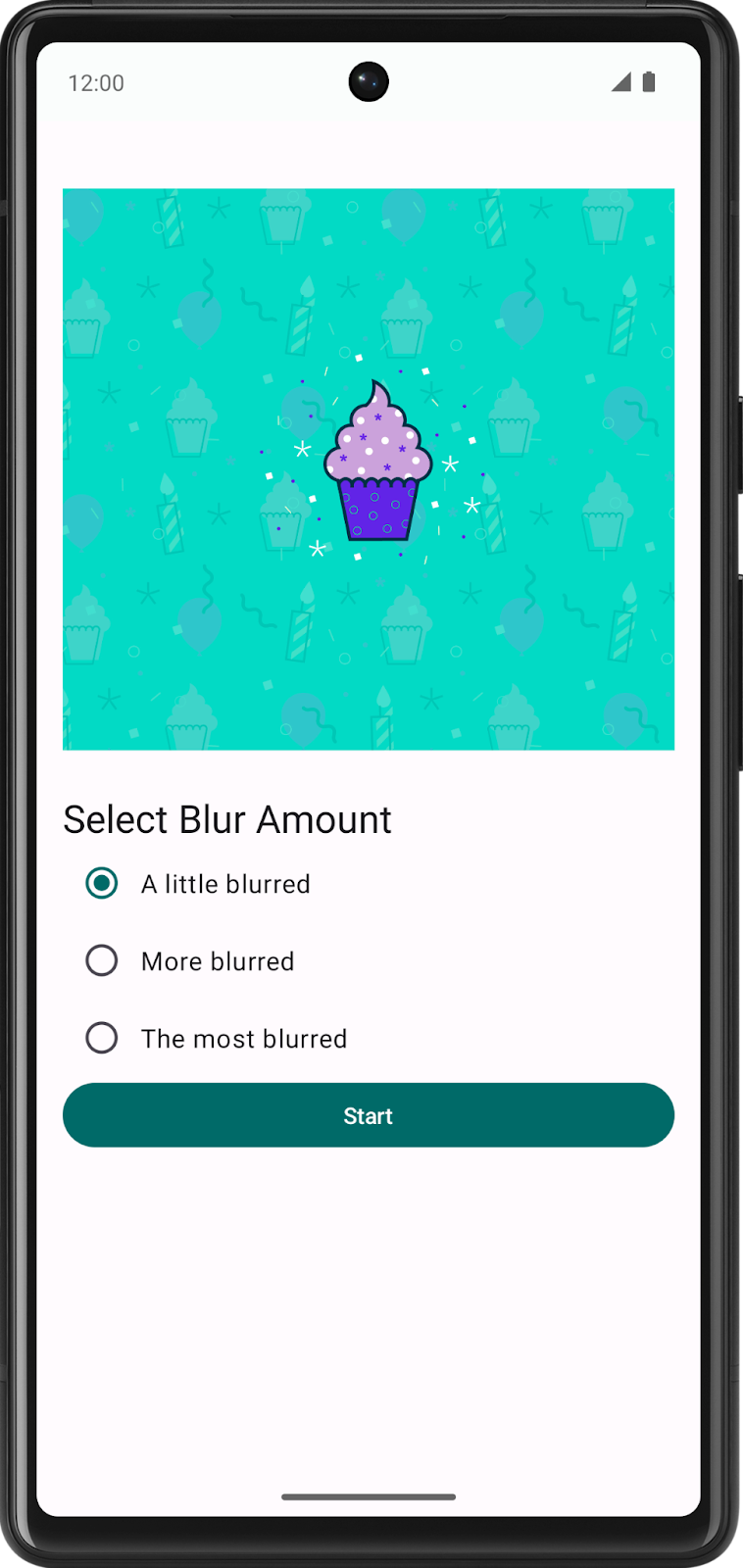
Right now, the app does nothing.
The app requires notifications to be enabled. Navigate to Android Settings > Apps > Blur-O-Matic > Notifications and enable All Blur-O-Matic notifications. This is required for the app to display notifications, like:
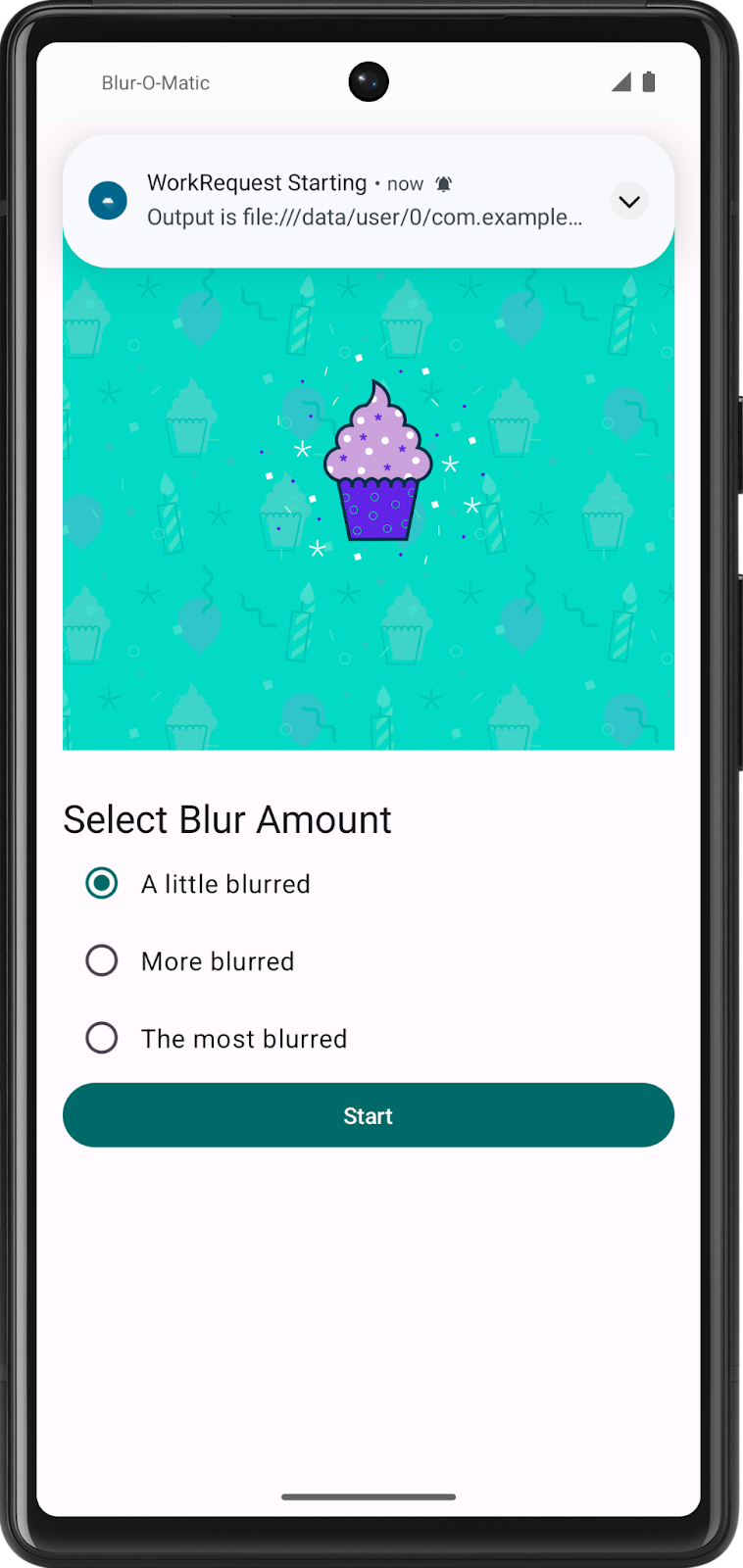
Here’s a walkthrough of the important files and folders in the project.
workers/WorkerUtils.kt: convenience methods which you later use to displayNotificationsand code to save a bitmap to file.ui/BlurViewModel.kt: this view model stores the state of the app and interacts with the repository.data/WorkManagerBluromaticRepository.kt: contains a class where you start the background work with WorkManager.Constants.kt: some constants you use during the codelab.ui/BluromaticScreen.kt: contains composable functions for the UI and interacts with theBlurViewModel. The composable functions show the image and include radio buttons to select the desired blur level.
What is WorkManager?
WorkManager is part of Android Jetpack and an Architecture Component. It is meant for background work that needs a combination of opportunistic and guaranteed execution. Opportunistic execution means that WorkManager does your background work as soon as it can. Guaranteed execution means that WorkManager takes care of the logic to start your work under a variety of situations, even if you navigate away from your app.
WorkManager is an incredibly flexible library that has many additional benefits. Some of these benefits include:
Support for both asynchronous one-off and periodic tasks.
Support for constraints, such as network conditions, storage space, and charging status.
Chaining of complex work requests, such as running work in parallel.
Output from one work request used as input for the next.
Handling API-level compatibility back to API level 14 (see note).
Working with or without Google Play services.
Following system health best practices.
Support to easily display state of work requests in the app’s UI.
Note
WorkManager sits on top of a few APIs, such as JobScheduler and AlarmManager. WorkManager picks the right APIs to use based on conditions like the user’s device API level. To learn more, check out Schedule tasks with WorkManager and the WorkManager documentation.
When to use WorkManager
The WorkManager library is a good choice for tasks that you need to complete. The running of these tasks is not dependent on the app continuing to run after the work is enqueued. The tasks run even if the app is closed or the user returns to the home screen.
Some examples of tasks that are a good use of WorkManager:
Periodically querying for latest news stories.
Applying filters to an image and then saving the image.
Periodically syncing local data with the network.
WorkManager is one option for running a task off of the main thread but it is not a catch-all for running every type of task off of the main thread. Coroutines are another option that we used previously.
More deets: Guide to background work.
WorkManager dependency
WorkManagerrequires this dependency, already included in the build file,app/build.gradle.kts:dependencies { // WorkManager dependency implementation("androidx.work:work-runtime-ktx:2.8.1") }
If the above version doesn’t work, try using the latest stable release version of
work-runtime-ktx. If you change the version, make sure to click Sync Now to sync your project with the updated gradle files.
WorkManager Basics
There are a few WorkManager classes you need to know about:
Worker/CoroutineWorker:Workeris a class that performs work synchronously on a background thread. As we are interested in asynchronous work, we can useCoroutineWorker, which is interoperable with Kotlin Coroutines. In this app, you extend from theCoroutineWorkerclass and override thedoWork()method. This method is where you put the code for the actual work you want to perform in the background.WorkRequest: This class represents a request to do some work. AWorkRequestis where you define if the worker needs to be run once or periodically. Constraints can also be placed on theWorkRequestthat require certain conditions are met before the work runs. One example is that the device is charging before starting the requested work. When creating theWorkRequest, theCoroutineWorkeris passed in.WorkManager: This class schedules theWorkRequestand makes it run. It schedules aWorkRequestin a way that spreads out the load on system resources, while honoring the constraints you specify.
For this app, the
BlurWorkerclass contains the code to blur an image. When the Start button is clicked, WorkManager creates and then enqueues aWorkRequestobject.
BlurWorker
BlurWorkeris a class that extendsCoroutineWorker. It contains the code to blur an image. It takes an image (res/drawable/android_cupcake.png, and blurs it in the background.Create a new file
workers/BlurWorker.kt, with this code:package com.example.bluromatic.workers import android.content.Context import android.graphics.BitmapFactory import android.net.Uri import android.util.Log import androidx.work.CoroutineWorker import androidx.work.WorkerParameters import androidx.work.workDataOf import com.example.bluromatic.DELAY_TIME_MILLIS import com.example.bluromatic.KEY_BLUR_LEVEL import com.example.bluromatic.KEY_IMAGE_URI import com.example.bluromatic.R import kotlinx.coroutines.Dispatchers import kotlinx.coroutines.delay import kotlinx.coroutines.withContext private const val TAG = "BlurWorker" class BlurWorker(ctx: Context, params: WorkerParameters) : CoroutineWorker(ctx, params) { override suspend fun doWork(): Result { val resourceUri = inputData.getString(KEY_IMAGE_URI) val blurLevel = inputData.getInt(KEY_BLUR_LEVEL, defaultValue = 1) makeStatusNotification( applicationContext.resources.getString(R.string.blurring_image), applicationContext ) return withContext(Dispatchers.IO) { // This is an utility function added to emulate slower work. delay(DELAY_TIME_MILLIS) return@withContext try { require(!resourceUri.isNullOrBlank()) { val errorMessage = applicationContext.resources.getString(R.string.invalid_input_uri) Log.e(TAG, errorMessage) errorMessage } val resolver = applicationContext.contentResolver val picture = BitmapFactory.decodeStream( resolver.openInputStream(Uri.parse(resourceUri)) ) val output = blurBitmap(picture, blurLevel) // Display a notification message to the user that contains the outputUri variable makeStatusNotification( "Output is $outputUri", applicationContext ) // Write bitmap to a temp file val outputUri = writeBitmapToFile(applicationContext, output) val outputData = workDataOf(KEY_IMAGE_URI to outputUri.toString()) Result.success(outputData) } catch (throwable: Throwable) { Log.e( TAG, applicationContext.resources.getString(R.string.error_applying_blur), throwable ) Result.failure() } } } }
The
class BlurWorkeris extended fromCoroutineWorker:class BlurWorker(ctx: Context, params: WorkerParameters) : CoroutineWorker(ctx, params) { }
The
BlurWorkerclass extends theCoroutineWorkerclass instead of the more generalWorkerclass. TheCoroutineWorkerclass implementation of thedoWork()is a suspending function, which lets it run asynchronous code that aWorkercannot do. As detailed in the guide Threading in WorkManager, “CoroutineWorker is the recommended implementation for Kotlin users.”To better see when work executes, the
makeStatusNotification()function displays a status notification banner on top of the screen, whenever the blur worker has started and is blurring the image:override suspend fun doWork(): Result { makeStatusNotification( applicationContext.resources.getString(R.string.blurring_image), applicationContext )
The
return try...catchcode block is where the actual blur image work is performed.Result.success()andResult.failure()are used to indicate the final status of the work request.If an error occured, the
catchblock logs an error message:} catch (throwable: Throwable) { Log.e( TAG, applicationContext.resources.getString(R.string.error_applying_blur), throwable ) Result.failure() }
Using
withContext(Dispatchers.IO)makes the lambda function run in a special thread pool for potentially blocking Input/Output operations:return withContext(Dispatchers.IO) { return@withContext try { // ... } catch (throwable: Throwable) { // ... } }
return@withContext tryin the above code means that thereturn“belongs” towithContext, not todoWork(). Without@withContext, this error occurs: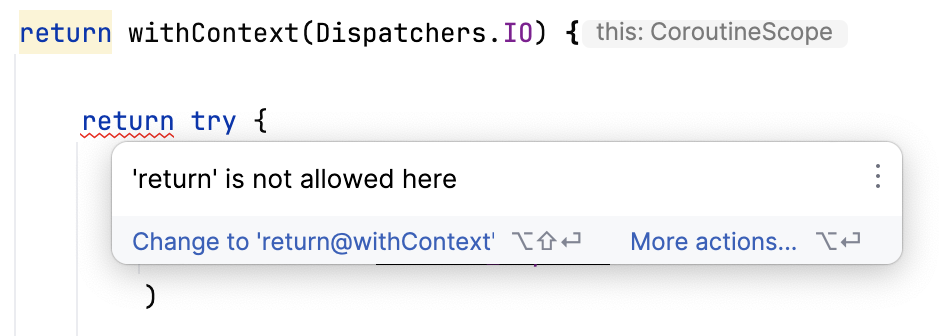
Because this Worker runs very quickly, a delay is added in the code to emulate slower running work, so that we can see the effect of doing work more visibly:
// This is an utility function added to emulate slower work.
delay(DELAY_TIME_MILLIS)
That’s all we need to know for now, we’ll revisit this file later to explain the rest of the code.
CleanupWorker
BlurWorkercreates some temporary files. These temporary files need to be cleaned up. That’sCleanupWorker’s job. It deletes the temporary files, if they exist.CleanupWorkerwill do this work before anything else happens.Note
The temporary files are stored in
/data/user/0/com.example.bluromatic/files/blur_filter_outputs/Create a new file,
workers/CleanupWorker.kt, with this code. This code is out of scope of this mod, just understand that it helps to clean up the temporary files.package com.example.bluromatic.workers import android.content.Context import android.util.Log import androidx.work.CoroutineWorker import androidx.work.WorkerParameters import com.example.bluromatic.DELAY_TIME_MILLIS import com.example.bluromatic.OUTPUT_PATH import com.example.bluromatic.R import kotlinx.coroutines.Dispatchers import kotlinx.coroutines.delay import kotlinx.coroutines.withContext import java.io.File /** * Cleans up temporary files generated during blurring process */ private const val TAG = "CleanupWorker" class CleanupWorker(ctx: Context, params: WorkerParameters) : CoroutineWorker(ctx, params) { override suspend fun doWork(): Result { /** Makes a notification when the work starts and slows down the work so that it's easier * to see each WorkRequest start, even on emulated devices */ makeStatusNotification( applicationContext.resources.getString(R.string.cleaning_up_files), applicationContext ) return withContext(Dispatchers.IO) { delay(DELAY_TIME_MILLIS) return@withContext try { val outputDirectory = File(applicationContext.filesDir, OUTPUT_PATH) if (outputDirectory.exists()) { val entries = outputDirectory.listFiles() if (entries != null) { for (entry in entries) { val name = entry.name if (name.isNotEmpty() && name.endsWith(".png")) { val deleted = entry.delete() Log.i(TAG, "Deleted $name - $deleted") } } } } Result.success() } catch (exception: Exception) { Log.e( TAG, applicationContext.resources.getString(R.string.error_cleaning_file), exception ) Result.failure() } } } }
SaveImageToFileWorker
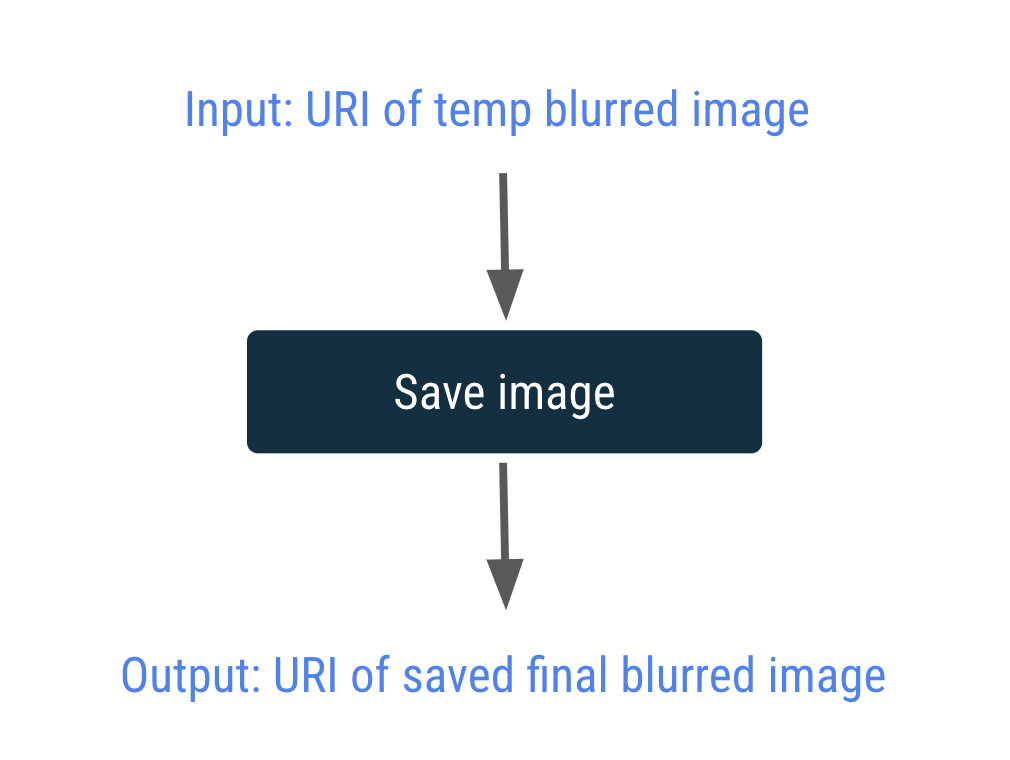
The
SaveImageToFileWorkersaves the blurred image to an output file.Input: the URI of the temporarily blurred image, which is
/data/user/0/com.example.bluromatic/files/blur_filter_outputs/blur-filter-output-{sth-sth}.pngOutput: the URI of the saved blurred image, which is
/storage/emulated/0/Pictures/Blurred Image.jpg
Create a new file,
workers/SaveImageToFileWorker.kt, with this code. This code is out of scope of this mod, just understand that it saves the image to a file on the phone.package com.example.bluromatic.workers import android.content.Context import android.graphics.BitmapFactory import android.net.Uri import android.provider.MediaStore import android.util.Log import androidx.work.CoroutineWorker import androidx.work.WorkerParameters import androidx.work.workDataOf import com.example.bluromatic.DELAY_TIME_MILLIS import com.example.bluromatic.KEY_IMAGE_URI import com.example.bluromatic.R import kotlinx.coroutines.Dispatchers import kotlinx.coroutines.delay import kotlinx.coroutines.withContext import java.text.SimpleDateFormat import java.util.Locale import java.util.Date /** * Saves the image to a permanent file */ private const val TAG = "SaveImageToFileWorker" class SaveImageToFileWorker(ctx: Context, params: WorkerParameters) : CoroutineWorker(ctx, params) { private val title = "Blurred Image" private val dateFormatter = SimpleDateFormat( "yyyy.MM.dd 'at' HH:mm:ss z", Locale.getDefault() ) override suspend fun doWork(): Result { // Makes a notification when the work starts and slows down the work so that // it's easier to see each WorkRequest start, even on emulated devices makeStatusNotification( applicationContext.resources.getString(R.string.saving_image), applicationContext ) return withContext(Dispatchers.IO) { delay(DELAY_TIME_MILLIS) val resolver = applicationContext.contentResolver return@withContext try { val resourceUri = inputData.getString(KEY_IMAGE_URI) val bitmap = BitmapFactory.decodeStream( resolver.openInputStream(Uri.parse(resourceUri)) ) @Suppress("DEPRECATION") val imageUrl = MediaStore.Images.Media.insertImage( resolver, bitmap, title, dateFormatter.format(Date()) ) if (!imageUrl.isNullOrEmpty()) { val output = workDataOf(KEY_IMAGE_URI to imageUrl) Result.success(output) } else { Log.e( TAG, applicationContext.resources.getString(R.string.writing_to_mediaStore_failed) ) Result.failure() } } catch (exception: Exception) { Log.e( TAG, applicationContext.resources.getString(R.string.error_saving_image), exception ) Result.failure() } } } }
Note
The provided code for the
CleanupWorkerworker and theSaveImageToFileWorkerworker each include the statementdelay(DELAY_TIME_MILLIS). This code slows the worker down while it is running. This code was included for instructional purposes so you can more easily see the workers running in the Background Task Inspector and to also provide a brief pause between notification messages. You do not normally use this code in production code.
WorkManagerBluromaticRepository
The repository handles all interactions with the WorkManager. This structure adheres to the design principle of separation of concerns and is a recommended Android architecture pattern.
In
data/WorkManagerBluromaticRepository.kt, replace the contents with this code:package com.example.bluromatic.data import android.content.Context import android.net.Uri import androidx.work.Data import androidx.work.OneTimeWorkRequest import androidx.work.OneTimeWorkRequestBuilder import androidx.work.WorkInfo import androidx.work.WorkManager import com.example.bluromatic.KEY_BLUR_LEVEL import com.example.bluromatic.KEY_IMAGE_URI import com.example.bluromatic.getImageUri import com.example.bluromatic.workers.BlurWorker import com.example.bluromatic.workers.CleanupWorker import com.example.bluromatic.workers.SaveImageToFileWorker import kotlinx.coroutines.flow.Flow import kotlinx.coroutines.flow.MutableStateFlow class WorkManagerBluromaticRepository(context: Context) : BluromaticRepository { private var imageUri: Uri = context.getImageUri() private val workManager = WorkManager.getInstance(context) override val outputWorkInfo: Flow<WorkInfo?> = MutableStateFlow(null) /** * Create the WorkRequests to apply the blur and save the resulting image * @param blurLevel The amount to blur the image */ override fun applyBlur(blurLevel: Int) { // Add WorkRequest to Cleanup temporary images var continuation = workManager.beginWith(OneTimeWorkRequest.from(CleanupWorker::class.java)) // Add WorkRequest to blur the image val blurBuilder = OneTimeWorkRequestBuilder<BlurWorker>() // Input the Uri for the blur operation along with the blur level blurBuilder.setInputData(createInputDataForWorkRequest(blurLevel, imageUri)) continuation = continuation.then(blurBuilder.build()) // Add WorkRequest to save the image to the filesystem val save = OneTimeWorkRequestBuilder<SaveImageToFileWorker>() .build() continuation = continuation.then(save) // Actually start the work continuation.enqueue() } /**! * Cancel any ongoing WorkRequests * */ override fun cancelWork() {} /** * Creates the input data bundle which includes the blur level to * update the amount of blur to be applied and the Uri to operate on * @return Data which contains the Image Uri as a String and blur level as an Integer */ private fun createInputDataForWorkRequest(blurLevel: Int, imageUri: Uri): Data { val builder = Data.Builder() builder.putString(KEY_IMAGE_URI, imageUri.toString()).putInt(KEY_BLUR_LEVEL, blurLevel) return builder.build() } }
This code gets the URI for the cupcake image. The URI is hard-coded inside
BlurActivity.kt: Context.getImageUri(). The URI isandroid.resource://com.example.bluromatic/drawable/android_cupcake.private var imageUri: Uri = context.getImageUri()
This code gets a
WorkManagerinstance:private val workManager = WorkManager.getInstance(context)
We’ll make some
WorkRequests and tellWorkManagerto run them. There are two types ofWorkRequests:OneTimeWorkRequest: AWorkRequestthat only executes once.PeriodicWorkRequest: AWorkRequestthat executes repeatedly on a cycle.
We use a WorkManager chain of work to chain multiple workers together. WorkManager lets us create separate
WorkerRequestthat run sequentially, or in parallel.In
applyBlur(), the chain of work looks like the following. A box represents aWorkRequest.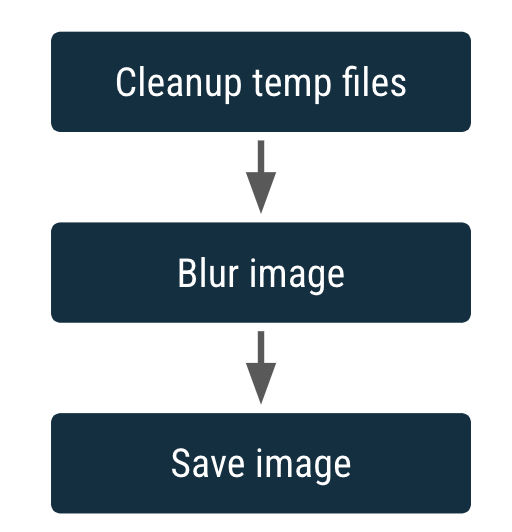
Another feature of chaining is its ability to accept input and produce output. The output of one
WorkRequestbecomes the input of the nextWorkRequestin the chain.In
applyBlur()the first work request in the chain is to clean up the temporary files:var continuation = workManager.beginWith(OneTimeWorkRequest.from(CleanupWorker::class.java))
Note
These 2 are equivalent:
OneTimeWorkRequest.from(CleanupWorker::class.java)OneTimeWorkRequestBuilder<CleanupWorker>().build()
Class
OneTimeWorkRequestcomes from the AndroidX Work library whileOneTimeWorkRequestBuilderis a helper function provided by the WorkManager KTX extension. Either of them can be used to createOneTimeWorkRequests.Calling
beginWith()returns aWorkContinuationobject, and creates the starting point for a chain ofWorkRequests.The next work in the chain is to blur the image:
// Add WorkRequest to blur the image
val blurBuilder = OneTimeWorkRequestBuilder<BlurWorker>()

// Input the Uri for the blur operation along with the blur level
blurBuilder.setInputData(createInputDataForWorkRequest(blurLevel, imageUri))

continuation = continuation.then(blurBuilder.build())
continuation.then(blurBuilder.build())adds theblurBuilderwork request to the chain.Finally, this is the last work request in the chain:
// Add WorkRequest to save the image to the filesystem
val save = OneTimeWorkRequestBuilder<SaveImageToFileWorker>()
    .build()
continuation = continuation.then(save)
To start the work, call
continuation.enqueue():continuation.enqueue()
This results in:
a
CleanupWorkerWorkRequest, followed bya
BlurWorkerWorkRequest, followed bya
SaveImageToFileWorkerWorkRequest
Input data and output data
Input and output are passed in and out of a worker via
Dataobjects.Dataobjects are lightweight containers for key/value pairs. They are meant to store a small amount of data that might pass into and out of a worker from theWorkRequest.In
class WorkManagerBluromaticRepository, this function creates aDataobject:// For reference - already exists in the app private fun createInputDataForWorkRequest(blurLevel: Int, imageUri: Uri): Data { val builder = Data.Builder() builder.putString(KEY_IMAGE_URI, imageUri.toString()).putInt(BLUR_LEVEL, blurLevel) return builder.build() }
The returned
Dataobject contains 2 key-value pairs:KEY_IMAGE_URI ➜ imageUri.toString()
BLUR_LEVEL ➜ blurLevel
To set the input data object for the
WorkRequest:// Input the Uri for the blur operation along with the blur level blurBuilder.setInputData(createInputDataForWorkRequest(blurLevel, imageUri))
In
BlurWorker.kt, thedoWork()method gets the key-value pairs from the input data object. For the blur level, if there was no key found, it defaults to 1.val resourceUri = inputData.getString(KEY_IMAGE_URI) val blurLevel = inputData.getInt(KEY_BLUR_LEVEL, defaultValue = 1)
The
resourceUrivariable must be populated. If it isn’t, throw an exception. That’s handled by thisrequire():return@withContext try { require(!resourceUri.isNullOrBlank()) { val errorMessage = applicationContext.resources.getString(R.string.invalid_input_uri) Log.e(TAG, errorMessage) errorMessage }
Since the image source is passed in as a URI, we need a ContentResolver object to read the contents pointed to by the URI. Analogy: a URL like https://issa.me/pic.jpg points to an image file (the content).
val resolver = applicationContext.contentResolver
BitmapFactory.decodeStream()is used to create the Bitmap object:val picture = BitmapFactory.decodeStream( resolver.openInputStream(Uri.parse(resourceUri)) )
BlurWorkerreturns an output URI as an output data object inResult.success(), so that other workers can use it.val outputData = workDataOf(KEY_IMAGE_URI to outputUri.toString()) Result.success(outputData)
workDataOf()converts a list of pairs to aDataobject.

Run the app
Run the app.
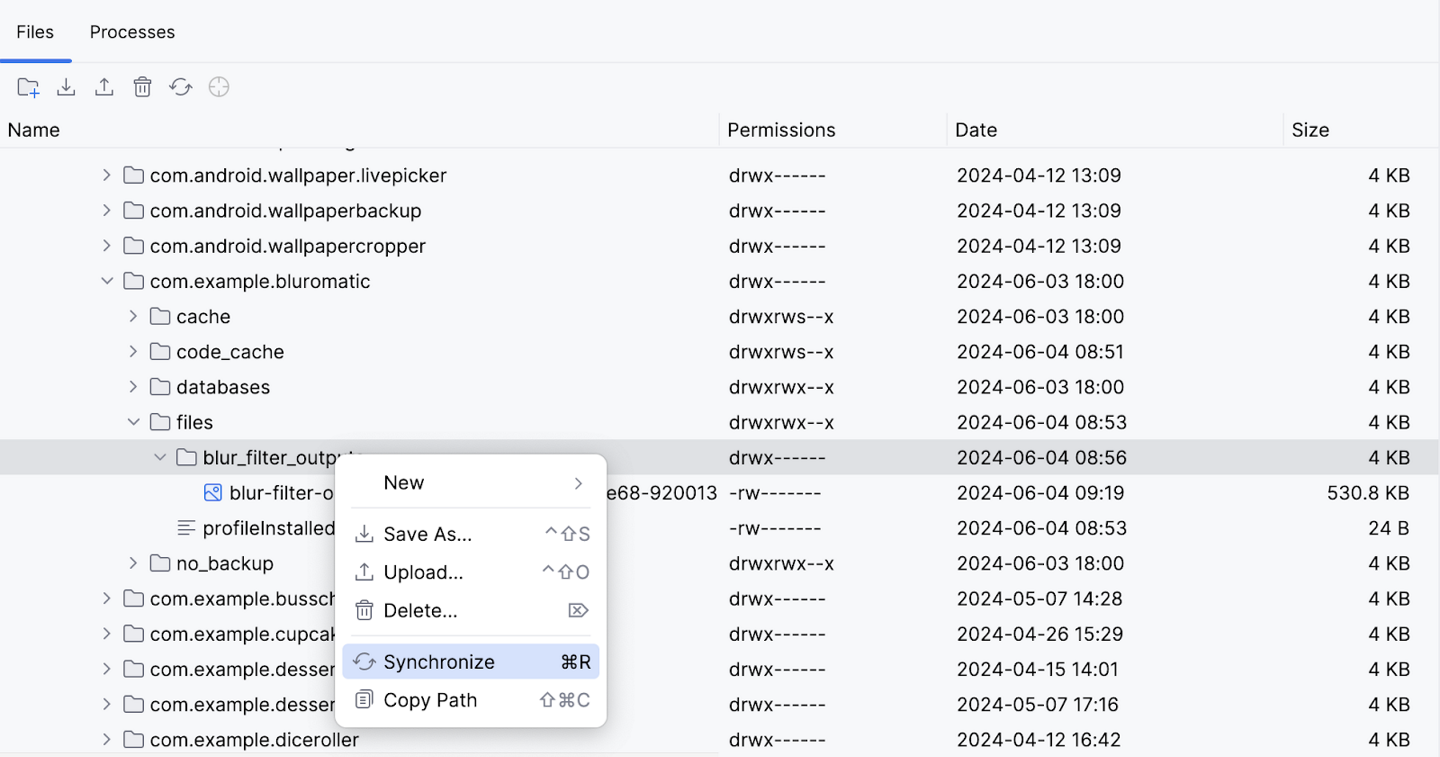
You are now able to click Start and see notifications when the different workers execute. For now, the blurred image doesn’t display on the screen, but it’s there in the Device Explorer, at /storage/emulated/0/Pictures/Blurred Image.jpg.
You might need to Synchronize to see your images:
The notification messages display which worker is currently running.
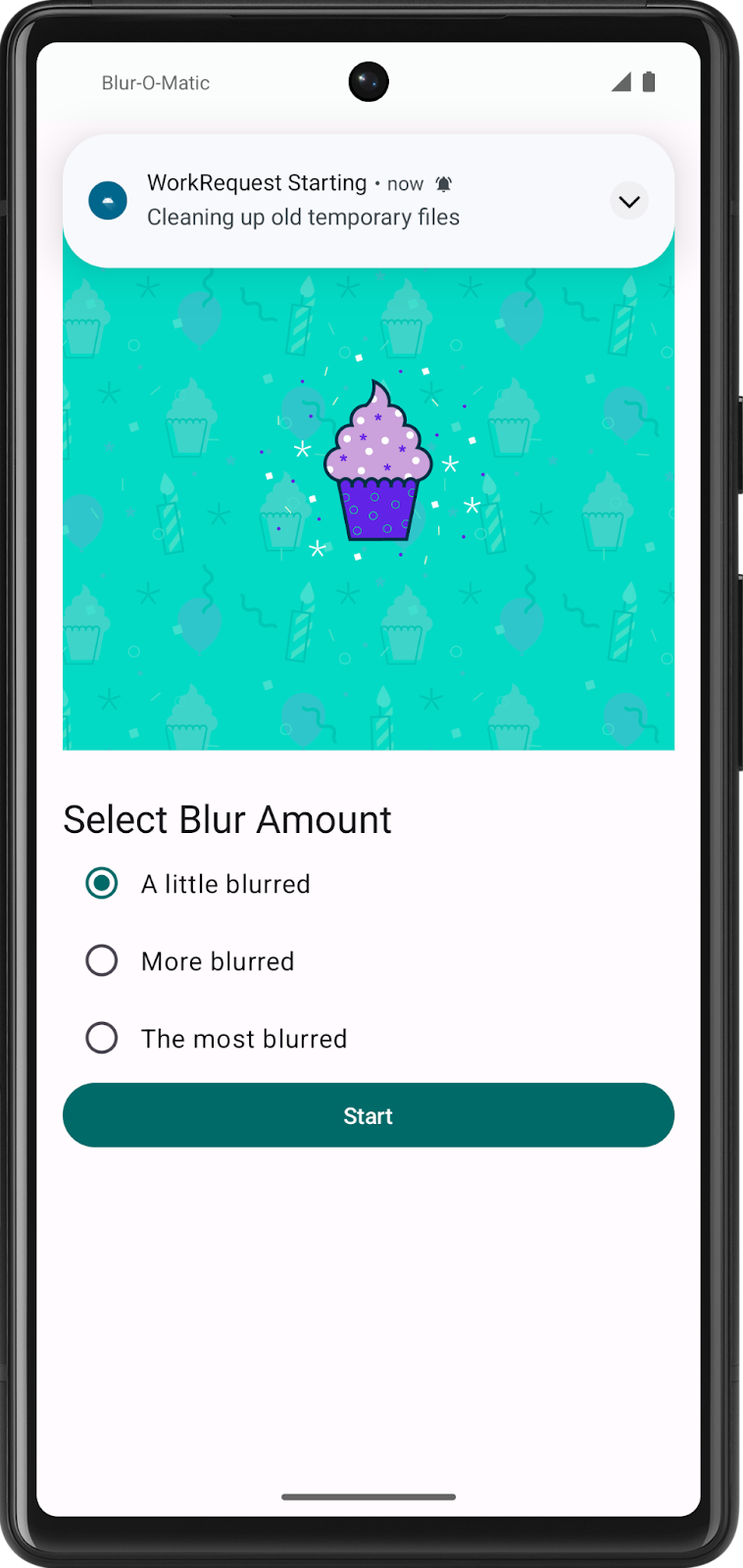
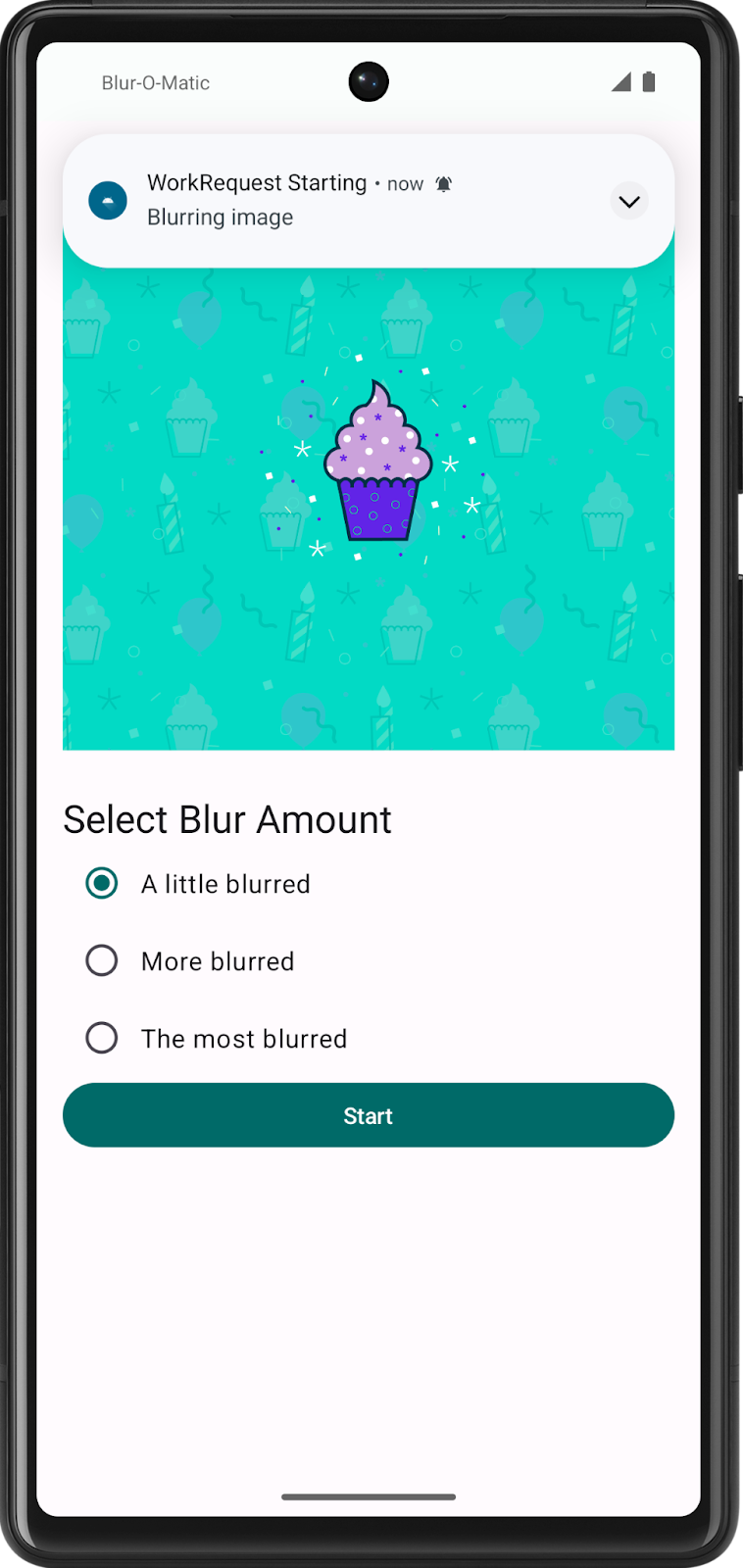
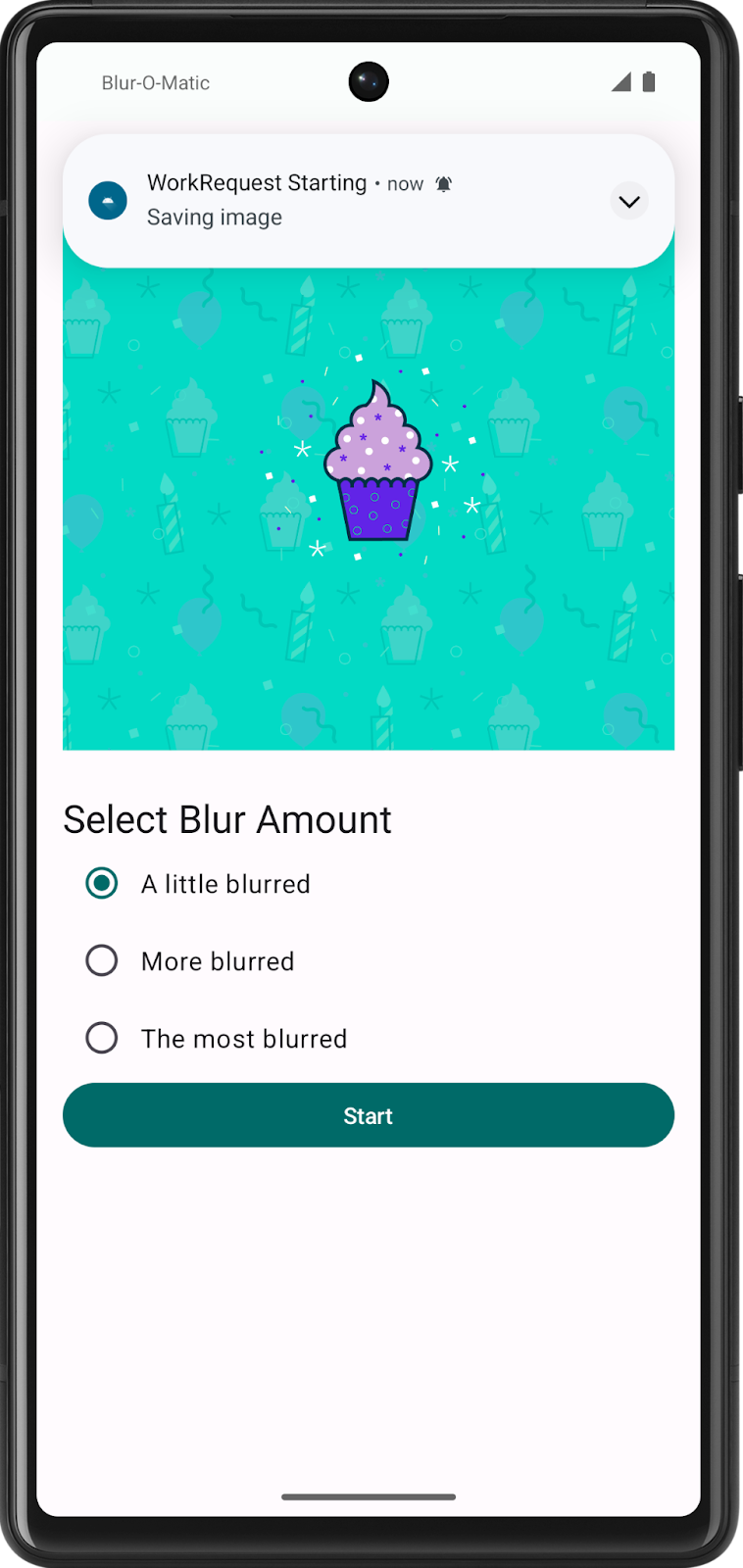
Note
In case you observe a LogCat error message Writing to MediaStore failed, or there was some error related to saving the image to a file:
Clear the app’s cache and storage
Wipe the emulator data (make sure it’s the emulator, not a real device)
Solution code
Branch: intermediate
Clone:
$ git clone https://github.com/google-developer-training/basic-android-kotlin-compose-training-workmanager.git
$ cd basic-android-kotlin-compose-training-workmanager
$ git checkout intermediate
Blur-o-matic app v2
Starter code: Blur-o-matic app v2
Branch: intermediate
$ git clone https://github.com/google-developer-training/basic-android-kotlin-compose-training-workmanager.git
$ cd basic-android-kotlin-compose-training-workmanager
$ git checkout intermediate
Ensure unique work
Now that you know how to chain workers, it’s time to tackle another powerful feature of WorkManager: unique work sequences.
Sometimes, you only want one chain of work to run at a time. For example, perhaps you have a work chain that syncs your local data with the server. You probably want the first data sync to complete before starting a new one. To do this, you use
beginUniqueWork()instead ofbeginWith(), and you provide a uniqueStringname. This input names the entire chain of work requests so that you can refer to and query them together.You also need to pass in an
ExistingWorkPolicyobject. This object tells the Android OS what happens if the work already exists. PossibleExistingWorkPolicyvalues areREPLACE,KEEP,APPEND, orAPPEND_OR_REPLACE.In this app, you want to use
REPLACE, because if a user decides to blur another image before the current one finishes, you want to stop the current one and start blurring the new image. If a user clicks Start when a work request is already enqueued, then the app replaces the previous work request with the new request. It does not make sense to continue working on the previous request because the new request will override the previous one anyway.In
data/WorkManagerBluromaticRepository.kt, inside theapplyBlur()method, replace the call tobeginWith()with this code:// REPLACE THIS CODE: // var continuation = workManager.beginWith(OneTimeWorkRequest.from(CleanupWorker::class.java)) // WITH var continuation = workManager .beginUniqueWork( IMAGE_MANIPULATION_WORK_NAME, ExistingWorkPolicy.REPLACE, OneTimeWorkRequest.from(CleanupWorker::class.java) )
imports
import androidx.work.ExistingWorkPolicy
import com.example.bluromatic.IMAGE_MANIPULATION_WORK_NAME
Blur-O-Matic now only blurs one image at a time.
Tag and update the UI based on Work status
Note
If the app goes into an invalid state (e.g. shows “Cancel Work” upon start up), it might help to:
Clear the app’s cache and storage
Wipe the emulator data (make sure it’s the emulator, not a real device)
Next, change what the app displays when the Work executes. Get information about the enqueued work to determine what the UI displays.
There are 3 different methods to get work information:
Type
WorkManager Method
Description
Get work using id
getWorkInfoByIdLiveData()This function returns a single
LiveData<WorkInfo>for a specificWorkRequestby its ID.Get work using unique chain name
getWorkInfosForUniqueWorkLiveData()This function returns
LiveData<List<WorkInfo>>for all work in a unique chain ofWorkRequests.Get work using a tag
getWorkInfosByTagLiveData()This function returns the
LiveData<List<WorkInfo>>for a tag.Note
WorkManager exposes some APIs as
LiveData. We use theLiveDataAPIs but convert and use them as a flow.A
WorkInfoobject contains details about the current state of aWorkRequest, including:whether the work is
BLOCKED,CANCELLED,ENQUEUED,FAILED,RUNNING, orSUCCEEDED.if the
WorkRequestis finished.any output data from the work.
These methods return LiveData.
LiveDatais a lifecycle-aware observable data holder. We convert it into aFlowofWorkInfoobjects by calling.asFlow().Because you are interested in when the final image saves, you add a tag to the
SaveImageToFileWorkerWorkRequestso that you can get itsWorkInfofrom thegetWorkInfosByTagLiveData()method.Another option is to use the
getWorkInfosForUniqueWorkLiveData()method, which returns information about all three WorkRequests (CleanupWorker,BlurWorker, andSaveImageToFileWorker). The downside to this method is that you need additional code to specifically find the necessarySaveImageToFileWorkerinformation.
Tag the work request
Tagging the work is done in
applyBlur():val save = OneTimeWorkRequestBuilder<SaveImageToFileWorker>() .addTag(TAG_OUTPUT) // <--- Add this .build()
imports
import com.example.bluromatic.TAG_OUTPUT
Get the WorkInfo
Use the
WorkInfoinformation, from theSaveImageToFileWorkerwork request, to decide which composables to display in the UI based on theBlurUiState.The ViewModel consumes this information from the repository’s
outputWorkInfovariable.The
SaveImageToFileWorkerwork request has been tagged. To retrieve its information, indata/WorkManagerBluromaticRepository.kt, add this code:override val outputWorkInfo: Flow<WorkInfo> = workManager.getWorkInfosByTagLiveData(TAG_OUTPUT).asFlow().mapNotNull { if (it.isNotEmpty()) it.first() else null }
getWorkInfosByTagLiveData()returnsLiveData<List<WorkInfo>>. The.asFlow()function converts it to aFlow<List<WorkInfo>>..mapNotNull()ensures that the Flow contains values. How? The lambda checks if the Flow is empty. If yes, then it returns null, andmapNotNull()removes it. This guarantees that a value exists.In
data/BluromaticRepository.kt, make this change since a value is guaranteed to exist:interface BluromaticRepository { // val outputWorkInfo: Flow<WorkInfo?> // <--- delete val outputWorkInfo: Flow<WorkInfo> // <--- addThe
WorkInfoinformation is emitted as aFlowfrom the repository. TheViewModelthen consumes it.
Update the BlurUiState
The
ViewModeluses theWorkInfoemitted by the repository from theoutputWorkInfoFlow to set the value of theblurUiStatevariable.The UI code uses the
blurUiStatevariable to determine which composables to display.In
ui/BlurViewModel.kt, change this code:// REMOVE // val blurUiState: StateFlow<BlurUiState> = MutableStateFlow(BlurUiState.Default) // ADD val blurUiState: StateFlow<BlurUiState> = bluromaticRepository.outputWorkInfo .map { info -> val outputImageUri = info.outputData.getString(KEY_IMAGE_URI) when { info.state.isFinished && !outputImageUri.isNullOrEmpty() -> { BlurUiState.Complete(outputUri = outputImageUri) } info.state == WorkInfo.State.CANCELLED -> { BlurUiState.Default } else -> BlurUiState.Loading } }.stateIn( scope = viewModelScope, started = SharingStarted.WhileSubscribed(5_000), initialValue = BlurUiState.Default )
imports
import androidx.work.WorkInfo
import kotlinx.coroutines.flow.map
import kotlinx.coroutines.flow.stateIn
import androidx.lifecycle.viewModelScope
import kotlinx.coroutines.flow.SharingStarted
outputImageUri = info.outputData.getString(KEY_IMAGE_URI)checks whether the worker has finished. IfoutputImageUriis populated, it indicates that a blurred image exists to display.The
.map {}maps values in the Flow to theBlurUiStatestates, depending on the status of the work.When the work is finished, set the
blurUiStatevariable toBlurUiState.Complete(outputUri = outputImageUri).When the work is cancelled, set the
blurUiStatevariable toBlurUiState.Default.Otherwise, set the
blurUiStatevariable toBlurUiState.Loading.
The
stateIn()converts theFlowto aStateFlow. It has 3 parameters:scope = viewModelScope: the coroutine scope tied to the ViewModel.started = SharingStarted.WhileSubscribed(5_000): controls when sharing starts and stops.initialValue = BlurUiState.Default: initial value of the state flow.
Summary of this code:
The
ViewModelgetsWorkInfoinformation from theSaveImageToFileWorkerwork request, to decide the UI state.The
ViewModelexposes the UI state information as aStateFlowthrough theblurUiStatevariable.stateIn()converts the coldFlowto a hotStateFlow.
Note
“cold” means the flow doesn’t emit values until someone collects them
“hot” means the flow emits values regardless of whether someone collects them or not
Update the UI
Recap:
The work request has been tagged
The ViewModel can get work information from the work request, and update the UI state
Next, the UI has to get the latest UI state, and update the UI elements.
In
ui/BluromaticScreen.kt, remove theButton(), and add this code:Row( modifier = modifier, horizontalArrangement = Arrangement.Center ) { // REMOVE // Button( // onClick = onStartClick, // modifier = Modifier.fillMaxWidth() // ) { // Text(stringResource(R.string.start)) // } // ADD when (blurUiState) { is BlurUiState.Default -> { Button(onStartClick) { Text(stringResource(R.string.start)) } } is BlurUiState.Loading -> { FilledTonalButton(onCancelClick) { Text(stringResource(R.string.cancel_work)) } CircularProgressIndicator(modifier = Modifier.padding(dimensionResource(R.dimen.padding_small))) } is BlurUiState.Complete -> { Button(onStartClick) { Text(stringResource(R.string.start)) } Spacer(modifier = Modifier.width(dimensionResource(R.dimen.padding_small))) FilledTonalButton({ onSeeFileClick(blurUiState.outputUri) }) { Text(stringResource(R.string.see_file)) } } } }
imports
import androidx.compose.material3.CircularProgressIndicator
import androidx.compose.material3.FilledTonalButton
A
whenblock controls the app’s UI. It has a branch for each of the threeBlurUiStatestates:When the app first opens,
BlurUiState == BlurUiState.Default. The app shows the Start button.When the app is actively blurring an image,
BlurUiState == BlurUiState.Loading. For this state, the app shows the Cancel Work button, and a circular progress indicator.When the app has just saved an image,
BlurUiState == BlurUiState.Complete. The app displays the Start and See File buttons.
In
BluromaticScreenContent(), add this handler foronSeeFileClick. The purpose of this function is to display the saved image from its URI. It calls theshowBlurredImage()helper function and passes in the URI. The helper function creates an intent and uses it to start a new activity to show the saved image.BlurActions( blurUiState = blurUiState, onStartClick = { applyBlur(selectedValue) }, onSeeFileClick = { currentUri -> showBlurredImage(context, currentUri) }, onCancelClick = { cancelWork() }, modifier = Modifier.fillMaxWidth() )
Run the app again
Run the app and click Start.
To see how the various states correspond to the UI being displayed, View > Tool Windows > App Inspection > Select the Background Task Inspector tab.
Note
In case some Workers have a Failed status:
Clear the app’s cache and storage
Wipe the emulator data (make sure it’s the emulator, not a real device)
The
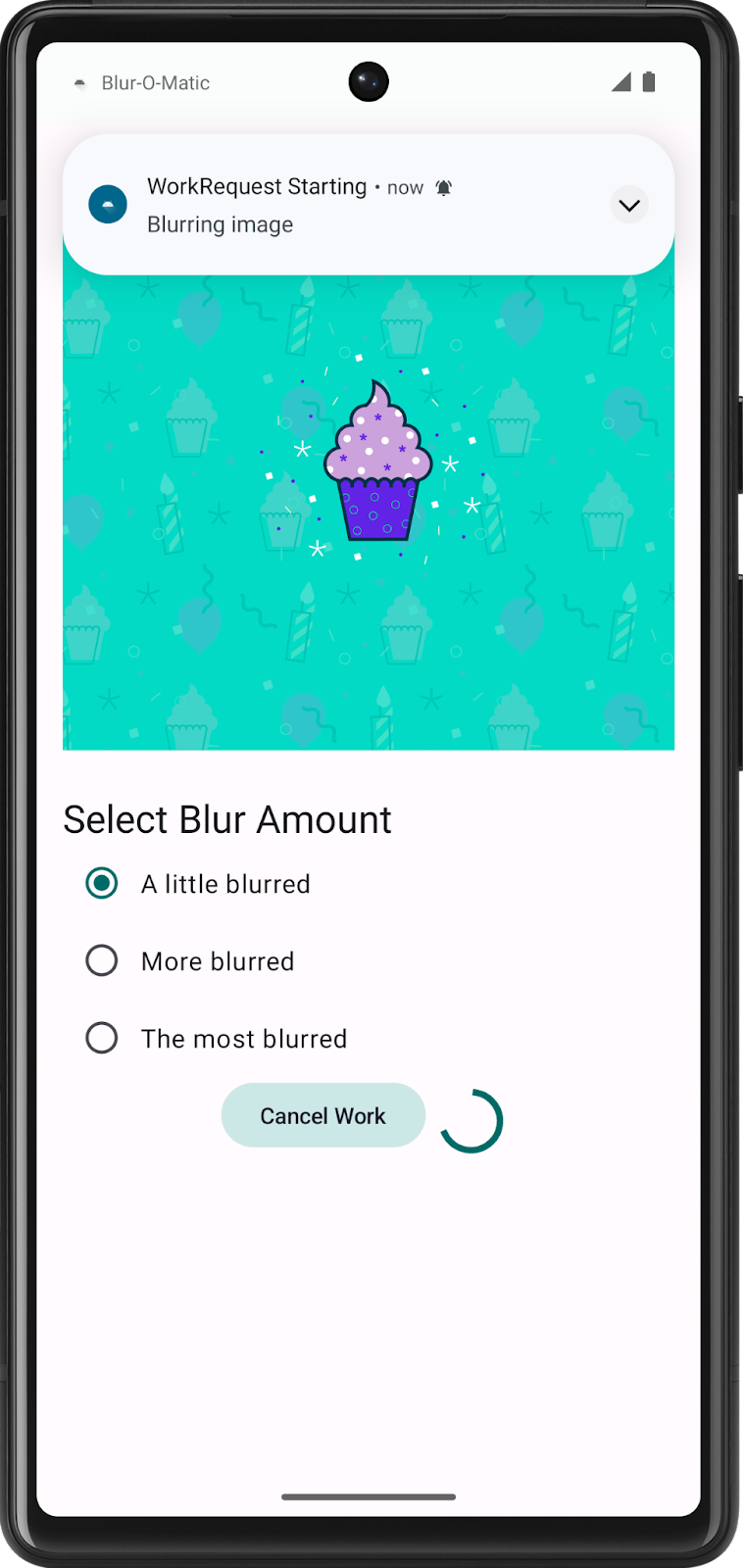
SystemJobServiceis the component responsible for managing Worker executions.While the workers are running, the UI shows the Cancel Work button and a circular progress indicator. Clicking on Cancel Work does nothing for now.
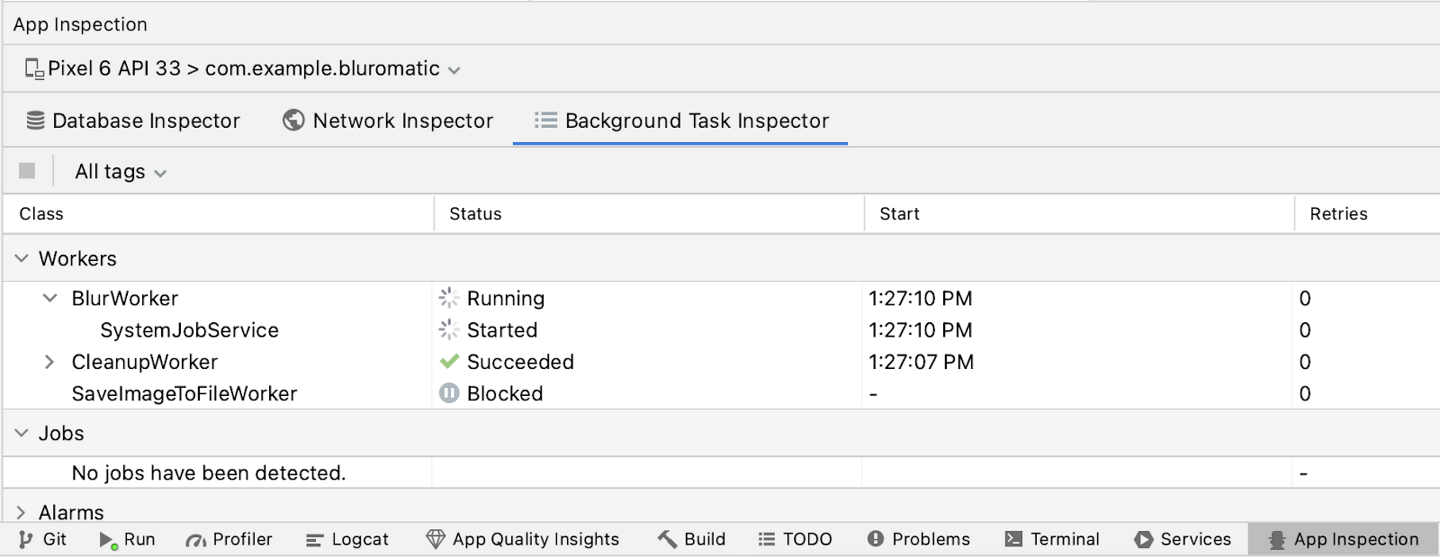
After the workers finish, the UI updates to show the Start and See File buttons:
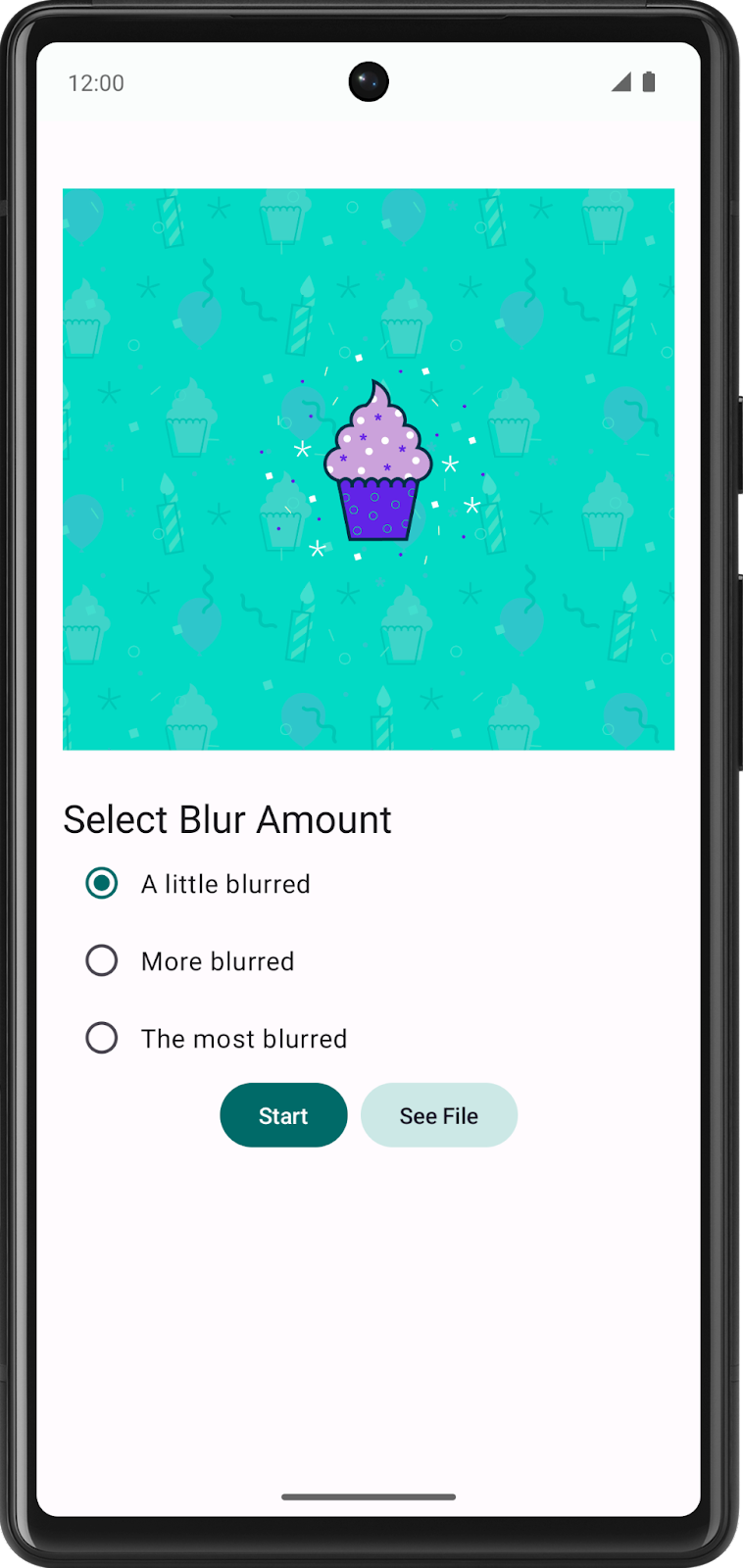
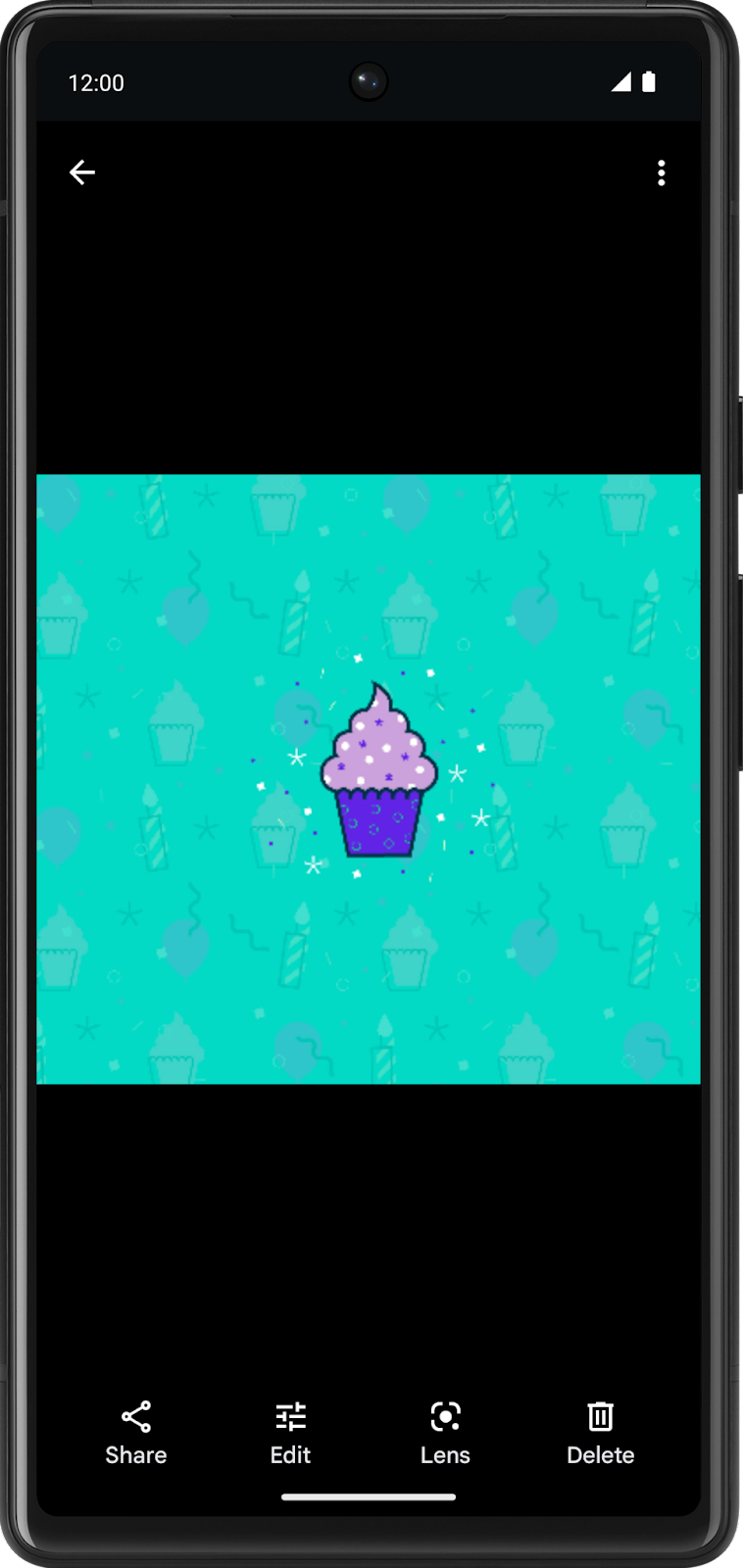
Cancel work
Previously, you added the Cancel Work button, so now you can add the code to make it do something. With WorkManager, you can cancel work using the id, tag, and unique chain name.
In this case, you want to cancel work with its unique chain name because you want to cancel all work in the chain, not just a particular step.
Cancel the work by name
In
data/WorkManagerBluromaticRepository.kt, modify thecancelWork()function:override fun cancelWork() { workManager.cancelUniqueWork(IMAGE_MANIPULATION_WORK_NAME) }
This will cancel only scheduled work with the unique chain name
IMAGE_MANIPULATION_WORK_NAMEFollowing the design principle of separation of concerns, the composable functions must not directly interact with the repository. The composable functions interact with the ViewModel, and the ViewModel interacts with the repository. This is a good design principle to follow because changes to the repository do not require changes to the composable functions, as they do not directly interact.
In
ui/BlurViewModel.kt, create a new function calledcancelWork():/** * Call method from repository to cancel any ongoing WorkRequest * */ fun cancelWork() { bluromaticRepository.cancelWork() }
In
ui/BluromaticScreen.kt: BluromaticScreen(), set thecancelWorkparameter:BluromaticScreenContent( blurUiState = uiState, blurAmountOptions = blurViewModel.blurAmount, applyBlur = blurViewModel::applyBlur, cancelWork = blurViewModel::cancelWork, modifier = Modifier .verticalScroll(rememberScrollState()) .padding(dimensionResource(R.dimen.padding_medium)) )
Run the app and cancel work
Run the app. Start blurring a picture and then click Cancel Work. The whole chain is cancelled!
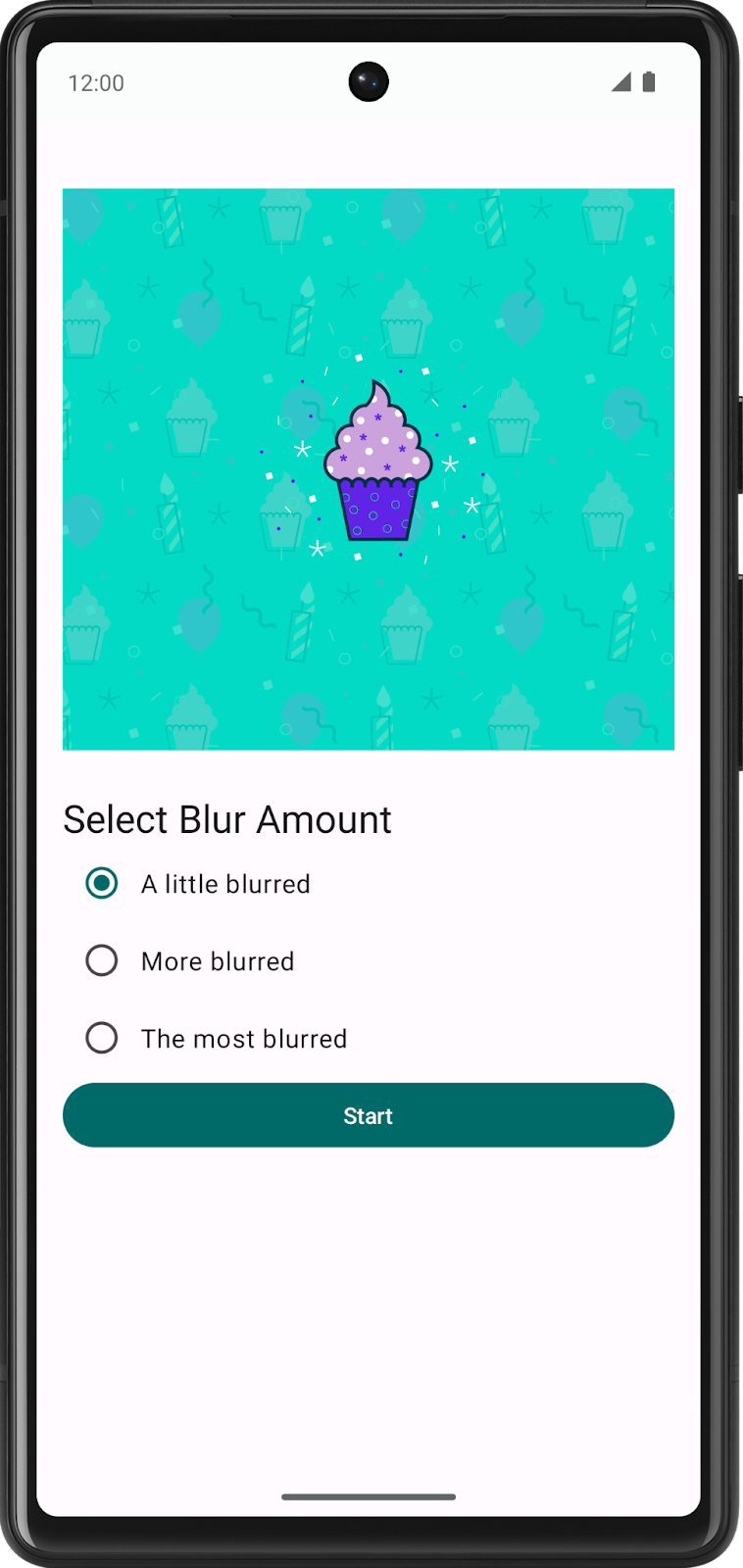
After you cancel work, only the Start button shows because
WorkInfo.StateisCANCELLED. This change causes theblurUiStatevariable to be set toBlurUiState.Default, which resets the UI back to its initial state and shows just the Start button.The Background Task Inspector shows the status of Cancelled which is expected.
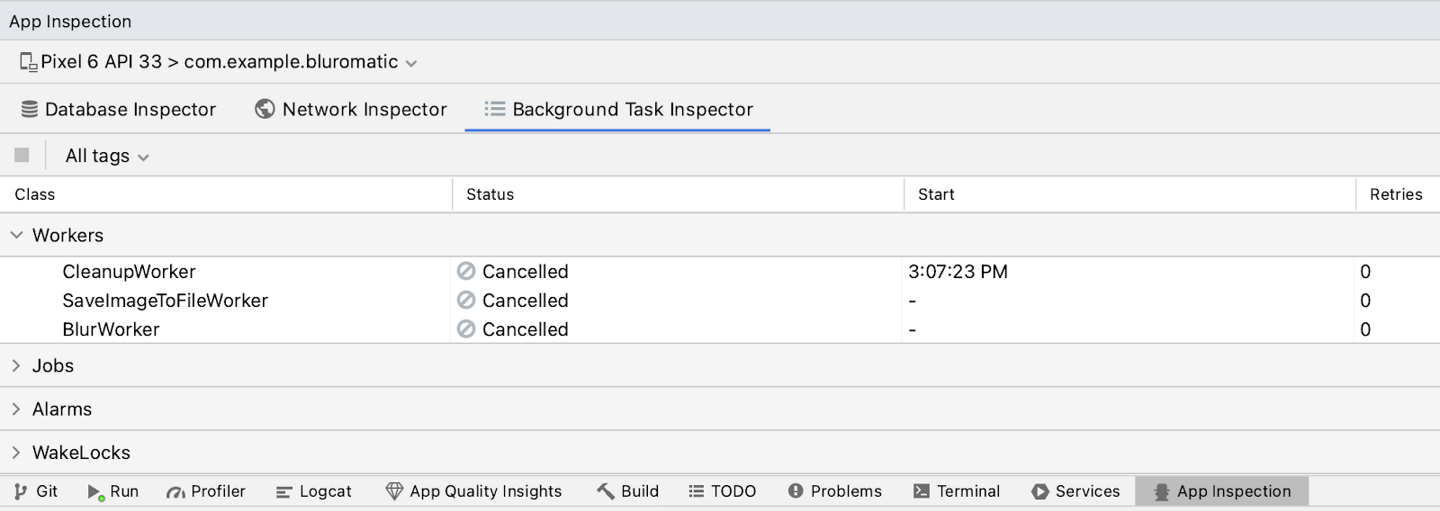
Work constraints
Last but not least,
WorkManagersupportsConstraints. A constraint is a requirement that you must meet before a WorkRequest runs.Some example constraints are
requiresDeviceIdle()andrequiresStorageNotLow().If
requiresDeviceIdle()is passed a value oftrue, the work runs only if the device is idle.If
requiresStorageNotLow()is passed a value oftrue, the work runs only if the storage is not low.
Blur-O-Matic adds a constraint that the device’s battery charge level must not be low before it runs the
blurWorkerwork request. This constraint means that the work request is deferred and only runs once the device’s battery is not low.
Create the battery not low constraint
In
data/WorkManagerBluromaticRepository.ktfile, navigate to theapplyBlur()method.After the code declaring the
continuationvariable, insert this code:// ... override fun applyBlur(blurLevel: Int) { // ... val constraints = Constraints.Builder() .setRequiresBatteryNotLow(true) .build() // ...
To add the constraint object to the
blurBuilderwork request, chain a call to the.setConstraints()method and pass in the constraint object.// ... blurBuilder.setInputData(createInputDataForWorkRequest(blurLevel, imageUri)) blurBuilder.setConstraints(constraints) // Add this code //...
Test with emulator
On an emulator, change the Charge level in the Extended Controls window to be 15% or lower to simulate a low battery scenario, Charger connection to AC charger, and Battery status to Not charging.
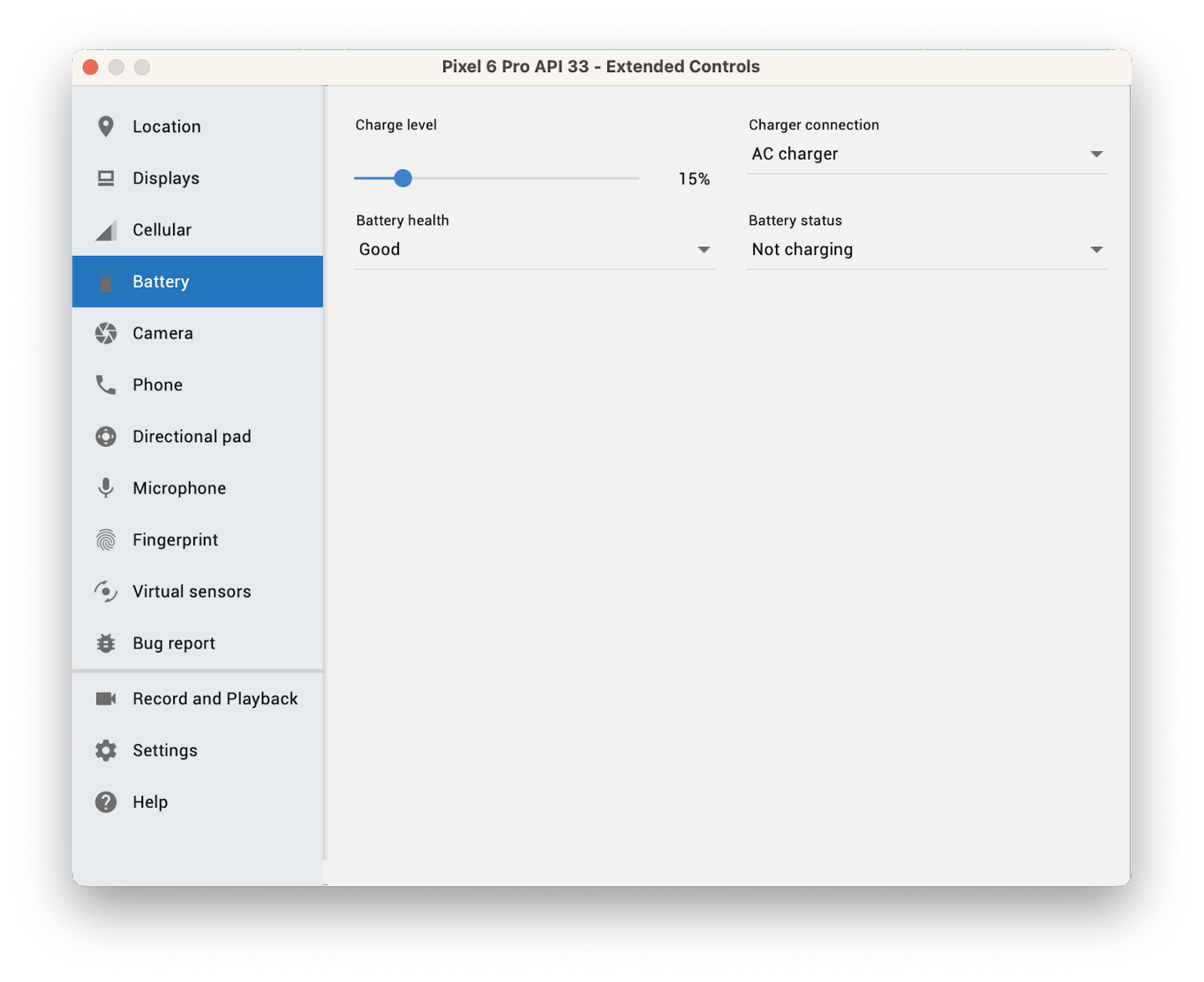
Run the app and click Start to start blurring the image.
The emulator’s battery charge level is set to low, so
WorkManagerdoes not run theblurWorkerwork request because of the constraint. It is enqueued but deferred until the constraint is met. You can see this deferral in the Background Task Inspector tab.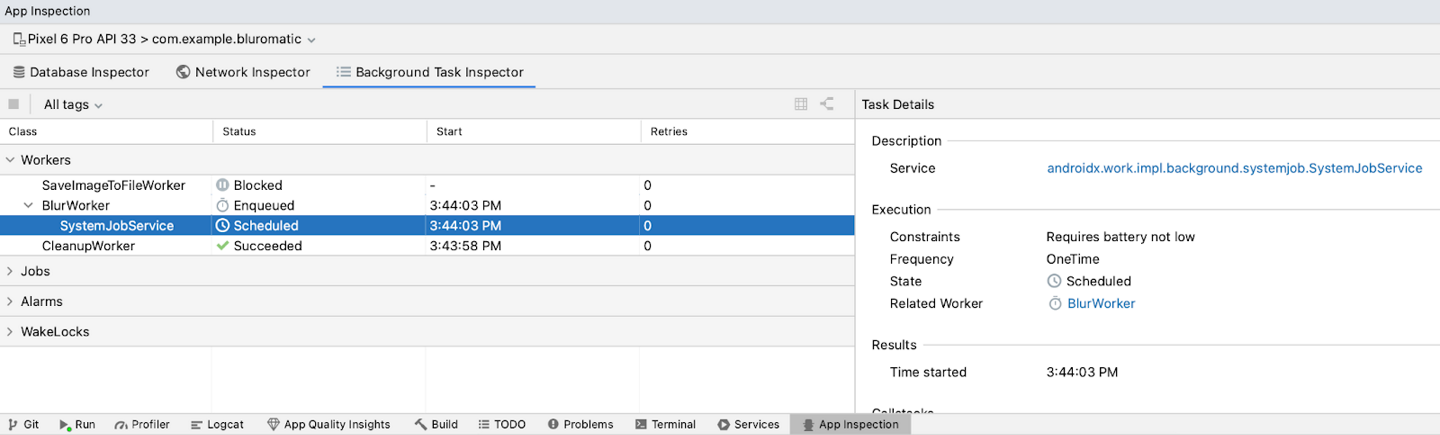
After you confirm it did not run, slowly increase the battery charge level.
The constraint is met after the battery charge level reaches approximately 25%, and the deferred work runs. This outcome appears in the Background Task Inspector tab.
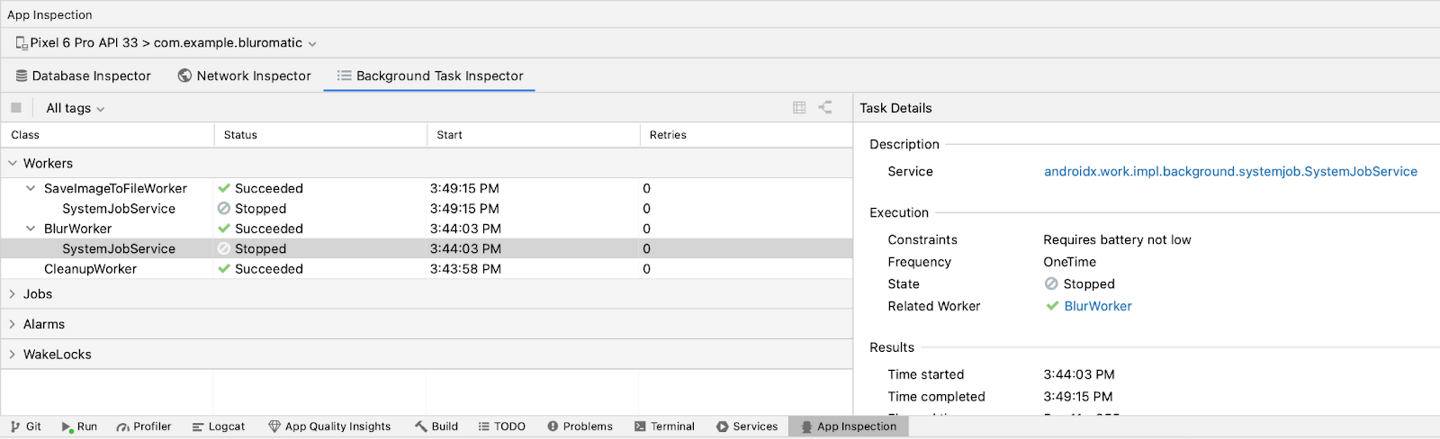
Note
Another good constraint to add to Blur-O-Matic is a
setRequiresStorageNotLow()constraint when saving. To see a full list of constraint options, check out the Constraints.Builder reference.
Solution code: Blur-o-matic app v2
Branch: main
Clone:
$ git clone https://github.com/google-developer-training/basic-android-kotlin-compose-training-workmanager.git
$ cd basic-android-kotlin-compose-training-workmanager
$ git checkout main
In-lesson Practice: Water Me app
You’ve learnt about WorkManager, which is a Jetpack library for deferrable background work. This background work is guaranteed to run even if you close its source app.
While learning about WorkManager, you learned how to define work in a Worker class, how to create a WorkRequest for the Worker, and how to enqueue and schedule work.
In this practice set, you take the concepts you learned and enhance the Water Me! app.
The app currently displays a list of plants in a scrolling list. When you tap on a plant, the app lets you set a reminder to water the plant.

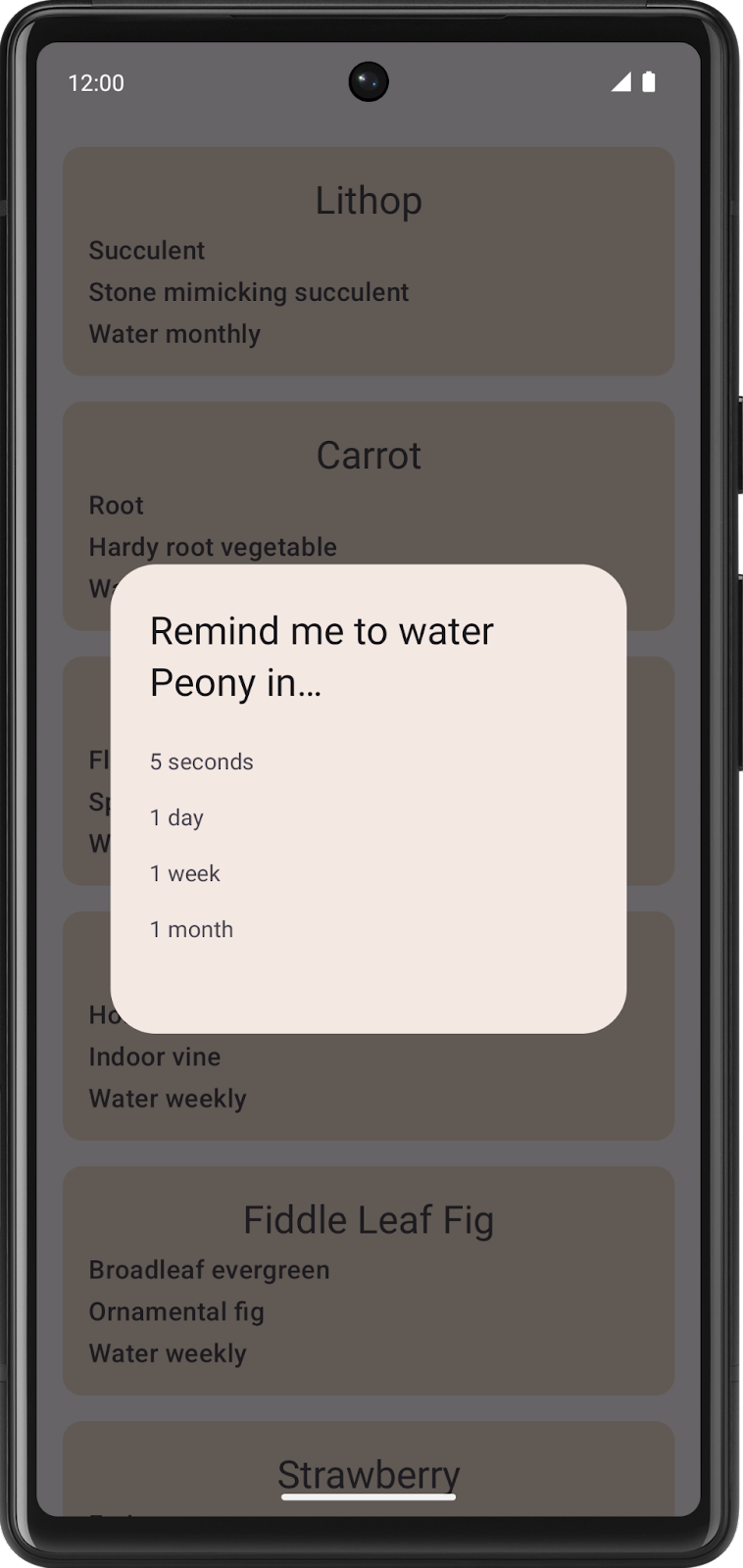
While you can select a reminder timeframe, the reminder notification doesn’t display.
Your job is to implement the background work for the reminder notification to display.
After you complete your code, the app can then display a reminder notification after a selected time duration elapses.
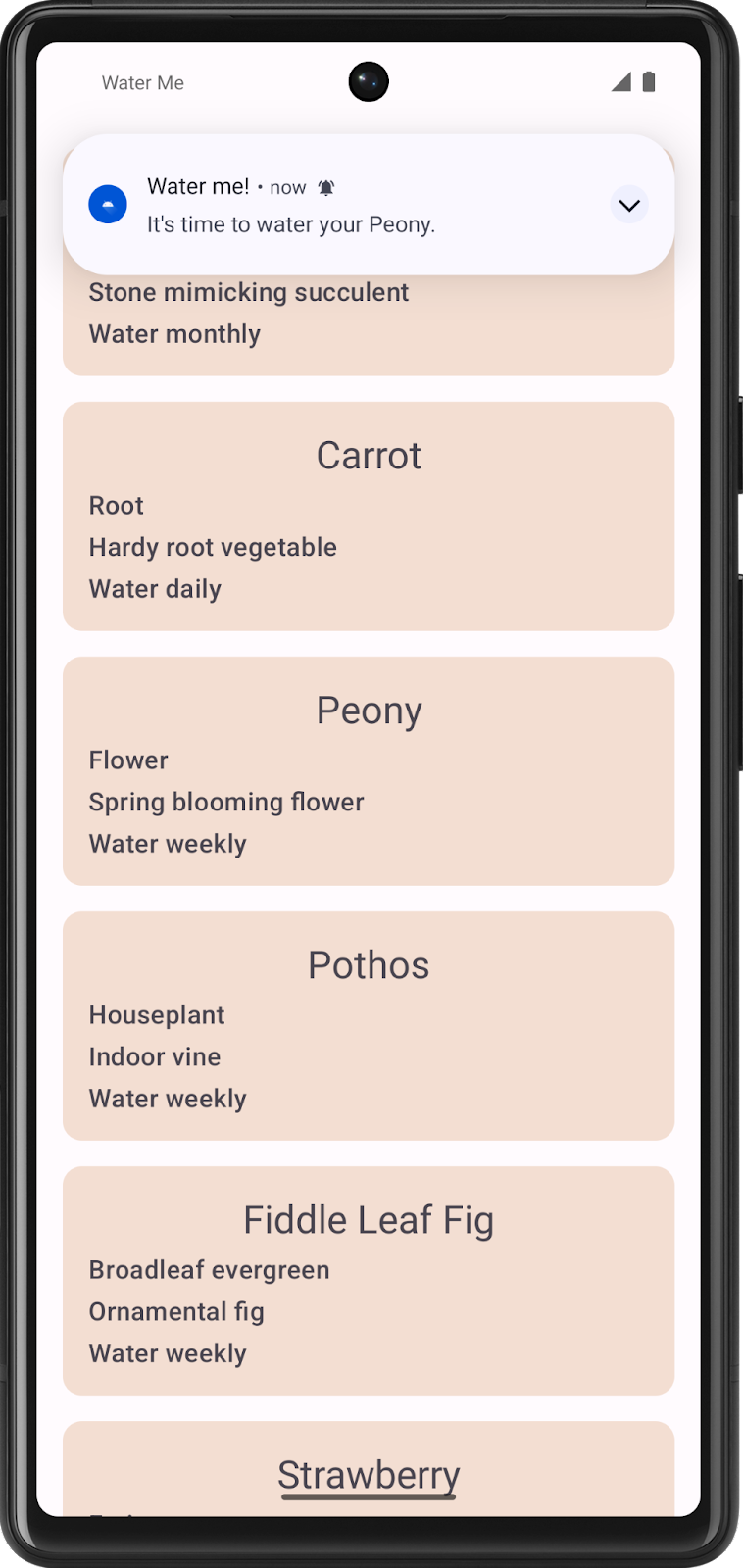
Starter code: Water Me app
Branch: starter
Clone:
$ git clone https://github.com/google-developer-training/basic-android-kotlin-compose-training-waterme.git
$ cd basic-android-kotlin-compose-training-waterme
$ git checkout starter
Schedule notification using WorkManager
The functionality for the Water Me! app is mostly implemented except for the ability to schedule the reminder notification.
The code to make a notification is in the
WaterReminderWorker.ktfile, which is in the worker package. TheWaterReminderWorkerclass extends theCoroutineWorkerclass, and the code to make the notification is inside itsdoWork()method.This code is already complete, no changes needed.
override suspend fun doWork(): Result {

    val plantName = inputData.getString(nameKey)

    makePlantReminderNotification(
        applicationContext.resources.getString(R.string.time_to_water, plantName),
        applicationContext
    )

    return Result.success()
}
Important
Enable notifications on the app (long-press the app icon, App info, allow notifications), otherwise the notifications will not appear.
Your task is to create a
OneTimeWorkRequestthat calls this method with the correct parameters from theWorkManagerWaterRepository.
Create work requests
To schedule the notification, you need to implement the
scheduleReminder()method in theWorkManagerWaterRepository.ktfile.// Add this to class WorkManagerWaterRepository override fun scheduleReminder(duration: Long, unit: TimeUnit, plantName: String) { }
Create a variable called
datawithData.Builder. The data needs to consist of a single string value whereWaterReminderWorker.nameKeyis the key and theplantNamepassed intoscheduleReminder()is the value.Create a one-time work request with the
WaterReminderWorkerclass. Use thedurationandunitpassed into thescheduleReminder()function and set the input data to the data variable you create.Call the
workManager’senqueueUniqueWork()method. Pass in:the plant name concatenated with the duration
ExistingWorkPolicy.REPLACEthe
workRequestBuilderobject
Note
Passing in the plant name, concatenated with the duration, lets you set multiple reminders per plant. You can schedule one reminder in 5 seconds for a Peony and another reminder in 1 day for a Peony. If you only pass in the plant name, when you schedule the second reminder for a Peony, it replaces the previously scheduled reminder for the Peony.
Your app should now work as expected.
Solution code: Water Me app
https://github.com/google-developer-training/basic-android-kotlin-compose-training-waterme/tree/main
Branch: main
Clone:
$ git clone https://github.com/google-developer-training/basic-android-kotlin-compose-training-waterme.git
$ cd basic-android-kotlin-compose-training-waterme
$ git checkout main
Week 11 Blended Learning Questions
Evaluate the strengths and weaknesses of using WorkManager vs coroutines.
Suppose a Telegram app runs on a single device. For each of these WorkManager features, give a specific example of how it might be used in the app:
Ensure unique work
Tag work
Cancel work