Add images to your Android app
Before you begin
In this codelab, you learn how to add images to your app using an
Imagecomposable.
Prerequisites
Basic knowledge of how to create and run an app in Android Studio.
Basic knowledge of how to add UI elements, such as text composables.
What you’ll learn
How to add an image or photo to your Android app.
How to display an image in your app with an Image composable.
Best practices using
Stringresources.
What you’ll build
Enhance the Happy Birthday app to include an image.
What you’ll need
A computer with Android Studio installed.
The app from the previous codelab.
Set up your app
In Android Studio, open your Happy Birthday project from the previous codelab.
Add an image to your project
In this task, you’ll download an image from the internet and add it to your Happy Birthday app.
Download androidparty.png
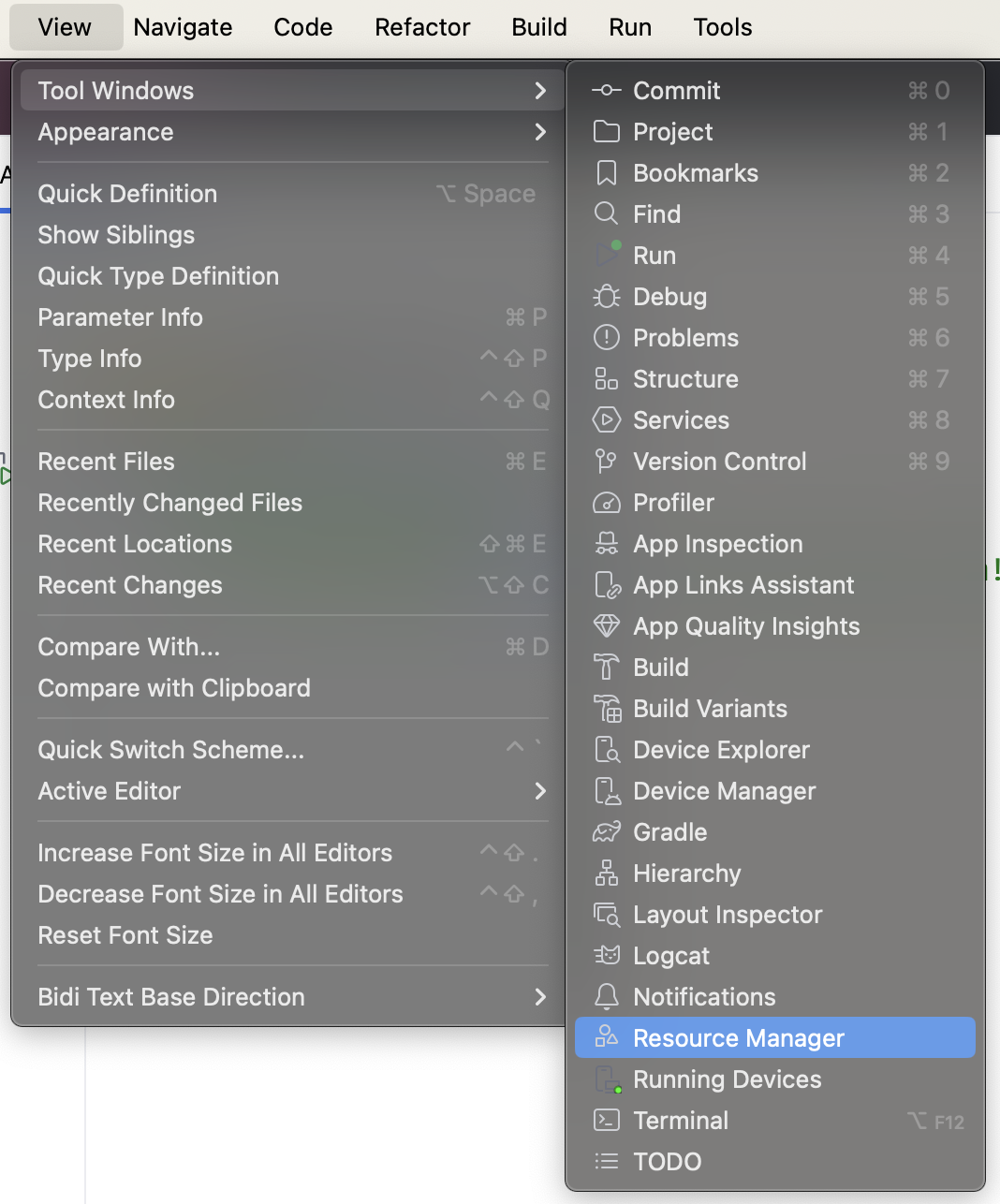
In Android Studio, click View > Tool Windows > Resource Manager or click the Resource Manager tab next to the Project window.

Note
Resource Manager is a tool window that lets you import, create, manage, and use resources in your app.
Click + (Add resources to the module) > Import Drawables.
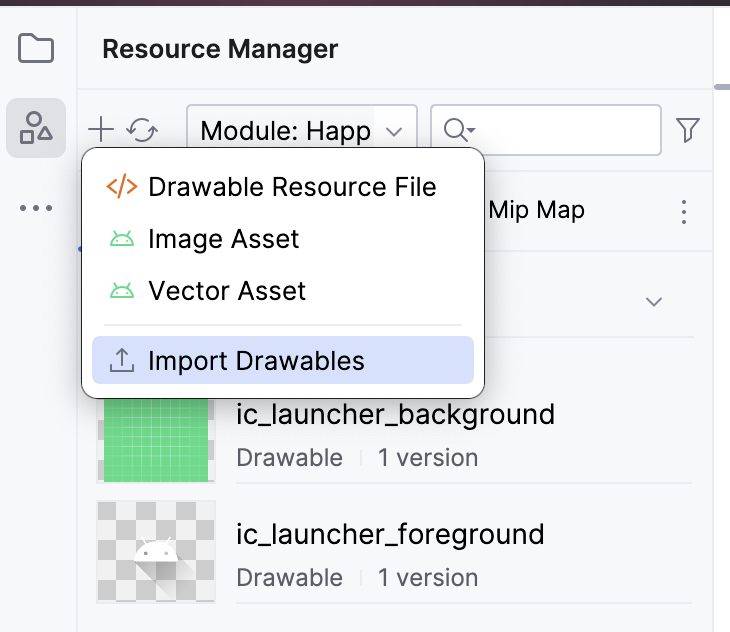
Select the
androidparty.pngfile, and click Open. This action opens the Import drawables dialog.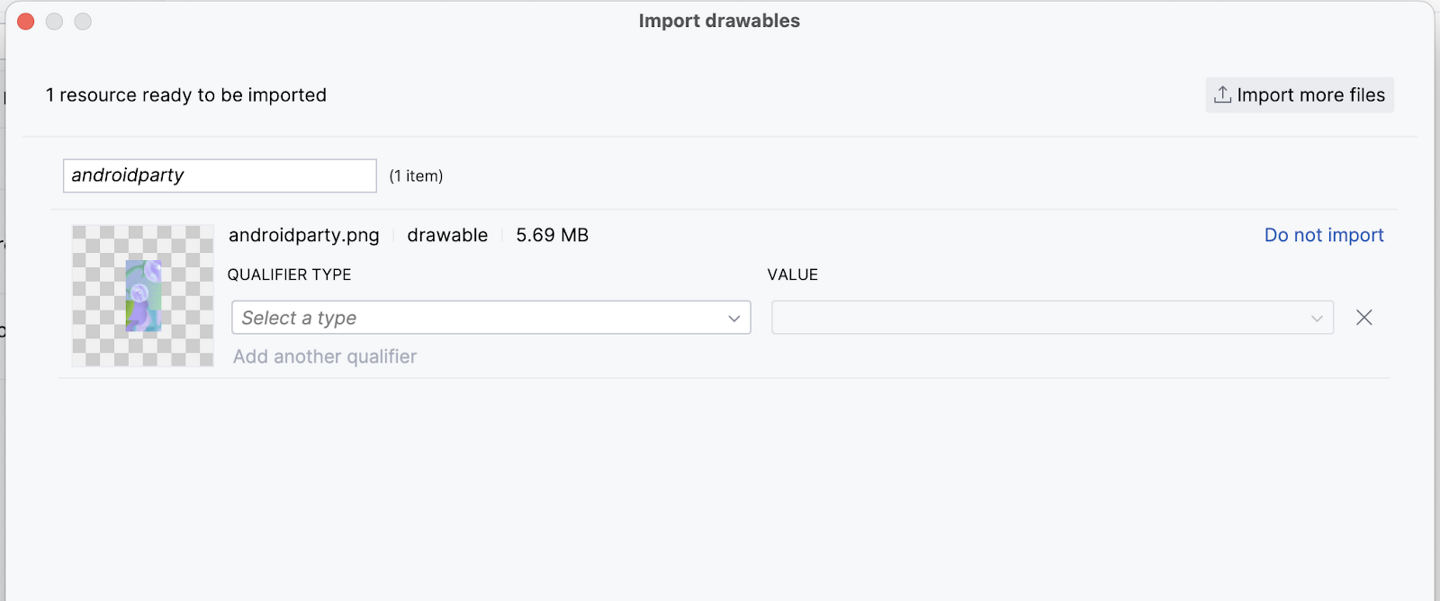
Android Studio shows you a preview of the image. Select Density from the QUALIFIER TYPE drop-down list. You’ll learn why you’re doing this, in a later section.
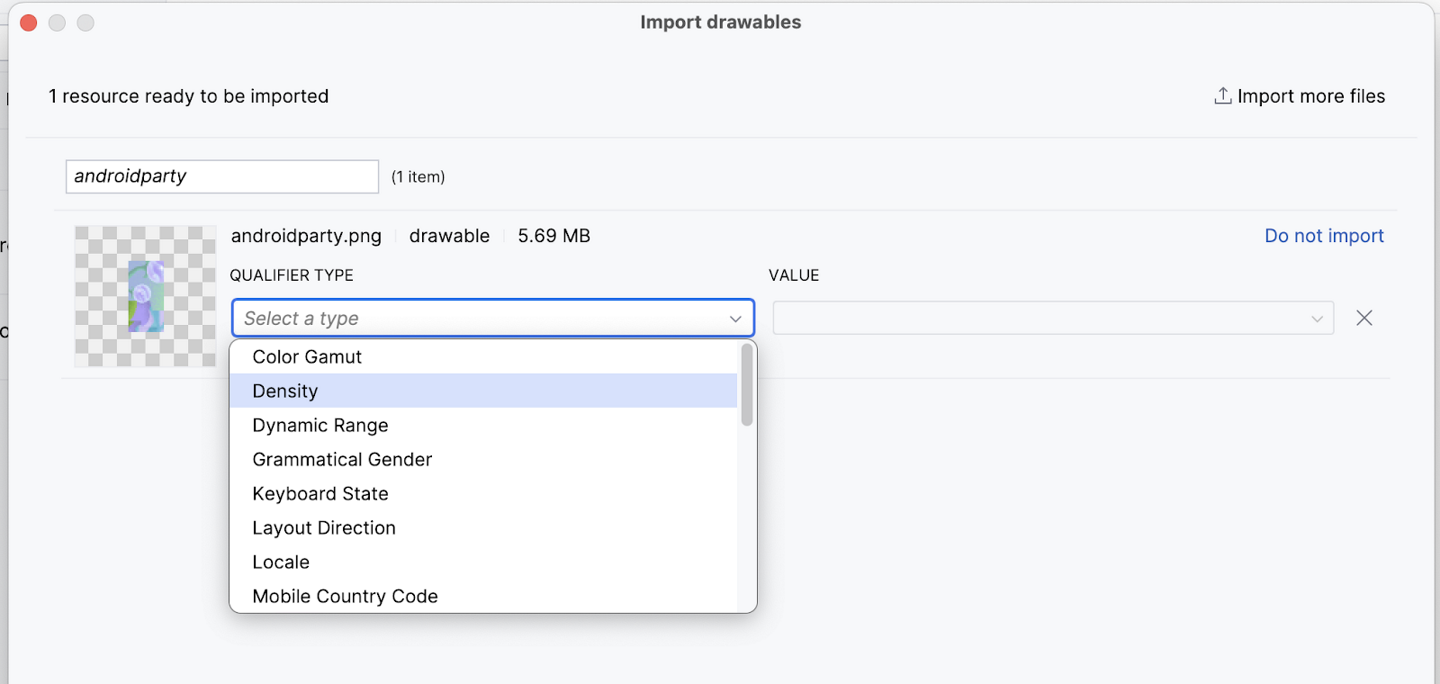
Select No Density from the VALUE list.

Android devices come in different screen sizes (phones, tablets, and TVs to name a few), and their screens also have different pixel sizes. That is, while one device has 160 pixels per square inch, another device fits 480 pixels in the same space. If you don’t consider these variations in pixel density, the system might scale your images, which could result in blurry images, or large images that consume too much memory, or images that are sized improperly.
When you resize images that are larger than the Android system can handle, an out-of-memory error is thrown. For photographs and background images, such as the current image, the
androidparty.png, you should place them in thedrawable-nodpifolder, which stops the resizing behavior.For more information about pixel densities, see Support different pixel densities.
Click Next.
Android Studio shows you the folder structure in which your image will be placed. Notice the
drawable-nodpifolder.Click Import.
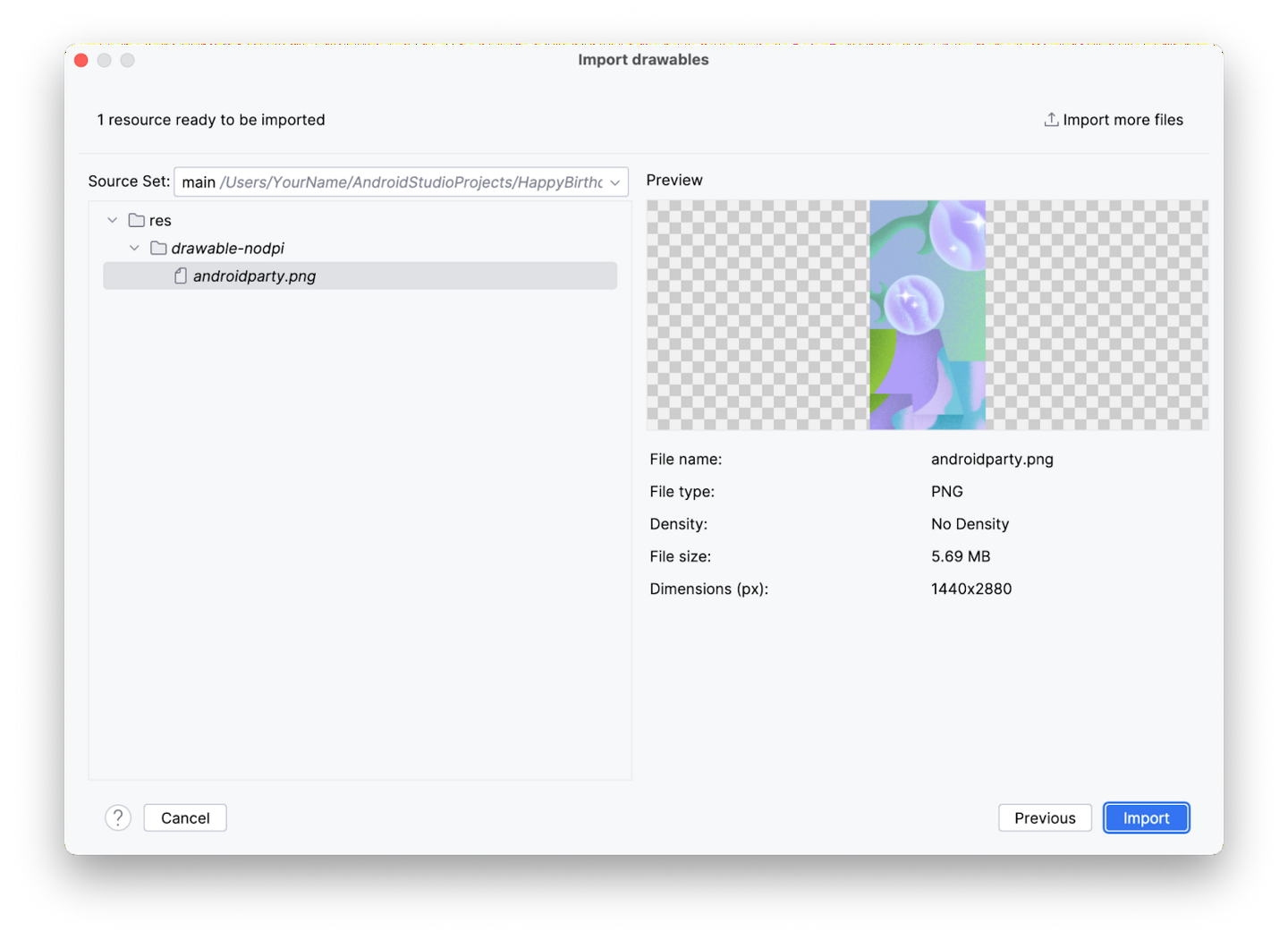
Android Studio creates a
drawable-nodpifolder and places your image in it. In the Android Studio project view, the resource name is displayed asandroidparty.png (nodpi). In the computer file system, Android Studio would have created a folder calleddrawable-nodpi.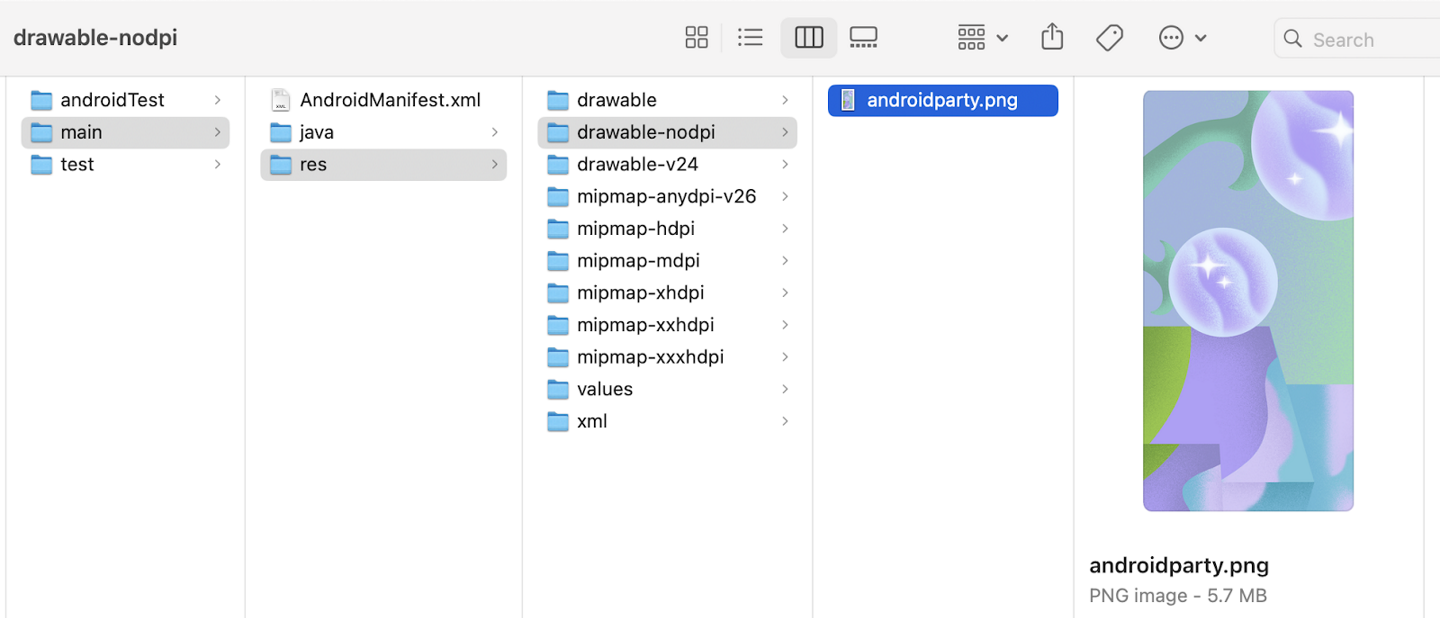
If the image is imported successfully, Android Studio adds the image to the list under the Drawable tab. This list includes all your images and icons for the app. You can now use this image in your app.
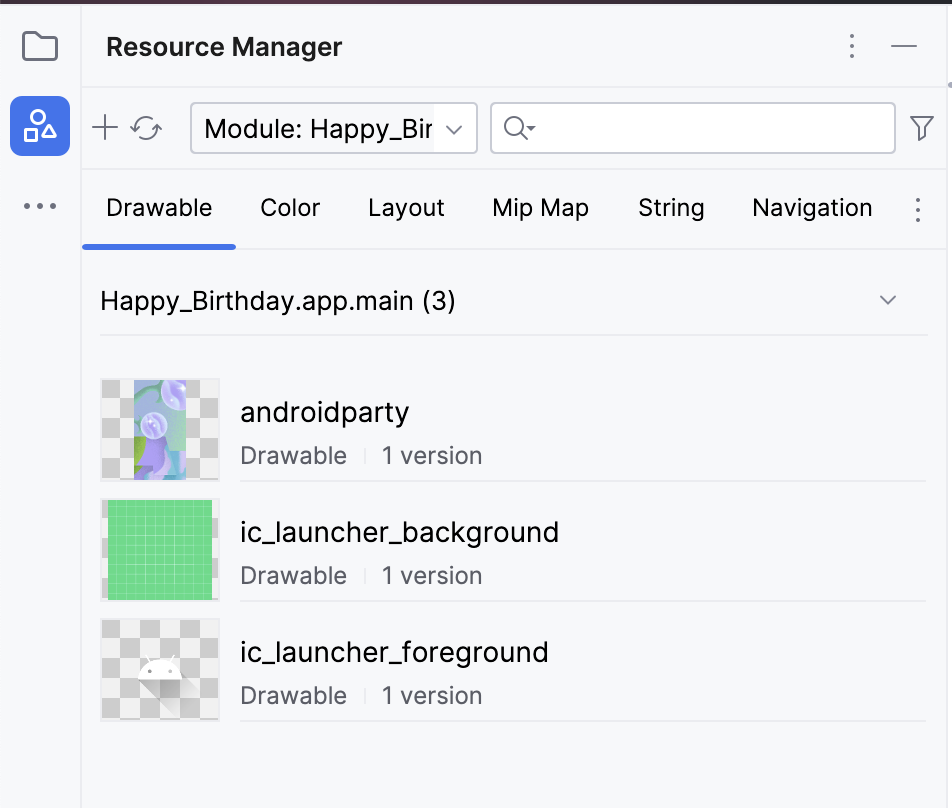
Switch back to the project view: click View > Tool Windows > Project or click the Project tab on the far left.
Click app > res > drawable to confirm that the image is in the
drawablefolder.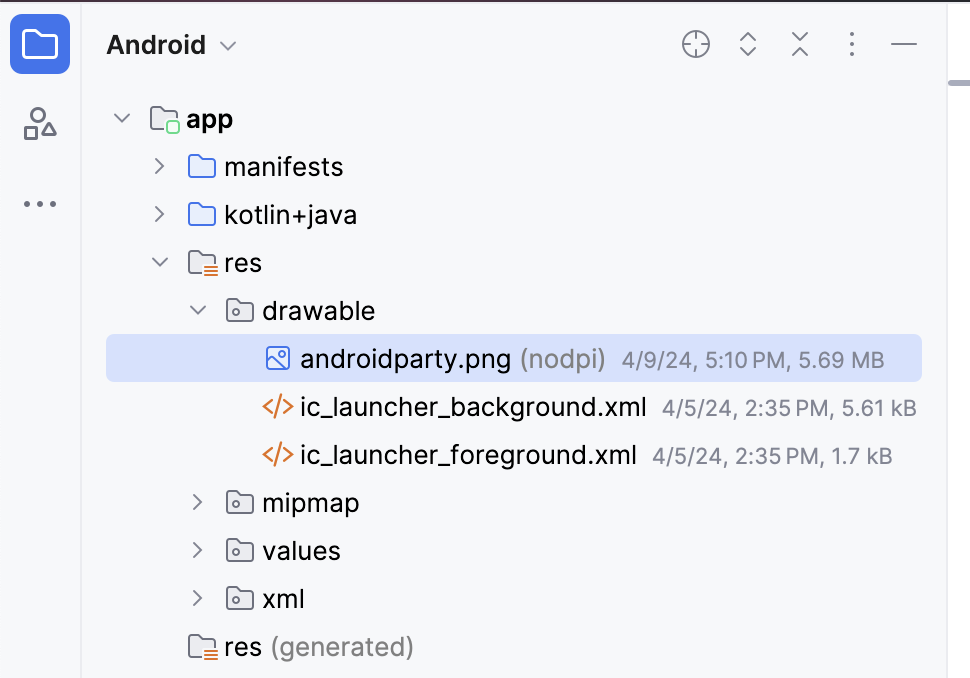

Add an Image composable
To display an image in your app, it needs a place to be displayed. Just like you use a
Textcomposable to display text, you can use anImagecomposable to display an image.In this task, you add an
Imagecomposable to your app, set its image to the image that you downloaded, position it and adjust its size so that it fills the screen.
Add a composable function to add an image
In the
MainActivity.ktfile, add aGreetingImage()composable function after theGreetingText()function.Pass the
GreetingImage()function twoStringparameters: one calledmessagefor the birthday greeting and the other calledfromfor your signature.@Composable fun GreetingImage(message: String, from: String) { }
Every composable function should accept an optional
Modifierparameter. Modifiers tell a UI element how to lay out, display, or behave within its parent layout. Add another parameter at theGreetingImage()composable.@Composable fun GreetingImage(message: String, from: String, modifier: Modifier = Modifier) { }
Resources in Jetpack Compose
Resources are the additional files and static content that your code uses, such as bitmaps, user-interface strings, animation instructions, and more. For more information about resources in Android, see App resources overview.
You should always separate app resources, such as images and strings, from your code so that you can maintain them independently. At runtime, Android uses the appropriate resource based on the current configuration. For example, you might want to provide a different UI layout based on the screen size or different strings based on the language setting.
Grouping resources
You should always place each type of resource in a specific subdirectory of your project’s
res/directory. For example, here’s the file hierarchy for a simple project:MyProject/ src/ MyActivity.kt res/ drawable/ graphic.png mipmap/ icon.png values/ strings.xml
As you can see in this example, the
res/directory contains all the resources in subdirectories, which includes adrawable/directory for an image resource, amipmap/directory for launcher icons, and avalues/directory for string resources. To learn more about the usage, format, and syntax for app resources, see Resource types overview.
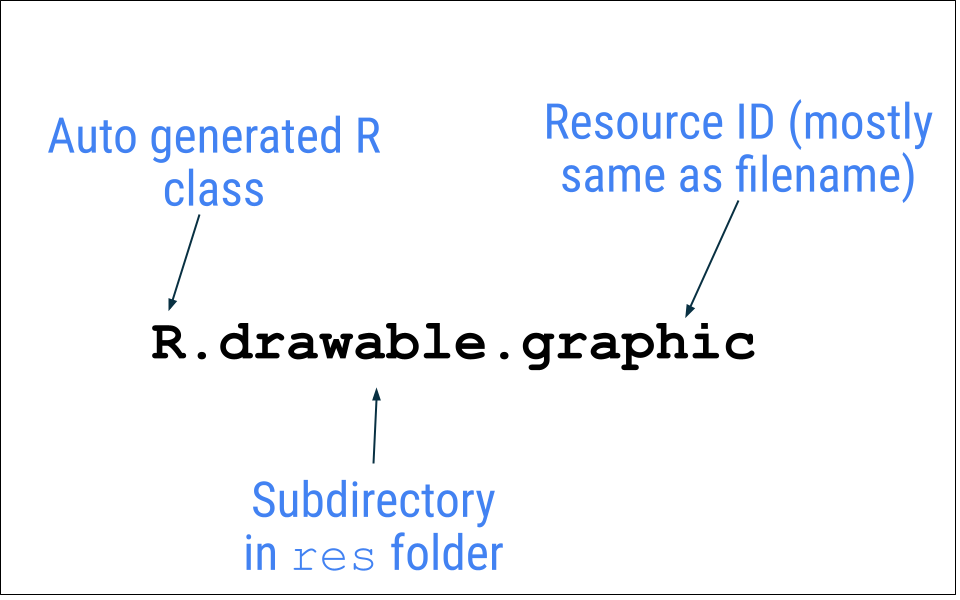
Accessing resources
Jetpack Compose can access the resources defined in your Android project. Resources can be accessed with resource IDs that are generated in your project’s
Rclass.An
Rclass is an automatically generated class by Android that contains the IDs of all resources in the project. In most cases, the resource ID is the same as the filename. For example, the image in the previous file hierarchy can be accessed with this code:R.drawable.graphic
In the next task, you’ll use
androidparty.png, which you added in the previous task.In the
GreetingImage()function, declare avalproperty and name itimage.Make a call to
painterResource()function by passing in theandroidpartyresource. Assign the returned value to theimagevariable.val image = painterResource(R.drawable.androidparty)
Android Studio highlights the
.painterResourcecode because you need to import the function to compile your app.
Hover over (or click)
.painterResource, and click Import.The
painterResource()function loads a drawable image resource and takes a resource ID as an argument. In this case, the resource ID isR.drawable.androidparty.After the call to the
painterResource()function, add anImagecomposable and then pass inimageas a named argument for thepainter.Image( painter = image )
Android Studio highlights the
Imagecode because you need to import the function to compile your app.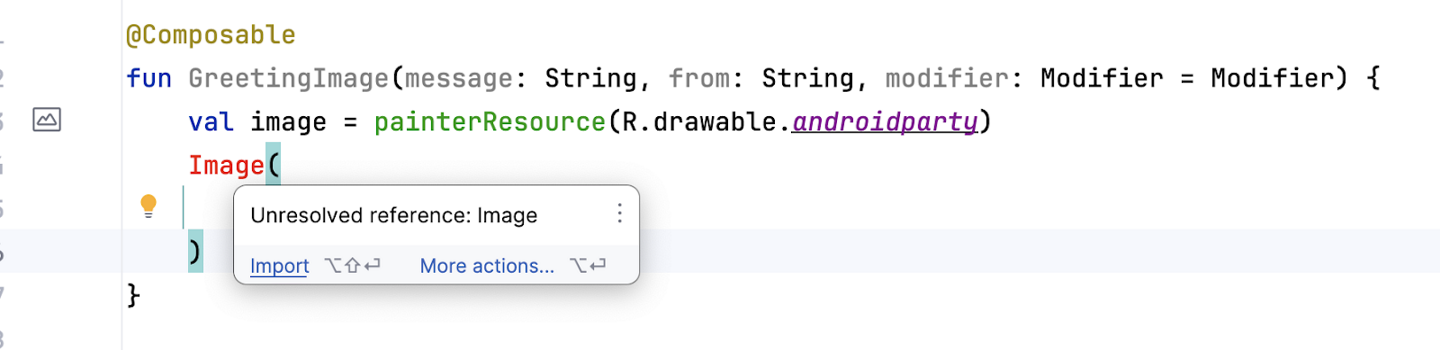
To fix this warning, add the following import at the top of your
MainActivity.ktfile:import androidx.compose.foundation.Image
The initial warning is now resolved but if you hover over the word
Image, Android Studio displays a new warning that states, “None of the following functions can be called with the arguments supplied.” This is because the provided argument does not match any of theImagefunction signatures.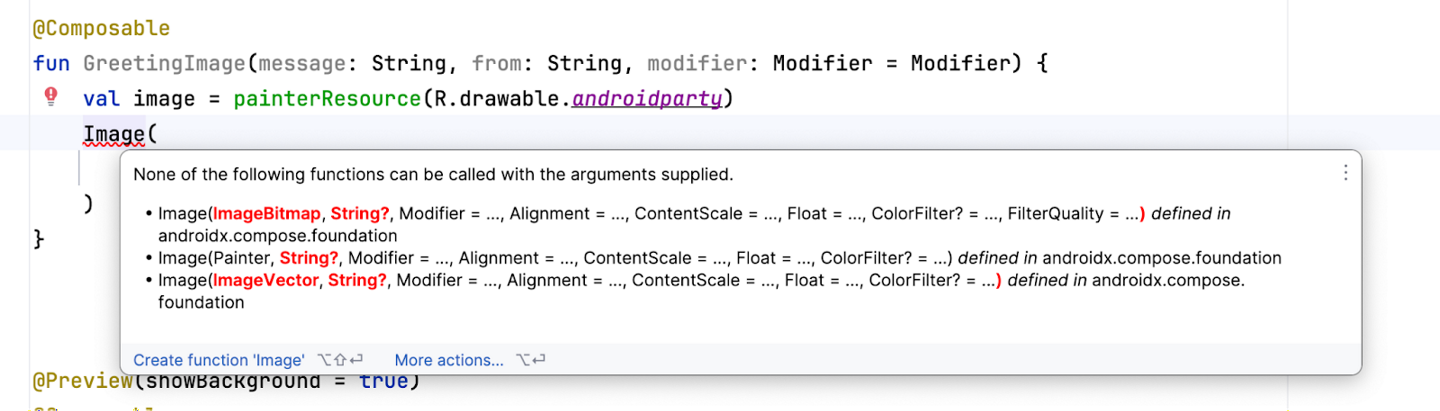
This warning will be fixed in the next section.
Check your app for accessibility
When you follow coding practices for accessibility, you let all of your users, including those with disabilities, more easily navigate, and interact with, your app.
Note
Android provides many tools for users. For example, TalkBack is the Google screen reader included on Android devices. TalkBack gives users spoken feedback so that users can use their device without looking at the screen. To learn more about accessibility, see Build accessible apps.
Android Studio provides hints and warnings to help you make your app more accessible. A content description defines the purpose of a UI element, which makes your app more usable with TalkBack.
However, the image in this app is only included for decorative purposes. The addition of a content description for the image would make it harder to use with TalkBack in this particular case. Instead of setting the content description that’s announced to the user, you can set the image’s
contentDescriptionargument tonullso that TalkBack skips theImagecomposable.In the
Imagecomposable, add another named argument calledcontentDescriptionand set its value tonull.Image( painter = image, contentDescription = null )
Preview the Image composable
In this task, you’ll preview the image composable and run the app on an emulator or device.
In the
BirthdayCardPreview()function, replace theGreetingText()function call with aGreetingImage()function call.Your function should look like this code snippet:
@Preview(showBackground = true)
@Composable
fun BirthdayCardPreview() {
    HappyBirthdayTheme {
        GreetingImage(
            message = "Happy Birthday Sabrina!",
            from = "From Labubu"
        )
    }
}
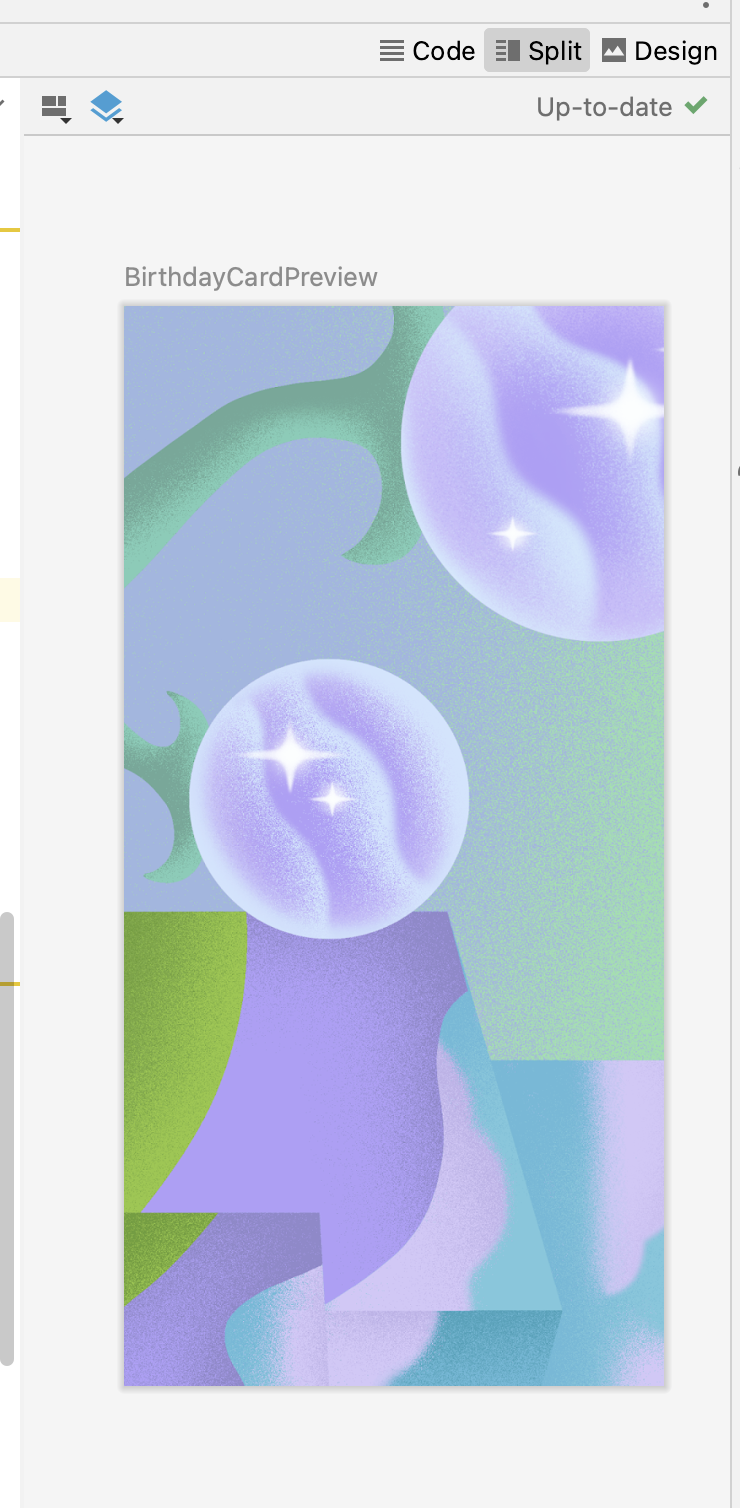
The Design pane should auto update. If it doesn’t, click 🔄 to build.
Notice that you can’t see the text anymore because the new function only has an Image composable, but not a Text composable.
Add Box layout
The three basic, standard layout elements in Compose are
Column,Row, andBoxcomposables. You learned aboutColumnandRowcomposables in the previous codelabs, now you will explore more about theBoxcomposable.The
Boxlayout is one of the standard layout elements in Compose. UseBoxto stack elements on top of one another.Boxalso lets you configure the specific alignment of the elements that it contains.
In the
GreetingImage()function, add aBoxcomposable around theImagecomposable as shown:@Composable fun GreetingImage(message: String, from: String, modifier: Modifier = Modifier) { val image = painterResource(R.drawable.androidparty) Box { Image( painter = image, contentDescription = null ) } }
Import the
androidx.compose.foundation.layout.Boxfunction when prompted by Android Studio.Add code to pass the
modifierparameter to theBoxcomposable.@Composable fun GreetingImage(message: String, from: String, modifier: Modifier = Modifier) { val image = painterResource(R.drawable.androidparty) Box(modifier) { Image( painter = image, contentDescription = null ) } }
At the end of the Box composable, call the GreetingText() function, and pass it the birthday message, signature, and the modifier as shown:
@Composable
fun GreetingImage(message: String, from: String, modifier: Modifier = Modifier) {
    val image = painterResource(R.drawable.androidparty)
    Box(modifier) {
        Image(
            painter = image,
            contentDescription = null
        )
        GreetingText(
            message = message,
            from = from,
            modifier = Modifier
                .fillMaxSize()
                .padding(8.dp)
        )
    }
}
Notice the updated preview in the Design pane. You should see the text and image.
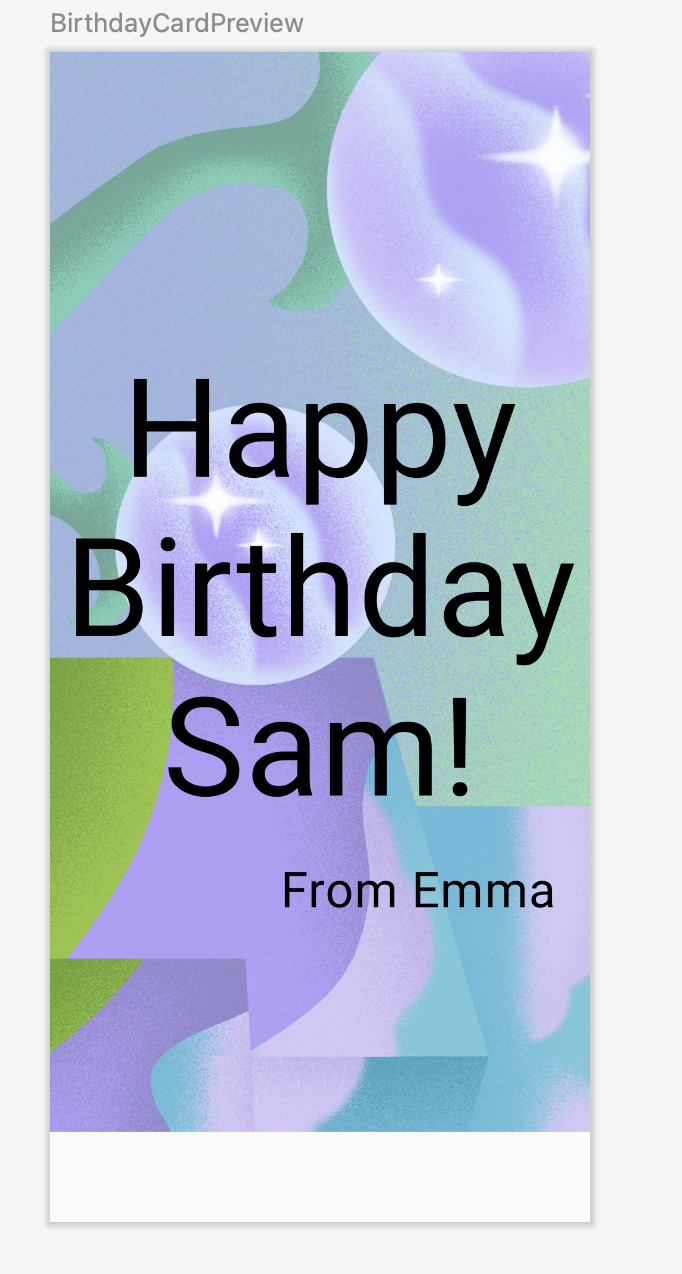
Change opacity and scale the image
In this task, you make the image full screen to beautify your app. To achieve this you use the
ContentScaleparameters.
Scale content
You have added the image to your app and positioned the image. Now, you need to adjust the scale type of the image, which says how to size the image, to make it fullscreen.
There are quite a few
ContentScaletypes available. You use theContentScale.Cropparameter scaling, which scales the image uniformly to maintain the aspect ratio so that the width and height of the image are equal to, or larger than, the corresponding dimension of the screen.Add a
ContentScalenamed argument to the image.Image( painter = image, contentDescription = null, contentScale = ContentScale.Crop )
Import the
androidx.compose.ui.layout.ContentScaleinterface when prompted by Android Studio.Check out the
Designpane. The image should now fill the entire preview screen.
Change opacity
To improve the app’s contrast, change the opacity of the background image.
Add an
alphaparameter to theImagecomposable and set it to0.5F.Image( painter = image, contentDescription = null, contentScale = ContentScale.Crop, alpha = 0.5F )
Notice the change in image opacity.
Run the app
Run the app on the emulator. You need to modify
onCreate()to callGreetingImage().Good job with the full-screen image and text message. You have also changed the opacity of the image.
Layout Modifiers
Modifiers are used to decorate or add behavior to Jetpack Compose UI elements. For example, you can add backgrounds, padding or behavior to rows, text, or buttons. To set them, a composable or a layout needs to accept a modifier as a parameter.
In a previous codelab, you learned about modifiers and used the padding modifier (
Modifier.padding) to add space aroundTextcomposable. Modifiers can do a lot and you will see that in this and upcoming pathways.For example, this
Textcomposable has aModifierargument that changes the background color to green.// Example Text( text = "Hello, World!", // Solid element background color modifier = Modifier.background(color = Color.Green) )
Similar to the above example, you can add Modifiers to layouts to position the child elements using arrangement and alignment properties.
To set children’s position within a
Row, set thehorizontalArrangementandverticalAlignmentarguments. For aColumn, set theverticalArrangementandhorizontalAlignmentarguments.The arrangement property is used to arrange the child elements when the size of the layout is larger than the sum of its children.
For example: when the size of a
Columnis larger than the sum of its children sizes, averticalArrangementcan be specified to define the positioning of the children inside theColumn. Below is an illustration of different vertical arrangements: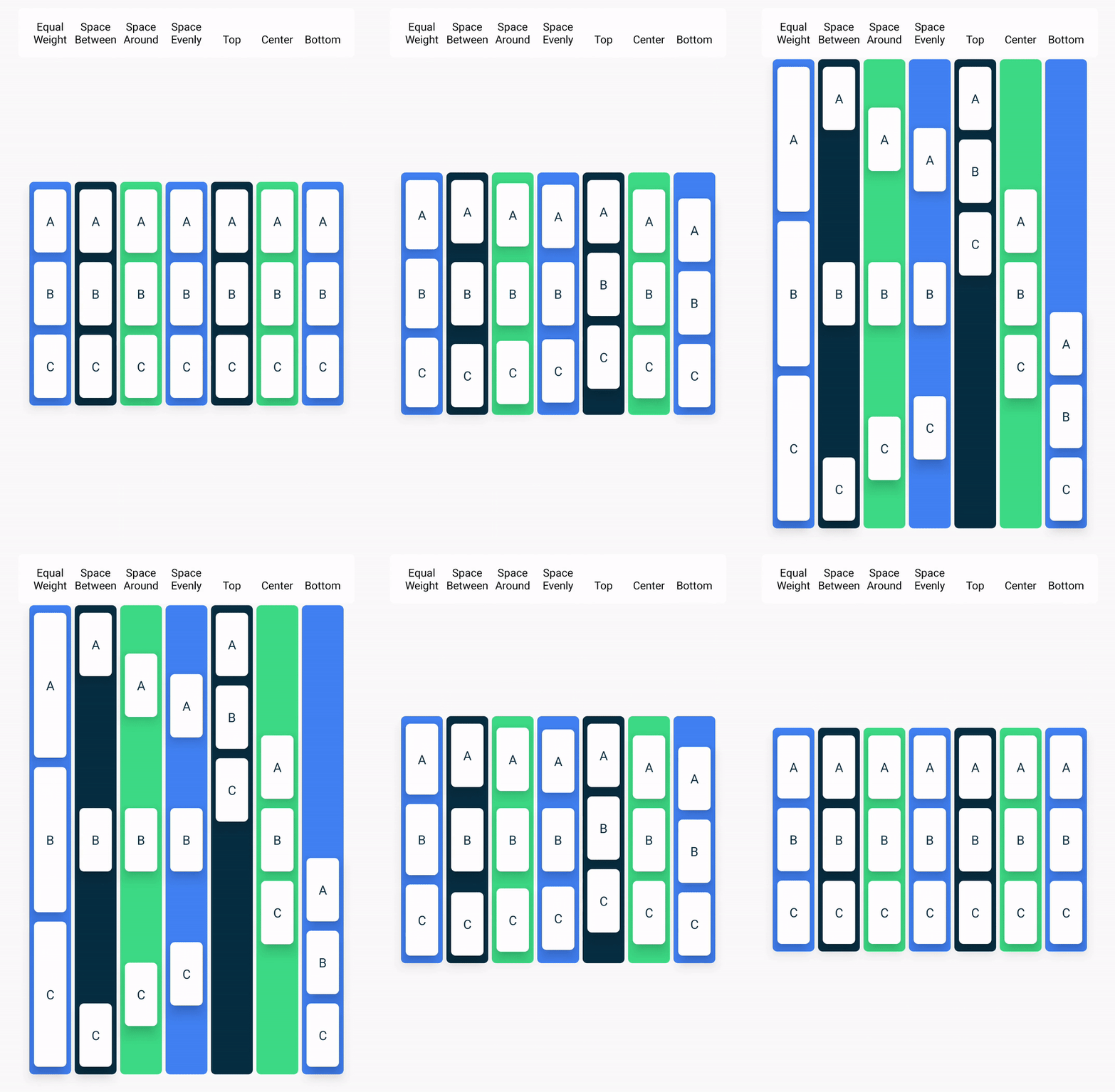
Similarly, when the size of a
Rowis larger than the sum of its children sizes, ahorizontalArrangementcan be specified to define the positioning of the children inside theRow. Below is an illustration of different horizontal arrangements: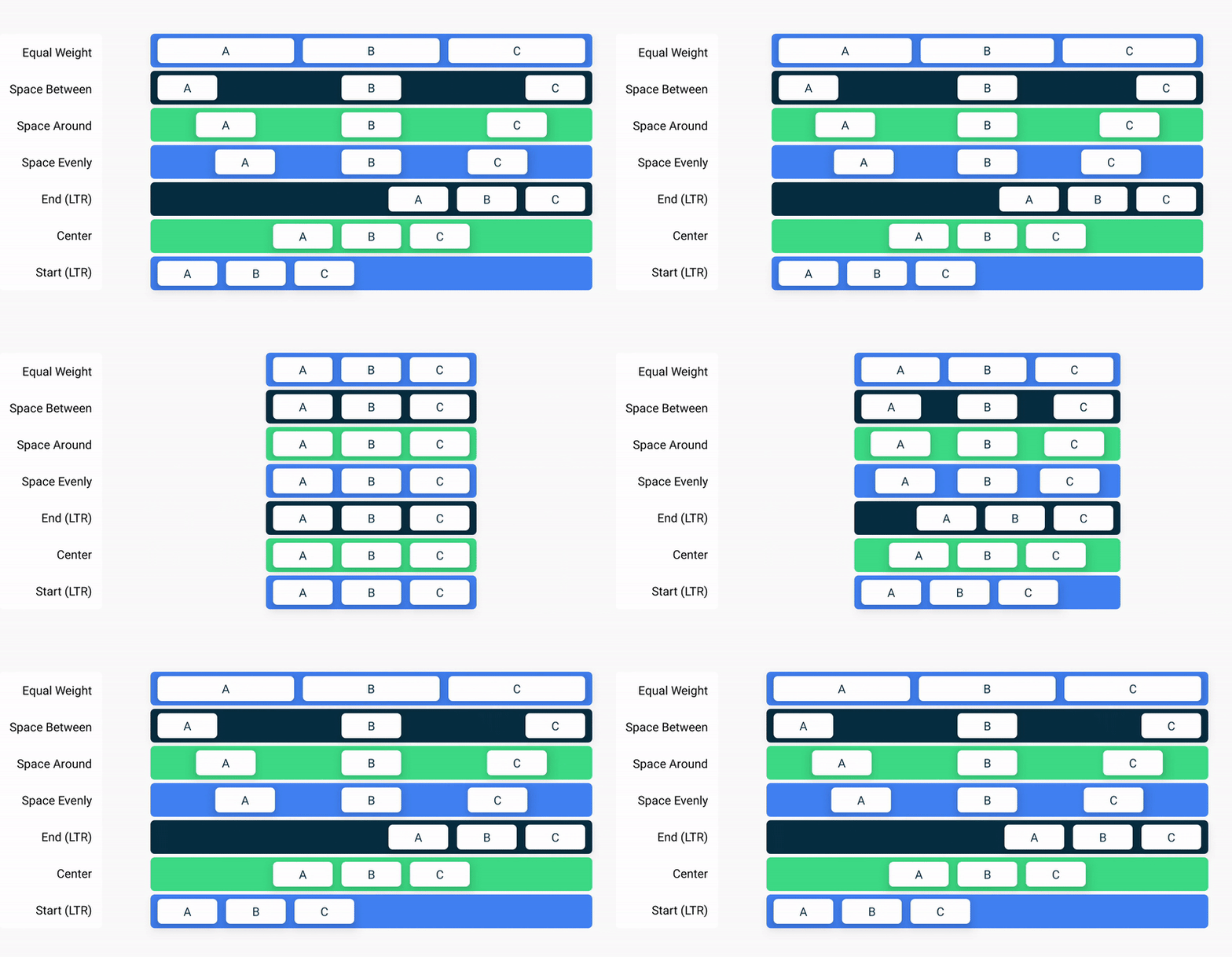
The alignment property is used to align the child elements at the start, center, or end of the layout.
Align and arrange the text
In this task, you will observe the code that you have added in the previous codelab to arrange the text in the app.
In the
MainActivity.ktfile, scroll to theGreetingText()function. TheverticalArrangementproperty in the column is set toArrangement.Center. The text content will be centered on the screen.@Composable fun GreetingText(message: String, from: String, modifier: Modifier = Modifier) { Column( verticalArrangement = Arrangement.Center, modifier = modifier ) { Text( text = message, fontSize = 100.sp, lineHeight = 116.sp, textAlign = TextAlign.Center ) Text( text = from, fontSize = 36.sp, modifier = Modifier .padding(16.dp) .align(alignment = Alignment.End) ) } }
Padding
A UI element wraps itself around its content. To prevent it from wrapping too tightly, you can specify the amount of padding on each side.
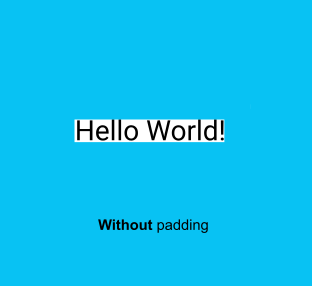

Padding is used as a modifier, which means that you can apply it to any composable. For each side of the composable, the
paddingmodifier takes an optional argument that defines the amount of padding.
// This is an example.
Modifier.padding(
    start = 16.dp,
    top = 16.dp,
    end = 16.dp,
    bottom = 16.dp
)
Your turn! In
GreetingImage(), scroll to where theGreetingText()function is called and notice the padding attribute.GreetingText( message = message, from = from, modifier = Modifier .fillMaxSize() .padding(8.dp) )
Similarly notice inside the
GreetingText()function, the padding for the signatureTextcomposable.modifier = Modifier .padding(16.dp) .align(alignment = Alignment.End)
Adopt good code practices
Translation
When you write apps, it’s important to remember that they may be translated into another language at some point. As you learned in an earlier codelab, a
Stringdata type is a sequence of characters, such as"Happy Birthday Sam!".A hardcoded string is one that’s written directly in the code of your app. Hardcoded strings make it more difficult to translate your app into other languages and harder to reuse strings in different places in your app. You can extract strings into a resource file to resolve these issues. Instead of hardcoding strings in your code, you put the strings into a file, name the string resources, and use the names whenever you want to use the strings. The name stays the same, even if you change the string or translate it to a different language.
In the
MainActivity.ktfile, scroll to theonCreate()function. Select the birthday greeting,Happy Birthday Sam!string without quotes.Click the bulb on the left side of the screen.
Select Extract string resource.
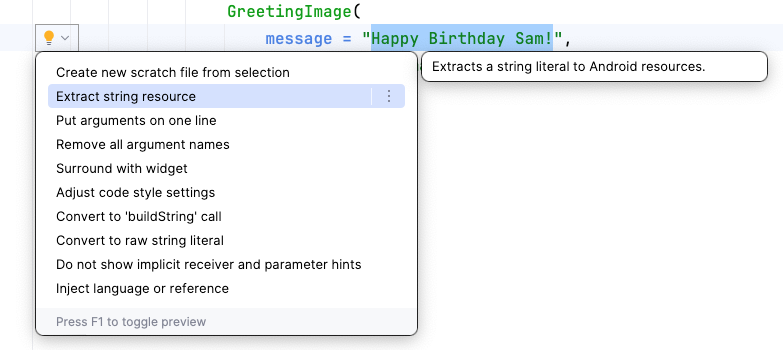
Android Studio opens the Extract Resource dialog. In this dialog, you can customize what your string resource is called and some details on how to store it. The Resource name field is where you enter what the string is going to be called. The Resource value field is where you enter the actual string itself.
In the Extract Resource dialog, change the Resource name to
happy_birthday_text.String resources should have lowercase names and multiple words should be separated with an underscore. Leave the other settings with the defaults.
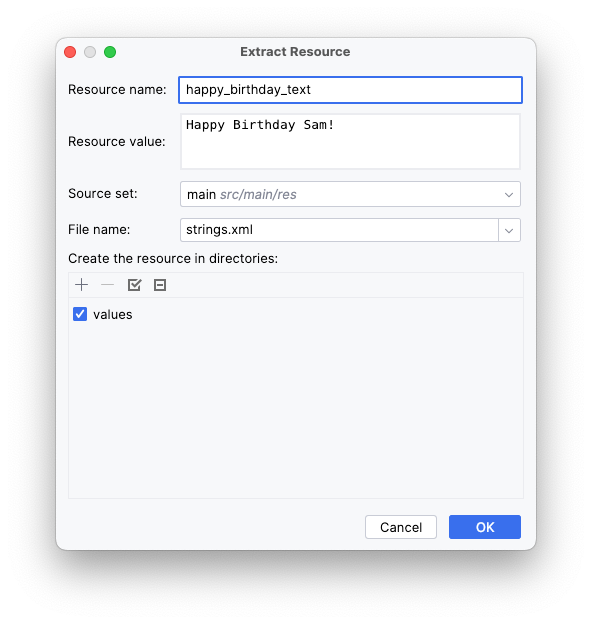
Click OK.
Notice the changes in code. The hardcoded string is now replaced with a call to the
getString()function.GreetingImage( message = getString(R.string.happy_birthday_text), from = "From Emma", modifier = Modifier.padding(8.dp) )
In the Project pane, open the strings.xml file from the path app > res > values > strings.xml and notice that Android Studio created a string resource called happy_birthday_text.
<resources>
    <string name="app_name">Happy Birthday</string>
    <string name="happy_birthday_text">Happy Birthday Sam!</string>
</resources>
The
strings.xmlfile has a list of strings that the user sees in your app. Note that the name of your app is also a string resource. By putting the strings all in one place, you can more easily translate all the text in your app and more easily reuse a string in different parts of your app.Follow the same steps to extract the text for the signature
Textcomposable, but this time entersignature_textin the Resource name field.Your finished file should look like this code snippet:
<resources>
    <string name="app_name">Happy Birthday</string>
    <string name="happy_birthday_text">Happy Birthday Sam!</string>
    <string name="signature_text">From Emma</string>
</resources>
Update the
BirthdayCardPreview()to usestringResource()and the extracted strings.@Preview(showBackground = true) @Composable fun BirthdayCardPreview() { HappyBirthdayTheme { GreetingImage( message = stringResource(R.string.happy_birthday_text), from = stringResource(R.string.signature_text) ) } }
Note
If Android Studio displays an “Unresolved reference: stringResource” warning message when hovering over
stringResource, you will need to add an import statement forandroidx.compose.ui.res.stringResourcein order to use thestringResource()function.Run your app again to make sure that it still works.
Solution code
Conclusion
You added an image to your Happy Birthday app, aligned the text with modifiers, followed the accessibility guidelines, and made it easier to translate to other languages! More importantly, you finished creating your own Happy Birthday app!
The Resource Manager tab in Android Studio helps you add and organize your images and other resources.
An
Imagecomposable is a UI element that displays images in your app.An
Imagecomposable should have a content description to make your app more accessible.Text that’s shown to the user, such as the birthday greeting, should be extracted into a string resource to make it easier to translate your app into other languages.