Unit 5 Pathway 1 Activity 3: Introduction to Coroutines in Android Studio
Before you begin
In the previous codelab, you learned about coroutines. You used Kotlin Playground to write concurrent code using coroutines. In this codelab, you’ll apply your knowledge of coroutines within an Android app and its lifecycle. You’ll add code to launch new coroutines concurrently and learn how to test them.
Prerequisites
Knowledge of Kotlin language basics, including functions and lambdas
Able to build layouts in Jetpack Compose
Able to write unit tests in Kotlin (refer to Write unit tests for ViewModel codelab)
How threads and concurrency work
Basic knowledge of coroutines and CoroutineScope
What you’ll build
Race Tracker app that simulates race progress between two players. Consider this app as a chance to experiment and learn more about different aspects of coroutines.
What you’ll learn
Using coroutines in the Android app lifecycle.
Principles of structured concurrency.
What you’ll need
The latest stable version of Android Studio
App overview
The Race Tracker app simulates two players running a race. The app UI consists of two buttons, Start/Pause and Reset, and two progress bars to show the progress of the racers. Players 1 and 2 are set to “run” the race at different speeds. When the race starts Player 2 progresses twice as fast as Player 1.
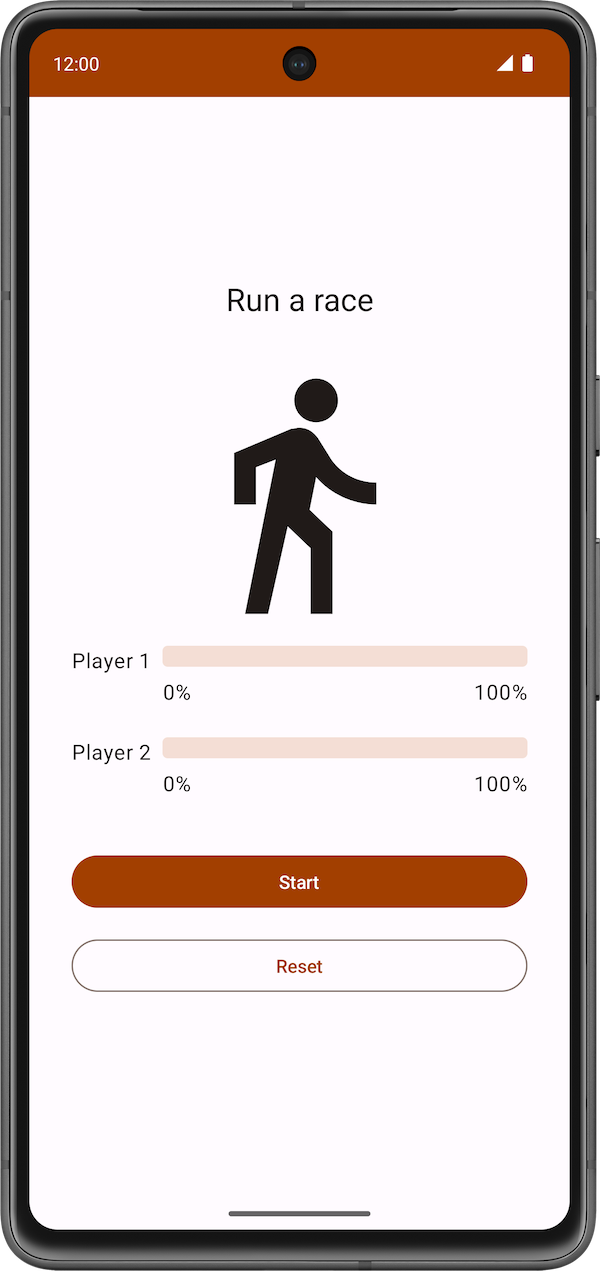
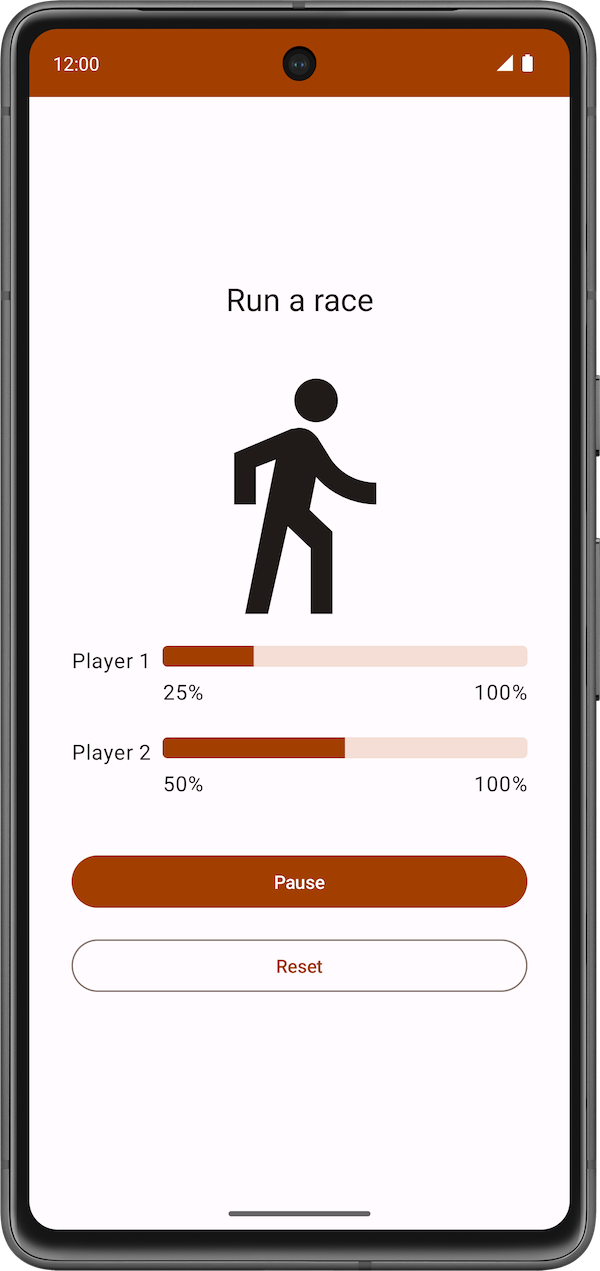
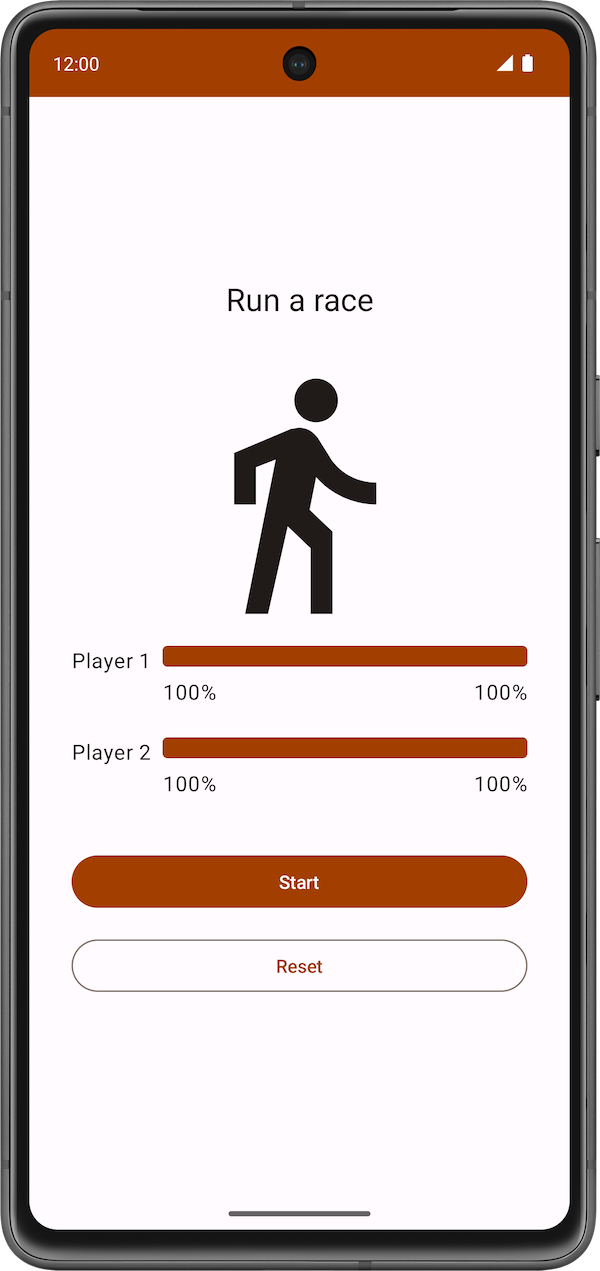
Coroutines are used to ensure:
Both players “run the race” concurrently.
The app UI is responsive and the progress bars increments during the race.
The starter code has the UI code ready for the Race Tracker app. The main focus of this part of the codelab is to get you familiar with Kotlin coroutines inside an Android app.
Get the starter code
Branch: starter
Clone:
$ git clone https://github.com/google-developer-training/basic-android-kotlin-compose-training-race-tracker.git
$ cd basic-android-kotlin-compose-training-race-tracker
$ git checkout starter
Starter code walkthrough
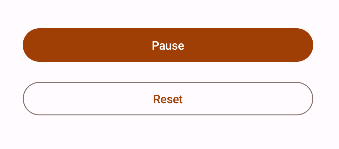
You can start the race by clicking the Start button. The text of the Start button changes to Pause while the race is in progress.
At any point in time, you can use this button to pause or continue the race.
When the race starts, you can see the progress of each player through a status indicator. The
StatusIndicatorcomposable function displays the progress status of each player. It uses theLinearProgressIndicatorcomposable to display the progress bar. You’ll be using coroutines to update the value for progress.
RaceParticipant.kt➜class RaceParticipantprovides the data for progress increment. This class is a state holder for each of the players. It maintains:the
nameof the participantthe
maxProgressto reach to finish the racethe delay duration between progress increments
currentProgressin racethe
initialProgress
In the next section, you will use coroutines to implement the functionality to simulate the race progress without blocking the app UI.
Implement race progress
In
RaceParticipant.kt➜class RaceParticipant, add arun()function:class RaceParticipant( val name: String, val maxProgress: Int = 100, val progressDelayMillis: Long = 500L, private val progressIncrement: Int = 1, private val initialProgress: Int = 0 ) { init { require(maxProgress > 0) { "maxProgress=$maxProgress; must be > 0" } require(progressIncrement > 0) { "progressIncrement=$progressIncrement; must be > 0" } } /** * Indicates the race participant's current progress */ var currentProgress by mutableStateOf(initialProgress) private set suspend fun run() { while (currentProgress < maxProgress) { // Simulate different progress intervals in the race delay(progressDelayMillis) // Simulate the runner's progress currentProgress += progressIncrement } } /** * Regardless of the value of [initialProgress] the reset function will reset the * [currentProgress] to 0 */ fun reset() { currentProgress = 0 } }
imports
import kotlinx.coroutines.delay
When you look at the code you just added, you will see an icon on the left of the call to the
delay()function in Android Studio, as shown in the screenshot below: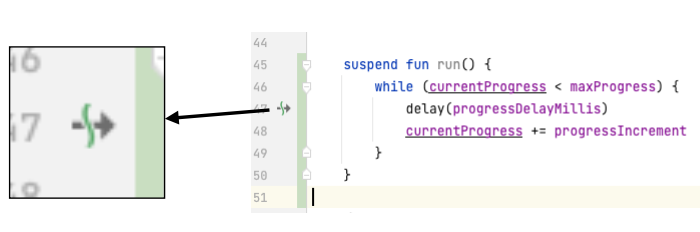
This icon indicates the suspension point when the function might suspend and resume again later.
The main thread is not blocked while the coroutine is waiting to complete the delay duration, as shown in the following diagram:
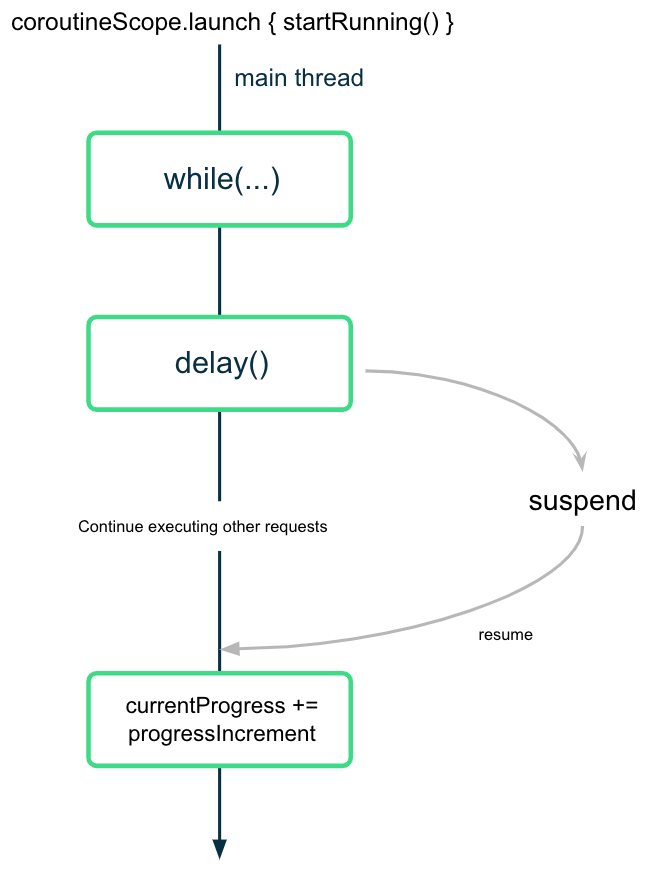
The coroutine suspends (but doesn’t block) the execution after calling the
delay()function with the desired interval value. Once the delay is complete, the coroutine resumes the execution and updates the value of thecurrentProgressproperty.
Start the race
In
RaceTrackerApp.kt➜RaceTrackerApp(), add this code:@Composable fun RaceTrackerApp() { /** * Note: To survive the configuration changes such as screen rotation, [rememberSaveable] should * be used with custom Saver object. But to keep the example simple, and keep focus on * Coroutines that implementation detail is stripped out. */ val playerOne = remember { RaceParticipant(name = "Player 1", progressIncrement = 1) } val playerTwo = remember { RaceParticipant(name = "Player 2", progressIncrement = 2) } var raceInProgress by remember { mutableStateOf(false) } // added code begin if (raceInProgress) { LaunchedEffect(playerOne, playerTwo) { coroutineScope { launch { playerOne.run() } launch { playerTwo.run() } } raceInProgress = false } } // added code end RaceTrackerScreen( playerOne = playerOne, playerTwo = playerTwo, isRunning = raceInProgress, onRunStateChange = { raceInProgress = it }, modifier = Modifier .statusBarsPadding() .fillMaxSize() .verticalScroll(rememberScrollState()) .safeDrawingPadding() .padding(horizontal = dimensionResource(R.dimen.padding_medium)), ) }
imports
import androidx.compose.runtime.LaunchedEffect
When the user presses Start,
raceInProgressis set totrue.The code inside the
if (raceInProgress)block runs.The
LaunchedEffect()function enters the Composition.The
coroutineScope()launches 2 coroutines concurrently. It ensures that both coroutines complete execution, before updating theraceInProgressflag.When
raceInProgressisfalse, theLaunchedEffect()exits the composition. The 2 coroutines are canceled.
Structured concurrency
The way you write code using coroutines is called structured concurrency. The idea is that coroutines have a hierarchy — tasks might launch subtasks, which might launch subtasks in turn. The unit of this hierarchy is referred to as a coroutine scope. Coroutine scopes should always be associated with a lifecycle.
The Coroutines APIs adhere to this structured concurrency by design. You cannot call a suspend function from a function which is not marked suspend. This limitation ensures that you call the suspend functions from coroutine builders, such as
launch. These builders are, in turn, tied to aCoroutineScope.
Run the app.
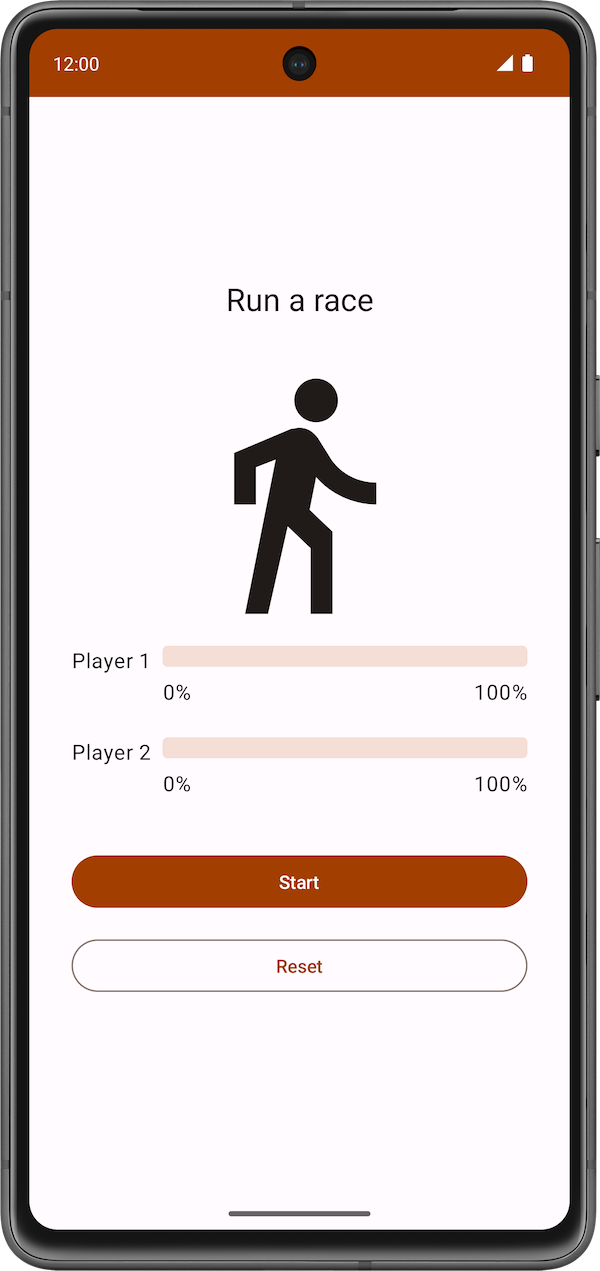
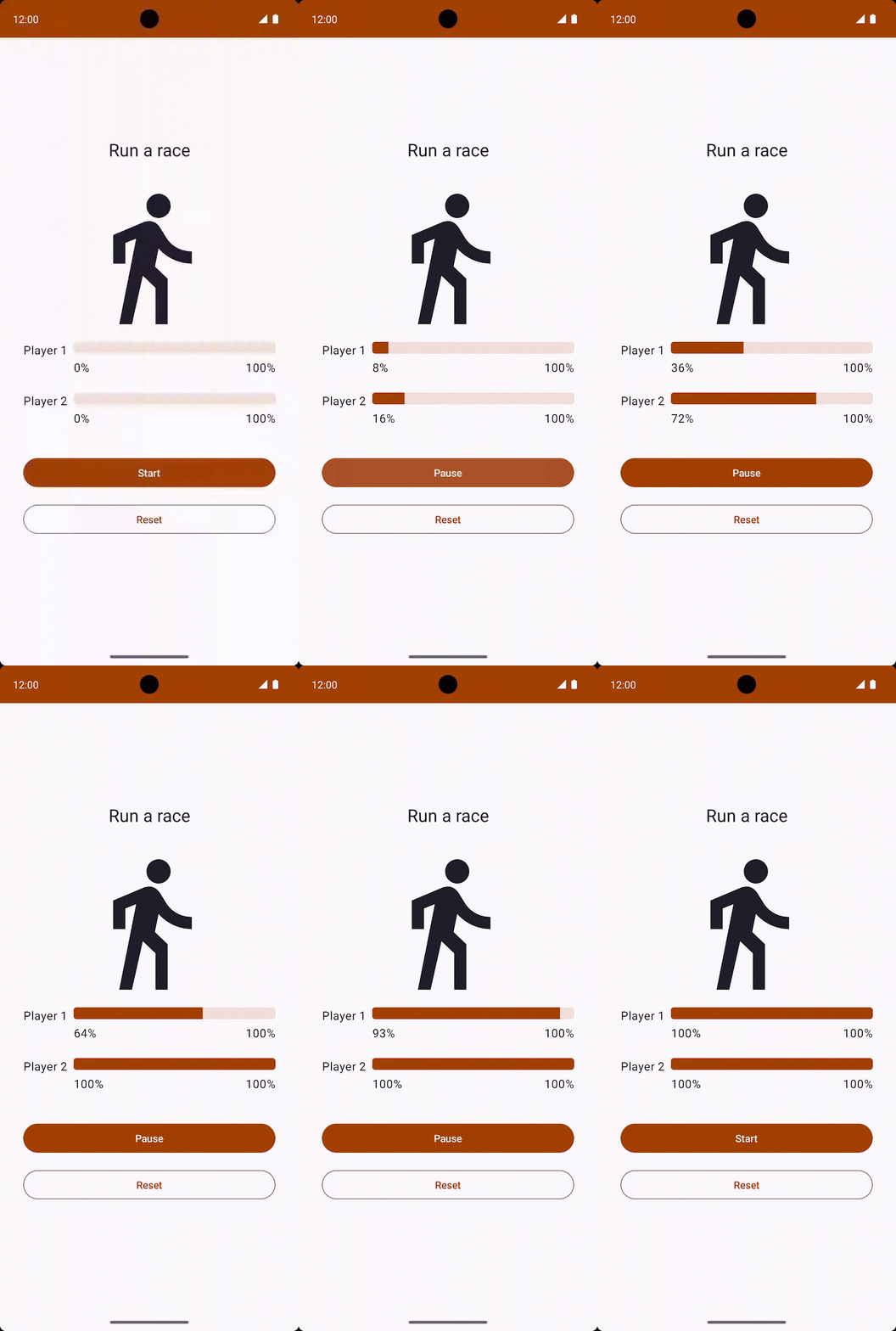
Click the Start button. Player 2 runs faster than Player 1. After the race is complete, which is when both players reach 100% progress, the label for the Pause button changes to Start. You can click the Reset button to reset the race and re-execute the simulation. The race is shown in the following video.
The execution flow is shown in the following diagram.
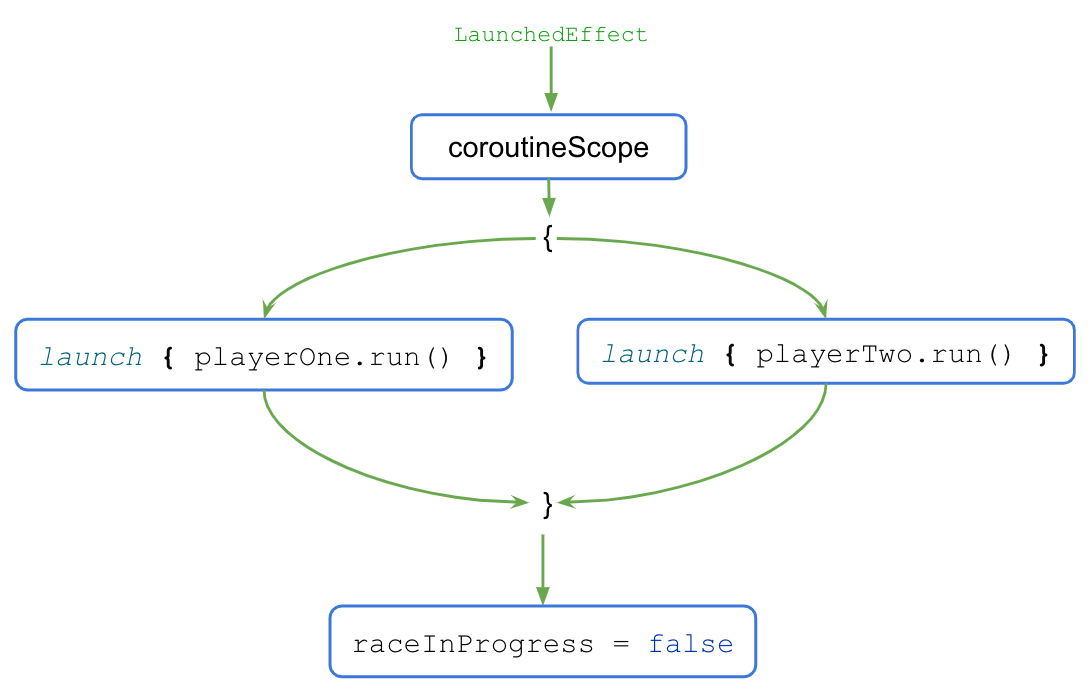
When the
LaunchedEffect()block executes, the control is transferred to thecoroutineScope{..}block.The
coroutineScopeblock launches both coroutines concurrently and waits for them to finish execution.Once the execution is complete, the
raceInProgressflag updates.The
coroutineScopeblock only returns and moves on after all the code inside the block completes execution. For the code outside of the block, the presence or absence of concurrency becomes a mere implementation detail. This coding style provides a structured approach to concurrent programming and is referred to as structured concurrency.When you click the Reset button after the race completes, the coroutines are canceled, and the progress for both players is reset to
0.
Solution code
Branch: main
Clone:
$ git clone https://github.com/google-developer-training/basic-android-kotlin-compose-training-race-tracker.git
$ cd basic-android-kotlin-compose-training-race-tracker
Conclusion
Congratulations! You just learned how to use coroutines to handle concurrency. Coroutines help manage long-running tasks that might otherwise block the main thread and cause your app to become unresponsive. You also learned how to write unit tests to test the coroutines.
The following features are some of the benefits of coroutines:
Readability: The code you write with coroutines provides a clear understanding of the sequence that executes the lines of code.
Jetpack integration: Many Jetpack libraries, such as Compose and ViewModel, include extensions that provide full coroutines support. Some libraries also provide their own coroutine scope that you can use for structured concurrency.
Structured concurrency: Coroutines make concurrent code safe and easy to implement, eliminate unnecessary boilerplate code, and ensure that coroutines launched by the app are not lost or keep wasting resources.
Coroutines enable you to write long running code that runs concurrently without learning a new style of programming. The execution of a coroutine is sequential by design.
The
suspendkeyword is used to mark a function, or function type, to indicate its availability to execute, pause, and resume a set of code instructions.A
suspendfunction can be called only from another suspend function.You can start a new coroutine using the
launchorasyncbuilder function.Coroutine context, coroutine builders, Job, coroutine scope and Dispatcher are the major components for implementing coroutines.
Coroutines use dispatchers to determine the threads to use for its execution.
Job plays an important role to ensure structured concurrency by managing the lifecycle of coroutines and maintaining the parent-child relationship.
A
CoroutineContextdefines the behavior of a coroutine using Job and a coroutine dispatcher.A
CoroutineScopecontrols the lifetime of coroutines through its Job and enforces cancellation and other rules to its children and their children recursively.Launch, completion, cancellation, and failure are four common operations in the coroutine’s execution.
Coroutines follow a principle of structured concurrency.