Unit 4 Pathway 1 Activity 2: Stages of the Activity lifecycle
Before you begin
In this codelab, you learn about a fundamental part of Android: the activity lifecycle.
During its lifetime, an activity transitions through, and sometimes back to, various states. This transitioning of states is known as the activity lifecycle.
In Android, an activity is the entry point for interacting with the user.
With current best practices, one activity might display multiple screens by swapping them in and out as needed.
The activity lifecycle extends from the creation of the activity to its destruction, when the system reclaims that activity’s resources. As a user navigates in and out of an activity, each activity transitions between different states in the activity lifecycle.
As an Android developer, you need to understand the activity lifecycle. If your activities do not correctly respond to lifecycle state changes, your app can generate strange bugs, confusing behavior for your users, or use too many Android system resources. Understanding the Android lifecycle and responding correctly to lifecycle state changes is an important part of Android development.
Prerequisites
Knowledge of what an activity’s
onCreate()method does and the kind of operations that are performed in that method
What you’ll learn
How to print logging information to the Logcat
The basics of the Activity lifecycle and the callbacks that are invoked when the activity moves between states
How to override lifecycle callback methods to perform operations at different times in the activity lifecycle
What you’ll build
Modify a starter app, called Dessert Clicker, to add logging information that’s displayed in the Logcat.
Override lifecycle callback methods and log changes to the activity state.
Run the app and note the logging information that appears as the activity starts, stops, and resumes.
Implement
rememberSaveableto retain app data that may be lost if the device configuration changes.
App Overview
In this codelab, you work with a starter app called Dessert Clicker. In Dessert Clicker, each time the user taps a dessert on the screen, the app “purchases” the dessert for the user. The app updates values in the layout for the:
Number of desserts that are “purchased”
Total revenue for the “purchased” desserts
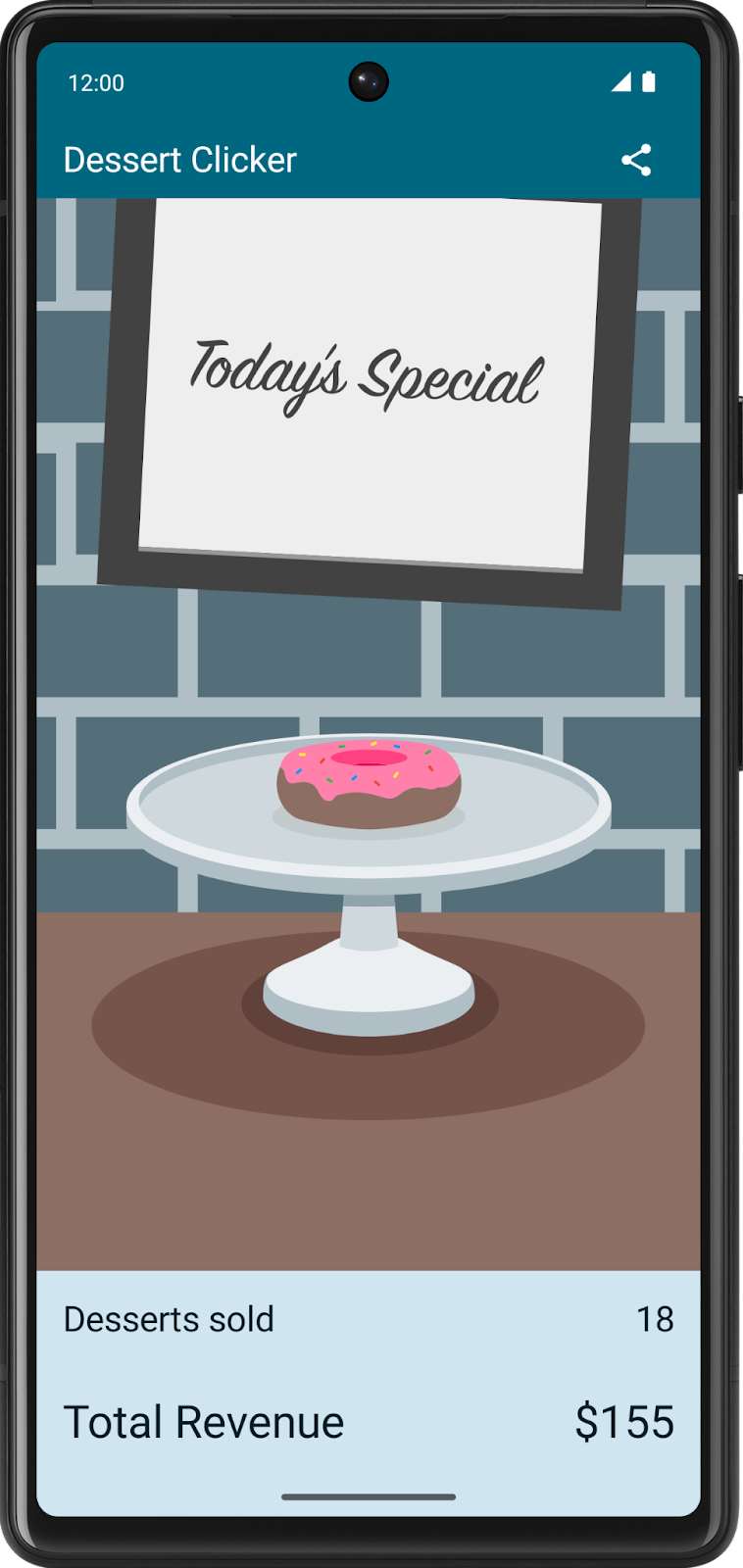
This app contains several bugs related to the Android lifecycle. For example, in certain circumstances, the app resets the dessert values to 0. Understanding the Android lifecycle will help you understand why these problems happen and how to fix them.
Starter code
Starter code: https://github.com/google-developer-training/basic-android-kotlin-compose-training-dessert-clicker/tree/starter
Branch: starter
Explore the lifecycle methods and add basic logging
Every activity has what is known as a lifecycle. This term is an allusion to plant and animal lifecycles, like the lifecycle of a butterfly — the different states of the butterfly show its growth from egg to caterpillar to pupa to butterfly to death.
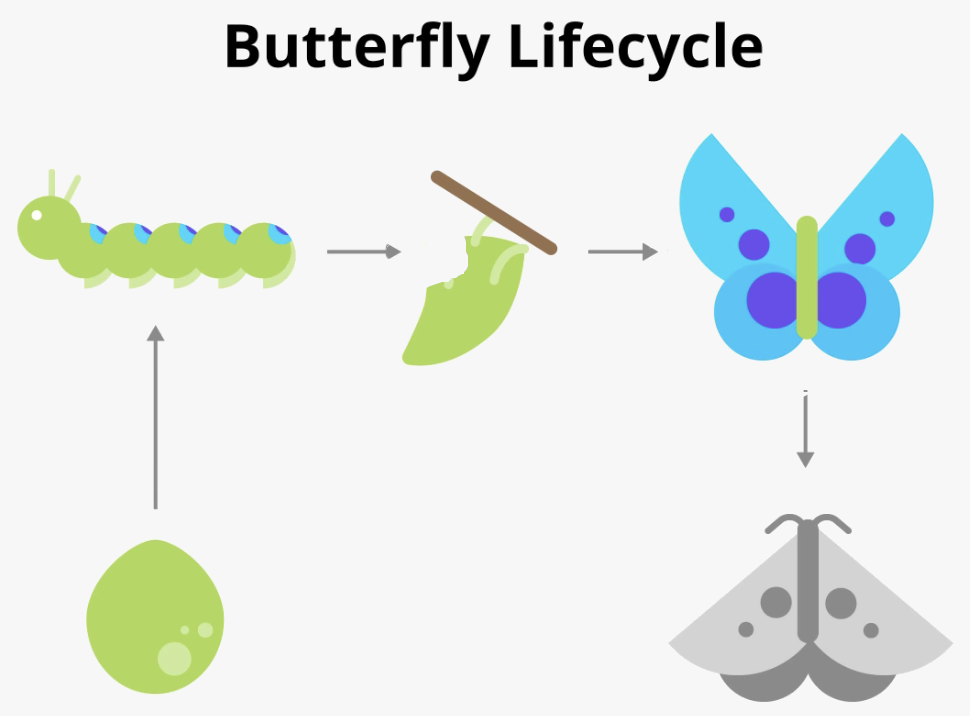
Similarly, the activity lifecycle consists of the different states that an activity can go through, from when the activity first initializes to its destruction, at which time the operating system (OS) reclaims its memory. Typically, the entry point of a program is the
main()method. Android activities, however, begin with theonCreate()method; this method would be the equivalent of the egg stage in the above example. You have used activities already, many times throughout this course, and you might recognize theonCreate()method. As the user starts your app, navigates between activities, navigates inside and outside of your app, the activity changes state.The following diagram shows all the activity lifecycle states. As their names indicate, these states represent the status of the activity. Notice that, unlike the butterfly lifecycle, an activity can go back and forth between states throughout the lifecycle, instead of only moving in a single direction.
Note
An Android app can have multiple activities. However, it is recommended to have a single activity, and so far that is what you have been implementing in this course.
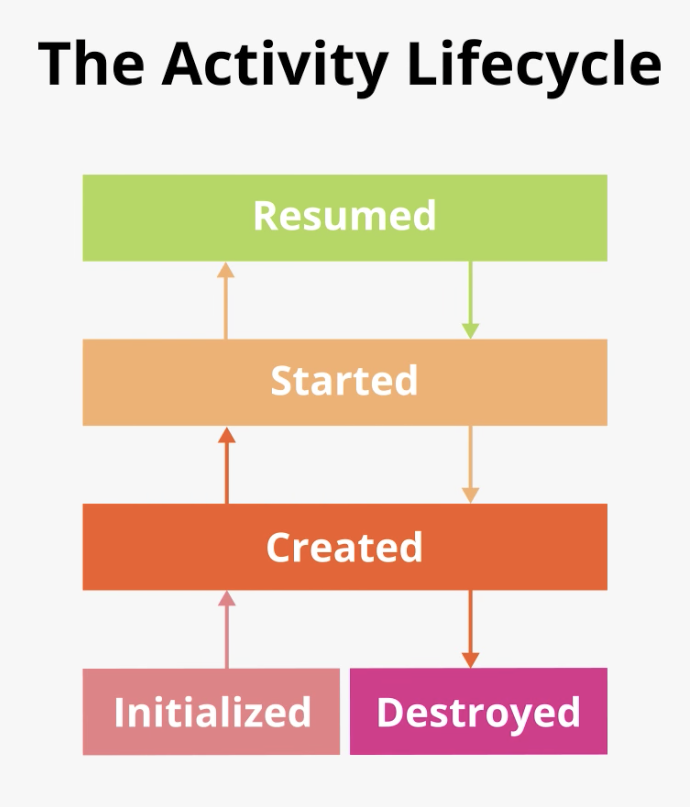
Often, you want to change some behavior, or run some code, when the activity lifecycle state changes. Therefore, the
Activityclass itself, and any subclasses ofActivitysuch asComponentActivity, implement a set of lifecycle callback methods. Android invokes these callbacks when the activity moves from one state to another, and you can override those methods in your own activities to perform tasks in response to those lifecycle state changes. The following diagram shows the lifecycle states along with the available overridable callbacks.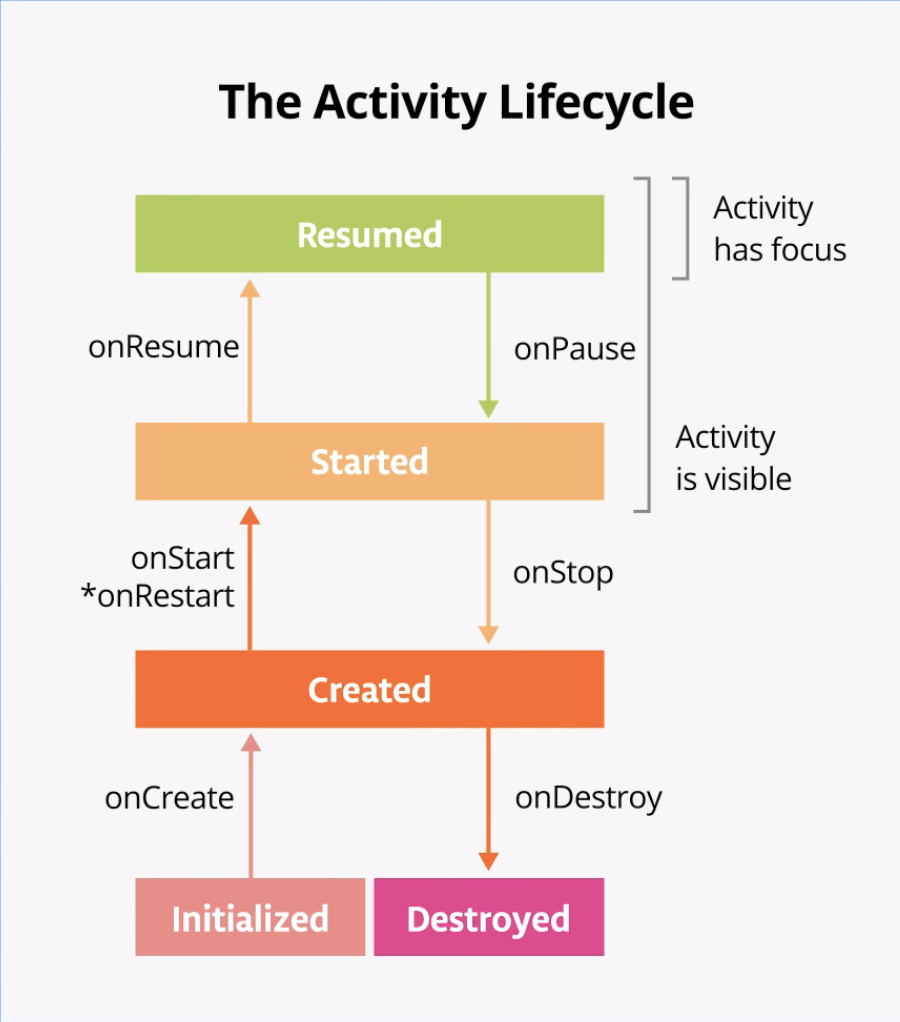
Note
The asterisk on the
onRestart()method indicates that this method is not called every time the state transitions between Created and Started. It is only called ifonStop()was called and the activity is subsequently restarted.It’s important to know when Android invokes the overridable callbacks and what to do in each callback method, but both of these diagrams are complex and can be confusing. In this codelab, instead of just reading what each state and callback means, you’re going to do some detective work and build your understanding of the Android activity lifecycle.
Step 1: Examine the onCreate() method and add logging
To figure out what’s going on with the Android lifecycle, it’s helpful to know when the various lifecycle methods are called. This information helps you identify where things are going wrong in the Dessert Clicker app.
A simple way to determine this information is to use the Android logging functionality. Logging enables you to write short messages to a console while the app runs and use it to see when different callbacks are triggered.
Run the Dessert Clicker app and tap several times on the picture of the dessert. Note how the value for Desserts sold and the total dollar amount changes.
Open
MainActivity.ktand examine theonCreate()method for this activity:override fun onCreate(savedInstanceState: Bundle?) { // ... }
In the activity lifecycle diagram, you may recognize the
onCreate()method, because you’ve used this callback before. It’s the one method that every activity must implement. TheonCreate()method is where you should do any one-time initializations for your activity. For example, inonCreate(), you callsetContent(), which specifies the activity’s UI layout.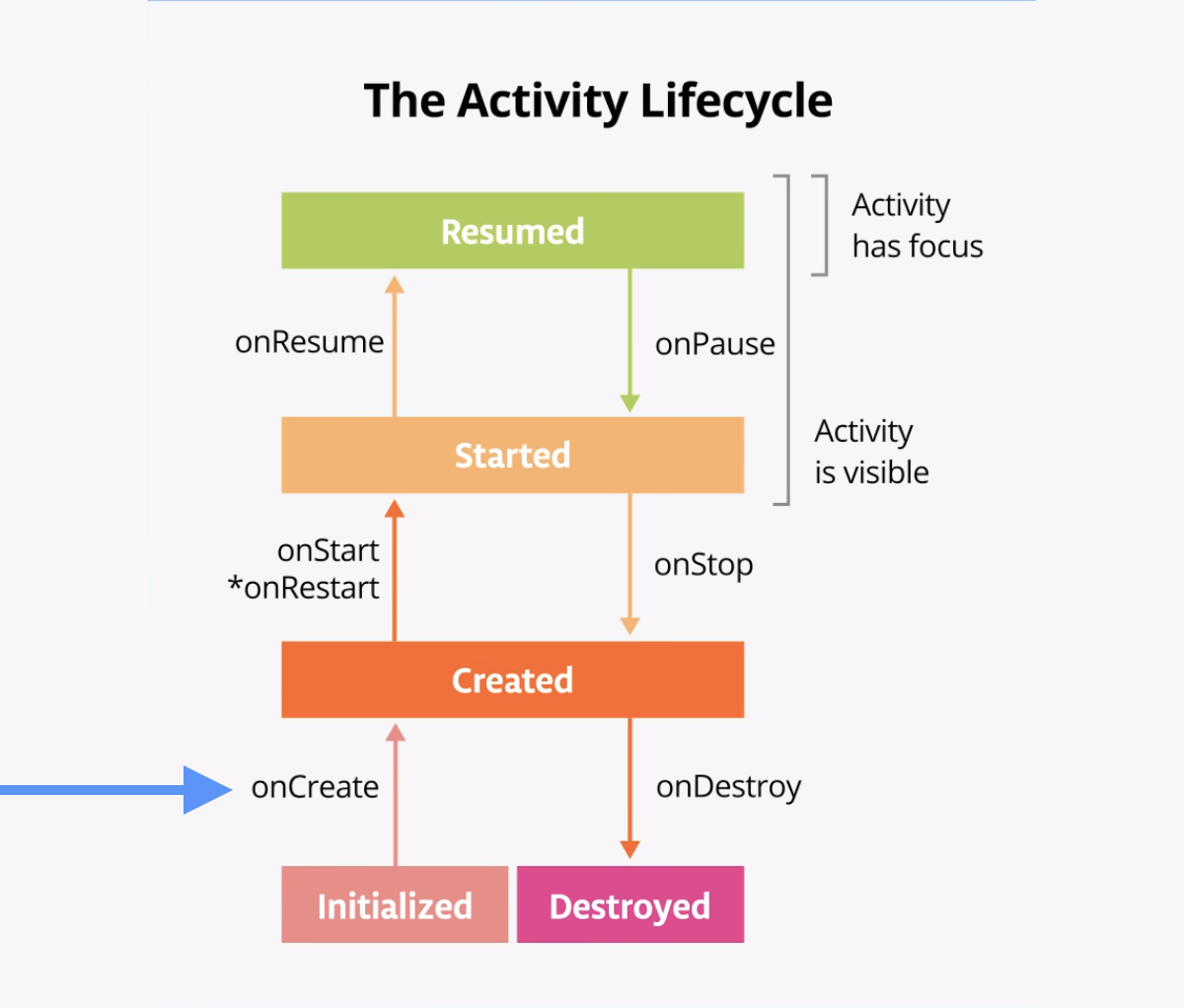
The
onCreate()lifecycle method is called once, just after the activity initializes—when the OS creates the newActivityobject in memory. AfteronCreate()executes, the activity is considered created.Note
When you override the
onCreate()method, you must call the superclass implementation to complete the creation of the Activity, so within it, you must immediately callsuper.onCreate(). The same is true for other lifecycle callback methods.A good convention is to declare a
TAGconstant in your file as its value will not change.To mark it as a compile-time constant, use
constwhen declaring the variable. A compile-time constant is a value that is known during compilation.Add the following constant at the top level of the
MainActivity.kt, above the class declarationclass MainActivity.private const val TAG = "MainActivity"
In the
onCreate()method, just after the call tosuper.onCreate(), add the following line:Log.d(TAG, "onCreate Called")
imports
import android.util.Log
The
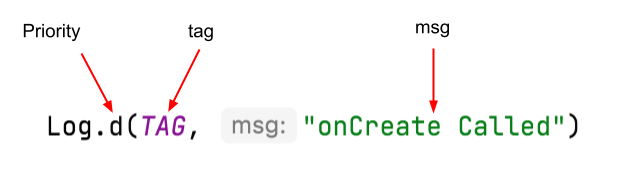
Logclass writes messages to the Logcat. The Logcat is the console for logging messages. Messages from Android about your app appear here, including the messages you explicitly send to the log with theLog.d()method or otherLogclass methods.There are three important aspects of the
Loginstruction:The priority of the log message, that is, how important the message is.
Log.v()logs verbose messages.Log.d()logs debug messages.Log.i()logs informational messages.Log.w()logs warnings.Log.e()logs errors.
The log tag (the first parameter), in this case
"MainActivity". The tag is a string that lets you more easily find your log messages in the Logcat. The tag is typically the name of the class.The actual log message, called
msg(the second parameter), is a short string, which in this case is"onCreate Called".
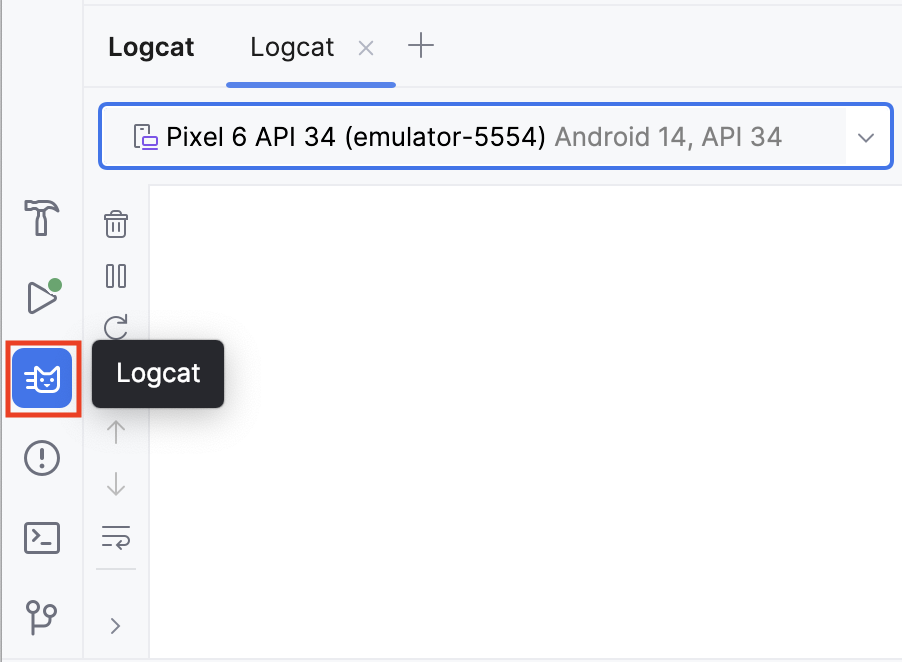
Compile and run the Dessert Clicker app. You don’t see any behavior differences in the app when you tap the dessert. In Android Studio, at the bottom of the screen, click the Logcat tab.
In the Logcat window, type tag:MainActivity into the search field.
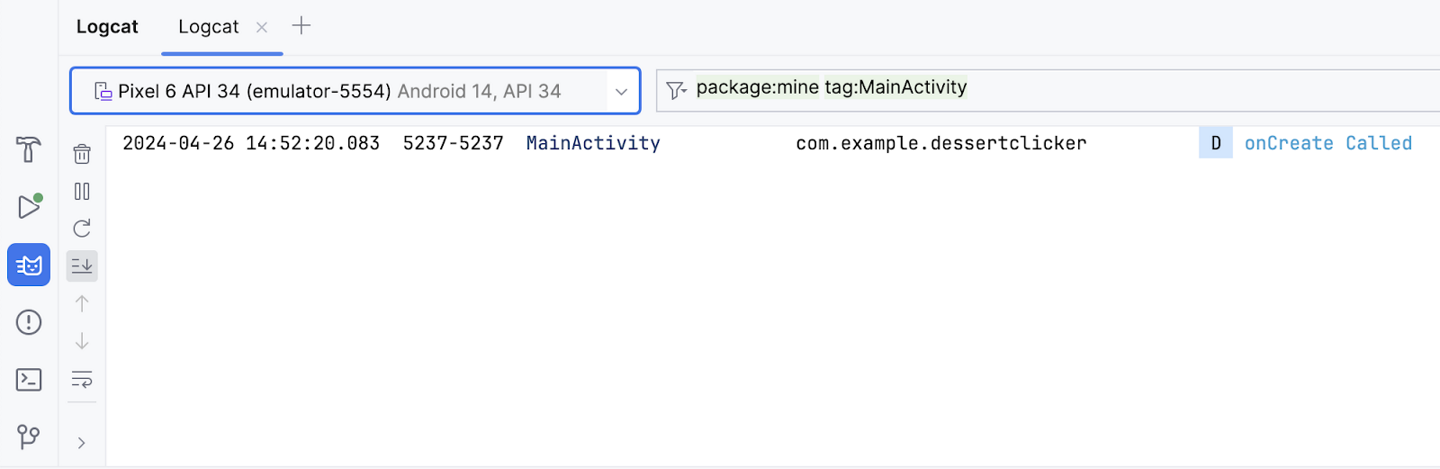
The Logcat can contain many messages, most of which aren’t useful to you. You can filter the Logcat entries in many ways, but searching is the easiest. Because you used
MainActivityas the log tag in your code, you can use that tag to filter the log. Your log message includes the date and time, your log tag, the name of the package (com.example.dessertclicker), and the actual message. Because this message appears in the log, you know thatonCreate()was executed.
Step 2: Implement the onStart() method
The
onStart()lifecycle method is called just afteronCreate(). AfteronStart()runs, your activity is visible on the screen. UnlikeonCreate(), which is called only once to initialize your activity,onStart()can be called by the system many times in the lifecycle of your activity.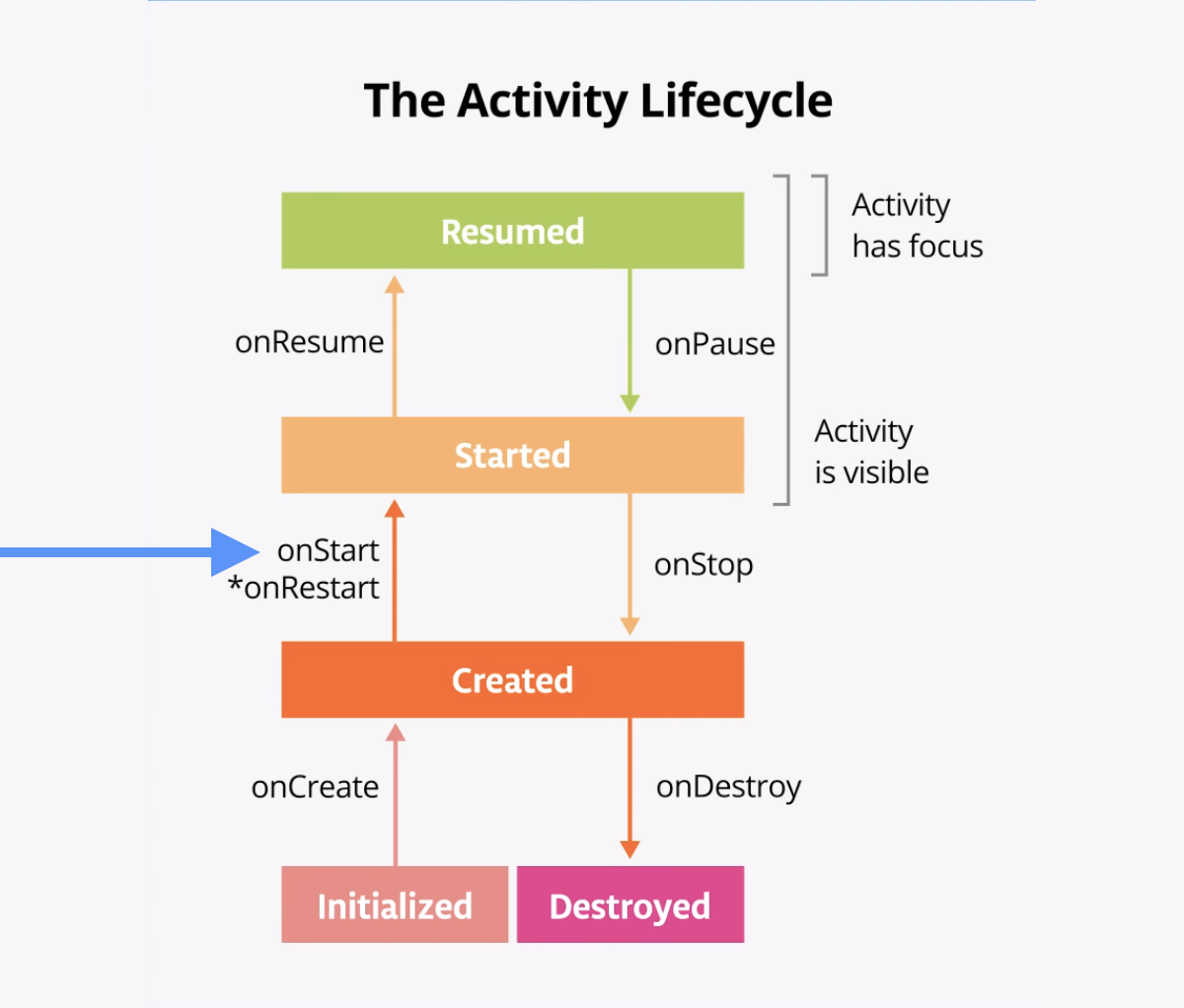
Note that
onStart()is paired with a correspondingonStop()lifecycle method. If the user starts your app and then returns to the device’s home screen, the activity is stopped and is no longer visible on screen.Click on any line of code in
MainActivity.kt. Select Code > Override Methods… or press Control+O. A dialog appears with a long list of all the methods you can override in this class.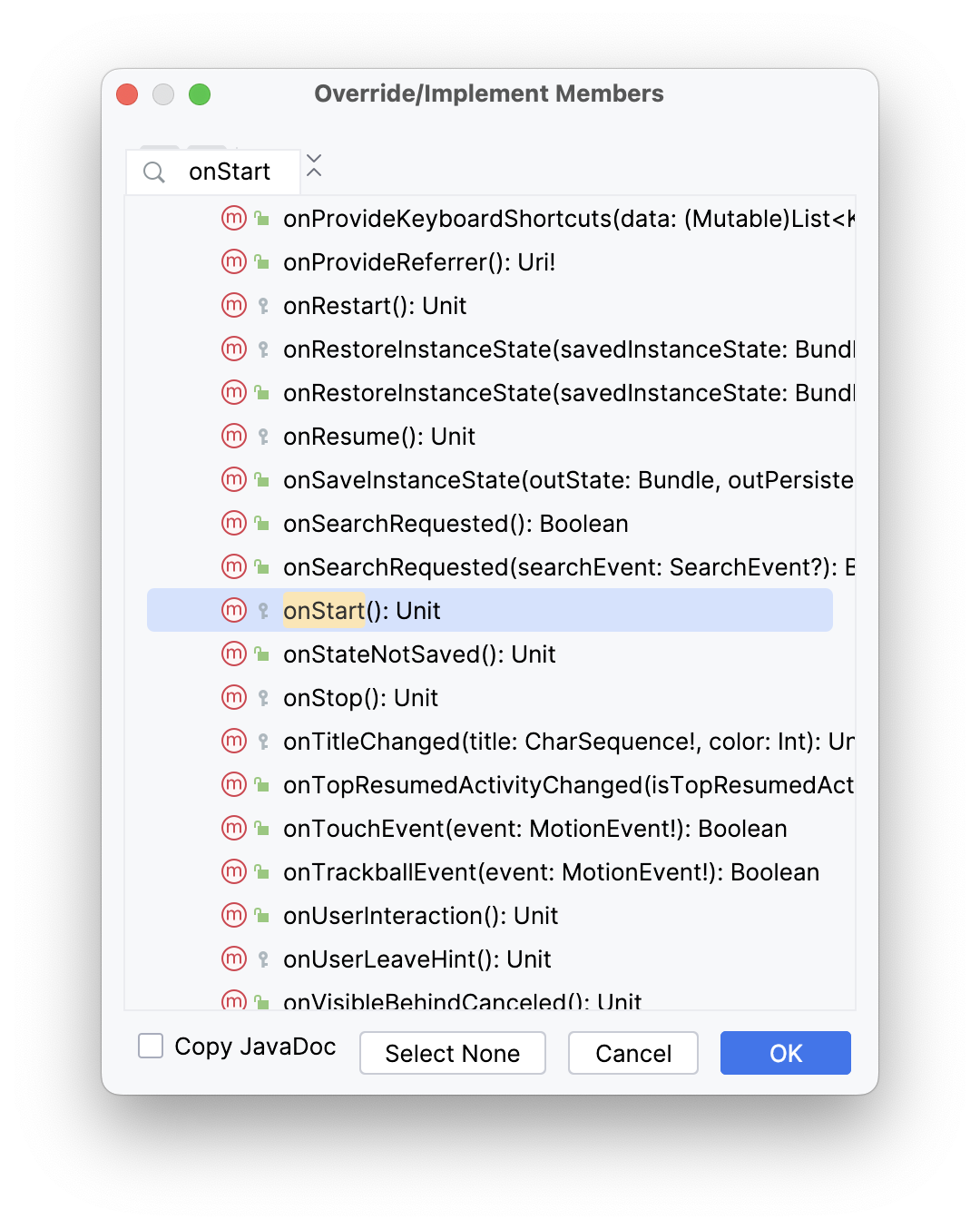
Start typing
onStartto search for the correct method. Press ↓ untilonStart()appears, then click OK to insert the boilerplate override code:override fun onStart() { super.onStart() }
Inside the
onStart()method, add a log message:override fun onStart() { super.onStart() Log.d(TAG, "onStart Called") }
Compile and run the Dessert Clicker app and open the Logcat pane.
Type tag:MainActivity into the search field to filter the log. Notice that both the
onCreate()andonStart()methods were called one after the other, and that your activity is visible on screen.Press the Home button on the device and then use the Recents screen to return to the activity. Notice that the activity resumes where it left off, with all the same values, and that
onStart()is logged a second time to Logcat. Notice also that theonCreate()method is not called again.2024-04-26 14:54:48.721 5386-5386 MainActivity com.example.dessertclicker D onCreate Called 2024-04-26 14:54:48.756 5386-5386 MainActivity com.example.dessertclicker D onStart Called 2024-04-26 14:55:41.674 5386-5386 MainActivity com.example.dessertclicker D onStart Called
Note
As you experiment with your device and observe the lifecycle callbacks, you might notice unusual behavior when you rotate your device. More deets later.
Step 3: Add more log statements
In this step, you implement logging for all the other lifecycle methods.
Override the remainder of the lifecycle methods in your
MainActivityand add log statements for each one, as shown in the following code:override fun onResume() { super.onResume() Log.d(TAG, "onResume Called") } override fun onRestart() { super.onRestart() Log.d(TAG, "onRestart Called") } override fun onPause() { super.onPause() Log.d(TAG, "onPause Called") } override fun onStop() { super.onStop() Log.d(TAG, "onStop Called") } override fun onDestroy() { super.onDestroy() Log.d(TAG, "onDestroy Called") }
Compile and run Dessert Clicker again and examine Logcat.
Notice that this time, in addition to
onCreate()andonStart(), there’s a log message for theonResume()lifecycle callback.2024-04-26 14:56:48.684 5484-5484 MainActivity com.example.dessertclicker D onCreate Called 2024-04-26 14:56:48.709 5484-5484 MainActivity com.example.dessertclicker D onStart Called 2024-04-26 14:56:48.713 5484-5484 MainActivity com.example.dessertclicker D onResume Called
When an activity starts from the beginning, you see all three of these lifecycle callbacks called in order:
onCreate()when the system creates the app.onStart()makes the app visible on the screen, but the user is not yet able to interact with it.onResume()brings the app to the foreground, and the user is now able to interact with it.
Despite the name, the
onResume()method is called at startup, even if there is nothing to resume.
Explore lifecycle use cases
Now that you have set up the Dessert Clicker app for logging, you’re ready to start using the app and exploring how lifecycle callbacks are triggered.
Use case 1: Opening and closing the activity
You start with the most basic use case, which is to start your app for the first time and then close the app.
Compile and run the Dessert Clicker app, if it is not already running. As you’ve seen, the
onCreate(),onStart(), andonResume()callbacks are called when the activity starts for the first time.2024-04-26 14:56:48.684 5484-5484 MainActivity com.example.dessertclicker D onCreate Called 2024-04-26 14:56:48.709 5484-5484 MainActivity com.example.dessertclicker D onStart Called 2024-04-26 14:56:48.713 5484-5484 MainActivity com.example.dessertclicker D onResume Called
Tap the cupcake a few times.
Tap the Back button on the device.
Notice in Logcat that
onPause()andonStop()are called in that order.2024-04-26 14:58:19.984 5484-5484 MainActivity com.example.dessertclicker D onPause Called 2024-04-26 14:58:20.491 5484-5484 MainActivity com.example.dessertclicker D onStop Called 2024-04-26 14:58:20.517 5484-5484 MainActivity com.example.dessertclicker D onDestroy Called
In this case, using the Back button causes the activity (and the app) to be removed from the screen and moved to the back of the activity stack.
The Android OS might close your activity if your code manually calls the activity’s
finish()method or if the user force-quits the app. For example, the user can force-quit or close the app in the Recents screen. The OS might also shut down your activity on its own if your app has not been onscreen for a long time. Android does so to preserve battery life and to reclaim the resources the app was using so they are available to other apps. These are just a few examples of why the Android system destroys your activity. There are additional cases when the Android system destroys your activity without providing a warning.Note
onCreate()andonDestroy(), which this codelab teaches later, are only called once during the lifetime of a single activity instance:onCreate()to initialize the app for the very first time, andonDestroy()to nullify, close, or destroy objects that the activity may have been using so that they don’t continue to use resources, like memory.
Use case 2: Navigating away from and back to the activity
Now that you’ve started the app and closed it, you’ve seen most of the lifecycle states for when the activity gets created for the first time. You’ve also seen most of the lifecycle states that the activity goes through when it gets closed. But as users interact with their Android devices, they switch between apps, return home, start new apps, and handle interruptions by other activities such as phone calls.
Your activity does not close down entirely every time the user navigates away from that activity:
When your activity is no longer visible on screen, the status is known as putting the activity into the background. The opposite of this is when the activity is in the foreground, or onscreen.
When the user returns to your app, that same activity is restarted and becomes visible again. This part of the lifecycle is called the app’s visible lifecycle.
When your app is in the background, it generally should not be actively running to preserve system resources and battery life. You use the
Activitylifecycle and its callbacks to know when your app is moving to the background so that you can pause any ongoing operations. You then restart the operations when your app comes into the foreground.In this step, you look at the activity lifecycle when the app goes into the background and returns again to the foreground.
With the Dessert Clicker app running, click the cupcake a few times.
Press the Home button on your device and observe the Logcat in Android Studio. Returning to the home screen puts your app into the background, rather than shutting down the app altogether. Notice that the
onPause()andonStop()methods are called.
2024-04-26 15:00:04.905  5590-5590  MainActivity            com.example.dessertclicker           D  onPause Called
2024-04-26 15:00:05.430  5590-5590  MainActivity            com.example.dessertclicker           D  onStop Called
When
onPause()is called, the app no longer has focus. AfteronStop(), the app is no longer visible on screen. Although the activity is stopped, theActivityobject is still in memory in the background. The Android OS has not destroyed the activity. The user might return to the app, so Android keeps your activity resources around.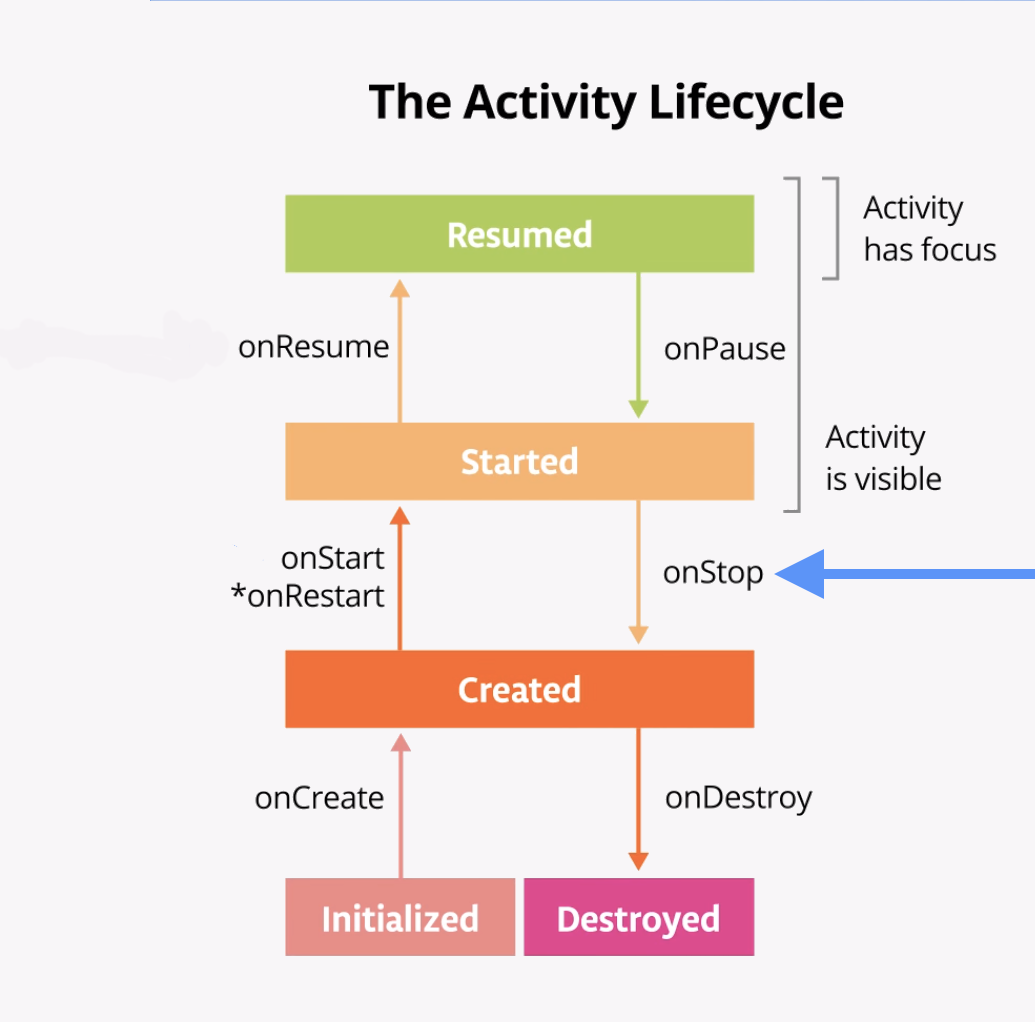
Use the Recents screen to return to the app. On the emulator, the Recents screen can be accessed by the square system button shown in the image below.
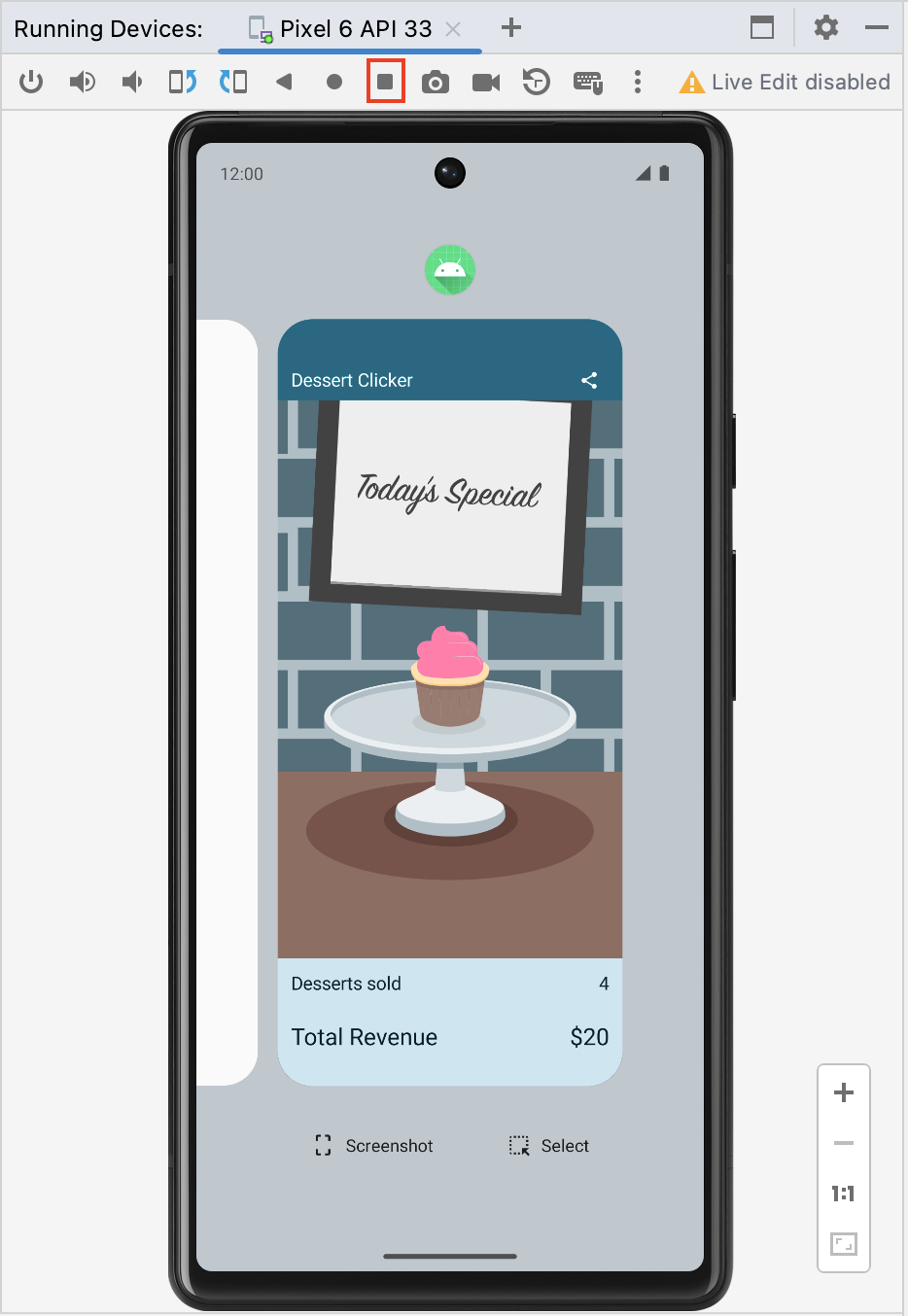
Notice in Logcat that the activity restarts with
onRestart()andonStart()and then resumes withonResume().2024-04-26 15:00:39.371 5590-5590 MainActivity com.example.dessertclicker D onRestart Called 2024-04-26 15:00:39.372 5590-5590 MainActivity com.example.dessertclicker D onStart Called 2024-04-26 15:00:39.374 5590-5590 MainActivity com.example.dessertclicker D onResume Called
Note
onRestart()is only called by the system if the activity has already been created and eventually enters the Created state whenonStop()is called, but returns back to the Started state instead of entering the Destroyed state. TheonRestart()method is a place to put code that you only want to call if your activity is not being started for the first time.When the activity returns to the foreground, the
onCreate()method is not called again. The activity object was not destroyed, so it doesn’t need to be created again. Instead ofonCreate(), theonRestart()method is called. Notice that this time when the activity returns to the foreground, the Desserts sold number is retained.Start at least one app other than Dessert Clicker so that the device has a few apps in its Recents screen.
Bring up the Recents screen and open another recent activity. Then go back to recent apps and bring Dessert Clicker back to the foreground.
Notice that you see the same callbacks in Logcat here as when you pressed the Home button.
onPause()andonStop()are called when the app goes into the background, and thenonRestart(),onStart(), andonResume()are called when it comes back.Note
onStart()andonStop()are called multiple times as the user navigates to and from the activity.These methods are called when the app stops and moves into the background or when the app restarts and returns to the foreground. If you need to do some work in your app during these cases, then override the relevant lifecycle callback method.
Use case 3: Partially hide the activity
You’ve learned that when an app is started and
onStart()is called, the app becomes visible on the screen. WhenonResume()is called, the app gains the user focus – that is, the user can interact with the app. The part of the lifecycle in which the app is fully onscreen and has user focus is called the foreground lifetime.When the app goes into the background, the focus is lost after
onPause(), and the app is no longer visible afteronStop().The difference between focus and visibility is important. An activity can be partially visible on the screen but not have the user focus. In this step, you look at one case in which an activity is partially visible but doesn’t have user focus.
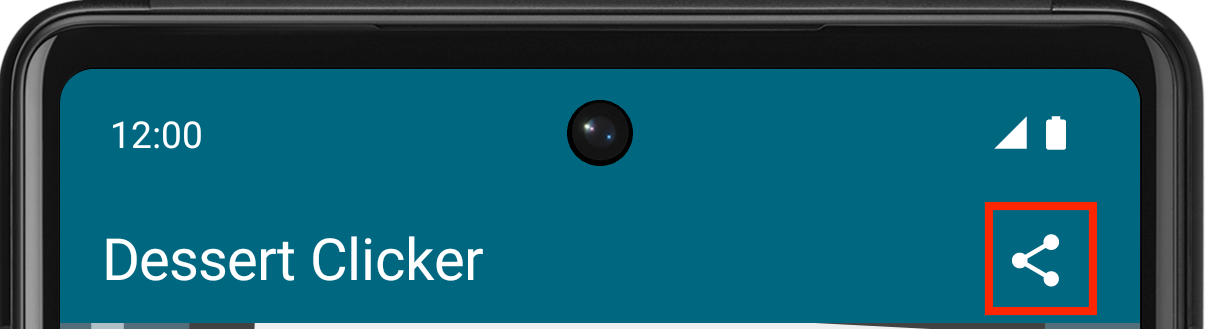
With the Dessert Clicker app running, click the Share button in the top right of the screen. The sharing activity appears in the lower half of the screen, but the activity is still visible in the top half.
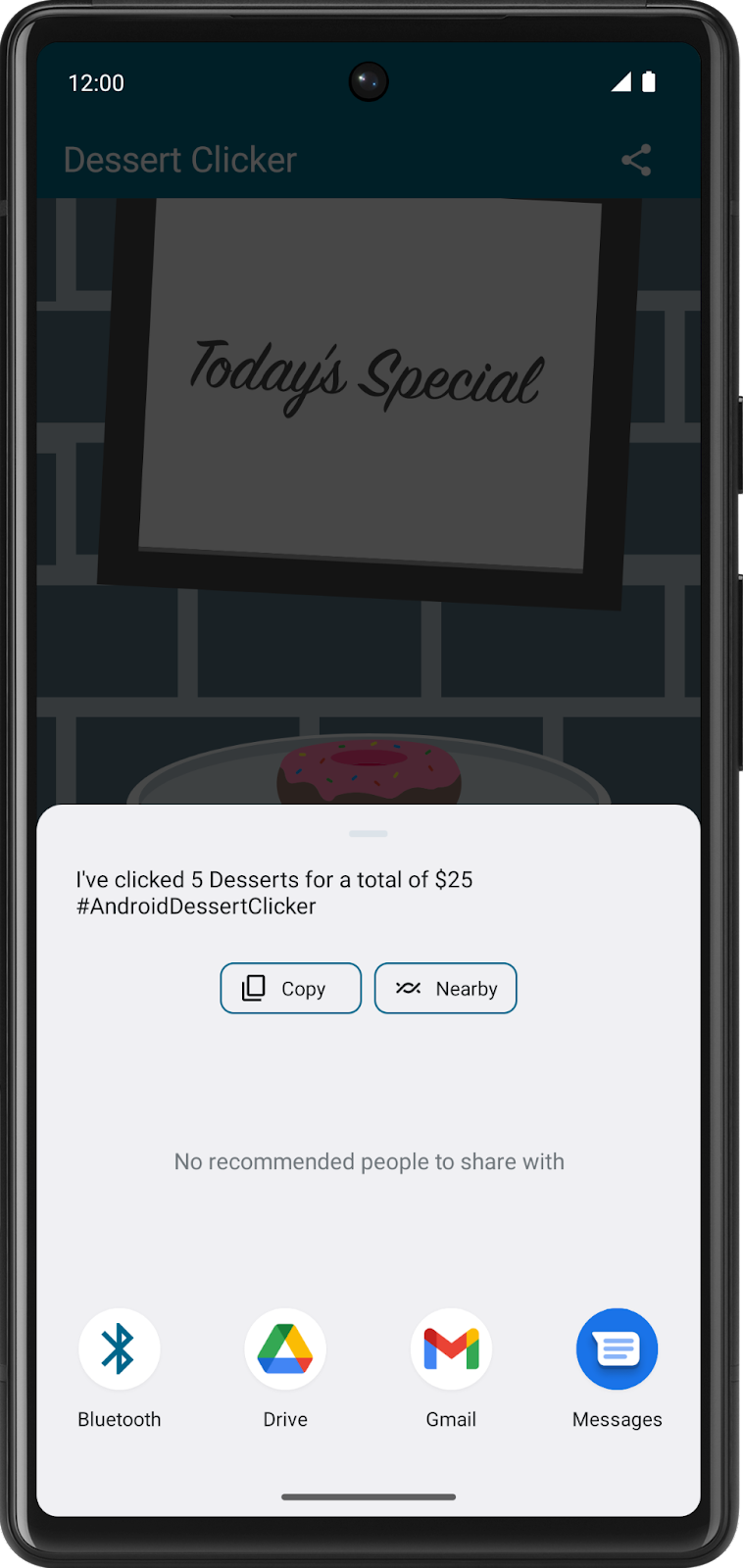
Examine Logcat and note that only
onPause()was called.2024-04-26 15:01:49.535 5590-5590 MainActivity com.example.dessertclicker D onPause Called
In this use case,
onStop()is not called because the activity is still partially visible. But the activity does not have user focus, and the user can’t interact with it—the “share” activity that’s in the foreground has the user focus.Why is this difference important? The interruption with only
onPause()usually lasts a short time before returning to your activity or navigating to another activity or app. You generally want to keep updating the UI so the rest of your app doesn’t appear to freeze.Whatever code runs in
onPause()blocks other things from displaying, so keep the code inonPause()lightweight. For example, if a phone call comes in, the code inonPause()may delay the incoming-call notification.Click outside the share dialog to return to the app, and notice that
onResume()is called.Both
onResume()andonPause()have to do with focus. TheonResume()method is called when the activity gains focus, andonPause()is called when the activity loses focus.
Explore configuration changes
There’s another case in managing the activity lifecycle that is important to understand: how configuration changes affect the lifecycle of your activities.
A configuration change occurs when the state of the device changes so radically that the easiest way for the system to resolve the change is to completely shut down and rebuild the activity. For example, if the user changes the device language, the whole layout might need to change to accommodate different text directions and string lengths. If the user plugs the device into a dock or adds a physical keyboard, the app layout may need to take advantage of a different display size or layout. And if the device orientation changes — if the device is rotated from portrait to landscape or back the other way — the layout might need to change to fit the new orientation. Let’s look at how the app behaves in this scenario.
The last lifecycle callback to demonstrate is
onDestroy(), which is called afteronStop(). It is called just before the activity is destroyed. This can happen when the app’s code callsfinish(), or the system needs to destroy and recreate the activity because of a configuration change.
Configuration change causes onDestroy() to be called
Screen rotation is one type of a configuration change that causes the activity to shutdown and restart. To simulate this configuration change and examine its effects, complete the following steps:
Compile and run your app.
Ensure the screen rotation lock in the emulator is disabled.
Rotate the device or emulator to landscape mode. You can rotate the emulator left or right with the rotation buttons.
Examine Logcat and observe that as the activity shuts down, it calls
onPause(),onStop(), andonDestroy(), in that order.2024-04-26 15:03:32.183 5716-5716 MainActivity com.example.dessertclicker D onPause Called 2024-04-26 15:03:32.185 5716-5716 MainActivity com.example.dessertclicker D onStop Called 2024-04-26 15:03:32.205 5716-5716 MainActivity com.example.dessertclicker D onDestroy Called
Data loss on device rotation
Compile and run your app and open Logcat.
Click the cupcake a few times and note that the desserts sold and total revenue are not zero.
Ensure the screen rotation lock in the emulator is disabled.
Rotate the device or emulator to landscape mode. You can rotate the emulator left or right with the rotation buttons.

Examine the output in Logcat. Filter the output on
MainActivity.2024-04-26 15:04:29.356 5809-5809 MainActivity com.example.dessertclicker D onCreate Called 2024-04-26 15:04:29.378 5809-5809 MainActivity com.example.dessertclicker D onStart Called 2024-04-26 15:04:29.382 5809-5809 MainActivity com.example.dessertclicker D onResume Called 2024-04-26 15:06:52.168 5809-5809 MainActivity com.example.dessertclicker D onPause Called 2024-04-26 15:06:52.183 5809-5809 MainActivity com.example.dessertclicker D onStop Called 2024-04-26 15:06:52.219 5809-5809 MainActivity com.example.dessertclicker D onDestroy Called 2024-04-26 15:06:52.302 5809-5809 MainActivity com.example.dessertclicker D onCreate Called 2024-04-26 15:06:52.308 5809-5809 MainActivity com.example.dessertclicker D onStart Called 2024-04-26 15:06:52.312 5809-5809 MainActivity com.example.dessertclicker D onResume Called
Notice that when the device or emulator rotates the screen, the system calls all the lifecycle callbacks to shut down the activity. Then, as the activity is re-created, the system calls all the lifecycle callbacks to start the activity.
When the device is rotated, and the activity is shut down and re-created, the activity re-starts with default values — the dessert image, number of desserts sold, and total revenue reset back to zero.
To learn why these values are being reset and how to correct them, you need to learn about the lifecycle of a composable and how it knows to observe and retain its state.
Lifecycle of a composable
The UI of your app is initially built from running composable functions in a process called Composition.
When the state of your app changes, a recomposition is scheduled. Recomposition is when Compose re-executes the composable functions whose state might have changed and creates an updated UI. The Composition is updated to reflect these changes.
The only way to create or update a Composition is by its initial composition and subsequent recompositions.
Composable functions have their own lifecycle that is independent of the Activity lifecycle. Its lifecycle is composed of these events:
Entering the Composition,
Recomposing 0 or more times, and then
Leaving the Composition.
In order for Compose to track and trigger a recomposition, it needs to know when state has changed. To indicate to Compose that it should track an object’s state, the object needs to be of type
StateorMutableState. TheStatetype is immutable and can only be read. AMutableStatetype is mutable and allows reads and writes.You have already seen and used
MutableStatein the Lemonade app and the Tip Time app in prior codelabs.To create the mutable variable
revenue, you declare it usingmutableStateOf. Its initial default value is 0.var revenue = mutableStateOf(0)
While this is enough to have Compose trigger a recomposition when the revenue value changes, it is not enough to retain its updated value. Each time the composable is reexecuted, it will reinitialize the revenue value to its initial default value of
0.To instruct Compose to retain and reuse its value during recompositions, you need to declare it with the
rememberAPI.var revenue by remember { mutableStateOf(0) }
If the value of
revenuechanges, Compose schedules all composable functions that read this value for recomposition.While Compose remembers the revenue state during recompositions, it does not retain this state during a configuration change. For Compose to retain the state during a configuration change, you must use
rememberSaveable.
Use rememberSaveable to save values across configuration changes
You use the
rememberSaveablefunction to save values that you need if Android OS destroys and recreates the activity.To save values during recompositions, you need to use
remember. UserememberSaveableto save values during recompositions AND configuration changes.Note
Sometimes Android shuts down an entire app process, which includes every activity associated with the app. Android does this kind of shutdown when the system is stressed and in danger of visually lagging, so no additional callbacks or code is run at this point. Your app’s process is simply shut down silently in the background. But to the user, it doesn’t look like the app is closed. When the user navigates back to an app that the Android system shuts down, Android restarts that app. You want to ensure that the user doesn’t experience any data loss when this happens.
Saving the value using
rememberSaveableensures that it is available when the activity is restored, if it is needed.In
MainActivity, update the 5 variables that currently useremembertorememberSaveable.var revenue by remember { mutableStateOf(0) } var dessertsSold by remember { mutableStateOf(0) } val currentDessertIndex by remember { mutableStateOf(0) } var currentDessertPrice by remember { mutableStateOf(desserts[currentDessertIndex].price) } var currentDessertImageId by remember { mutableStateOf(desserts[currentDessertIndex].imageId) }
var revenue by rememberSaveable { mutableStateOf(0) }
var dessertsSold by rememberSaveable { mutableStateOf(0) }
...
var currentDessertImageId by rememberSaveable {
    mutableStateOf(desserts[currentDessertIndex].imageId)
}
Compile and run your app.
Click the cupcake a few times and note that the desserts sold and total revenue are not zero.
Rotate the device or emulator to landscape mode.
Observe that after the activity is destroyed and recreated, the dessert image, desserts sold, and total revenue are restored to their previous values.
Solution code
Solution code: https://github.com/google-developer-training/basic-android-kotlin-compose-training-dessert-clicker/tree/main
Branch: main
Summary
Activity lifecycle
The activity lifecycle is a set of states through which an activity transitions. The activity lifecycle begins when the Android OS first creates the activity and ends when the OS destroys the activity.
As the user navigates between activities, and inside and outside of your app, each activity moves between states in the activity lifecycle.
Each state in the activity lifecycle has a corresponding callback method you can override in your
Activityclass. The core set of lifecycle methods are:onCreate(),onRestart(),onStart(),onResume(),onPause(),onStop(),onDestroy().To add behavior that occurs when your activity transitions into a lifecycle state, override the state’s callback method.
To add skeleton override methods to your classes in Android Studio, select Code > Override Methods… or press Control+O.
Logging with Log
The Android logging API, and specifically the
Logclass, enables you to write short messages that are displayed in the Logcat within Android Studio.Use
Log.d()to write a debug message. This method takes two arguments: the log tag, typically the name of the class, and the log message, a short string.Use the Logcat window in Android Studio to view the system logs, including the messages you write.
Configuration changes
A configuration change occurs when the state of the device changes so radically that the easiest way for the system to resolve the change is to destroy and rebuild the activity.
The most common example of a configuration change is when the user rotates the device from portrait to landscape mode, or from landscape to portrait mode. A configuration change can also occur when the device language changes or a user plugs in a hardware keyboard.
When a configuration change occurs, Android invokes all the activity lifecycle’s shutdown callbacks. Android then restarts the activity from scratch, running all the lifecycle startup callbacks.
When Android shuts down an app because of a configuration change, it restarts the activity with
onCreate().To save a value that needs to survive a configuration change, declare its variables with
rememberSaveable.