Unit 4 Pathway 3 Activity 5: Practice: Build Sports app
Before you begin
In this practice set, you will build on the concepts you learned in this pathway by creating a Sports app. The starter app is fully functional for a mobile layout. Your task is to make it adaptive for large screens.
Prerequisites
Complete Android Basics in Compose coursework through the Build an adaptive app with dynamic navigation and Build an adaptive app with adaptive layout codelabs.
What you’ll need
A computer with internet access and Android Studio installed
Access to GitHub
What you’ll build
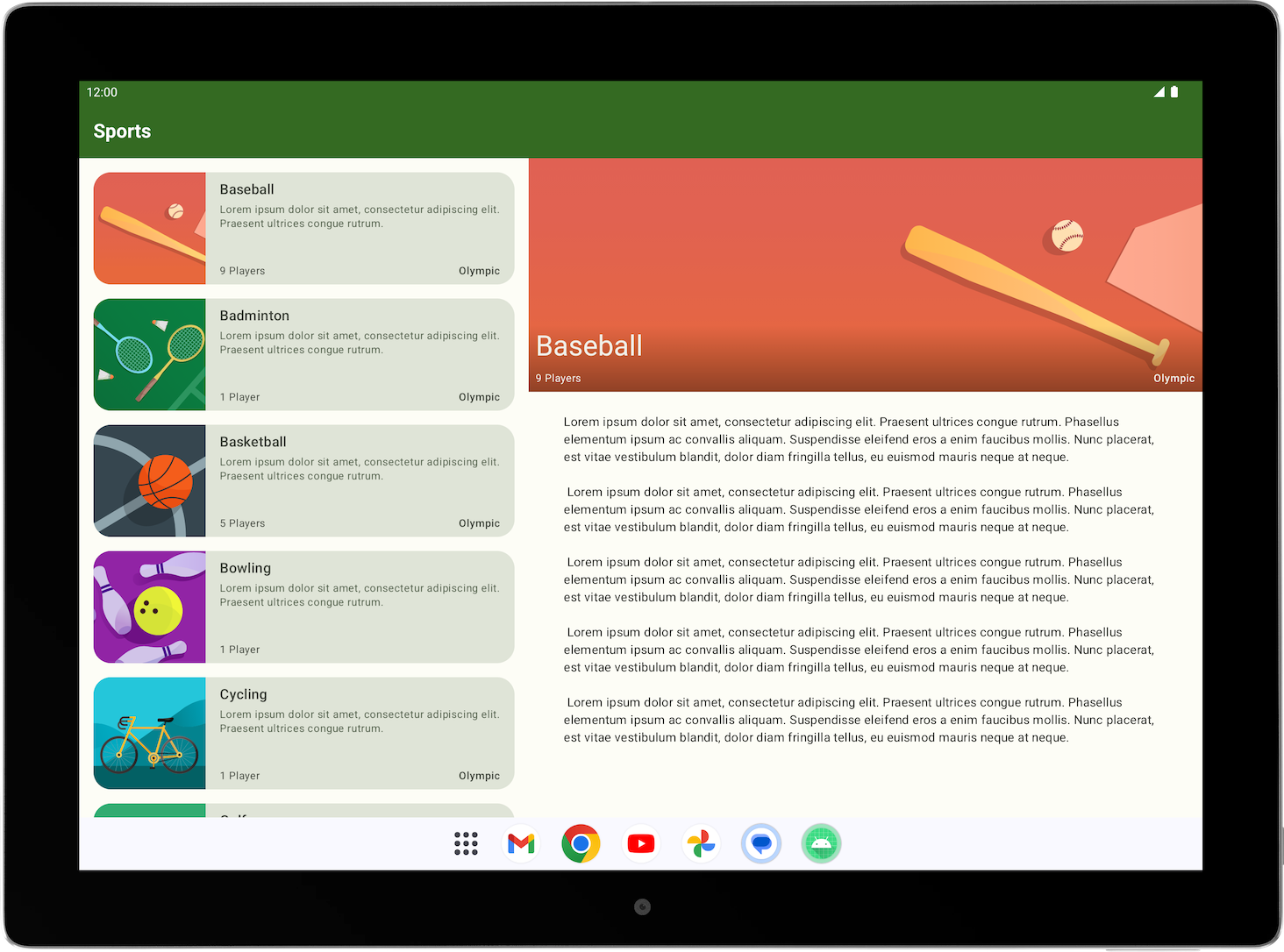
A Sports app that adapts to a large screen. The finished app looks like the following image:
Get started
Branch: starter
Clone:
$ git clone https://github.com/google-developer-training/basic-android-kotlin-compose-training-sports.git
$ cd basic-android-kotlin-compose-training-sports
$ git checkout starter
Plan to adapt Sports app for large screens
To adapt the Sports app for large screens, you first want to establish the type of layout that best displays the app on large screens.
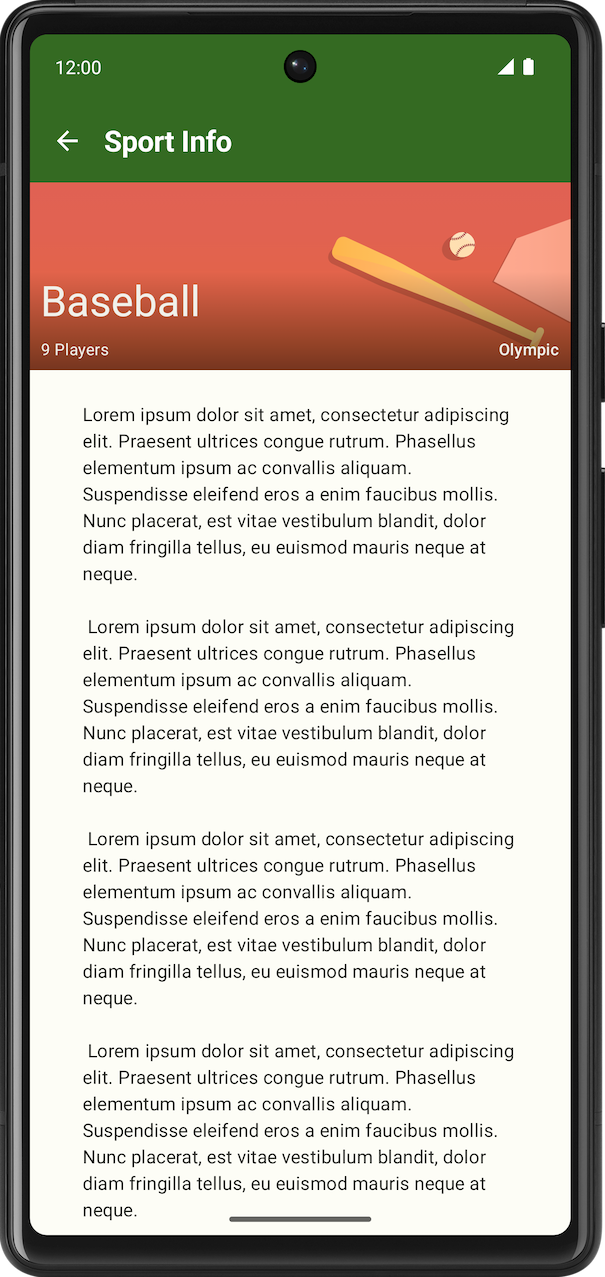
Start reviewing the current layouts available on the compact screen size. There are two screens — namely the list screen, which corresponds to the
SportsListcomposable, and the detail screen, which corresponds to theSportsDetailcomposable.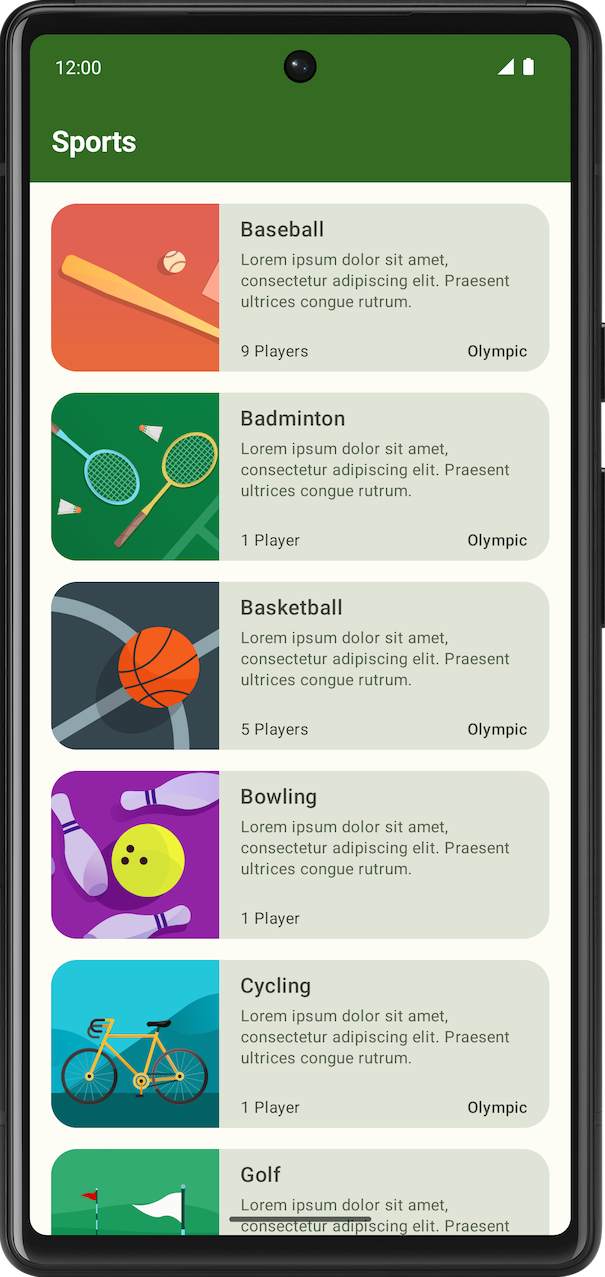
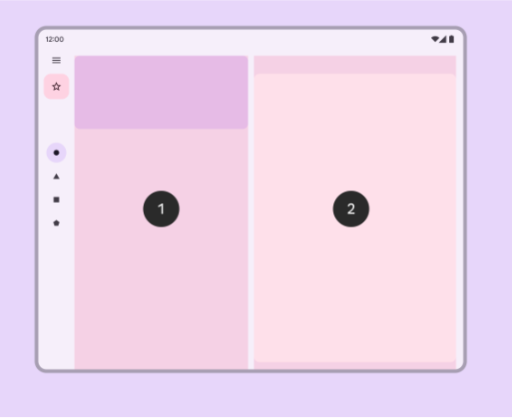
Review the canonical layout to determine the layout that best fits the Sports app use case.
Sketch out a possible expanded screen layout. Use either a simple visual design software or a piece of paper to visualize how the screens fit together in the expanded layout.
Create the expanded screen in code
Now that you have a clear view of how the expanded layout looks, let’s translate that into code.
Create a composable for the expanded screen that shows both the list and the details screen. You can name it
SportsListAndDetailsand place it in theSportsScreens.ktfile.Create a composable preview to simplify verification of the UI for the
SportsListAndDetailscomposable.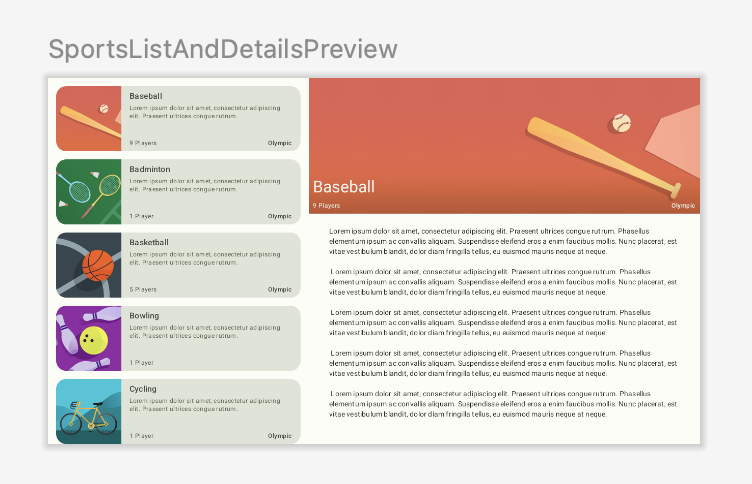
Ensure that the back button behavior is appropriate for the expanded screen. When the user presses the back button, you want them to exit the app when the main screen appears. You can change this behavior by passing the appropriate lambda to the
SportsDetailscomposable. Hint: you can have access to the app’sActivityfrom(LocalContext.current as Activity).
Make app change to different layout based on window size
To add the expanded screen composable to the app, complete the following tasks.
Add
androidx.compose.material3:material3-window-size-classto the app’s dependencies, inbuild.gradle.ktsCalculate
windowSizeClassin theMainActivityand pass thewidthSizeClassto theSportsAppcomposable.Create a new directory named
utilsand create a new file nameWindowStateUtils.kt.Add an
enumclass inWindowStateUtilsto denote two differentcontentType. You can name themListOnlyandListAndDetailtypes.In the
SportsAppcomposable, determine thecontentType, based on thewidthSizeClass.Display the
SportsListAndDetailscomposable whencontentTypeisListAndDetailand keep the previous behavior when the contentType isListOnly.For the
SportsAppBarcomposable, change the behavior so that the back button doesn’t appear and the app bar shows Sports when the screen expands in the list page.Verify the UI and navigation capabilities for both compact and expanded screens using the resizable emulator.
Solution code
https://github.com/google-developer-training/basic-android-kotlin-compose-training-sports/tree/main
Branch: main
Clone:
$ git clone https://github.com/google-developer-training/basic-android-kotlin-compose-training-sports.git