Create an interactive Dice Roller app
Before you begin
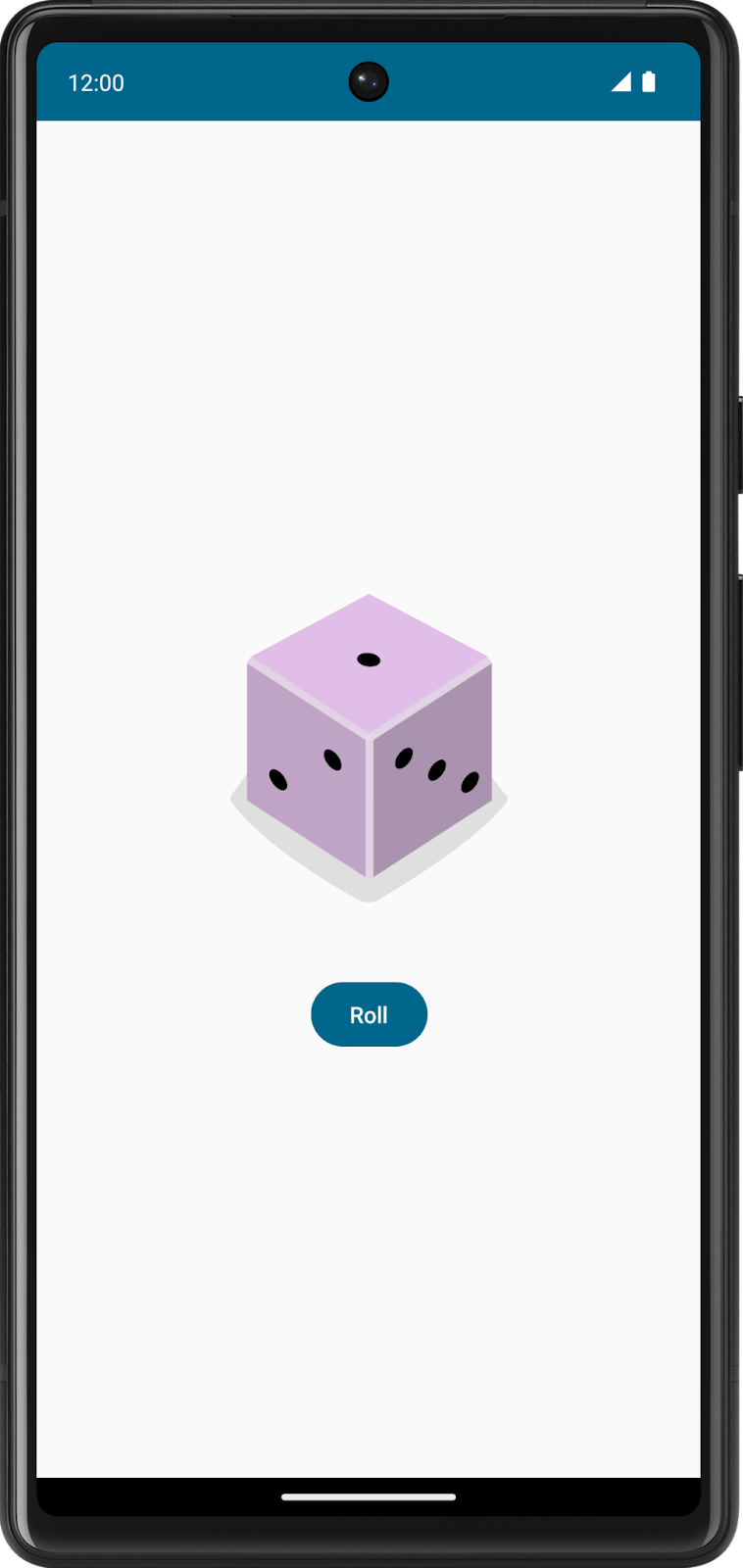
In this codelab, you create an interactive Dice Roller app that lets users tap a
Buttoncomposable to roll a dice. The outcome of the roll is shown with anImagecomposable on the screen.You use Jetpack Compose with Kotlin to build your app layout and then write business logic to handle what happens when the
Buttoncomposable is tapped.Here’s what the app look likes when you complete this codelab:
Prerequisites
Ability to create and run a basic Compose app in Android Studio.
Familiarity with how to use the
Textcomposable in an app.Knowledge of how to extract text into a string resource to make it easier to translate your app and reuse strings.
Knowledge of Kotlin programming basics.
What you’ll learn
How to add a
Buttoncomposable to an Android app with Compose.How to add behavior to a
Buttoncomposable in an Android app with Compose.How to open and modify the
Activitycode of an Android app.
What you’ll build
An interactive Android app called Dice Roller that lets users roll a dice and shows them the result of the roll.
What you’ll need
A computer with Android Studio installed.
In this codelab, you create an interactive Dice Roller app that lets users tap a
Buttoncomposable to roll a dice. The outcome of the roll is shown with anImagecomposable on the screen.You use Jetpack Compose with Kotlin to build your app layout and then write business logic to handle what happens when the
Buttoncomposable is tapped.
Establish a baseline
In Android Studio, click File ➜ New ➜ New Project ➜ Empty Activity ➜ Next.
Enter:
Name:
Dice Roller.Minimum SDK: API 24 (“Nougat”; Android 7.0)
Click Finish
Create the layout infrastructure
Preview the project
Split or Design pane ➜ Click Build & Refresh.

You should see a preview in the Design pane. It might look small, but will be larger later.
Restructure the sample code
You need to change some of the generated code to more closely resemble the theme of a dice roller app.
As you saw in the screenshot of the final app, there’s an image of a dice and a button to roll it. You will structure the composable functions to reflect this architecture.
To restructure the sample code:
Remove the
GreetingPreview()function.Create a
DiceWithButtonAndImage()function with the@Composableannotation. This composable function represents the UI components of the layout and also holds the button-click and image-display logic.Remove the
Greeting(name: String, modifier: Modifier = Modifier)function. In theDiceRollerTheme()lambda body, the call toGreeting()will be highlighted red. That’s because the compiler can’t find a reference to that function anymore.Add the code below. Because this app only consists of a button and an image, think of the
DiceRollerApp()composable function as the app itself. TheDiceWithButtonAndImage()function is the dice element.
@Preview
@Composable
fun DiceRollerApp() {

}

@Composable
fun DiceWithButtonAndImage() {

}
In the
onCreate()method, delete all of the code inside thesetContent{}lambda.In the
setContent{}lambda body, call theDiceRollerTheme{}lambda and then inside theDiceRollerTheme{}lambda, call theDiceRollerApp()function.override fun onCreate(savedInstanceState: Bundle?) { super.onCreate(savedInstanceState) setContent { DiceRollerTheme { DiceRollerApp() } } }
In the
DiceRollerApp()function, call theDiceWithButtonAndImage()function.@Preview @Composable fun DiceRollerApp() { DiceWithButtonAndImage() }
Add a modifier
Compose uses a Modifier object, which is a collection of elements that decorate or modify the behavior of Compose UI elements. You use this to style the UI components of the Dice Roller app’s components.
Add a modifier: modify the
DiceWithButtonAndImage()function to accept a modifier argument of typeModifierand assign it a default value ofModifier.@Composable fun DiceWithButtonAndImage(modifier: Modifier = Modifier) { }
The function accepts a
modifierparameter. The default value of themodifierparameter is aModifierobject, hence the= Modifierpiece of the method signature. The default value of a parameter lets anyone who calls this method in the future decide whether to pass a value for the parameter. If they pass their ownModifierobject, they can customize the behavior and decoration of the UI. If they choose not to pass aModifierobject, it assumes the value of the default, which is the plainModifierobject. You can apply this practice to any parameter. For more information about default arguments, see Default arguments.Note
The
import androidx.compose.ui.Modifierstatement imports theandroidx.compose.ui.Modifierpackage, which lets you reference theModifierobject.Now that the
DiceWithButtonAndImage()composable has a modifier parameter, inDiceRollerApp(), pass a modifier when the composable is called.DiceWithButtonAndImage(modifier = Modifier)
Because the method signature for the
DiceWithButtonAndImage()function changed, aModifierobject with the desired decorations should be passed in when it’s called. TheModifierclass is responsible for the decoration of, or the addition of behavior to, a composable in theDiceRollerApp()function. In this case, there are some important decorations to add to theModifierobject that’s passed to theDiceWithButtonAndImage()function.Why bother passing a
Modifierargument at all when there’s a default? It’s because composables can undergo recomposition, which essentially means that the block of code in the@Composablemethod executes again. Ifmodifieruses the default value, aModifierobject is potentially recreated everytime recomposition happens, and that isn’t efficient. Recomposition is covered later.Chain a
fillMaxSize()method onto the Modifier object so that the layout fills the entire screen.DiceWithButtonAndImage(modifier = Modifier .fillMaxSize() )
This method specifies that the components should fill the space available. Earlier in this codelab, you saw a screenshot of the final UI of the Dice Roller app. A notable feature is that the dice and button are centered on the screen. The
wrapContentSize()method specifies that the available space should at least be as large as the components inside of it. However, becausefillMaxSize()is used, if the components inside of the layout are smaller than the available space, anAlignmentobject can be passed towrapContentSize()that specifies how the components should align within the available space.Chain the
wrapContentSize()method onto theModifierobject and then passAlignment.Centeras an argument to center the components.Alignment.Centerspecifies that a component centers both vertically and horizontally.DiceWithButtonAndImage(modifier = Modifier .fillMaxSize() .wrapContentSize(Alignment.Center) )
Note
These import statements are needed:
import androidx.compose.foundation.layout.fillMaxSize
import androidx.compose.foundation.layout.wrapContentSize
import androidx.compose.ui.Alignment
Create a vertical layout
In Compose, vertical layouts are created with the
Column()function.The
Column()function is a composable layout that places its children in a vertical sequence. In the expected app design, you can see that the dice image displays vertically above the roll button: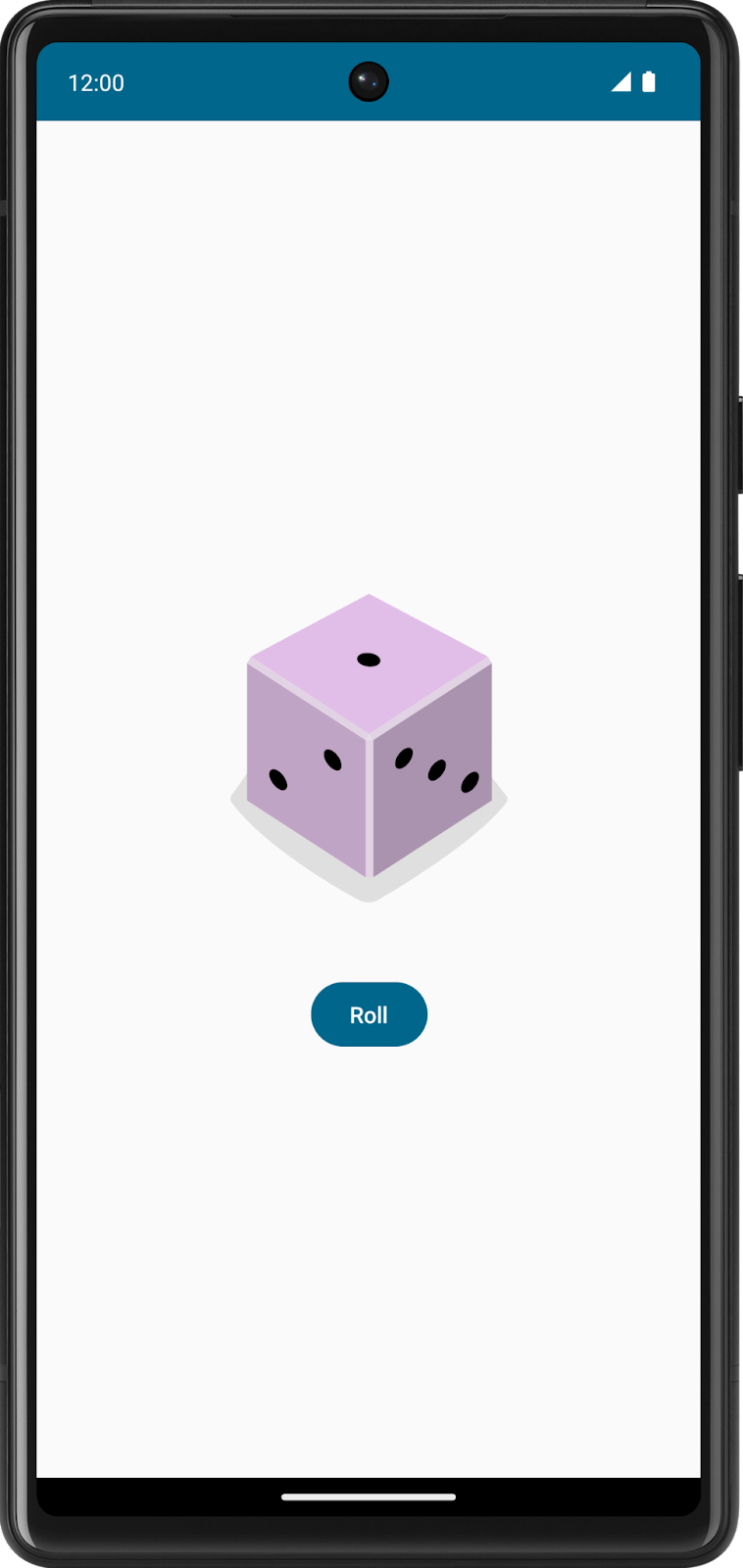
To create a vertical layout:
In the
DiceWithButtonAndImage()function, add aColumn()function.Note
Needs
import androidx.compose.foundation.layout.ColumnPass the
modifierargument from theDiceWithButtonAndImage()method signature to theColumn()’s modifier argument. Themodifierargument ensures that the composables in theColumn()function adhere to the constraints called on themodifierinstance.Pass a
horizontalAlignmentargument to theColumn()function and then set it to a value ofAlignment.CenterHorizontally. This ensures that the children within the column are centered on the device screen with respect to the width.
fun DiceWithButtonAndImage(modifier: Modifier = Modifier) {
    Column (
        modifier = modifier,
        horizontalAlignment = Alignment.CenterHorizontally
    ) {}
}
Add an image
Another essential component of the app is the dice image, which displays the result when the user taps the Roll button. You add the image with an
Imagecomposable, but it requires an image resource, so first you need to download some images provided for this app.
Download the dice images
Download dice_images.zip.
Unpack the zip file to create a new dice_images folder that contains six dice image files with dice values from 1 to 6.
Add the dice images to your app
In Android Studio, click View ➜ Tool Windows ➜ Resource Manager ➜ + ➜ Import Drawables.
Find and select the dice_images folder and proceed to upload them. The uploaded images will appear like this:
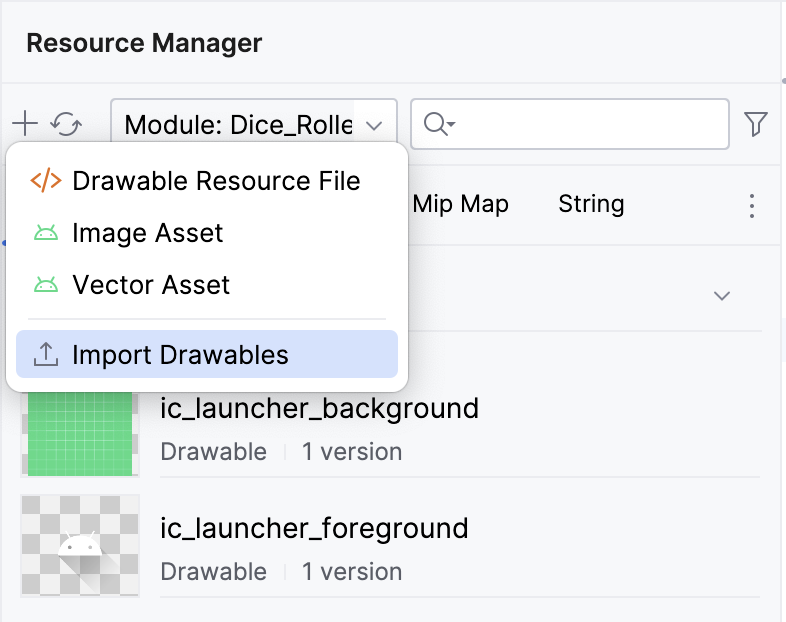
Click Next ➜ Import. The images should appear in the Resource Manager pane.
Note
You can refer to these images in your Kotlin code with their resource IDs:
R.drawable.dice_1
R.drawable.dice_2
R.drawable.dice_3
R.drawable.dice_4
R.drawable.dice_5
R.drawable.dice_6
Add an Image composable
The dice image should appear above the Roll button. Compose inherently places UI components sequentially. In other words, whichever composable is declared first displays first. This could mean that the first declaration displays above, or before, the composable declared after it.
Composables inside of a
Columncomposable will appear above / below each other on the device. In this app, you use aColumnto stack Composables vertically, therefore, whichever Composable is declared first inside theColumn()function displays before the composable declared after it in the sameColumn()function.In the
Column()function body, create anImage()function before theButton()function.Column( modifier = modifier, horizontalAlignment = Alignment.CenterHorizontally ) { Image() Button(onClick = { /*TODO*/ }) { Text(stringResource(R.string.roll)) } }
Note
The import statement for the
Imagecomposable isimport androidx.compose.foundation.Image.Pass the
Image()function apainterargument, and then assign it apainterResourcevalue that accepts a drawable resource id argument. Later on, you will change the value passed for the resource id. For now, pass it theR.drawable.dice_1resource id so that the code will compile for preview purposes.Image( painter = painterResource(R.drawable.dice_1) )
Note
The import statement for the
painterResourcefunction isimport androidx.compose.ui.res.painterResource.Any time you create an Image in your app, you should provide what is called a “content description.” Content descriptions are an important part of Android development. They attach descriptions to their respective UI components to increase accessibility. For more information about content descriptions, see Describe each UI element. You can pass a content description to the image as a parameter.
Image(
    painter = painterResource(R.drawable.dice_1),
    contentDescription = "1"
)
The above content description is a placeholder for the time being. This will be updated in a later section of this codelab.
Add a
Spacercomposable between theImageand theButtoncomposables. ASpacertakes aModifieras a parameter. In this case, theImageis above theButton, so there needs to be a vertical space between them. Therefore, the Modifier’s height can be set to apply to theSpacer. Try setting the height to16.dp. Typically, dp dimensions are changed in increments of4.dp.Spacer(modifier = Modifier.height(16.dp))
Note
The imports for the Spacer composable, modifier height, and dp are:
import androidx.compose.foundation.layout.height
import androidx.compose.foundation.layout.Spacer
import androidx.compose.ui.unit.dp
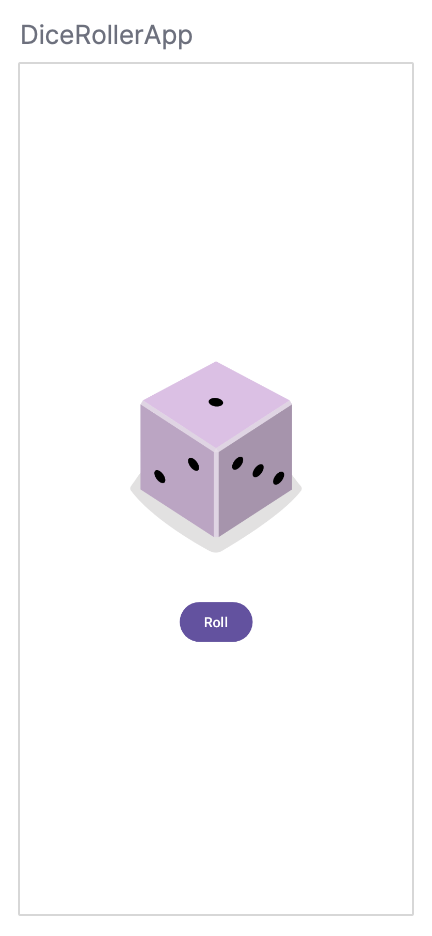
In the Preview pane, click Build & Refresh. You should see something similar to this:
Build the dice roll logic
Now that all the necessary composables are present, you modify the app so that a tap of the button rolls the dice.
In the
DiceWithButtonAndImage()function before theColumn()function, create aresultvariable and set its value to1.Take a look at the
Buttoncomposable. You will notice that it is being passed anonClickparameter which is set to a pair of curly braces with the comment/*TODO*/inside the braces. The braces, in this case, represent what is known as a lambda, the area inside of the braces being the lambda body. When a function is passed as an argument, it can also be referred to as a callback.Button(onClick = { /*TODO*/ })
A lambda is a function literal, which is a function like any other, but instead of being declared separately with the
funkeyword, it is written inline and passed as an expression. TheButtoncomposable is expecting a function to be passed as theonClickparameter. This is the perfect place to use a lambda, and you will be writing the lambda body in this section.In the
Button()function, remove the/*TODO*/comment from the value of the lambda body of the onClick parameter.A dice roll is random. To reflect that in code, you need to use the correct syntax to generate a random number. In Kotlin, you can use the
random()method on a number range. In theonClicklambda body, set theresultvariable to a range between 1 to 6 and then call therandom()method on that range. Remember that, in Kotlin, ranges are designated by two periods between the first number in the range and the last number in the range.fun DiceWithButtonAndImage(modifier: Modifier = Modifier) { var result = 1 Column( modifier = modifier, horizontalAlignment = Alignment.CenterHorizontally ) { Image( painter = painterResource(R.drawable.dice_1), contentDescription = "1" ) Spacer(modifier = Modifier.height(16.dp)) Button(onClick = { result = (1..6).random() }) { Text(stringResource(R.string.roll)) } } }
Now the button is tappable, but a tap of the button won’t cause any visual change yet because you still need to build that functionality.
Ultimately, the value of the
resultvariable is reset when the Roll button is tapped and it should determine which image is shown.Composables are stateless by default, which means that they don’t hold a value and can be recomposed any time by the system, which results in the value being reset. However, Compose provides a convenient way to avoid this. Composable functions can store an object in memory using the
remembercomposable.Make the
resultvariable aremembercomposable.The
remembercomposable requires a function to be passed. In theremembercomposable body, pass in amutableStateOf()function and then pass the function a1argument.The
mutableStateOf()function returns an observable. You learn more about observables later, but for now this basically means that when the value of theresultvariable changes, a recomposition is triggered, the value of the result is reflected, and the UI refreshes.var result by remember { mutableStateOf(1) }
Note
To import the packages needed for the
mutableStateOf()function and theremembercomposable:import androidx.compose.runtime.mutableStateOf import androidx.compose.runtime.remember
The following import statements are needed for necessary extension functions of State:
import androidx.compose.runtime.getValue
import androidx.compose.runtime.setValue
Now, when the button is tapped, the
resultvariable is updated with a random number value. Theresultvariable can now be used to determine which image to show.Underneath the instantiation of the
resultvariable, create an immutableimageResourcevariable set to awhenexpression that accepts aresultvariable and then set each possible result to its drawable.val imageResource = when (result) { 1 -> R.drawable.dice_1 2 -> R.drawable.dice_2 3 -> R.drawable.dice_3 4 -> R.drawable.dice_4 5 -> R.drawable.dice_5 else -> R.drawable.dice_6 }
Change the ID passed to the
painterResourceparameter of theImagecomposable from theR.drawable.dice_1drawable to theimageResourcevariable.Change the
contentDescriptionparameter of theImagecomposable to reflect the value ofresultby convertingresultto a string withtoString()and passing it as thecontentDescription.Image( painter = painterResource(imageResource), contentDescription = result.toString() )
In the Design View, enter Interactive Mode. Click on the Roll button. The app should work fully now!
Solution code
Branch: main
Clone:
$ git clone https://github.com/google-developer-training/basic-android-kotlin-compose-training-dice-roller.git
The code for
MainActivity.kt:/* * Copyright (C) 2023 The Android Open Source Project * * Licensed under the Apache License, Version 2.0 (the "License"); * you may not use this file except in compliance with the License. * You may obtain a copy of the License at * * https://www.apache.org/licenses/LICENSE-2.0 * * Unless required by applicable law or agreed to in writing, software * distributed under the License is distributed on an "AS IS" BASIS, * WITHOUT WARRANTIES OR CONDITIONS OF ANY KIND, either express or implied. * See the License for the specific language governing permissions and * limitations under the License. */ package com.example.diceroller import android.os.Bundle import androidx.activity.ComponentActivity import androidx.activity.compose.setContent import androidx.compose.foundation.Image import androidx.compose.foundation.layout.Column import androidx.compose.foundation.layout.Spacer import androidx.compose.foundation.layout.fillMaxSize import androidx.compose.foundation.layout.height import androidx.compose.foundation.layout.wrapContentSize import androidx.compose.material3.Button import androidx.compose.material3.MaterialTheme import androidx.compose.material3.Surface import androidx.compose.material3.Text import androidx.compose.runtime.Composable import androidx.compose.runtime.getValue import androidx.compose.runtime.mutableStateOf import androidx.compose.runtime.remember import androidx.compose.runtime.setValue import androidx.compose.ui.Alignment import androidx.compose.ui.Modifier import androidx.compose.ui.res.painterResource import androidx.compose.ui.res.stringResource import androidx.compose.ui.tooling.preview.Preview import androidx.compose.ui.unit.dp import androidx.compose.ui.unit.sp import com.example.diceroller.ui.theme.DiceRollerTheme class MainActivity : ComponentActivity() { override fun onCreate(savedInstanceState: Bundle?) { super.onCreate(savedInstanceState) setContent { DiceRollerTheme { Surface( modifier = Modifier.fillMaxSize(), color = MaterialTheme.colorScheme.background ) { DiceRollerApp() } } } } } @Preview @Composable fun DiceRollerApp() { DiceWithButtonAndImage(modifier = Modifier .fillMaxSize() .wrapContentSize(Alignment.Center) ) } @Composable fun DiceWithButtonAndImage(modifier: Modifier = Modifier) { var result by remember { mutableStateOf( 1) } val imageResource = when(result) { 1 -> R.drawable.dice_1 2 -> R.drawable.dice_2 3 -> R.drawable.dice_3 4 -> R.drawable.dice_4 5 -> R.drawable.dice_5 else -> R.drawable.dice_6 } Column(modifier = modifier, horizontalAlignment = Alignment.CenterHorizontally) { Image(painter = painterResource(imageResource), contentDescription = result.toString()) Button( onClick = { result = (1..6).random() }, ) { Text(text = stringResource(R.string.roll), fontSize = 24.sp) } } }
Conclusion
Define composable functions.
Create layouts with Compositions.
Create a button with the
Buttoncomposable.Import
drawableresources.Display an image with the
Imagecomposable.Make an interactive UI with composables.
Use the
remembercomposable to store objects in a Composition to memory.Refresh the UI with the
mutableStateOf()function to make an observable.