Unit 7 Pathway 1 Activity 4: Advanced WorkManager
Introduction
In this codelab, you’ll continue learning about WorkManager functionality for ensuring unique work, tagging work, canceling work, and work constraints.
What you’ll build
In this codelab, you will ensure unique work, tag work, and cancel work.
What you’ll learn
Ensuring unique work.
How to cancel work.
How to define work constraints.
The basics of inspecting queued workers with the Background Task Inspector.
What you’ll need
The latest stable version of Android Studio
Completion of the Background Work with WorkManager codelab
An Android device or emulator
Starter code
Branch: intermediate
$ git clone https://github.com/google-developer-training/basic-android-kotlin-compose-training-workmanager.git
$ cd basic-android-kotlin-compose-training-workmanager
$ git checkout intermediate
Ensure unique work
Now that you know how to chain workers, it’s time to tackle another powerful feature of WorkManager: unique work sequences.
Sometimes, you only want one chain of work to run at a time. For example, perhaps you have a work chain that syncs your local data with the server. You probably want the first data sync to complete before starting a new one. To do this, you use
beginUniqueWork()instead ofbeginWith(), and you provide a uniqueStringname. This input names the entire chain of work requests so that you can refer to and query them together.You also need to pass in an
ExistingWorkPolicyobject. This object tells the Android OS what happens if the work already exists. PossibleExistingWorkPolicyvalues areREPLACE,KEEP,APPEND, orAPPEND_OR_REPLACE.In this app, you want to use
REPLACE, because if a user decides to blur another image before the current one finishes, you want to stop the current one and start blurring the new image. If a user clicks Start when a work request is already enqueued, then the app replaces the previous work request with the new request. It does not make sense to continue working on the previous request because the new request will override the previous one anyway.In
data/WorkManagerBluromaticRepository.kt, inside theapplyBlur()method, replace the call tobeginWith()with this code:// REPLACE THIS CODE: // var continuation = workManager.beginWith(OneTimeWorkRequest.from(CleanupWorker::class.java)) // WITH var continuation = workManager .beginUniqueWork( IMAGE_MANIPULATION_WORK_NAME, ExistingWorkPolicy.REPLACE, OneTimeWorkRequest.from(CleanupWorker::class.java) )
imports
import androidx.work.ExistingWorkPolicy
import com.example.bluromatic.IMAGE_MANIPULATION_WORK_NAME
Blur-O-Matic now only blurs one image at a time.
Tag and update the UI based on Work status
Note
If the app goes into an invalid state (e.g. shows “Cancel Work” upon start up), it might help to:
Clear the app’s cache and storage
Wipe the emulator data (make sure it’s the emulator, not a real device)
Next, change what the app displays when the Work executes. Get information about the enqueued work to determine what the UI displays.
There are 3 different methods to get work information:
Type
WorkManager Method
Description
Get work using id
getWorkInfoByIdLiveData()This function returns a single
LiveData<WorkInfo>for a specificWorkRequestby its ID.Get work using unique chain name
getWorkInfosForUniqueWorkLiveData()This function returns
LiveData<List<WorkInfo>>for all work in a unique chain ofWorkRequests.Get work using a tag
getWorkInfosByTagLiveData()This function returns the
LiveData<List<WorkInfo>>for a tag.Note
WorkManager exposes some APIs as
LiveData. We use theLiveDataAPIs but convert and use them as a flow.A
WorkInfoobject contains details about the current state of aWorkRequest, including:whether the work is
BLOCKED,CANCELLED,ENQUEUED,FAILED,RUNNING, orSUCCEEDED.if the
WorkRequestis finished.any output data from the work.
These methods return LiveData.
LiveDatais a lifecycle-aware observable data holder. We convert it into aFlowofWorkInfoobjects by calling.asFlow().Because you are interested in when the final image saves, you add a tag to the
SaveImageToFileWorkerWorkRequestso that you can get itsWorkInfofrom thegetWorkInfosByTagLiveData()method.Another option is to use the
getWorkInfosForUniqueWorkLiveData()method, which returns information about all three WorkRequests (CleanupWorker,BlurWorker, andSaveImageToFileWorker). The downside to this method is that you need additional code to specifically find the necessarySaveImageToFileWorkerinformation.
Tag the work request
Tagging the work is done in
applyBlur():val save = OneTimeWorkRequestBuilder<SaveImageToFileWorker>() .addTag(TAG_OUTPUT) // <--- Add this .build()
imports
import com.example.bluromatic.TAG_OUTPUT
Get the WorkInfo
Use the
WorkInfoinformation, from theSaveImageToFileWorkerwork request, to decide which composables to display in the UI based on theBlurUiState.The ViewModel consumes this information from the repository’s
outputWorkInfovariable.The
SaveImageToFileWorkerwork request has been tagged. To retrieve its information, indata/WorkManagerBluromaticRepository.kt, add this code:override val outputWorkInfo: Flow<WorkInfo> = workManager.getWorkInfosByTagLiveData(TAG_OUTPUT).asFlow().mapNotNull { if (it.isNotEmpty()) it.first() else null }
getWorkInfosByTagLiveData()returnsLiveData<List<WorkInfo>>. The.asFlow()function converts it to aFlow<List<WorkInfo>>..mapNotNull()ensures that the Flow contains values. How? The lambda checks if the Flow is empty. If yes, then it returns null, andmapNotNull()removes it. This guarantees that a value exists.In
data/BluromaticRepository.kt, make this change since a value is guaranteed to exist:interface BluromaticRepository { // val outputWorkInfo: Flow<WorkInfo?> // <--- delete val outputWorkInfo: Flow<WorkInfo> // <--- addThe
WorkInfoinformation is emitted as aFlowfrom the repository. TheViewModelthen consumes it.
Update the BlurUiState
The
ViewModeluses theWorkInfoemitted by the repository from theoutputWorkInfoFlow to set the value of theblurUiStatevariable.The UI code uses the
blurUiStatevariable to determine which composables to display.In
ui/BlurViewModel.kt, change this code:// REMOVE // val blurUiState: StateFlow<BlurUiState> = MutableStateFlow(BlurUiState.Default) // ADD val blurUiState: StateFlow<BlurUiState> = bluromaticRepository.outputWorkInfo .map { info -> val outputImageUri = info.outputData.getString(KEY_IMAGE_URI) when { info.state.isFinished && !outputImageUri.isNullOrEmpty() -> { BlurUiState.Complete(outputUri = outputImageUri) } info.state == WorkInfo.State.CANCELLED -> { BlurUiState.Default } else -> BlurUiState.Loading } }.stateIn( scope = viewModelScope, started = SharingStarted.WhileSubscribed(5_000), initialValue = BlurUiState.Default )
imports
import androidx.work.WorkInfo
import kotlinx.coroutines.flow.map
import kotlinx.coroutines.flow.stateIn
import androidx.lifecycle.viewModelScope
import kotlinx.coroutines.flow.SharingStarted
outputImageUri = info.outputData.getString(KEY_IMAGE_URI)checks whether the worker has finished. IfoutputImageUriis populated, it indicates that a blurred image exists to display.The
.map {}maps values in the Flow to theBlurUiStatestates, depending on the status of the work.When the work is finished, set the
blurUiStatevariable toBlurUiState.Complete(outputUri = outputImageUri).When the work is cancelled, set the
blurUiStatevariable toBlurUiState.Default.Otherwise, set the
blurUiStatevariable toBlurUiState.Loading.
The
stateIn()converts theFlowto aStateFlow. It has 3 parameters:scope = viewModelScope: the coroutine scope tied to the ViewModel.started = SharingStarted.WhileSubscribed(5_000): controls when sharing starts and stops.initialValue = BlurUiState.Default: initial value of the state flow.
Summary of this code:
The
ViewModelgetsWorkInfoinformation from theSaveImageToFileWorkerwork request, to decide the UI state.The
ViewModelexposes the UI state information as aStateFlowthrough theblurUiStatevariable.stateIn()converts the coldFlowto a hotStateFlow.
Note
“cold” means the flow doesn’t emit values until someone collects them
“hot” means the flow emits values regardless of whether someone collects them or not
Update the UI
Recap:
The work request has been tagged
The ViewModel can get work information from the work request, and update the UI state
Next, the UI has to get the latest UI state, and update the UI elements.
In
ui/BluromaticScreen.kt, remove theButton(), and add this code:Row( modifier = modifier, horizontalArrangement = Arrangement.Center ) { // REMOVE // Button( // onClick = onStartClick, // modifier = Modifier.fillMaxWidth() // ) { // Text(stringResource(R.string.start)) // } // ADD when (blurUiState) { is BlurUiState.Default -> { Button(onStartClick) { Text(stringResource(R.string.start)) } } is BlurUiState.Loading -> { FilledTonalButton(onCancelClick) { Text(stringResource(R.string.cancel_work)) } CircularProgressIndicator(modifier = Modifier.padding(dimensionResource(R.dimen.padding_small))) } is BlurUiState.Complete -> { Button(onStartClick) { Text(stringResource(R.string.start)) } Spacer(modifier = Modifier.width(dimensionResource(R.dimen.padding_small))) FilledTonalButton({ onSeeFileClick(blurUiState.outputUri) }) { Text(stringResource(R.string.see_file)) } } } }
imports
import androidx.compose.material3.CircularProgressIndicator
import androidx.compose.material3.FilledTonalButton
A
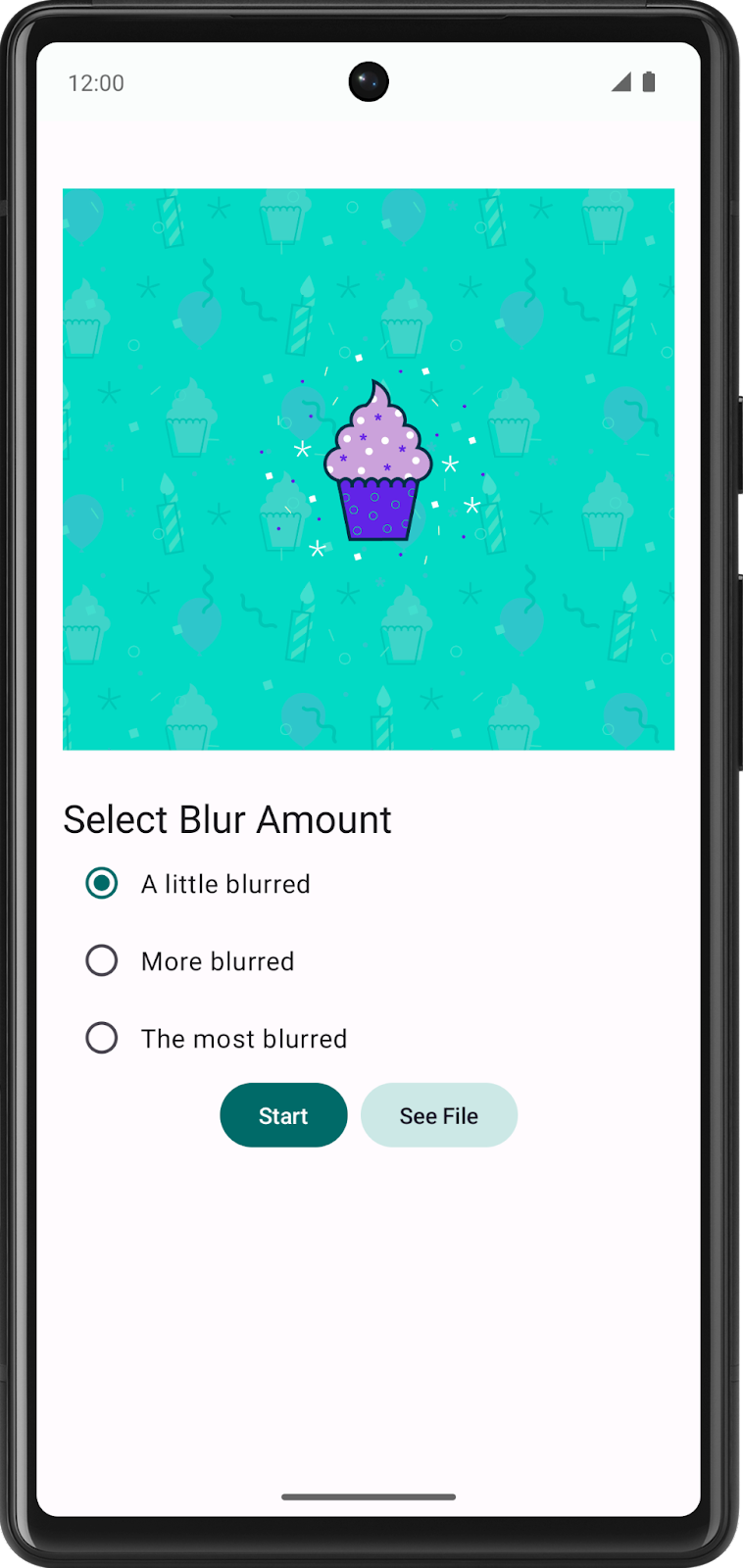
whenblock controls the app’s UI. It has a branch for each of the threeBlurUiStatestates:When the app first opens,
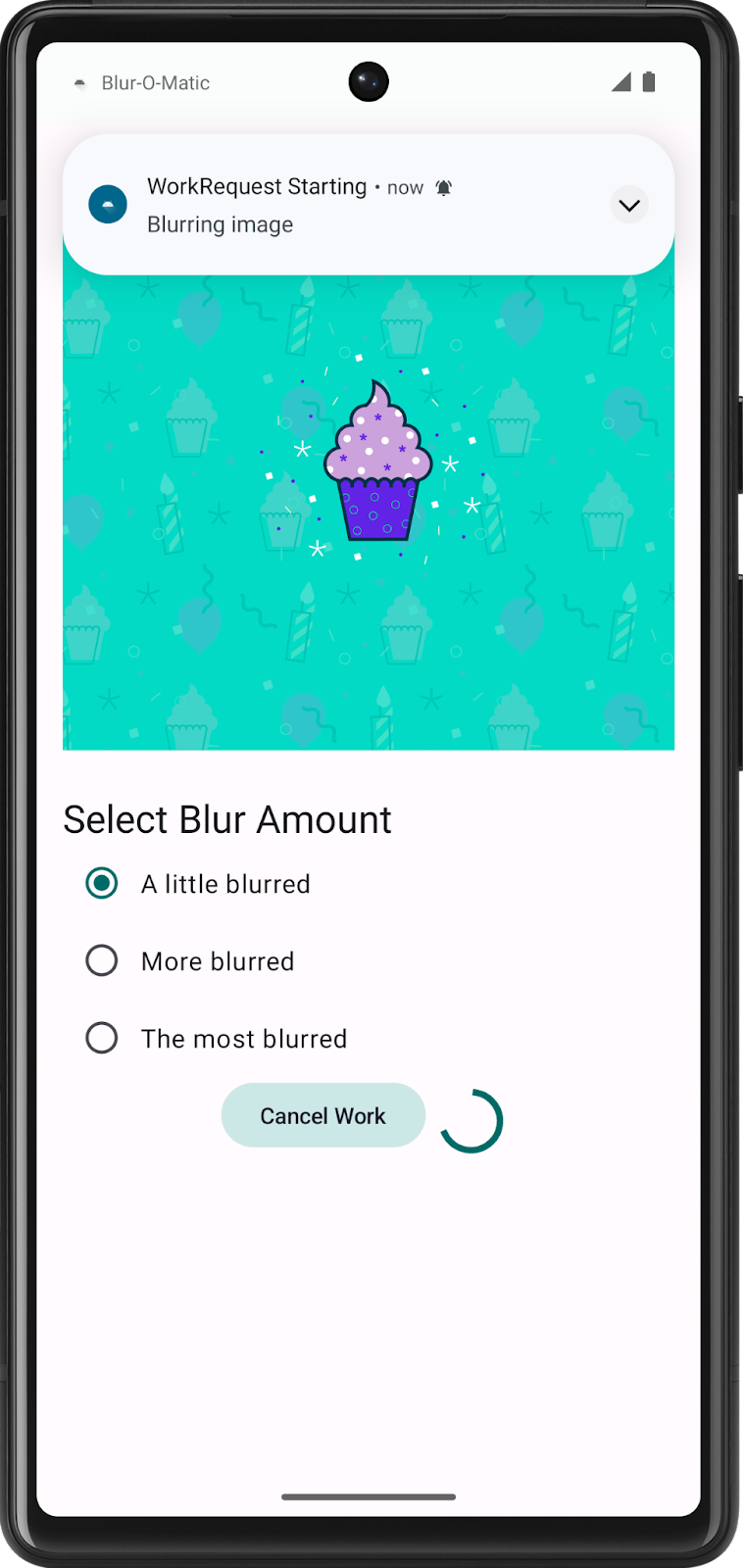
BlurUiState == BlurUiState.Default. The app shows the Start button.When the app is actively blurring an image,
BlurUiState == BlurUiState.Loading. For this state, the app shows the Cancel Work button, and a circular progress indicator.When the app has just saved an image,
BlurUiState == BlurUiState.Complete. The app displays the Start and See File buttons.
In
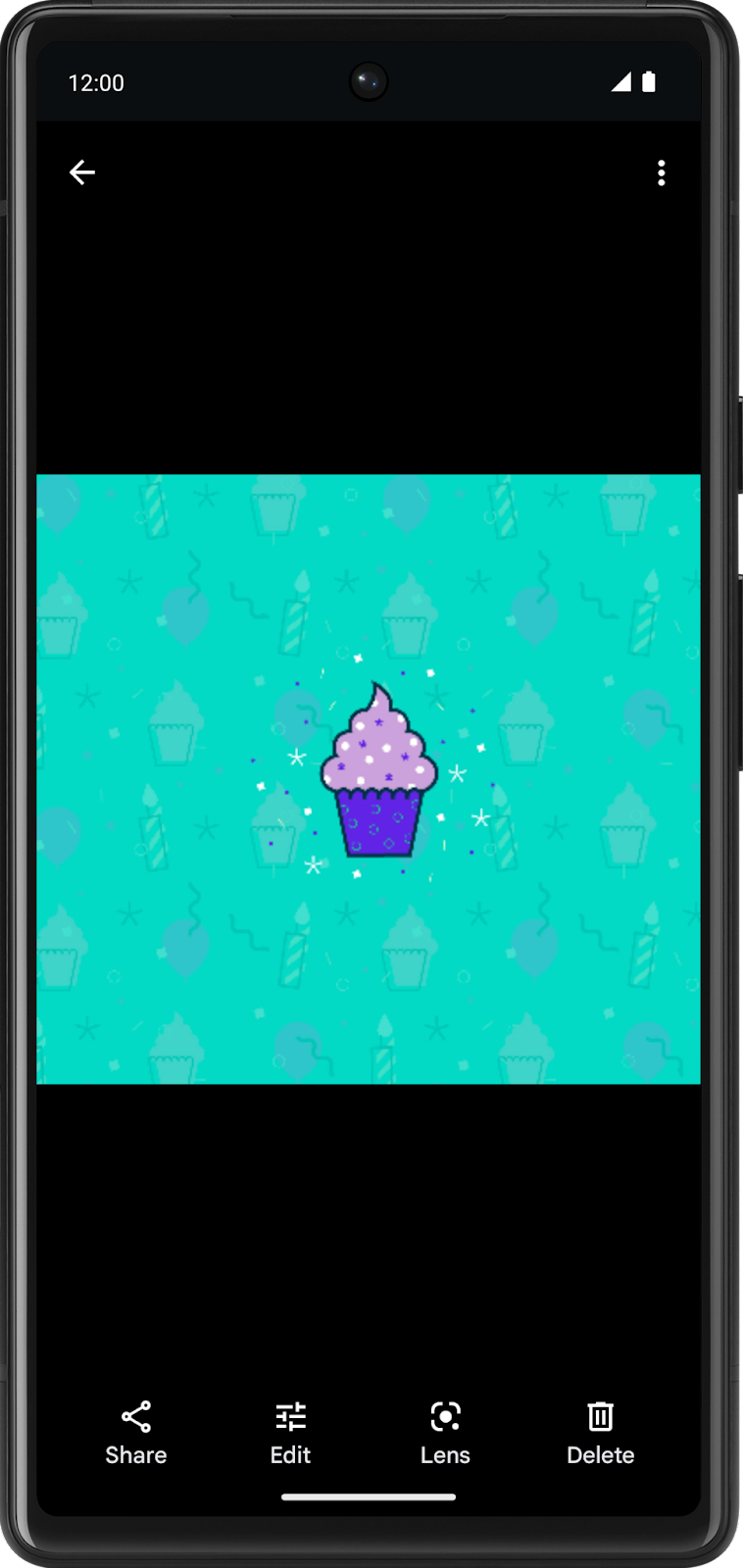
BluromaticScreenContent(), add this handler foronSeeFileClick. The purpose of this function is to display the saved image from its URI. It calls theshowBlurredImage()helper function and passes in the URI. The helper function creates an intent and uses it to start a new activity to show the saved image.BlurActions( blurUiState = blurUiState, onStartClick = { applyBlur(selectedValue) }, onSeeFileClick = { currentUri -> showBlurredImage(context, currentUri) }, onCancelClick = { cancelWork() }, modifier = Modifier.fillMaxWidth() )
Run the app
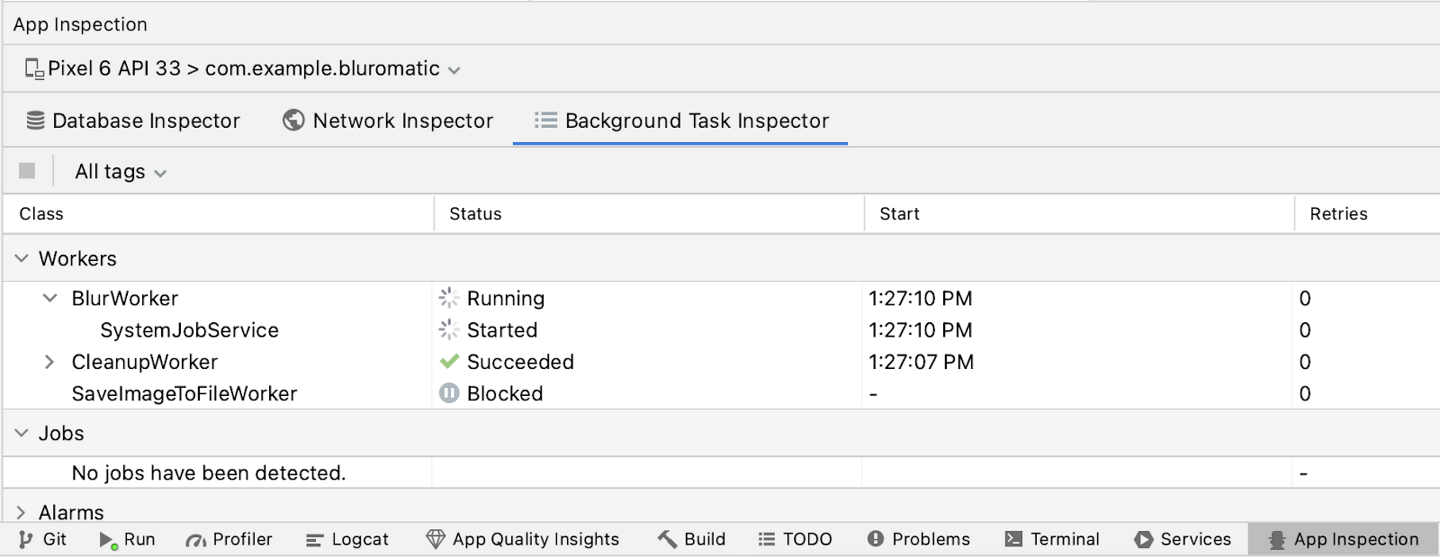
Run the app and click Start.
To see how the various states correspond to the UI being displayed, View > Tool Windows > App Inspection > Select the Background Task Inspector tab.
Note
In case some Workers have a Failed status:
Clear the app’s cache and storage
Wipe the emulator data (make sure it’s the emulator, not a real device)
The
SystemJobServiceis the component responsible for managing Worker executions.While the workers are running, the UI shows the Cancel Work button and a circular progress indicator. Clicking on Cancel Work does nothing for now.
After the workers finish, the UI updates to show the Start and See File buttons:
Cancel work
Previously, you added the Cancel Work button, so now you can add the code to make it do something. With WorkManager, you can cancel work using the id, tag, and unique chain name.
In this case, you want to cancel work with its unique chain name because you want to cancel all work in the chain, not just a particular step.
Cancel the work by name
In
data/WorkManagerBluromaticRepository.kt, modify thecancelWork()function:override fun cancelWork() { workManager.cancelUniqueWork(IMAGE_MANIPULATION_WORK_NAME) }
This will cancel only scheduled work with the unique chain name
IMAGE_MANIPULATION_WORK_NAMEFollowing the design principle of separation of concerns, the composable functions must not directly interact with the repository. The composable functions interact with the ViewModel, and the ViewModel interacts with the repository. This is a good design principle to follow because changes to the repository do not require changes to the composable functions, as they do not directly interact.
In
ui/BlurViewModel.kt, create a new function calledcancelWork():/** * Call method from repository to cancel any ongoing WorkRequest * */ fun cancelWork() { bluromaticRepository.cancelWork() }
In
ui/BluromaticScreen.kt: BluromaticScreen(), set thecancelWorkparameter:BluromaticScreenContent( blurUiState = uiState, blurAmountOptions = blurViewModel.blurAmount, applyBlur = blurViewModel::applyBlur, cancelWork = blurViewModel::cancelWork, modifier = Modifier .verticalScroll(rememberScrollState()) .padding(dimensionResource(R.dimen.padding_medium)) )
Run the app and cancel work
Run the app. Start blurring a picture and then click Cancel Work. The whole chain is cancelled!
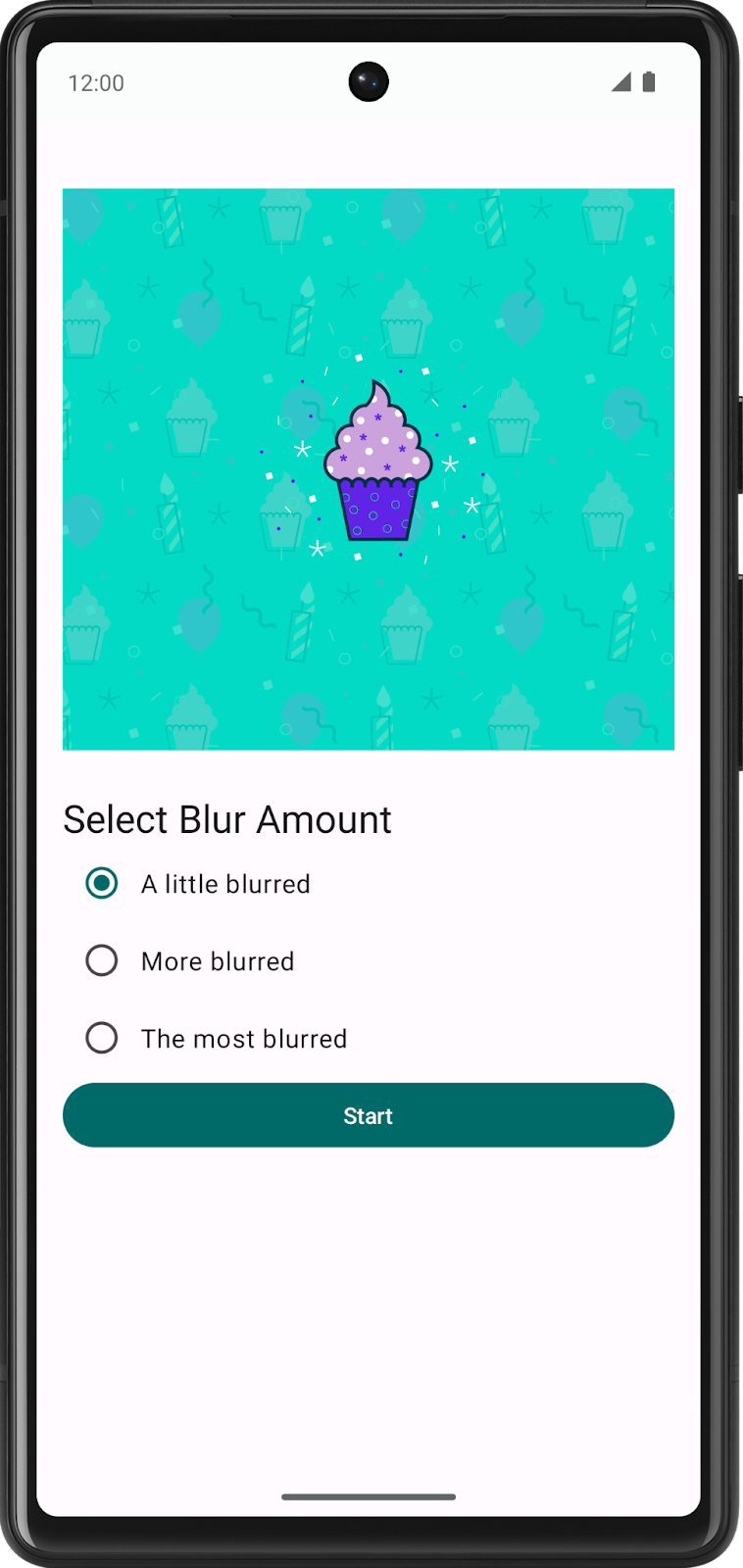
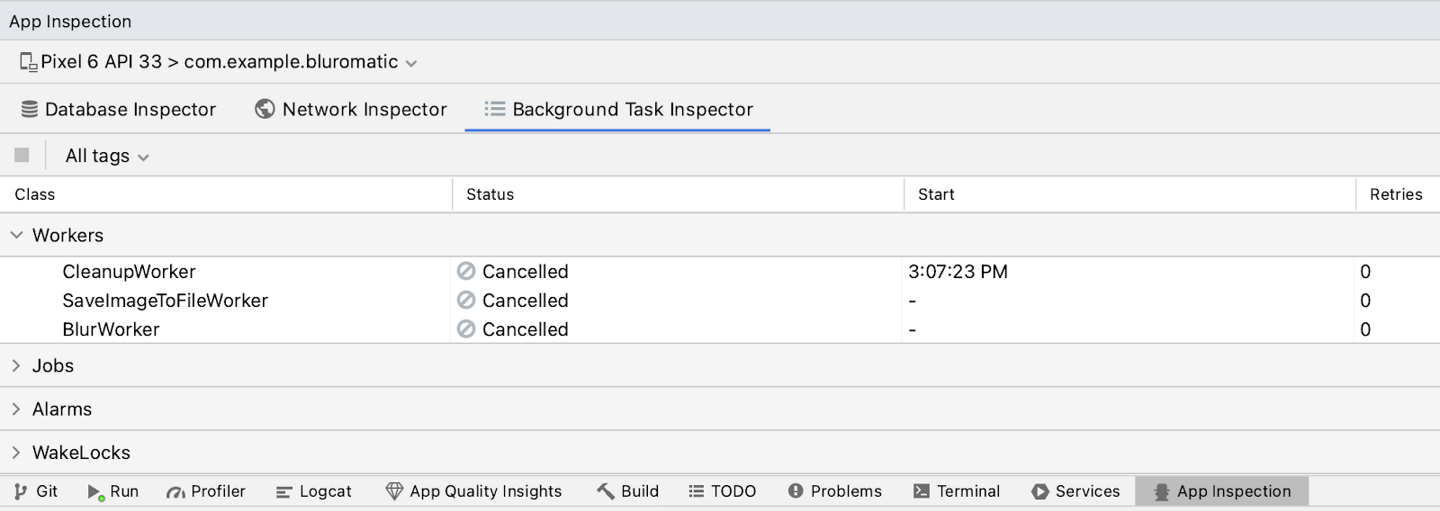
After you cancel work, only the Start button shows because
WorkInfo.StateisCANCELLED. This change causes theblurUiStatevariable to be set toBlurUiState.Default, which resets the UI back to its initial state and shows just the Start button.The Background Task Inspector shows the status of Cancelled which is expected.
Work constraints
Last but not least,
WorkManagersupportsConstraints. A constraint is a requirement that you must meet before a WorkRequest runs.Some example constraints are
requiresDeviceIdle()andrequiresStorageNotLow().If
requiresDeviceIdle()is passed a value oftrue, the work runs only if the device is idle.If
requiresStorageNotLow()is passed a value oftrue, the work runs only if the storage is not low.
Blur-O-Matic adds a constraint that the device’s battery charge level must not be low before it runs the
blurWorkerwork request. This constraint means that the work request is deferred and only runs once the device’s battery is not low.
Create the battery not low constraint
In
data/WorkManagerBluromaticRepository.ktfile, navigate to theapplyBlur()method.After the code declaring the
continuationvariable, insert this code:// ... override fun applyBlur(blurLevel: Int) { // ... val constraints = Constraints.Builder() .setRequiresBatteryNotLow(true) .build() // ...
To add the constraint object to the
blurBuilderwork request, chain a call to the.setConstraints()method and pass in the constraint object.// ... blurBuilder.setInputData(createInputDataForWorkRequest(blurLevel, imageUri)) blurBuilder.setConstraints(constraints) // Add this code //...
Test with emulator
On an emulator, change the Charge level in the Extended Controls window to be 15% or lower to simulate a low battery scenario, Charger connection to AC charger, and Battery status to Not charging.
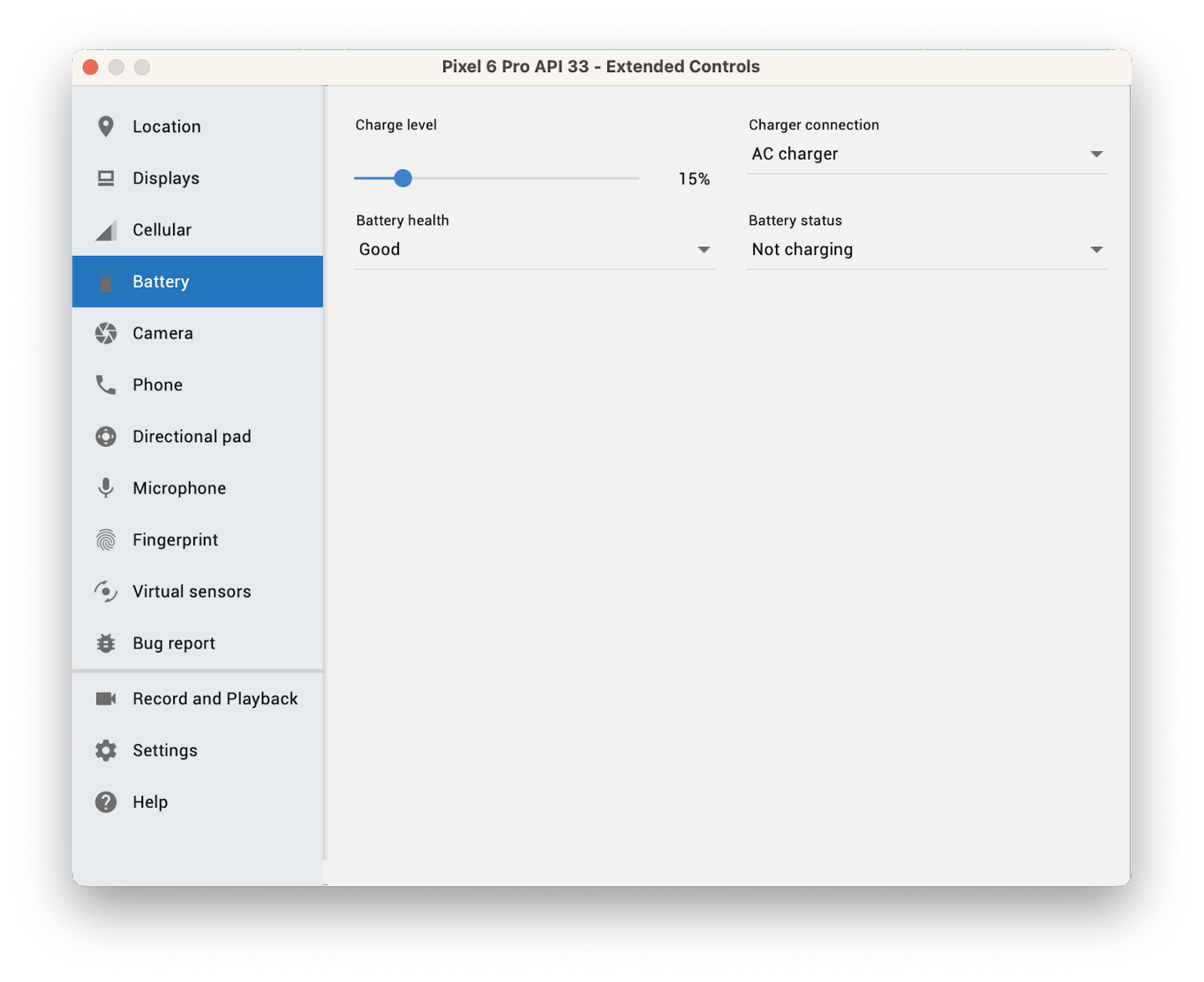
Run the app and click Start to start blurring the image.
The emulator’s battery charge level is set to low, so
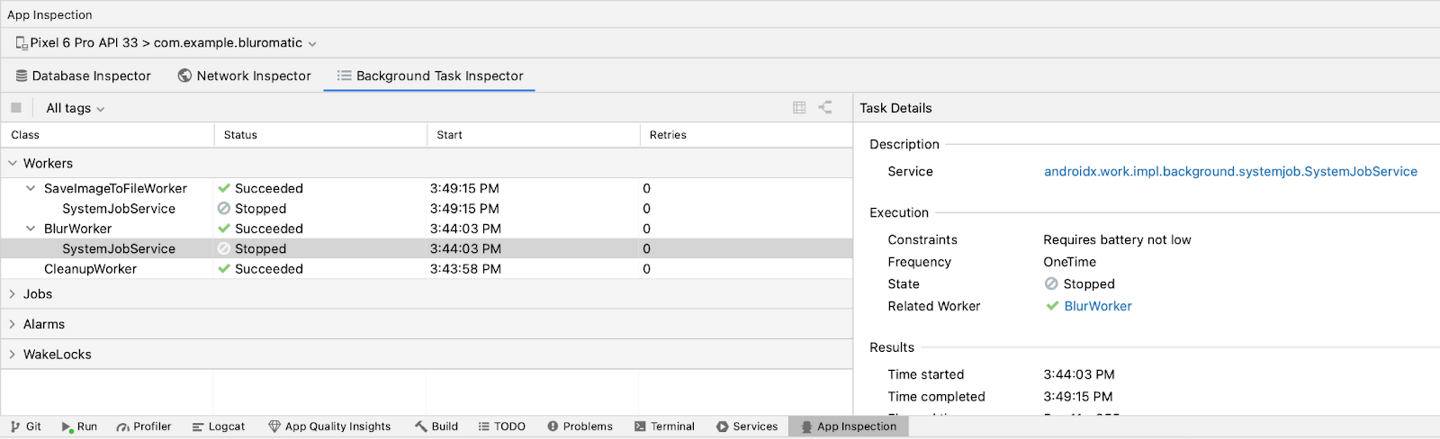
WorkManagerdoes not run theblurWorkerwork request because of the constraint. It is enqueued but deferred until the constraint is met. You can see this deferral in the Background Task Inspector tab.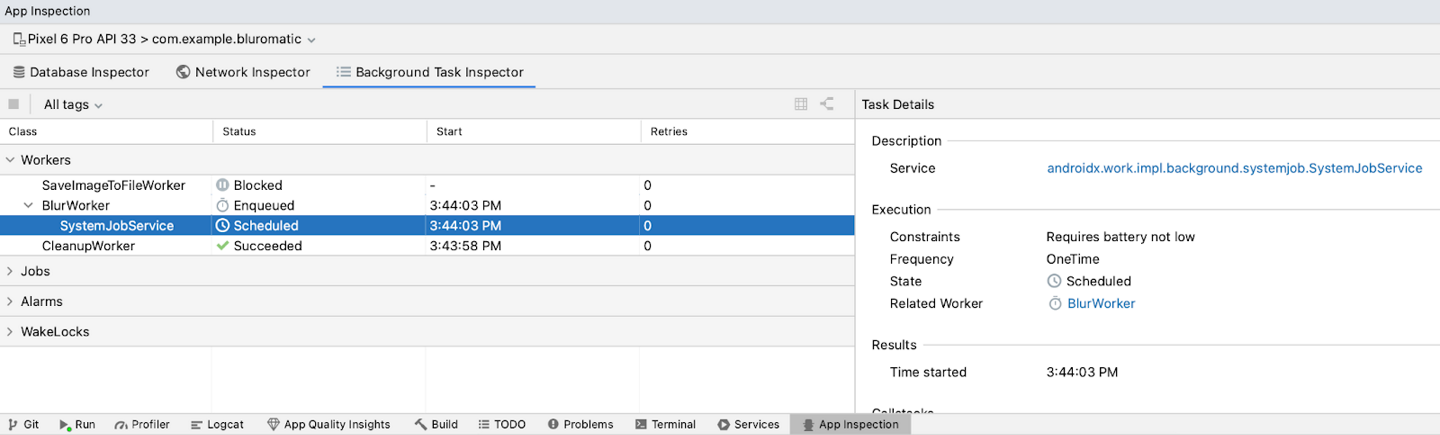
After you confirm it did not run, slowly increase the battery charge level.
The constraint is met after the battery charge level reaches approximately 25%, and the deferred work runs. This outcome appears in the Background Task Inspector tab.
Note
Another good constraint to add to Blur-O-Matic is a
setRequiresStorageNotLow()constraint when saving. To see a full list of constraint options, check out the Constraints.Builder reference.
Solution code
Branch: main
Clone:
$ git clone https://github.com/google-developer-training/basic-android-kotlin-compose-training-workmanager.git
$ cd basic-android-kotlin-compose-training-workmanager
$ git checkout main