Unit 4 Pathway 1 Activity 5: ViewModel and State in Compose
Before you begin
In the previous codelabs, you learned about the lifecycle of activities and the related lifecycle issues with configuration changes. When a configuration change occurs, you can save an app’s data through different ways, such as using
rememberSaveable.However, these options can create problems. Most of the time, you can use
rememberSaveablebut that might mean keeping the logic in or near composables. When apps grow, you should move data and logic away from composables.In this codelab, you will learn about a robust way to design your app and preserve app data during configuration changes by taking advantage of the Android Jetpack library,
ViewModeland Android app architecture guidelines.Android Jetpack libraries are a collection of libraries to make it easier for you to develop great Android apps. These libraries help you follow best practices, free you from writing boilerplate code, and simplify complex tasks so that you can focus on the code you care about, like the app logic.
App architecture is a set of design rules for an app. Much like the blueprint of a house, your architecture provides the structure for your app. A good app architecture can make your code robust, flexible, scalable, testable, and maintainable for years to come. The Guide to app architecture provides recommendations on app architecture and recommended best practices.
In this codelab, you learn how to use
ViewModel, one of the architecture components from Android Jetpack libraries that can store your app data. The stored data is not lost if the framework destroys and recreates the activities during a configuration change or other events. However, the data is lost if the activity is destroyed because of process death. TheViewModelonly caches data through quick activity recreations.
Prerequisites
Knowledge of Kotlin, including functions, lambdas, and stateless composables
Basic knowledge of how to build layouts in Jetpack Compose
Basic knowledge of Material Design
What you’ll learn
Introduction to the Android app architecture
How to use the ViewModel class in your app
How to retain UI data through device configuration changes using a ViewModel
What you’ll build
An Unscramble game app where the user can guess the scrambled words
What you’ll need
The latest version of Android Studio
An internet connection to download starter code
App overview
Game overview
The Unscramble app is a single player word scrambler game. The app displays a scrambled word, and the player has to guess the word using all the letters shown. The player scores points if the word is correct. Otherwise, the player can try to guess the word any number of times. The app also has an option to skip the current word. In the top right corner, the app displays the word count, which is the number of scrambled words played in the current game. There are 10 scrambled words per game.
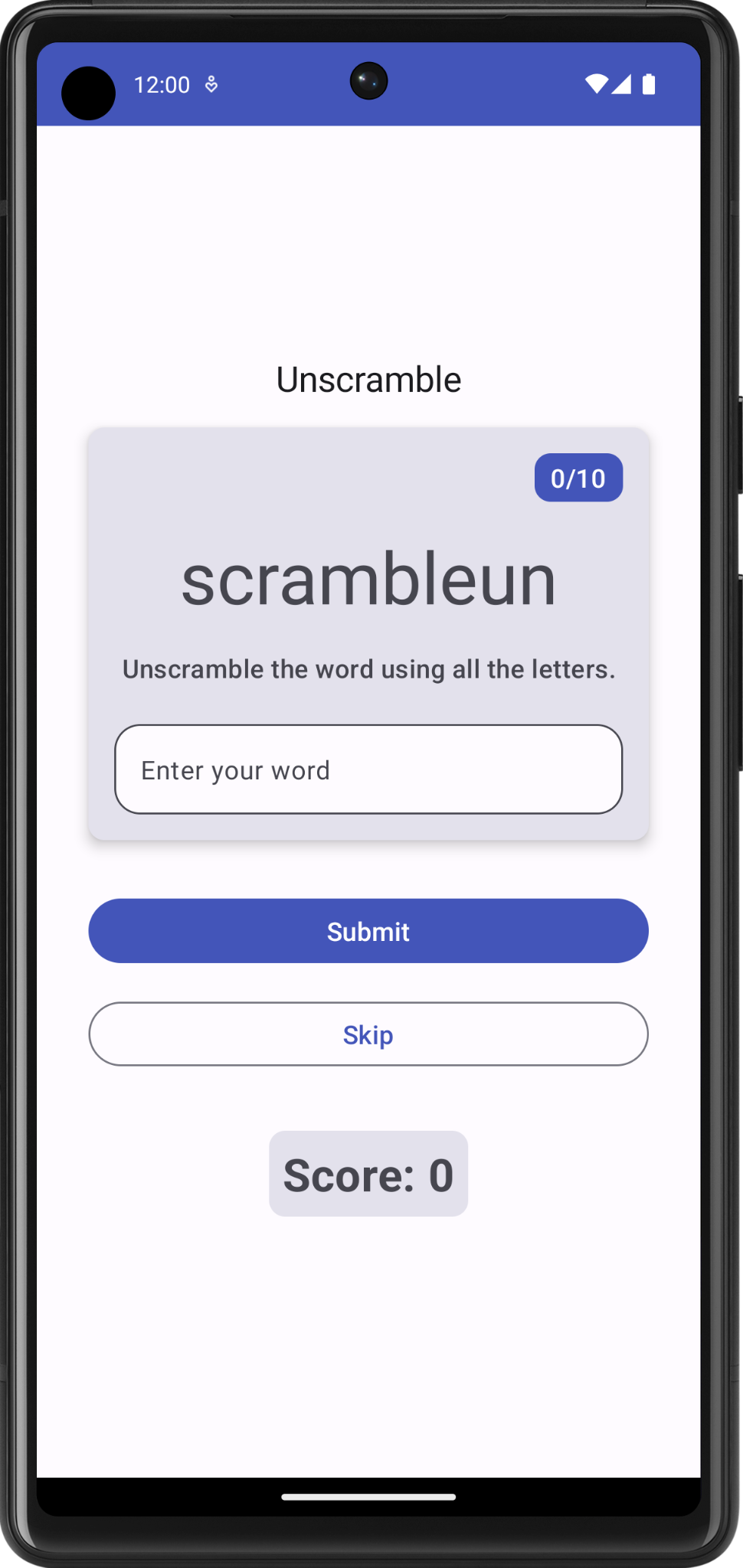
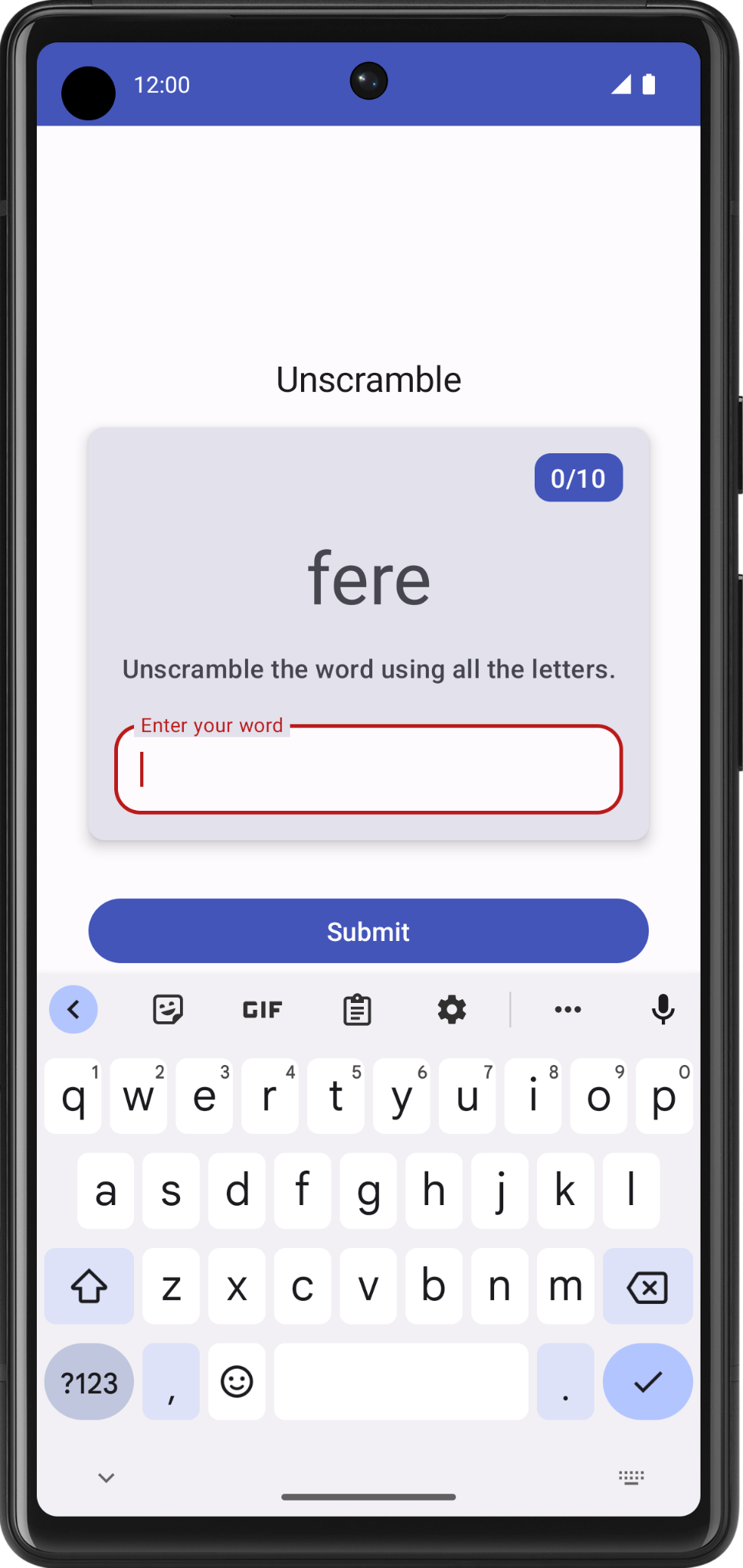
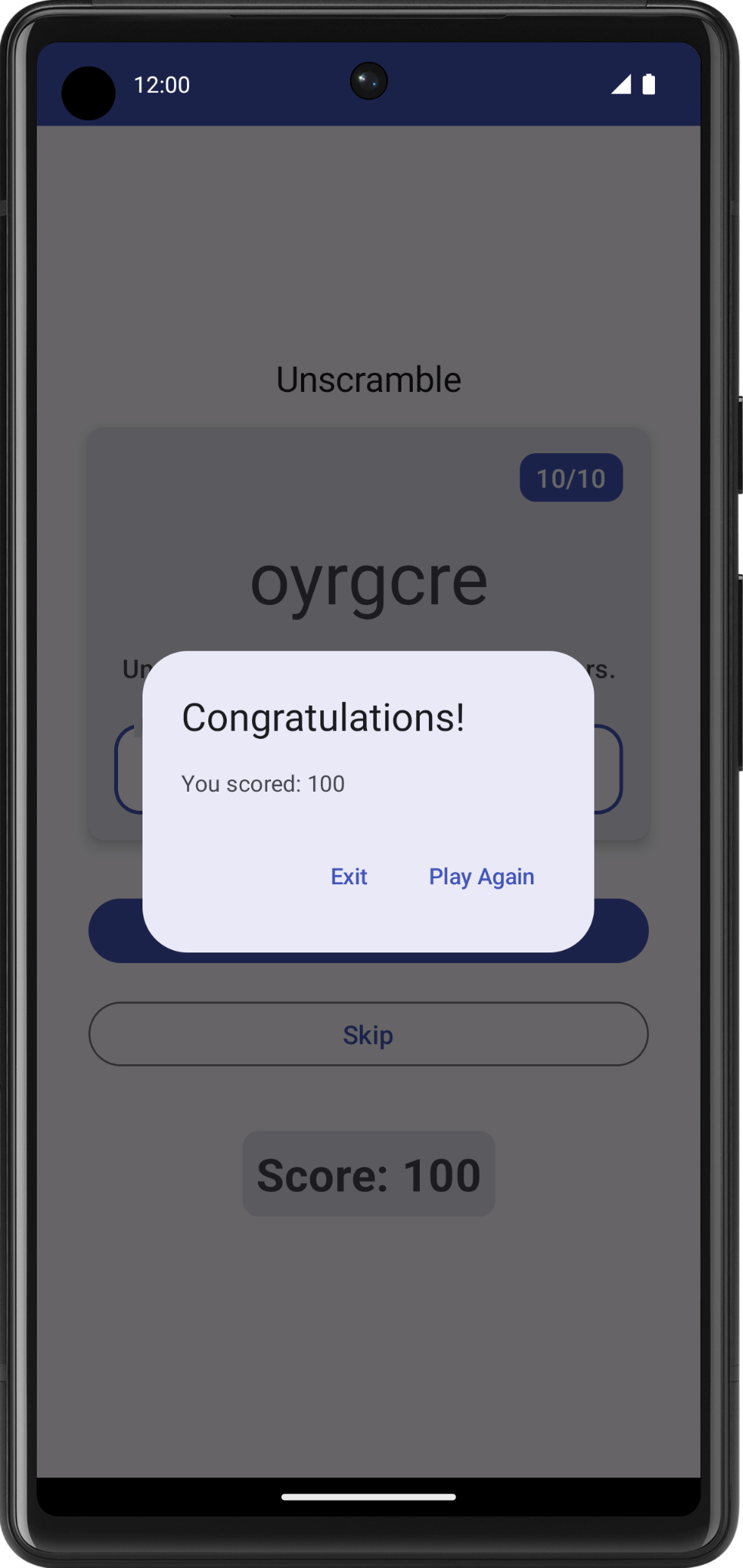
Instead of starting with the starter code, we’ll jump straight to the solution code and focus on learning how app architecture is implemented, using the solution code as an example.
Solution code
Branch: viewmodel
Clone:
$ git clone https://github.com/google-developer-training/basic-android-kotlin-compose-training-unscramble.git
$ cd basic-android-kotlin-compose-training-unscramble
$ git checkout viewmodel
Solution code overview
To familiarize yourself with the solution code, complete the following steps:
Open the project with the solution code in Android Studio.
Run the app on an Android device or an emulator.
Test the app.
Solution code walkthrough
WordsData.kt
This file contains a list of the words used in the game, constants for the maximum number of words per game, and the number of points the player scores for every correct word. This file is part of the Data Layer.
package com.example.android.unscramble.data

const val MAX_NO_OF_WORDS = 10
const val SCORE_INCREASE = 20

// Set with all the words for the Game
val allWords: Set<String> =
    setOf(
        "animal",
        "auto",
        "anecdote",
        "alphabet",
        "all",
        "awesome",
        "arise",
        "balloon",
        "basket",
        "bench",
        // ...
        "zoology",
        "zone",
        "zeal"
  )
Warning
It is not a recommended practice to hardcode strings in the code. Add strings to
strings.xmlfor easier localization. Strings are hardcoded in this example app for simplicity and to enable you to focus on the app architecture.
MainActivity.kt
This file contains mostly template generated code. The
GameScreencomposable is displayed.
GameScreen.kt
All the UI composables are defined in the
GameScreen.ktfile. Some of the composables are described below.
GameStatus
GameStatusdisplays the game score at the bottom of the screen. The composable function contains a text composable in aCard.
GameLayout
GameLayoutdisplays the main game functionality, which includes the scrambled word, the game instructions, and a text field that accepts the user’s guesses.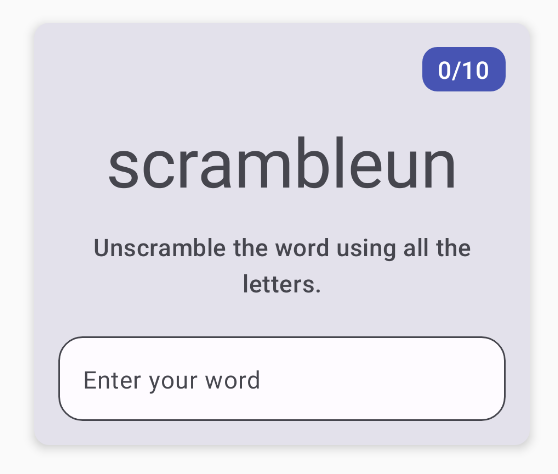
The
GameLayoutcontains aCard, which contains aColumn, which contains several child elements: the scrambled word text, the instructions text, and the text field for the user’s guess.The
OutlinedTextFieldcomposable is similar to theTextFieldcomposable from apps in previous codelabs.Text fields come in two types:
Filled text fields
Outlined text fields
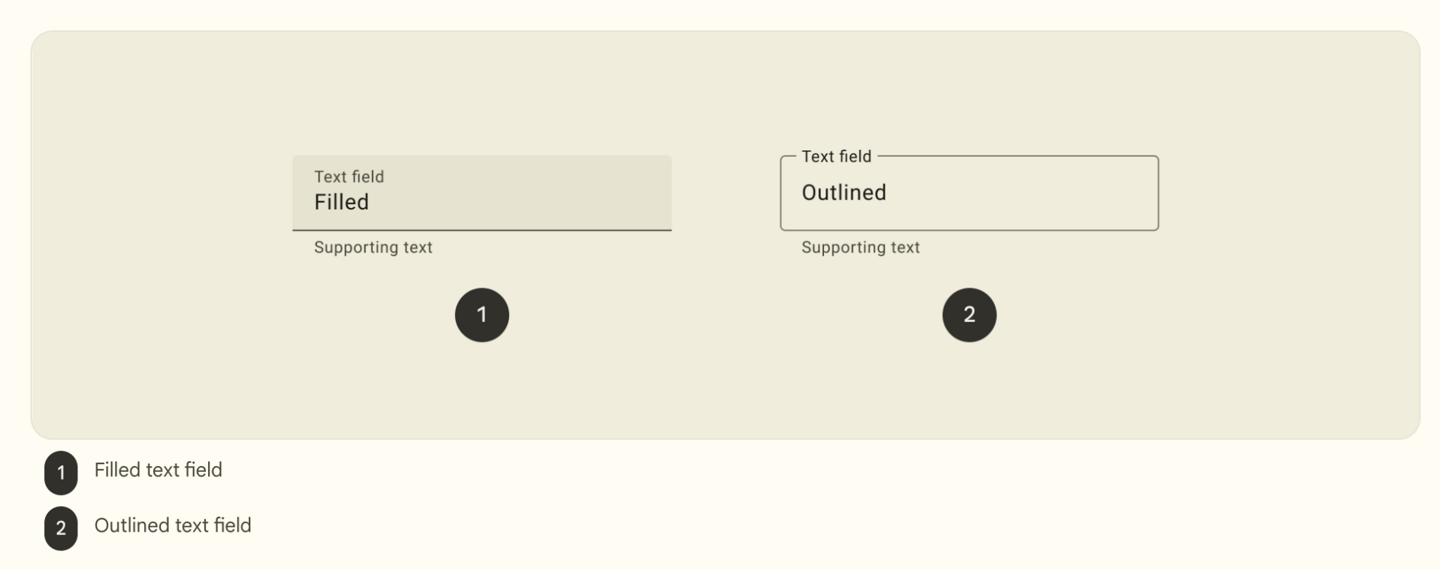
Outlined text fields have less visual emphasis than filled text fields. When they appear in places like forms, where many text fields are placed together, their reduced emphasis helps simplify the layout.
GameScreen
GameScreencontains the:GameStatusandGameLayoutcomposablesGame title
Word count
Submit and Skip buttons
FinalScoreDialog
The
FinalScoreDialogcomposable displays a dialog with options to Play Again or Exit.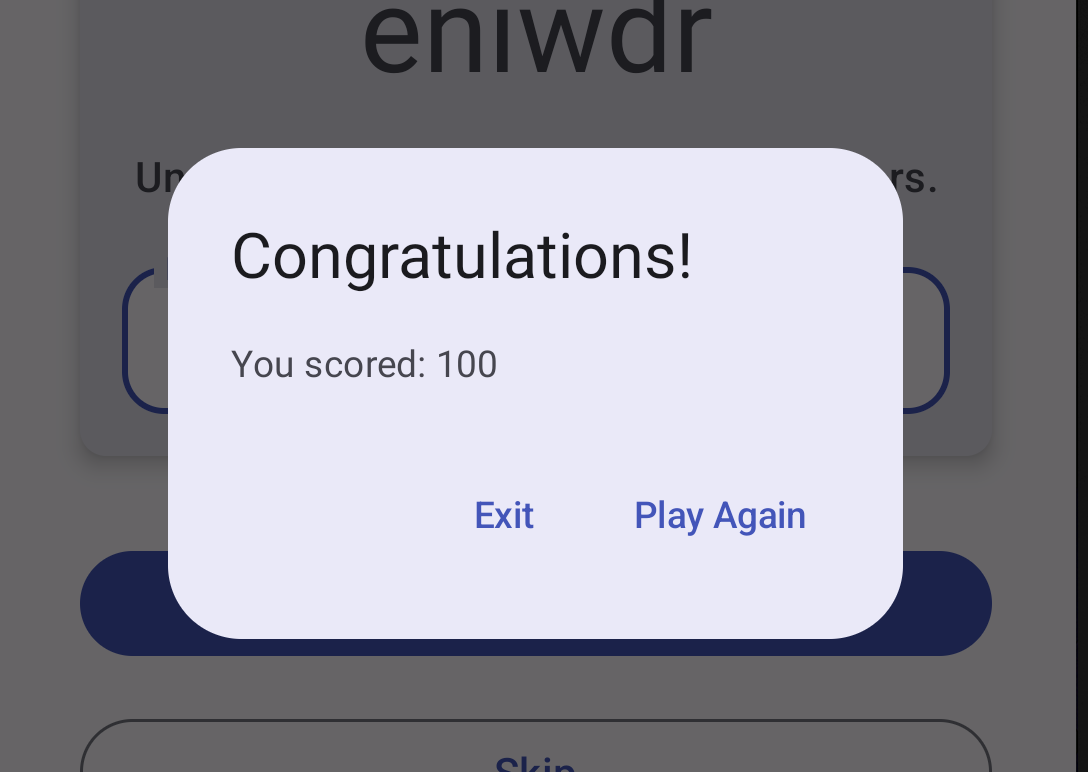
Learn about app architecture
An app’s architecture provides guidelines to help you allocate the app responsibilities between the classes. A well-designed app architecture helps you scale your app and extend it with additional features. Architecture can also simplify team collaboration.
The most common architectural principles are separation of concerns and driving UI from a model.
Separation of concerns: states that the app is divided into classes of functions, each with separate responsibilities.
Drive UI from a model: states that you should drive your UI from a model, preferably a persistent model. Models are components responsible for handling the data for an app. They’re independent from the UI elements and app components in your app, so they’re unaffected by the app’s lifecycle and associated concerns.
Recommended app architecture
Note
In this codelab, “exposes” means “shares” or “makes available”, like sharing some data from one class to another class.
Considering the common architectural principles mentioned in the previous section, each app should have at least two layers:
UI layer: a layer that displays the app data on the screen but is independent of the data. Also known as the presentation layer.
Data layer: a layer that stores, retrieves, and exposes the app data.
You can add another layer, called the domain layer, to simplify and reuse the interactions between the UI and data layers. This layer is optional and beyond the scope of this mod.
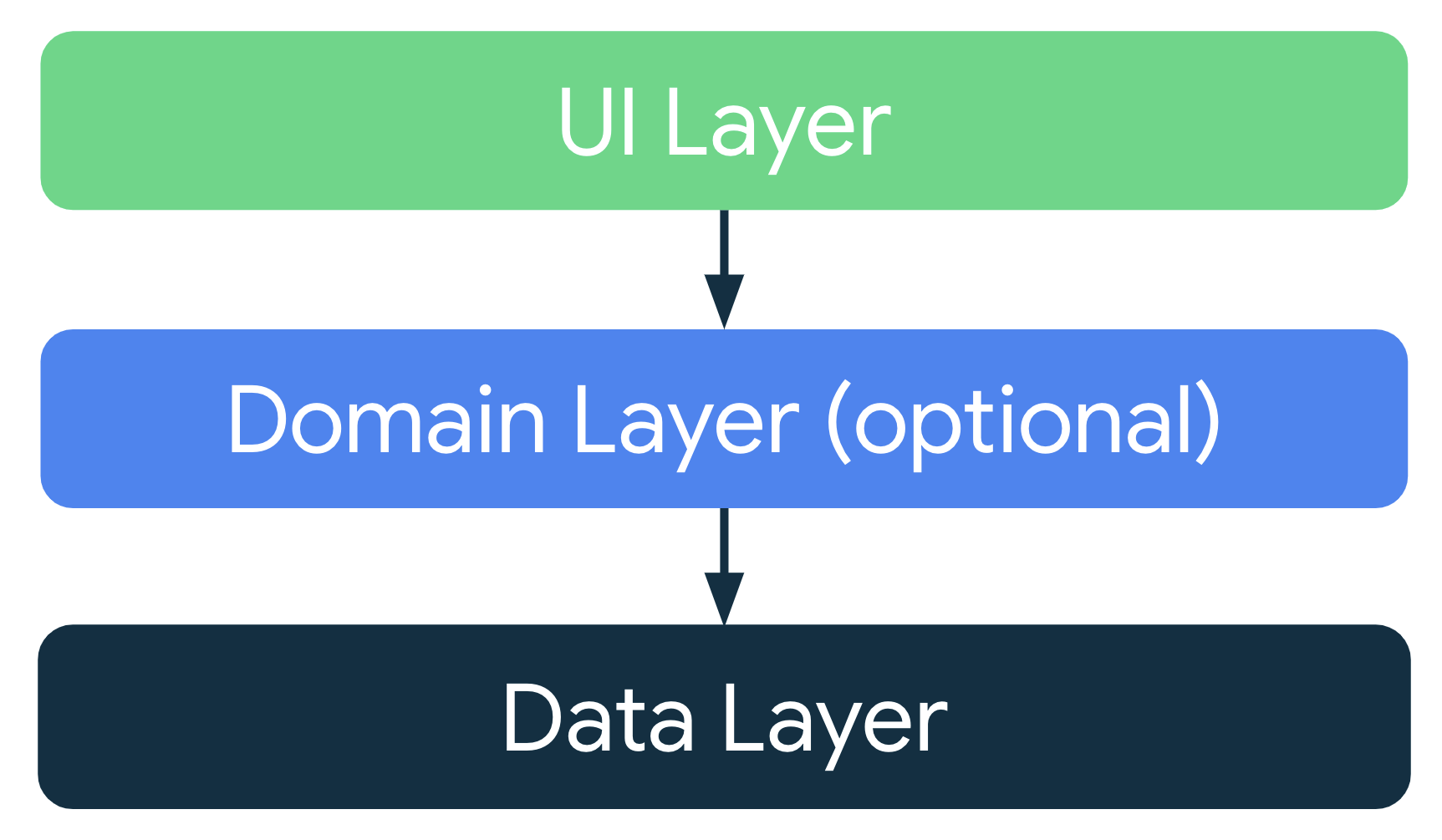
Note
The arrows in the diagrams in this guide represent dependencies between classes. For example, the domain layer depends on data layer classes.
UI Layer
The role of the UI layer is to display the application data on the screen. Whenever the data changes due to a user interaction, such as pressing a button, the UI should update to reflect the changes.
The UI layer is made up of the following components:
UI elements: components that are displayed on the screen. You build these elements using Jetpack Compose.
State holders: components that hold some of the application data, the state of the application, and handle the app logic. The app logic looks at the relevant application data, and tells the UI elements what to display. An example state holder is ViewModel.
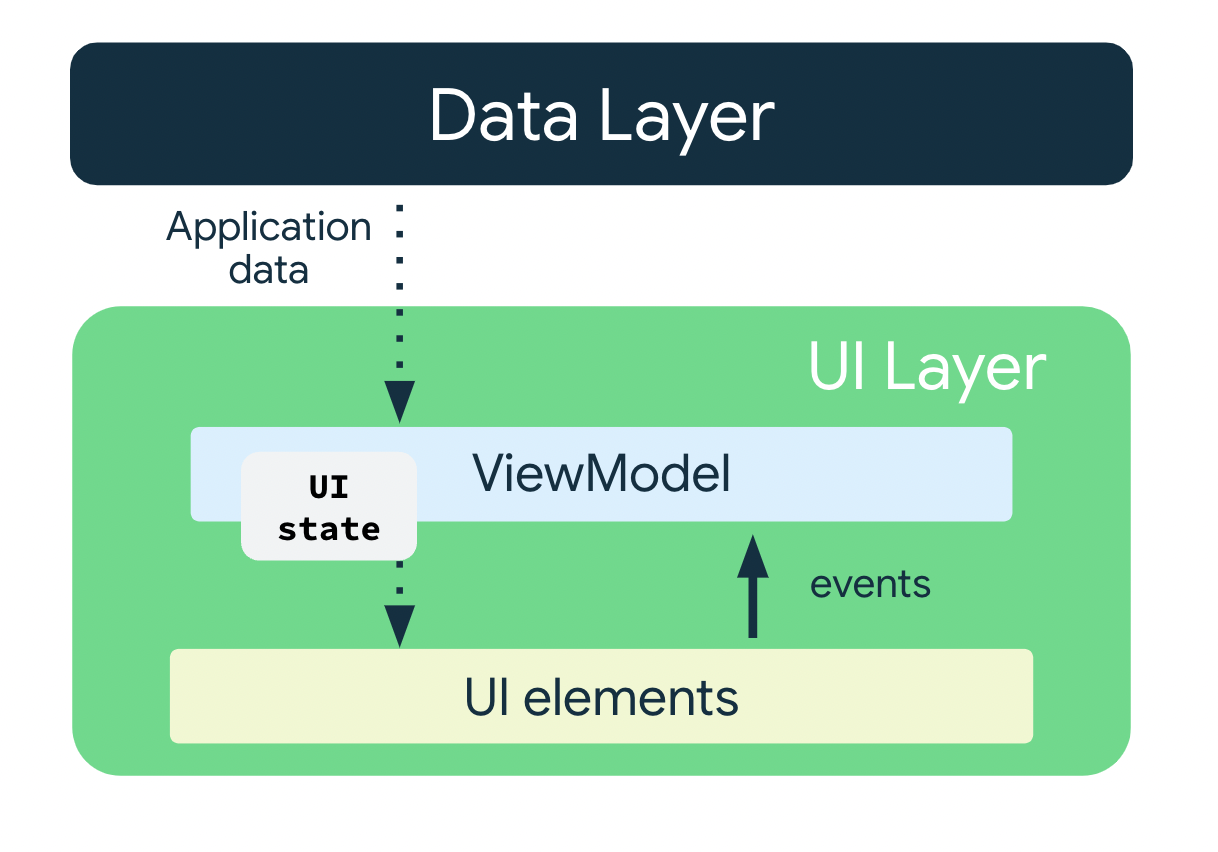
UI Elements + UI State = UI
The UI is a result of combining UI elements with the UI state.

UI Elements
These are the components that are displayed on the screen. Examples: buttons, text fields, images.
UI State
The UI is what the user sees, and the UI state is what the app says they should see. The UI is the visual representation of the UI state. Any changes to the UI state are reflected in the UI. Analogy: feeling happy is like a UI state, smiling is like the UI.
UI state is the property that describes the UI. There are two types of UI state:
Screen UI state: what you need to display on the screen. For example, a NewsUiState class can contain news articles and other information that needs to be displayed on the screen.
// Example of UI state definition, do not copy over

data class NewsItemUiState(
    val title: String,
    val body: String,
    val bookmarked: Boolean = false,
    ...
)
UI element state: properties intrinsic to UI elements that influence how they are rendered. Examples: whether a UI element is shown or hidden, its font size, etc. In Jetpack Compose, composables should be stateless as far as possible. The state can be placed in a state holder, or hoisted out of the composable (see State hoisting).
UI state is immutable. Immutable objects provide guarantees that multiple sources do not alter the state of the app at an instant in time. This frees the UI to focus on a single role: reading state and updating UI elements accordingly.
Therefore, you should never modify the UI state in the UI directly, unless the UI itself is the sole source of its data. Violating this principle results in multiple sources of truth for the same piece of information, leading to data inconsistencies and subtle bugs.
The ViewModel state holder
ViewModelis a state holder. It exposes state to the UI and encapsulates related business logic. Its principal advantage is that it caches state and persists it through configuration changes. This means that your UI doesn’t have to fetch data again when navigating between activities, or following configuration changes, such as when rotating the screen.ViewModelholds the state the UI consumes. It processes the application data, decides what the UI state is, and if necessary, tells the UI elements what to display.ViewModellets your app follow the architecture principle of driving the UI from the model.ViewModelstores the app-related data that isn’t destroyed when the activity is destroyed and recreated by the Android framework. Unlike the activity instance,ViewModelobjects are not destroyed. The app automatically retainsViewModelobjects during configuration changes so that the data they hold is immediately available after the recomposition.To implement
ViewModel, extend theViewModelclass, which comes from the architecture components library.
Unscramble app architecture
Data Layer
Stores application data:
List of words used in the game
Maximum number of words per game
Number of points the player scores for each correct word
Does not hold the UI state (current score, whether a player’s guess is correct, etc)
Does not contain the application logic (what to do when user guesses correctly, how to keep track of the score, etc)
UI elements
Comprises composables that display the UI elements on the screen.
Does not hold the UI state
Does not contain the application logic
ViewModel
GameViewModel.kt
Holds the UI state in GameUiState.kt
Current scrambled word
Current score
Number of words shown to the user so far
Whether the user guessed the current word correctly or not
Uses application data from the data layer, but does not store it
Contains the application logic
File organization
Data Layer files belong in the
com.example.unscramble.datapackage.UI Layer files belong in the
com.example.unscramble.uipackage.
GameViewModel
In the
uipackage, theGameUiState.ktfile contains aGameUiStateclass that holds the UI state.data class GameUiState( // Current word that user is supposed to unscramble val currentScrambledWord: String = "", // Number of words that have been shown to the user so far val currentWordCount: Int = 1, // User's score val score: Int = 0, // Whether the user has unscrambled the current word wrongly val isGuessedWordWrong: Boolean = false, // Whether the max number of words has been reached val isGameOver: Boolean = false )
In the
uipackage, theGameViewModel.ktfile contains aGameViewModelclass, extended from theViewModelclass.package com.example.unscramble.ui import androidx.compose.runtime.getValue import androidx.compose.runtime.mutableStateOf import androidx.compose.runtime.setValue import androidx.lifecycle.ViewModel import com.example.unscramble.data.MAX_NO_OF_WORDS import com.example.unscramble.data.SCORE_INCREASE import com.example.unscramble.data.allWords import kotlinx.coroutines.flow.MutableStateFlow import kotlinx.coroutines.flow.StateFlow import kotlinx.coroutines.flow.asStateFlow import kotlinx.coroutines.flow.update class GameViewModel : ViewModel() { // Create a new private instance of GameUiState to hold the UI state private val _uiState = MutableStateFlow(GameUiState()) // Expose the UI state as a StateFlow, for the UI elements in GameScreen.kt to access the state val uiState: StateFlow<GameUiState> = _uiState.asStateFlow() // Holds the user's guess. No need to use ``remember`` here, because GameViewModel is not affected by recomposition var userGuess by mutableStateOf("") private set // Set of words that have already been used in the game private var usedWords: MutableSet<String> = mutableSetOf() // Current word that user is supposed to unscramble private lateinit var currentWord: String // Initializes the ViewModel init { resetGame() } /* * Re-initializes the game data to restart the game. */ fun resetGame() { usedWords.clear() // Creates a new UI state, assigning a random word to ``currentScrambledWord`` _uiState.value = GameUiState(currentScrambledWord = pickRandomWordAndShuffle()) } /* * Called by GameScreen.kt when the user enters a guess. */ fun updateUserGuess(guessedWord: String){ userGuess = guessedWord } /* * Checks if the user's guess is correct, then adjusts the score or shows an error */ fun checkUserGuess() { if (userGuess.equals(currentWord, ignoreCase = true)) { // User's guess is correct. Increase the score, call updateGameState() to prepare the game for next round val updatedScore = _uiState.value.score.plus(SCORE_INCREASE) updateGameState(updatedScore) } else { // User's guess is wrong, show an error _uiState.update { currentState -> currentState.copy(isGuessedWordWrong = true) } } // Reset user guess updateUserGuess("") } /* * Skips to next word. Called by GameScreen.kt when user presses the Skip button. */ fun skipWord() { updateGameState(_uiState.value.score) // Reset user guess updateUserGuess("") } /* * Picks a new currentWord and currentScrambledWord and updates UiState according to * current game state. */ private fun updateGameState(updatedScore: Int) { if (usedWords.size == MAX_NO_OF_WORDS){ // Last round in the game, update isGameOver to true, don't pick a new word _uiState.update { currentState -> currentState.copy( isGuessedWordWrong = false, score = updatedScore, isGameOver = true ) } } else{ // Normal round in the game _uiState.update { currentState -> currentState.copy( isGuessedWordWrong = false, currentScrambledWord = pickRandomWordAndShuffle(), currentWordCount = currentState.currentWordCount.inc(), score = updatedScore ) } } } /* * Scrambles a word. */ private fun shuffleCurrentWord(word: String): String { val tempWord = word.toCharArray() // Scramble the word tempWord.shuffle() while (String(tempWord) == word) { tempWord.shuffle() } return String(tempWord) } /* * Picks a random unused word */ private fun pickRandomWordAndShuffle(): String { // Get a word from the Data Layer (WordsData.kt) currentWord = allWords.random() return if (usedWords.contains(currentWord)) { // The word has been used, try another one pickRandomWordAndShuffle() } else { // Mark this word as being used, then scramble and return the word usedWords.add(currentWord) shuffleCurrentWord(currentWord) } } }
StateFlow
A
StateFlowis used to hold state. It works well with classes that must maintain an observable immutable state. AStateFlowis immutable; aMutableStateFlowis mutable.A
StateFlowcan be accessed by UI elements, so that they will be informed when the UI state is updated, and they can update the display accordingly.In this code, a
MutableStateFlowis used to hold the UI state.// Create a new private instance of GameUiState to hold the UI state private val _uiState = MutableStateFlow(GameUiState())
The state flow can be read/updated using
_uiState.value
Backing property
A backing property lets you return something from a getter other than the exact object itself.
For a
varproperty, Kotlin generates getters and setters. You can override one or both of these methods, and provide your own custom behavior. To implement a backing property, you override the getter method to return a read-only version of your data. The following example shows a backing property://Example code, no need to copy over // Declare private mutable variable that can only be modified within the class it is declared. private var _count = 0 // Declare another public immutable field and override its getter method. // Return the private property's value in the getter method. // When count is accessed, the get() function is called and the value of _count is returned. val count: Int get() = _count
In the code below,
_uiStateis a backing property foruiState.// Create a new private instance of GameUiState to hold the UI state private val _uiState = MutableStateFlow(GameUiState()) // Expose the UI state as a StateFlow, for the UI elements in GameScreen.kt to access the state val uiState: StateFlow<GameUiState> = _uiState.asStateFlow()
The private
_uiStateholds an instance ofMutableStateFlow(GameUiState()), which contains the UI state. The UI state can be read/updated using_uiState.value.We don’t want to let the UI elements (in
GameScreen.kt) update the UI state. That’s why_uiStateis private, and only meant for use within theGameViewModelclass.However, we do want to let the UI elements read the UI state. Therefore, a public
uiStateis used to expose the UI state to the UI elements. The UI elements can read (but not update) the UI state usinguiState.value.In summary, the backing property used here protects the state inside the
ViewModelfrom unwanted and unsafe updates by external classes, but it lets UI elements safely read the state.
Architecting your Compose UI
In Compose, the only way to update the UI is by changing the app state. Whenever the UI state changes, Compose recreates the parts of the UI tree that changed. Composables accept state, and expose events. For example, an
OutlinedTextFieldaccepts a value and exposes a callbackonValueChangethat requests the callback handler (e.g. a ViewModel) to change the value.// Example code no need to copy over var name by remember { mutableStateOf("") } OutlinedTextField( value = name, onValueChange = { name = it }, label = { Text("Name") } )
Because composables accept state and expose events, the unidirectional data flow pattern fits well with Jetpack Compose. This section focuses on how to implement the unidirectional data flow pattern in Compose, how to implement events and state holders, and how to work with
ViewModelin Compose.
Unidirectional data flow
A unidirectional data flow (UDF) is a design pattern in which state flows down and events flow up. By following unidirectional data flow, you can decouple composables that display state in the UI from the parts of your app that store and change state.
The UI update loop for an app using unidirectional data flow looks like the following:
Event: Part of the UI generates an event and passes it upward (such as a button click passed to the ViewModel to handle), or an event is passed from other layers of your app, such as an indication that the user session has expired.
Update state: An event handler might change the state.
Display state: The state holder passes down the state, and the UI displays it.
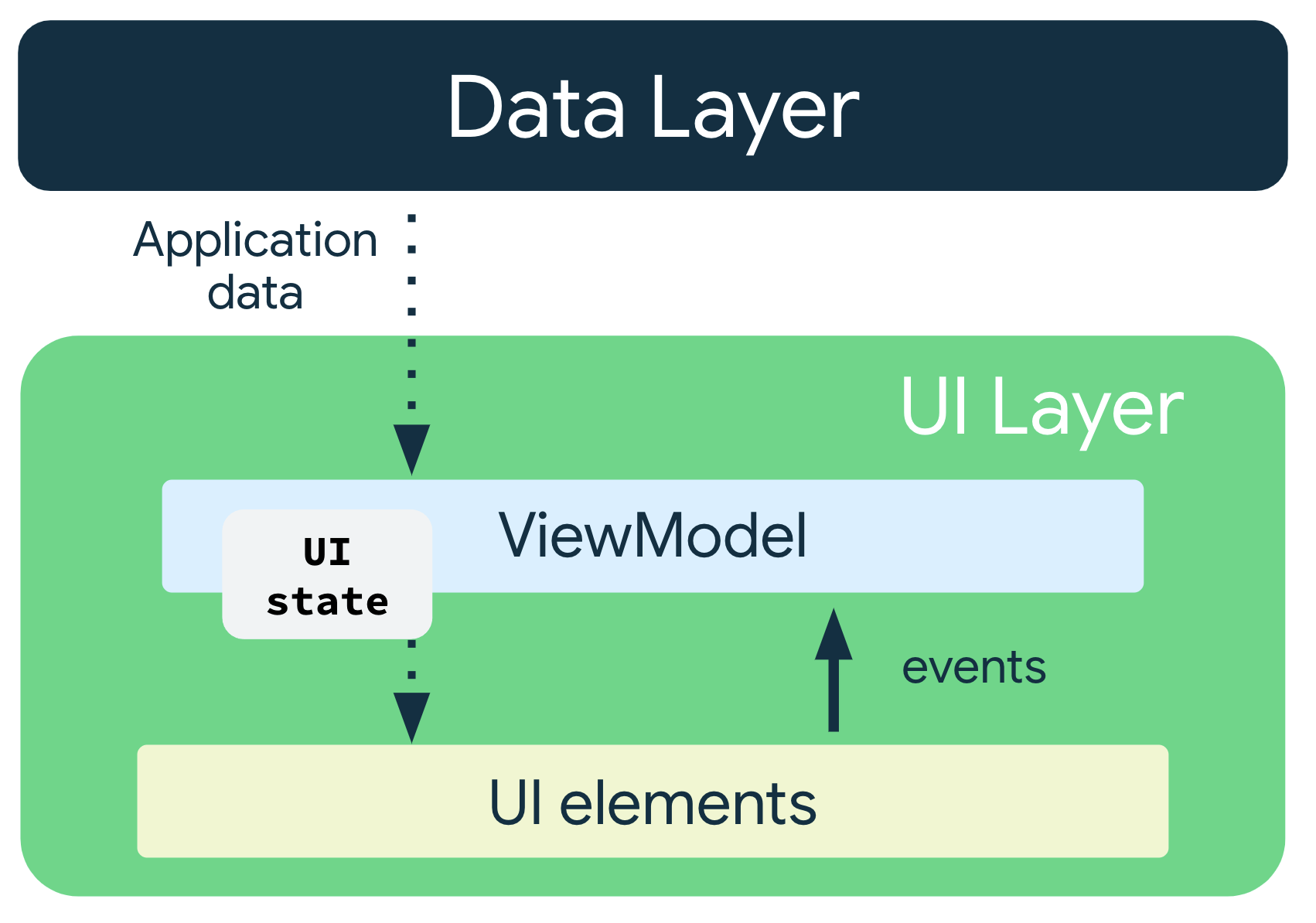
The use of the UDF pattern for app architecture has the following implications:
The
ViewModelholds and exposes the state the UI consumes.The UI state is application data transformed by the
ViewModel.The UI notifies the
ViewModelof user events.The
ViewModelhandles the user actions and updates the state.The updated state is fed back to the UI to render.
This process repeats for any event that causes a mutation of state.
Pass the data
In
GameLayout, this code takes in the current scrambled word as a parameter, and displays it.@Composable fun GameLayout( currentScrambledWord: String, modifier: Modifier = Modifier ) { // ... Column() { Text( text = currentScrambledWord, ) //... } }
In
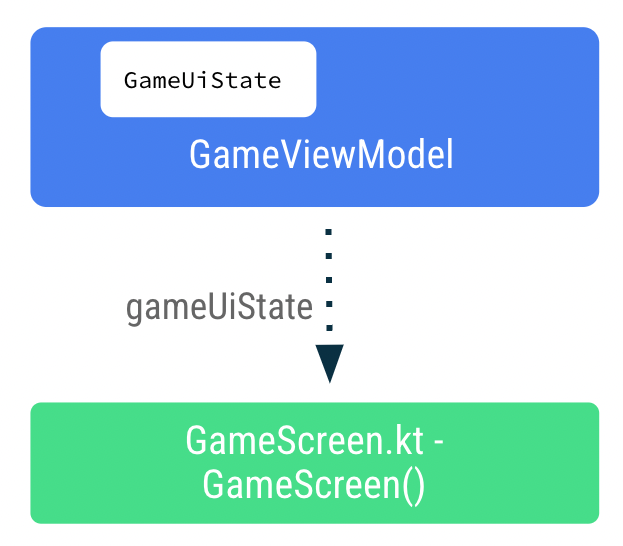
GameScreen, this code reads the UI state, and passes the current scrambled word toGameLayout.@Composable fun GameScreen(gameViewModel: GameViewModel = viewModel()) { // Ensures that whenever there is a change in the ``uiState`` value, recomposition occurs for the composables using the ``gameUiState`` value. val gameUiState by gameViewModel.uiState.collectAsState() // ... Column() { // ... GameLayout( currentScrambledWord = gameUiState.currentScrambledWord, // ... ) } }
GameScreenaccesses the state usinggameViewModel.uiState.collectAsState().GameViewModel.uiStateis aStateFlow<GameUiState>object. ThecollectAsState()function gets the latest value fromGameViewModel.uiState. WheneverGameViewModel.uiStateis updated, a recomposition is triggered.An illustration:
Display the guess word
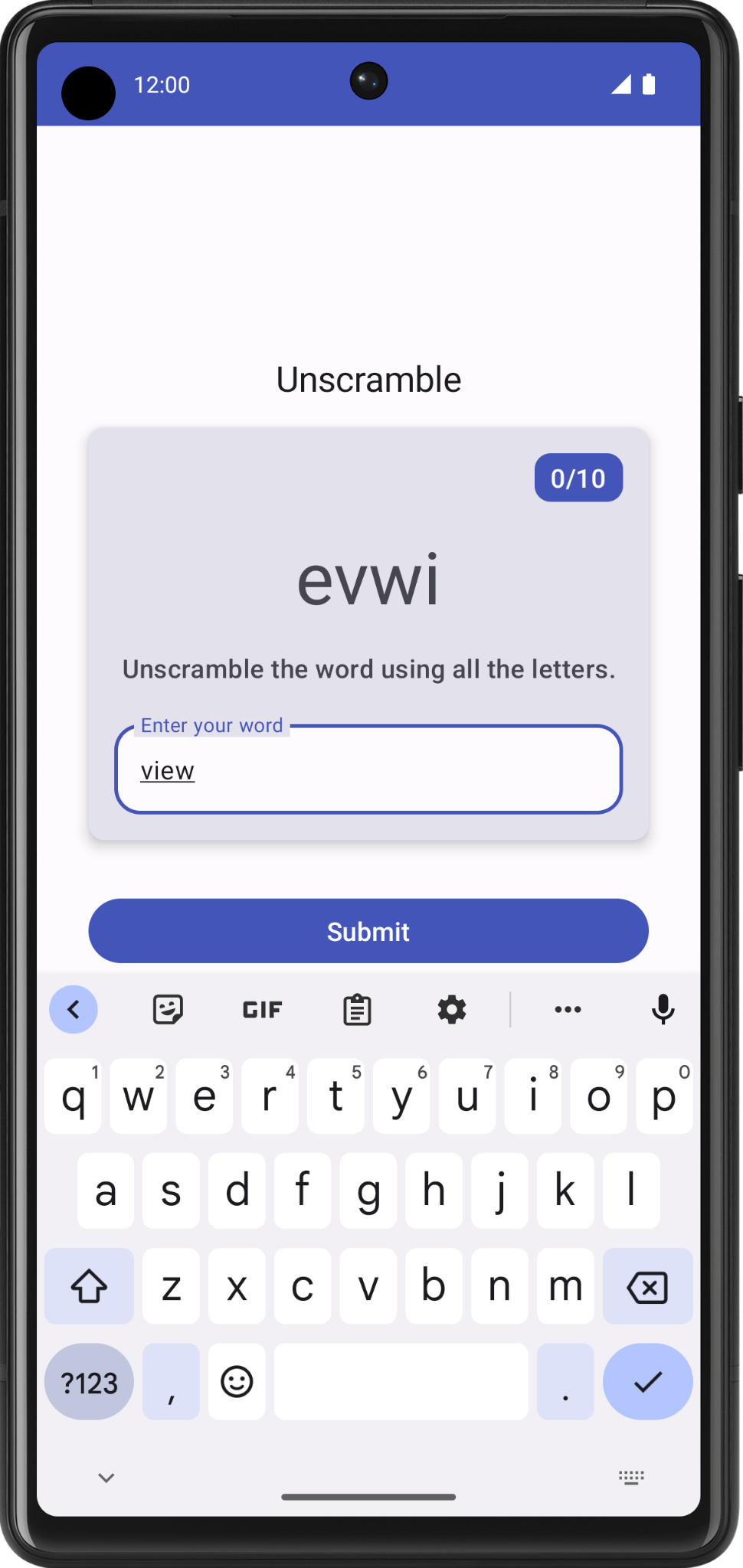
In the
GameLayoutcomposable, updating the user’s guess word is an event that flows up to theGameViewModel. The stategameViewModel.userGuesswill flow down from theGameViewModelto theGameLayout.
In
GameScreen, this is how the state flows:fun GameScreen(gameViewModel: GameViewModel = viewModel()) { // ... GameLayout( onUserGuessChanged = { gameViewModel.updateUserGuess(it) }, // GameLayout ➜ GameViewModel wordCount = gameUiState.currentWordCount, // GameViewModel ➜ GameLayout userGuess = gameViewModel.userGuess, // GameViewModel ➜ GameLayout onKeyboardDone = { gameViewModel.checkUserGuess() }, // GameLayout ➜ GameViewModel currentScrambledWord = gameUiState.currentScrambledWord, // GameViewModel ➜ GameLayout isGuessWrong = gameUiState.isGuessedWordWrong, // GameViewModel ➜ GameLayout ) // ... }
In
GameViewModel, this is where the event callback flows up (GameLayout ➜ GameViewModel)var userGuess by mutableStateOf("") private set fun updateUserGuess(guessedWord: String) { userGuess = guessedWord }
The
var userGuessis used to store the user’s guess. UsemutableStateOf()so that Compose observes this value, and sets the initial value to"".Since
GameViewModelis not a composable,userGuessis not affected by recompositions, andrememberis not needed.
The above code will cause the text field to display the user’s guess.
Verify guess word
This code verifies the user’s guess, and displays an error if the guess is wrong.
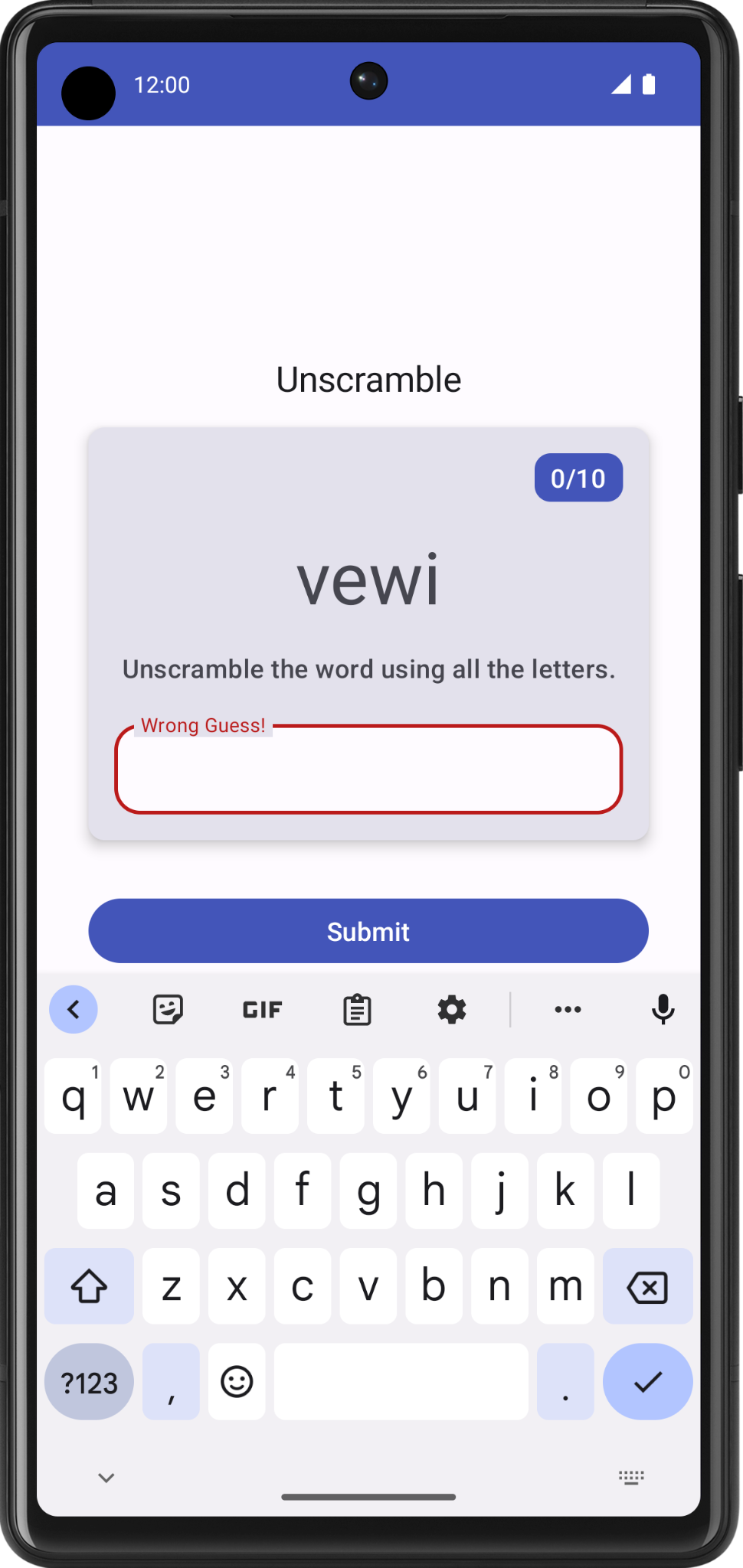
The flow:
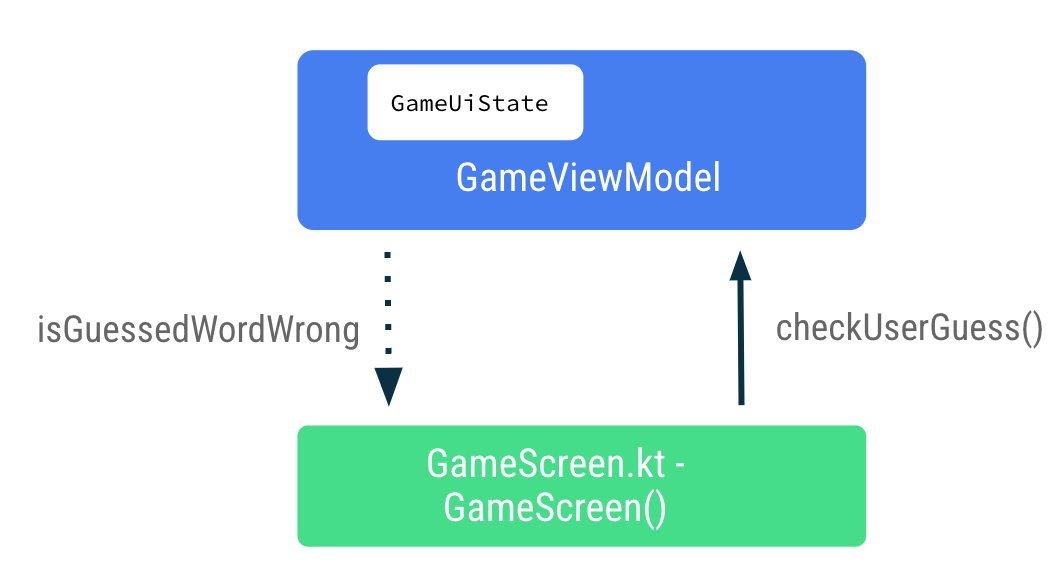
In
GameViewModel.kt➜class GameViewModel, this app logic handles the user’s guess, and updates the state. The flow is GameViewModel ➜ GameLayoutfun checkUserGuess() { if (userGuess.equals(currentWord, ignoreCase = true)) { // ... } else { // User's guess is wrong, update the UI state to show an error _uiState.update { currentState -> currentState.copy(isGuessedWordWrong = true) } } // ... }
_uiState.update()updates the_uiState.valueusing a lambda which takes the current state as input, and returns the new state.Use
copy()to copy an object, altering some of its properties while keeping the rest unchanged. Example:val jack = User(name = "Jack", age = 1) val olderJack = jack.copy(age = 2)
In
GameScreen.kt➜GameScreen():@Composable fun GameScreen(gameViewModel: GameViewModel = viewModel()) { // ... GameLayout( // ... onKeyboardDone = { gameViewModel.checkUserGuess() } // GameLayout ➜ GameViewModel isGuessWrong = gameUiState.isGuessedWordWrong, // GameViewModel ➜ GameLayout // ... ) // ... Button( modifier = Modifier.fillMaxWidth(), onClick = { gameViewModel.checkUserGuess() } // GameLayout ➜ GameViewModel ) { // ... } // ... }
Update score and word count
If the user’s guess was correct, this code updates the score, and the number of words shown to the user.
In
GameViewModel.kt➜class GameViewModel, this code updates the score, increments the current word count, and picks a new work.import com.example.unscramble.data.SCORE_INCREASE fun checkUserGuess() { if (userGuess.equals(currentWord, ignoreCase = true)) { // User's guess is correct, increase the score val updatedScore = _uiState.value.score.plus(SCORE_INCREASE) // and call updateGameState() to prepare the game for next round updateGameState(updatedScore) } else { //... } } private fun updateGameState(updatedScore: Int) { // ... // Normal round in the game _uiState.update { currentState -> currentState.copy( isGuessedWordWrong = false, currentScrambledWord = pickRandomWordAndShuffle(), currentWordCount = currentState.currentWordCount.inc(), score = updatedScore ) } // ... }
Pass score and word count
This code passes the score and word count down from
ViewModelto theGameStatus.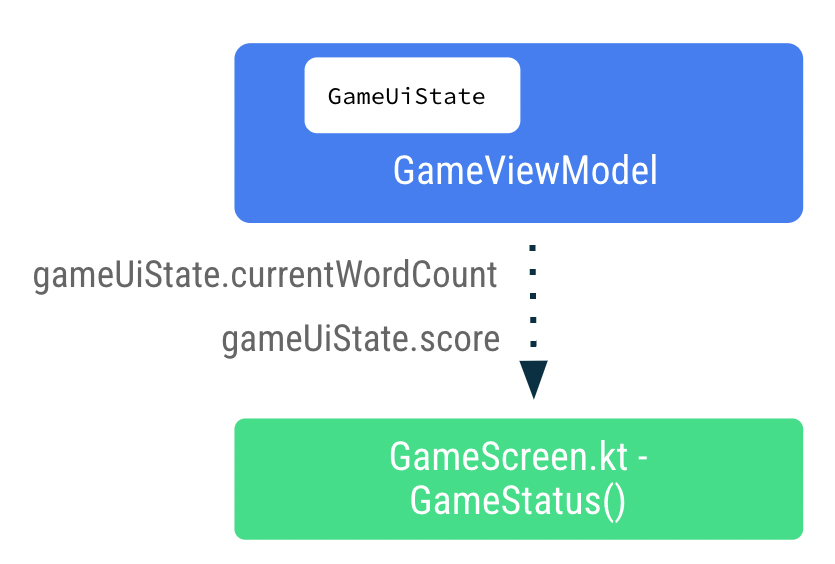
In
GameScreen.kt➜GameScreen():GameStatus(score = gameUiState.score, modifier = Modifier.padding(20.dp))
Handle last round of game
In
GameViewModel.kt➜class GameViewModel, this code ends the game afterMAX_NO_OF_WORDSwords have been shown to the user.private fun updateGameState(updatedScore: Int) { if (usedWords.size == MAX_NO_OF_WORDS){ // Last round, update isGameOver to true, don't pick a new word _uiState.update { currentState -> currentState.copy( isGuessedWordWrong = false, score = updatedScore, isGameOver = true ) } } else { // Normal round in the game // ... } }
Display game end dialog
A dialog is a small window that prompts the user to make a decision or enter additional information. Normally, a dialog does not fill the entire screen, and it requires users to take an action before they can proceed. Android provides different types of dialogs. In this codelab, you learn about Alert Dialogs.
Anatomy of alert dialog
An alert dialog:
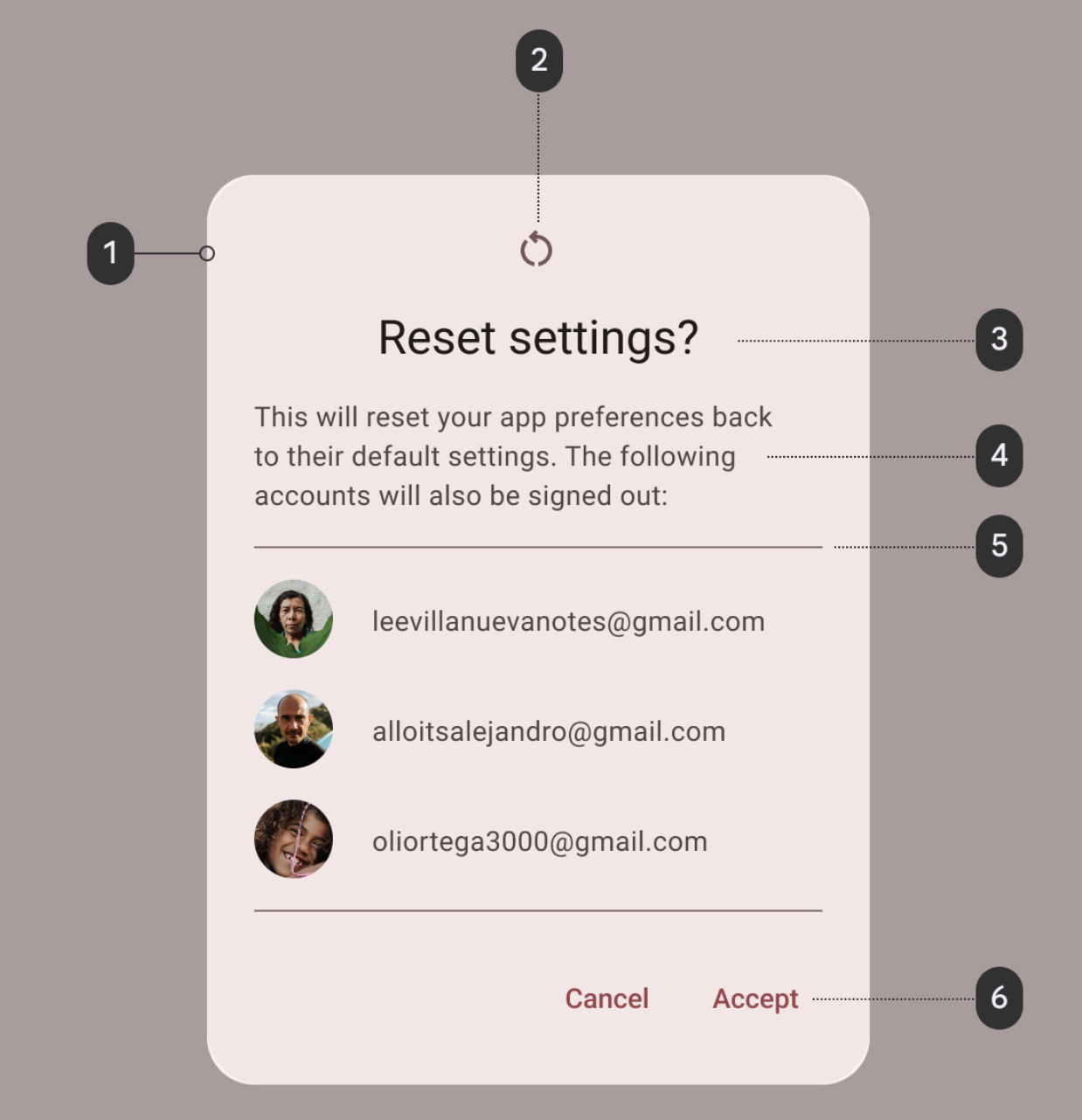
Container
Icon (optional)
Headline (optional)
Supporting text
Divider (optional)
Actions
This alert dialog shows options to end or restart the game.

The flow:
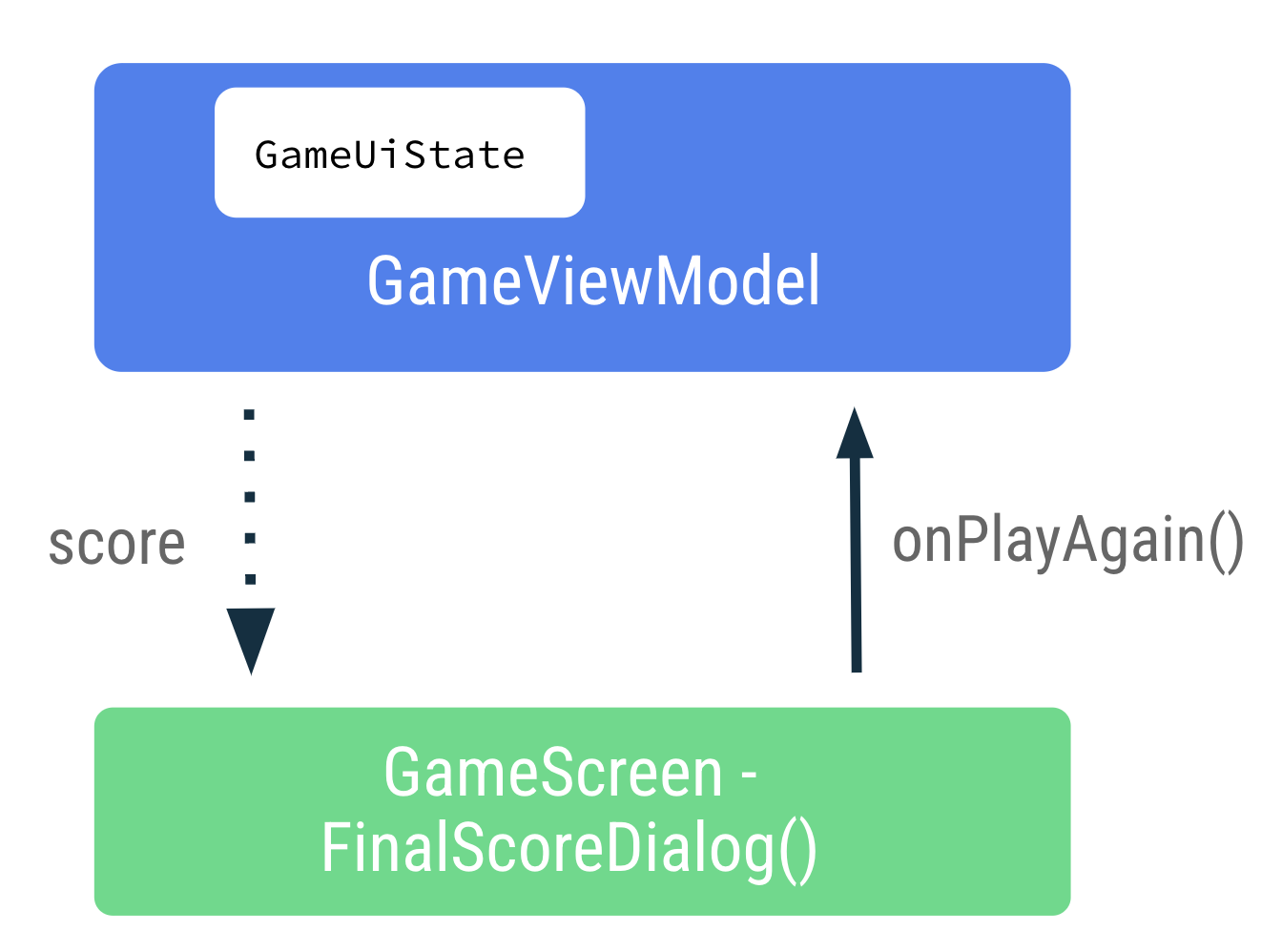
The code here displays the alert dialog.
@Composable
private fun FinalScoreDialog(
    score: Int,
    onPlayAgain: () -> Unit,
    modifier: Modifier = Modifier
) {
    val activity = (LocalContext.current as Activity)

    AlertDialog(
        onDismissRequest = {
            // Dismiss the dialog when the user clicks outside the dialog or on the back
            // button. If you want to disable that functionality, simply use an empty
            // onDismissRequest.
        },
        title = { Text(text = stringResource(R.string.congratulations)) },
        text = { Text(text = stringResource(R.string.you_scored, score)) },
        modifier = modifier,
        dismissButton = {
            TextButton(
                onClick = {
                    activity.finish()
                }
            ) {
                Text(text = stringResource(R.string.exit))
            }
        },
        confirmButton = {
            TextButton(onClick = onPlayAgain) {
                Text(text = stringResource(R.string.play_again))
            }
        }
    )
}
The
titleandtextparameters display the headline and supporting text in the alert dialog.The
dismissButtonandconfirmButtonare the text buttons.The
dismissButtonargument displays Exit and terminates the app by finishing the activity.The
confirmButtonargument restarts the game, and displays the text Play Again.
State in device rotation
In previous codelabs, you learned about configuration changes in Android. When a configuration change occurs, Android restarts the activity from scratch, running all the lifecycle startup callbacks.
The
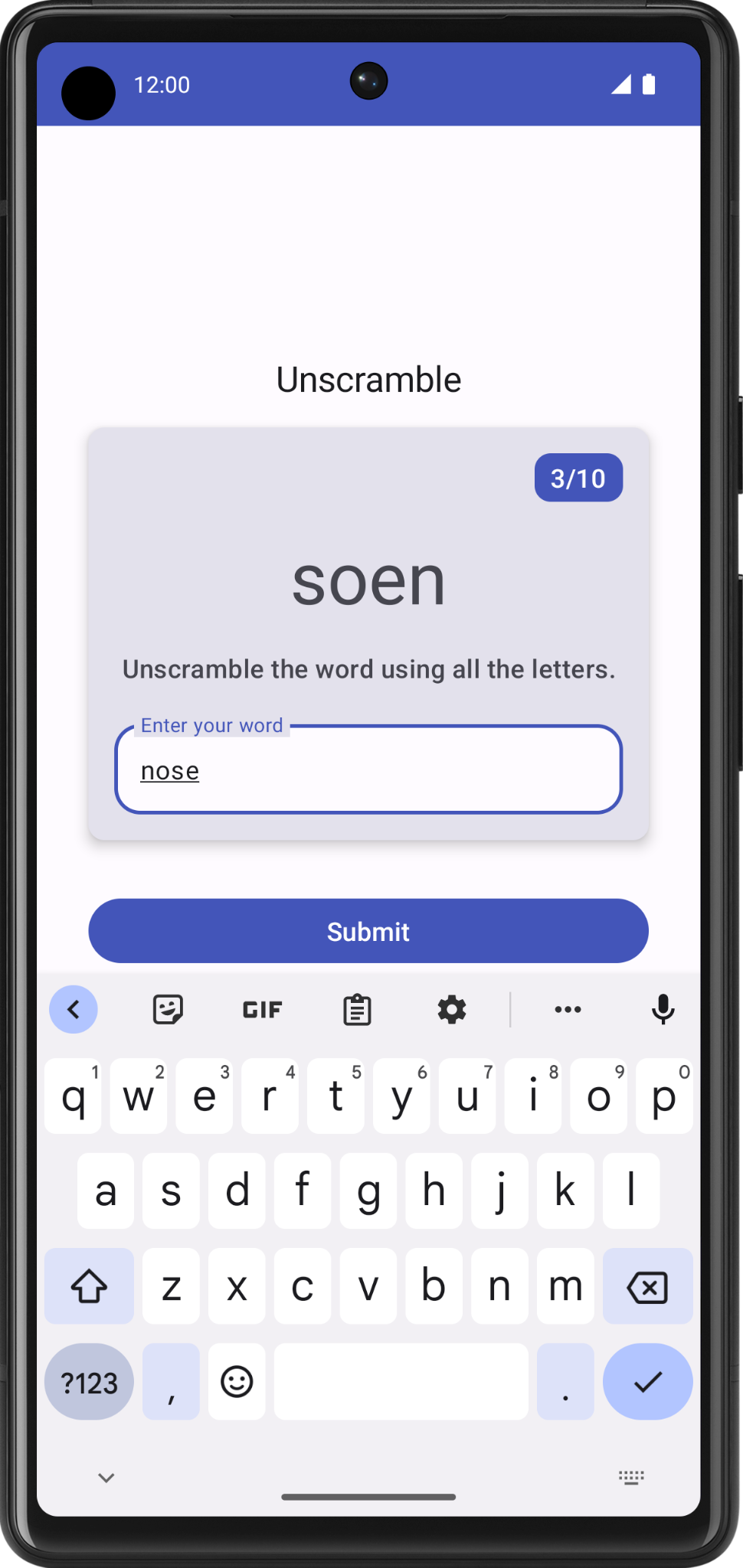
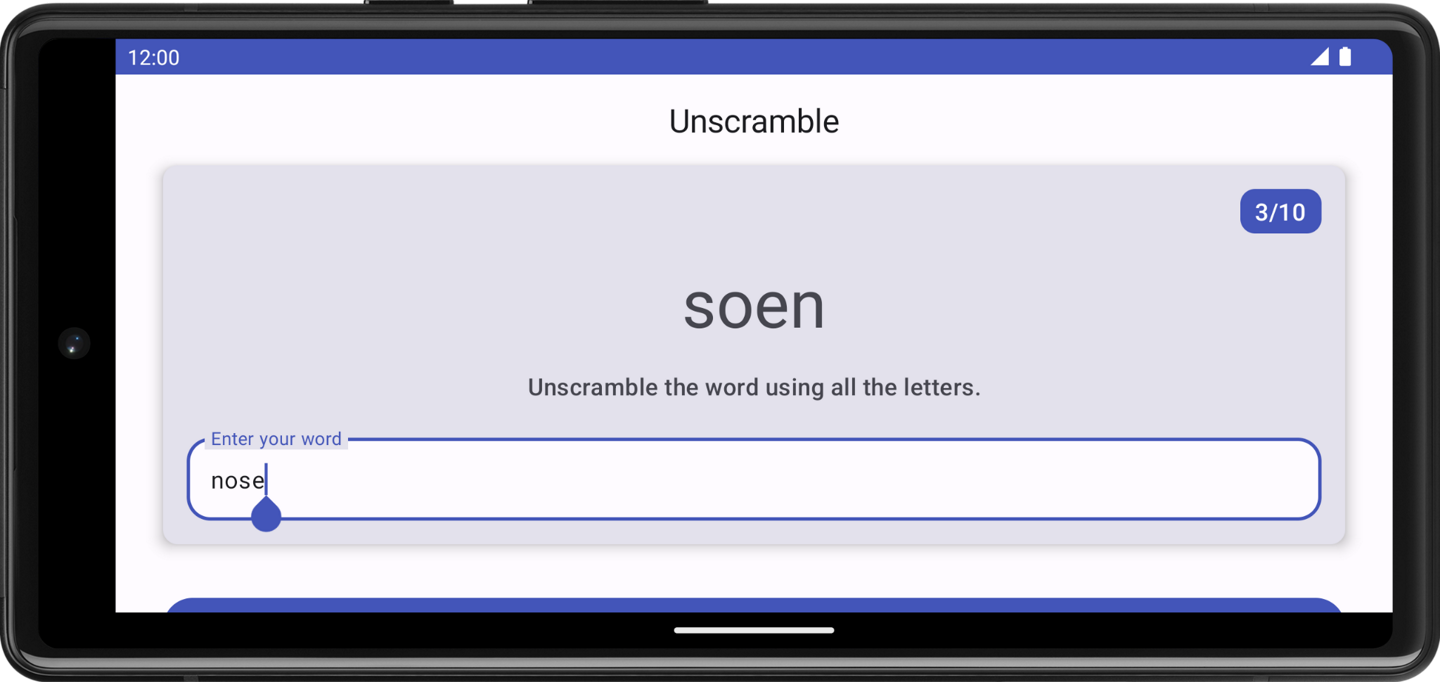
ViewModelstores the app-related data that isn’t destroyed when the Android framework destroys and recreates activity.ViewModelobjects are automatically retained and they are not destroyed like the activity instance during configuration change. The data they hold is immediately available after the recomposition.Run the app and play some words. Change the configuration of the device from portrait to landscape, or vice versa.
Observe that the data saved in the
ViewModel’s state UI is retained during the configuration change.
Conclusion
Congratulations! You have completed the codelab. Now you understand how the Android app architecture guidelines recommend separating classes that have different responsibilities and driving the UI from a model.