Unit 4 Pathway 2 Activity 4: Practice: Add navigation
Before you begin
Congratulations! You built your first app in Jetpack Compose with navigation between multiple screens. Now you’re ready to put what you learned into practice.
This exercise focuses on the creation of the components necessary to add navigation to an app with multiple screen composables. The material expands upon what you learned in the Navigate between screens with Compose codelab, and lets you apply that knowledge to add navigation to an existing app.
The solution code is available at the end, but try to solve the exercises before you check the answers. Consider the solution as one way to implement the app.
Prerequisites
The Android Basics in Compose coursework through the Navigate between screens with Compose codelab
What you’ll need
A computer with internet access and Android Studio installed
The starter code for the Lunch Tray app
What you’ll build
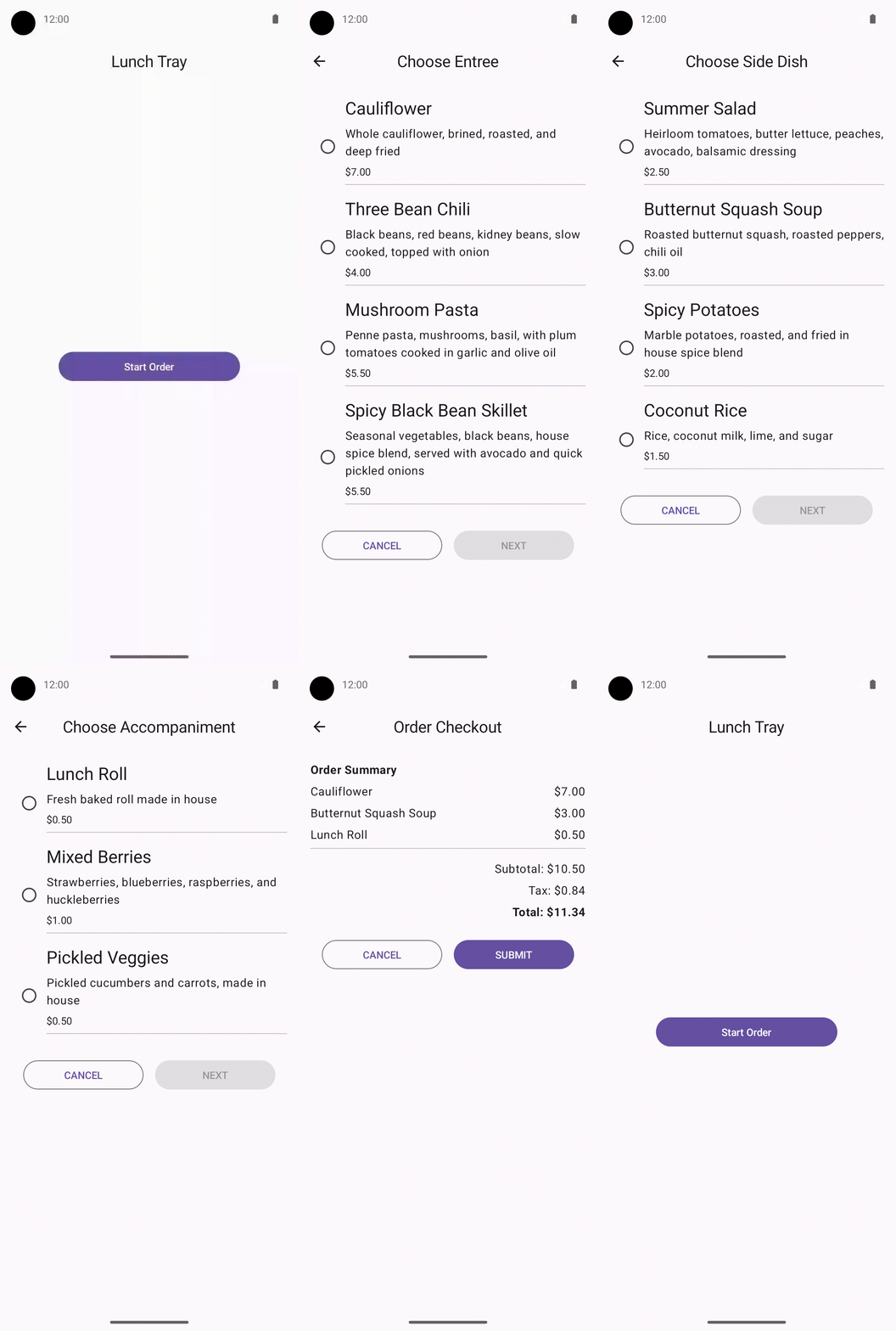
In these practice problems, you will complete the Lunch Tray app by adding navigation. The Lunch Tray app is an interactive lunch ordering app with three screens. Each screen represents one of the three types of menu items from which you can select: an entree, a side dish, and an accompaniment.
The practice problems are split into sections, where you will do the following:
Create a reference for each screen that the user navigates.
Initialize a navigation controller.
Create a top bar that displays the screen title and navigation buttons, if appropriate.
Configure a navigation host that determines the routing from one screen to the next.
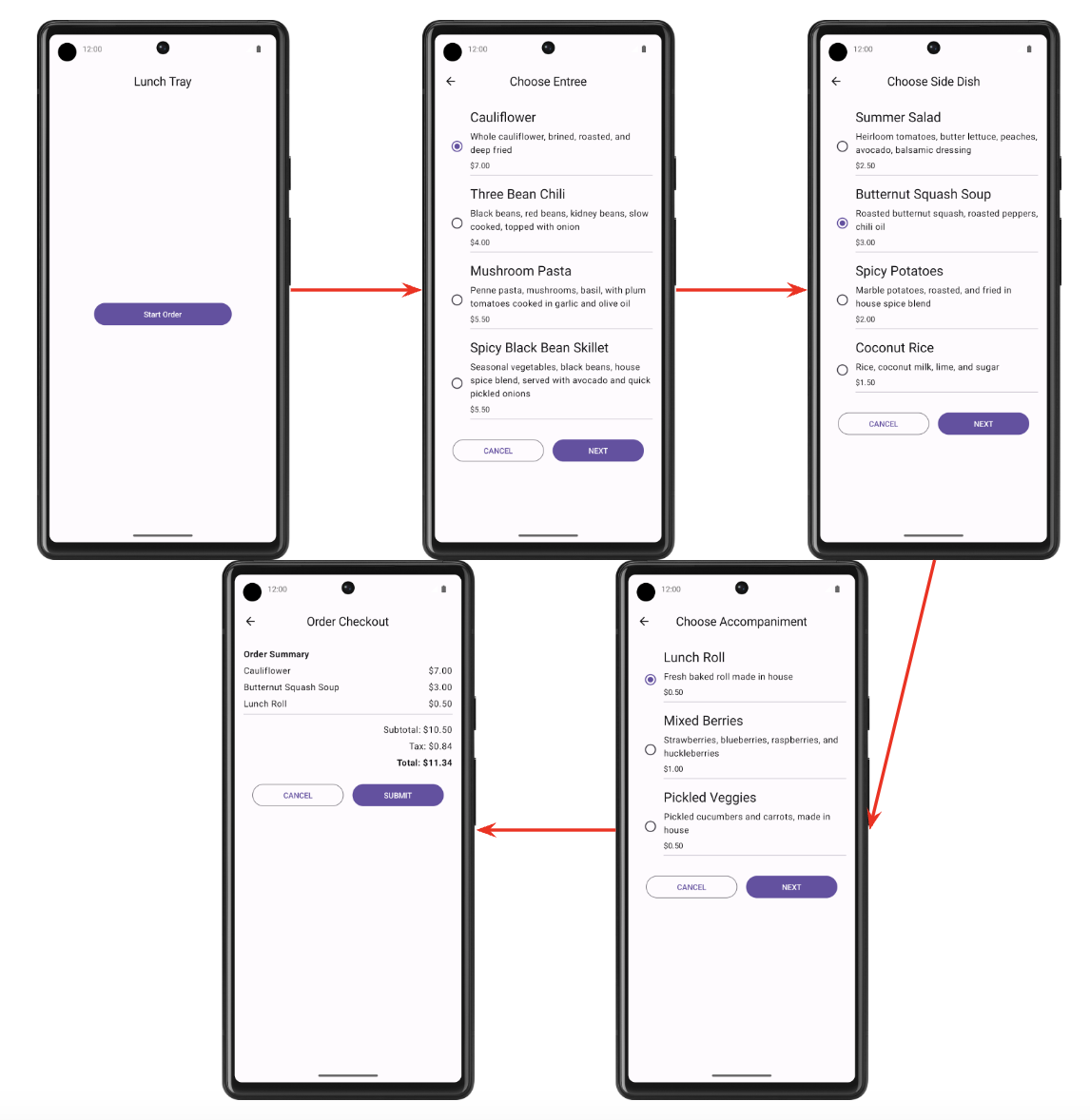
The final app flow will look like this:
Get set up
Starter code: https://github.com/google-developer-training/basic-android-kotlin-compose-training-lunch-tray/tree/starter
Branch: starter
Screen enum
In this section, you create an
enumclass to hold constants for each of the following Lunch Tray app screens:Start
Entree menu
Side dish menu
Accompaniment menu
Checkout
Each screen should have an associated title in the form of a string. The strings are available in the starter code as resources.
AppBar
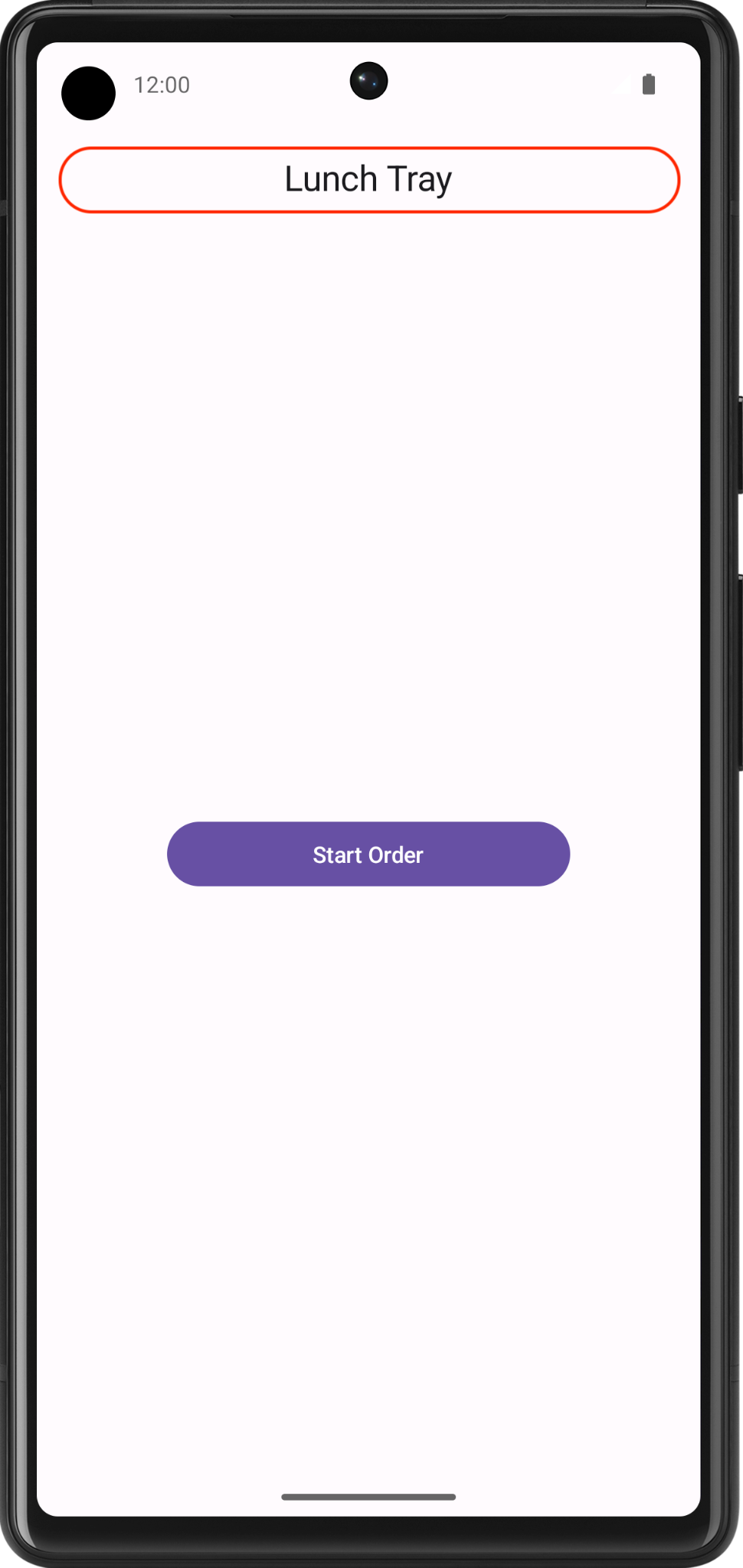
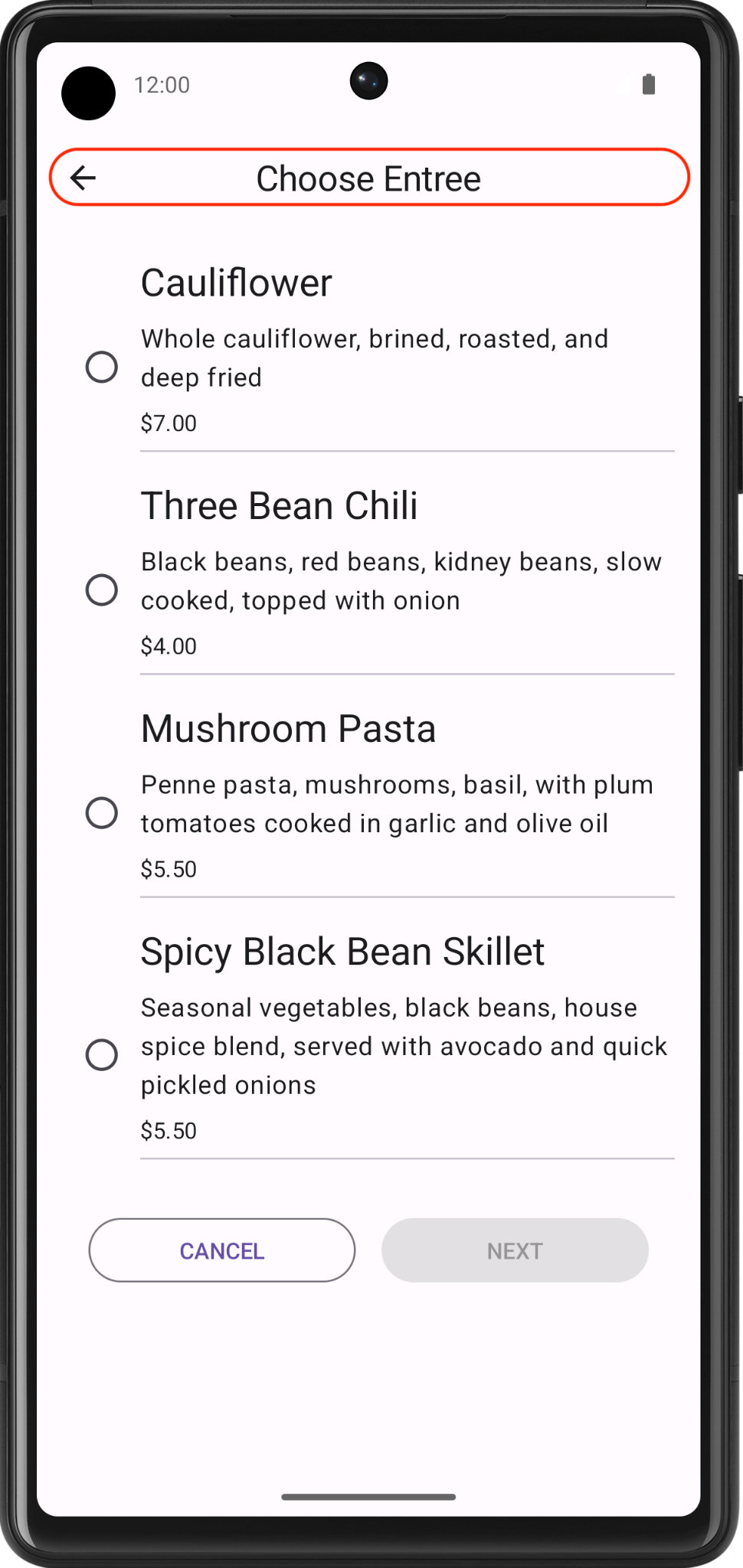
Create a composable for the AppBar of the
Scaffoldcomposable. The AppBar should display the title of the current screen. The appropriate backward-navigation button also should appear on a screen if backward navigation is possible. Backward navigation should not be available from the Start screen.
Final screenshot
The following screenshots show two examples of the AppBar: one without the up button and the other with the button.
UI specifications
Use the
Icons.Filled.ArrowBackicon for the backward-navigation button.
Navigation host
In this exercise, you build the navigational routing for the Lunch Tray app by using the navigation host.
The following diagram shows the navigational flow for the Lunch Tray app:
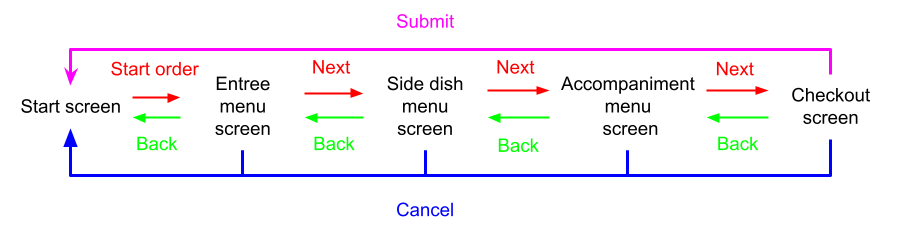
The Start Order button on the Start screen navigates to the Entree menu screen.
The Next button on the Entree menu screen navigates to the Side dish menu screen.
The Next button on the Side dish menu screen navigates to the Accompaniment menu screen.
The Next button on the Accompaniment menu screen navigates to the Checkout screen.
The Submit button on the Checkout screen navigates to the Start screen.
The Cancel button on any screen navigates back to the Start screen.
Note
Because the Start screen begins the navigational flow, you can navigate to it by popping the screen from the backstack.
Final result
After you finish the implementation, your app navigation flow should look like this: