Unit 6 Pathway 3 Activity 3: Save preferences locally with DataStore
Before you begin
Introduction
In this unit, you have learned how to use SQL and Room to save data locally on a device. SQL and Room are powerful tools. However, in cases where you don’t need to store relational data, DataStore can provide a simple solution. The DataStore Jetpack Component is a great way to store small and simple data sets with low overhead. DataStore has two different implementations,
Preferences DataStoreandProto DataStore.Preferences DataStorestores key-value pairs. The values can be Kotlin’s basic data types, such asString,Boolean, andInteger. It does not store complex datasets. It does not require a predefined schema. The primary use case of thePreferences Datastoreis to store user preferences on their device.Proto DataStorestores custom data types. It requires a predefined schema that maps proto definitions with object structures.
Only
Preferences DataStoreis covered in this codelab, but you can read more aboutProto DataStorein the DataStore documentation.Preferences DataStoreis a great way to store user-controlled settings, and in this codelab, you learn how to implementDataStoreto do exactly that!
Prerequisites
Complete the Android Basics with Compose coursework through the Read and Update Data with Room codelab.
What you’ll need
A computer with internet access and Android Studio
A device or emulator
The starter code for the Dessert Release app
What you’ll build
The Dessert Release app shows a list of Android releases. The icon in the app bar toggles the layout between a grid view and a list view.
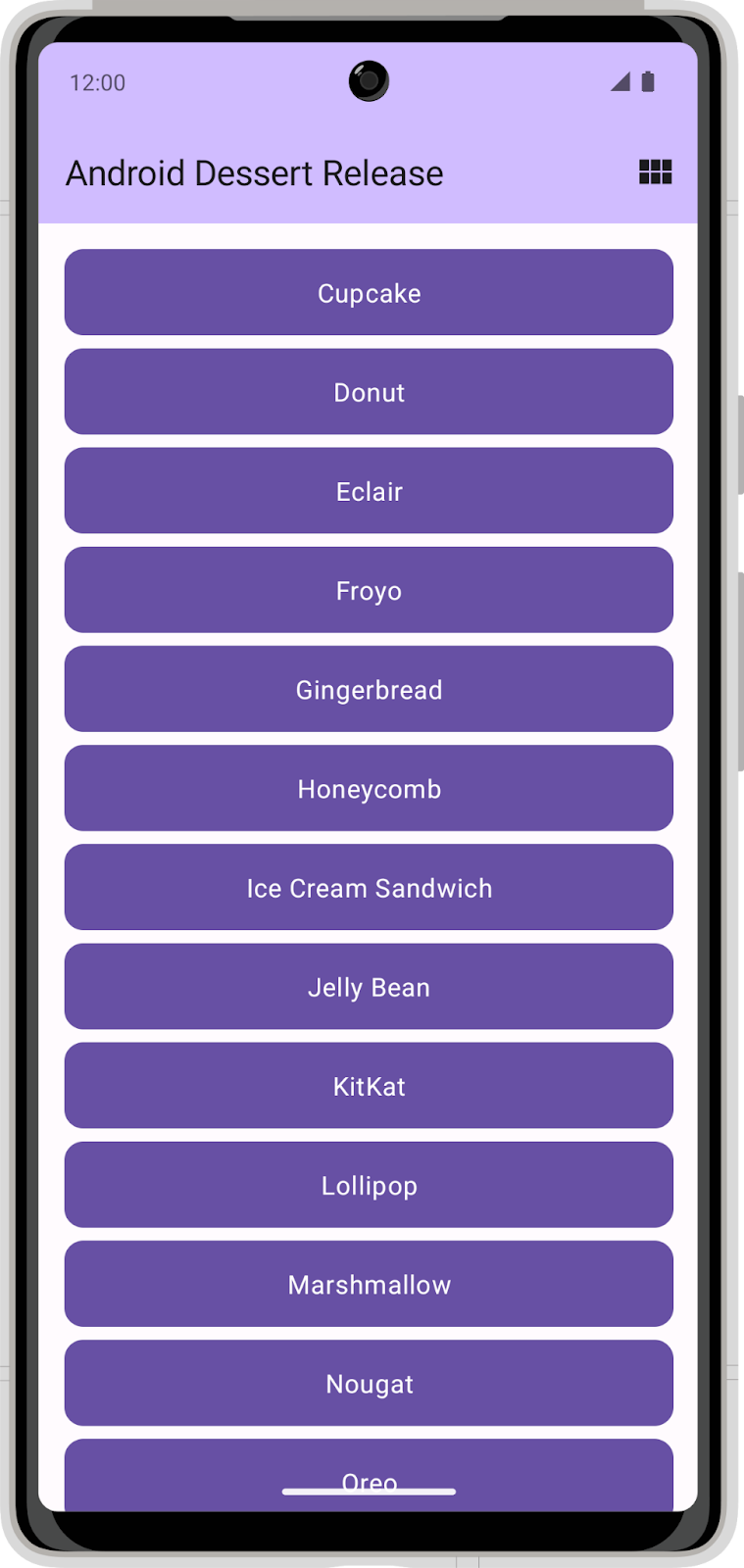
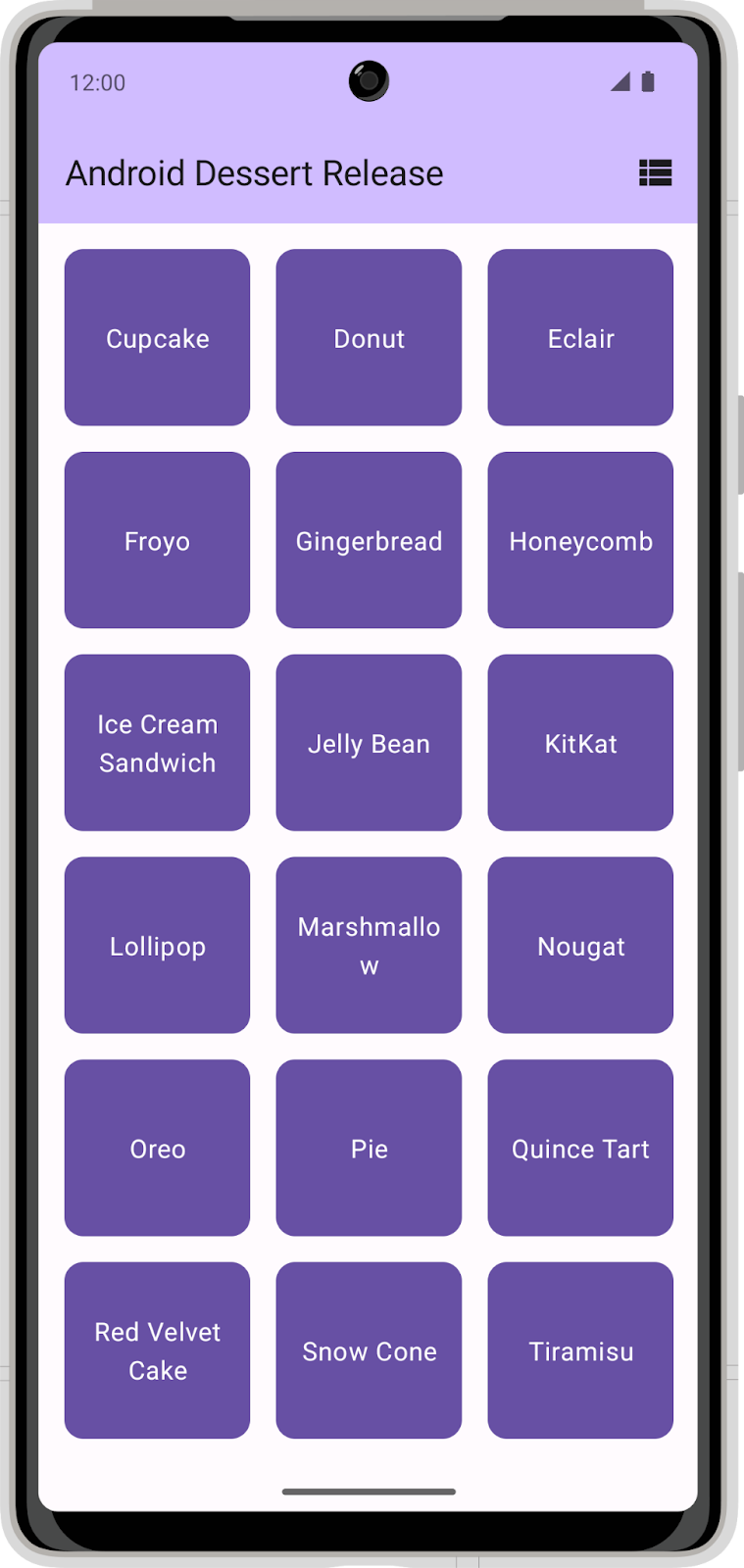
In its current state, the app does not persist the layout selection. When you close the app, your layout selection does not save and the setting returns to the default selection. In this codelab, you add
DataStoreto the Dessert Release app and use it to store a layout selection preference.
Download the starter code
Branch: starter
Clone:
$ git clone https://github.com/google-developer-training/basic-android-kotlin-compose-training-dessert-release.git
$ cd basic-android-kotlin-compose-training-dessert-release
$ git checkout starter
Set up dependencies
Add the following to
dependenciesin theapp/build.gradle.ktsfile:implementation("androidx.datastore:datastore-preferences:1.0.0")
Implement the user preferences repository
In the
datapackage, create a new class calledUserPreferencesRepository.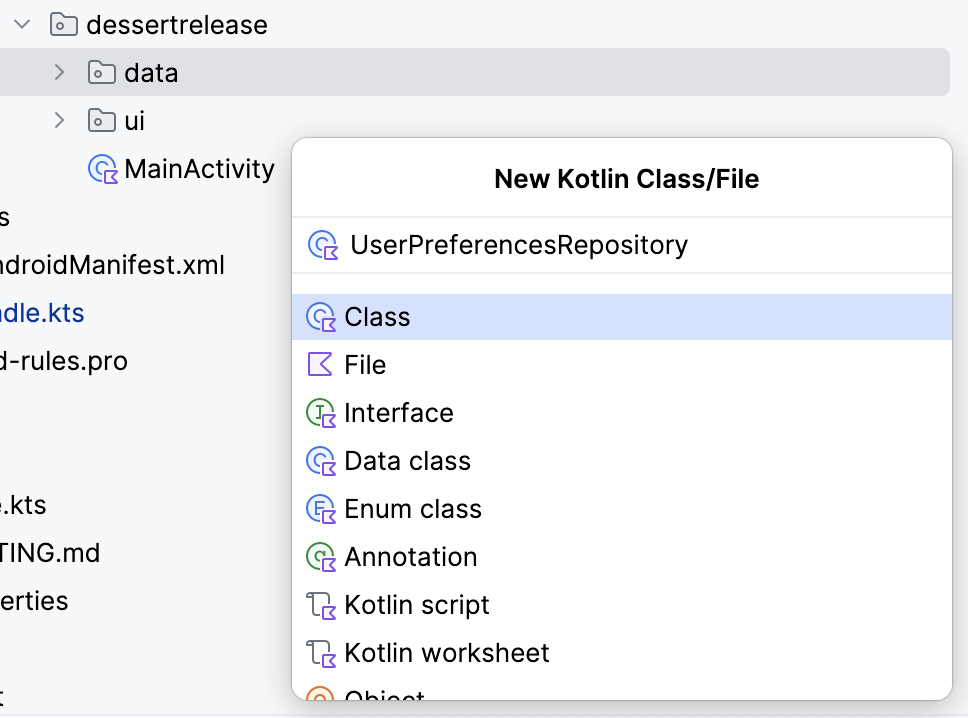
In the
UserPreferencesRepositoryconstructor, define a private value property to represent aDataStoreobject instance with aPreferencestype.class UserPreferencesRepository( private val dataStore: DataStore<Preferences> ){ }
Note
Make sure to use the
androidx.datastore.preferences.core.Preferencesimport for the Preferences class.DataStorestores key-value pairs. To access a value you must define a key.Create a
companion objectinside theUserPreferencesRepositoryclass.Use the
booleanPreferencesKey()function to define a key and pass it the nameis_linear_layout. Similar to SQL table names, the key needs to use an underscore format. This key is used to access a boolean value indicating whether the linear layout should be shown.class UserPreferencesRepository( private val dataStore: DataStore<Preferences> ){ private companion object { val IS_LINEAR_LAYOUT = booleanPreferencesKey("is_linear_layout") } ... }
Write to the DataStore
You create and modify the values within a
DataStoreby passing a lambda to theedit()method. The lambda is passed an instance ofMutablePreferences, which you can use to update values in theDataStore. All the updates inside this lambda are executed as a single transaction. Put another way, the update is atomic — it happens all at one time. This type of update prevents a situation in which some values update but others do not.Create a suspend function and call it
saveLayoutPreference().In the
saveLayoutPreference()function, call theedit()method on thedataStoreobject.suspend fun saveLayoutPreference(isLinearLayout: Boolean) { dataStore.edit { } }
To make your code more readable, define a name for the
MutablePreferencesprovided in the lambda body. Use that property to set a value with the key you defined and the boolean passed to thesaveLayoutPreference()function.suspend fun saveLayoutPreference(isLinearLayout: Boolean) { dataStore.edit { preferences -> preferences[IS_LINEAR_LAYOUT] = isLinearLayout } }
Note
The value does not exist in DataStore until this function is called and the value is set. By setting up the key-value pair in the edit() method, the value is defined and initialized until the app’s cache or data is cleared.
Read from the DataStore
Now that you have created a way to write
isLinearLayoutintodataStore, take the following steps to read it.Create a property in
UserPreferencesRepositoryof typeFlow<Boolean>calledisLinearLayout.val isLinearLayout: Flow<Boolean> =
You can use the
DataStore.dataproperty to exposeDataStorevalues. SetisLinearLayoutto thedataproperty of theDataStoreobject.val isLinearLayout: Flow<Boolean> = dataStore.data
Note
This code does not compile and the
dataStore.datainstruction is underlined in red. This outcome is expected, as the implementation is not yet complete.The
dataproperty is aFlowofPreferencesobjects. ThePreferencesobject contains all the key-value pairs in the DataStore. Each time the data in the DataStore is updated, a newPreferencesobject is emitted into theFlow.Use the map function to convert the
Flow<Preferences>into aFlow<Boolean>.This function accepts a lambda with the current
Preferencesobject as a parameter. You can specify the key you previously defined to obtain the layout preference. Bear in mind that the value might not exist ifsaveLayoutPreferencehasn’t been called yet, so you must also supply a default value.Specify
trueto default to the linear layout view.Note
Remember that until the preference is defined and initialized, it does not exist in the
DataStore. That is why you must programmatically confirm that the preference exists and provide a default value if it does not.val isLinearLayout: Flow<Boolean> = dataStore.data.map { preferences -> preferences[IS_LINEAR_LAYOUT] ?: true }
Exception handling
Any time you interact with the file system on a device, it’s possible that something can fail. For example, a file might not exist, or the disk could be full or unmounted. As
DataStorereads and writes data from files,IOExceptionscan occur when accessing theDataStore. You use thecatch{}operator to catch exceptions and handle these failures.In the companion object, implement an immutable
TAGstring property to use for logging.private companion object { val IS_LINEAR_LAYOUT = booleanPreferencesKey("is_linear_layout") const val TAG = "UserPreferencesRepo" }
Preferences DataStorethrows anIOExceptionwhen an error is encountered while reading data. In theisLinearLayoutinitialization block, beforemap(), use thecatch{}``operator to catch the ``IOException.val isLinearLayout: Flow<Boolean> = dataStore.data .catch {} .map { preferences -> preferences[IS_LINEAR_LAYOUT] ?: true }
In the catch block, if there is an
IOexception, log the error and emitemptyPreferences(). If a different type of exception is thrown, prefer re-throwing that exception. By emittingemptyPreferences()if there is an error, the map function can still map to the default value.val isLinearLayout: Flow<Boolean> = dataStore.data .catch { if(it is IOException) { Log.e(TAG, "Error reading preferences.", it) emit(emptyPreferences()) } else { throw it } } .map { preferences -> preferences[IS_LINEAR_LAYOUT] ?: true }
Initialize the DataStore
In this codelab, you must handle the dependency injection manually. Therefore, you must manually provide the
UserPreferencesRepositoryclass with aPreferences DataStore. Follow these steps to injectDataStoreinto theUserPreferencesRepository.Find the
dessertreleasepackage.Within this directory, create a new class called
DessertReleaseApplicationand implement theApplicationclass. This is the container for your DataStore.class DessertReleaseApplication: Application() { }
Inside of the
DessertReleaseApplication.ktfile, but outside theDessertReleaseApplicationclass, declare aprivate const valcalledLAYOUT_PREFERENCE_NAME.Assign the
LAYOUT_PREFERENCE_NAMEvariable the string valuelayout_preferences, which you can then use as the name of thePreferences Datastorethat you instantiate in the next step.private const val LAYOUT_PREFERENCE_NAME = "layout_preferences"
Still outside the
DessertReleaseApplicationclass body but in theDessertReleaseApplication.ktfile, create a private value property of typeDataStore<Preferences>calledContext.dataStoreusing thepreferencesDataStoredelegate. PassLAYOUT_PREFERENCE_NAMEfor thenameparameter of thepreferencesDataStoredelegate.private const val LAYOUT_PREFERENCE_NAME = "layout_preferences" private val Context.dataStore: DataStore<Preferences> by preferencesDataStore( name = LAYOUT_PREFERENCE_NAME )
Inside the
DessertReleaseApplicationclass body, create alateinit varinstance of theUserPreferencesRepository.private const val LAYOUT_PREFERENCE_NAME = "layout_preferences" private val Context.dataStore: DataStore<Preferences> by preferencesDataStore( name = LAYOUT_PREFERENCE_NAME ) class DessertReleaseApplication: Application() { lateinit var userPreferencesRepository: UserPreferencesRepository }
Override the
onCreate()method.private const val LAYOUT_PREFERENCE_NAME = "layout_preferences" private val Context.dataStore: DataStore<Preferences> by preferencesDataStore( name = LAYOUT_PREFERENCE_NAME ) class DessertReleaseApplication: Application() { lateinit var userPreferencesRepository: UserPreferencesRepository override fun onCreate() { super.onCreate() } }
Inside the
onCreate()method, initializeuserPreferencesRepositoryby constructing aUserPreferencesRepositorywithdataStoreas its parameter.private const val LAYOUT_PREFERENCE_NAME = "layout_preferences" private val Context.dataStore: DataStore<Preferences> by preferencesDataStore( name = LAYOUT_PREFERENCE_NAME ) class DessertReleaseApplication: Application() { lateinit var userPreferencesRepository: UserPreferencesRepository override fun onCreate() { super.onCreate() userPreferencesRepository = UserPreferencesRepository(dataStore) } }
Add the following line inside the <application> tag in the AndroidManifest.xml file.
<application
    android:name=".DessertReleaseApplication"
    ...
</application>
This approach defines
DessertReleaseApplicationclass as the entry point of the app. The purpose of this code is to initialize the dependencies defined in theDessertReleaseApplicationclass before launching theMainActivity.
Use the UserPreferencesRepository
Provide the repository to the ViewModel
Now that the
UserPreferencesRepositoryis available through dependency injection, you can use it inDessertReleaseViewModel.In the
DessertReleaseViewModel, create aUserPreferencesRepositoryproperty as a constructor parameter.class DessertReleaseViewModel( private val userPreferencesRepository: UserPreferencesRepository ) : ViewModel() { ... }
Within the
ViewModel’s companion object, in theviewModelFactory initializerblock, obtain an instance of theDessertReleaseApplicationusing the following code.... companion object { val Factory: ViewModelProvider.Factory = viewModelFactory { initializer { val application = (this[APPLICATION_KEY] as DessertReleaseApplication) ... } } } }
Create an instance of the
DessertReleaseViewModeland pass theuserPreferencesRepository.... companion object { val Factory: ViewModelProvider.Factory = viewModelFactory { initializer { val application = (this[APPLICATION_KEY] as DessertReleaseApplication) DessertReleaseViewModel(application.userPreferencesRepository) } } } }
The
UserPreferencesRepositoryis now accessible by theViewModel. The next steps are to use the read and write capabilities of theUserPreferencesRepositorythat you implemented previously.
Store the layout preference
Edit the
selectLayout()function in theDessertReleaseViewModelto access the preferences repository and update the layout preference.Recall that writing to the
DataStoreis done asynchronously with asuspendfunction. Start a new Coroutine to call the preference repository’ssaveLayoutPreference()function.fun selectLayout(isLinearLayout: Boolean) { viewModelScope.launch { userPreferencesRepository.saveLayoutPreference(isLinearLayout) } }
Read the layout preference
In this section, you refactor the existing
uiState: StateFlowin theViewModelto reflect theisLinearLayout: Flowfrom the repository.Delete the code that initializes the
uiStateproperty toMutableStateFlow(DessertReleaseUiState).val uiState: StateFlow<DessertReleaseUiState> =
The linear layout preference from the repository has two possible values,
trueorfalse, in the form of aFlow<Boolean>. This value must map to a UI state.Set the
StateFlowto the result of themap()collection transformation called on theisLinearLayoutFlow.val uiState: StateFlow<DessertReleaseUiState> = userPreferencesRepository.isLinearLayout.map { isLinearLayout -> }
Return an instance of the
DessertReleaseUiStatedata class, passing theisLinearLayout Boolean. The screen uses this UI state to determine the correct strings and icons to display.val uiState: StateFlow<DessertReleaseUiState> = userPreferencesRepository.isLinearLayout.map { isLinearLayout -> DessertReleaseUiState(isLinearLayout) }
UserPreferencesRepository.isLinearLayoutis aFlowwhich is cold. However, for providing state to the UI, it’s better to use a hot flow, likeStateFlow, so that the state is always available immediately to the UI.Use the
stateIn()function to convert aFlowto aStateFlow.The
stateIn()function accepts three parameters:scope,started, andinitialValue. Pass inviewModelScope,SharingStarted.WhileSubscribed(5_000), andDessertReleaseUiState()for these parameters, respectively.val uiState: StateFlow<DessertReleaseUiState> = userPreferencesRepository.isLinearLayout.map { isLinearLayout -> DessertReleaseUiState(isLinearLayout) } .stateIn( scope = viewModelScope, started = SharingStarted.WhileSubscribed(5_000), initialValue = DessertReleaseUiState() )
Note
Please read Migrating from LiveData to Kotlin’s Flow to learn more about the started parameter and why SharingStarted.WhileSubscribed(5_000) is passed to it.
Launch the app. Notice that you can click on the toggle icon to toggle between a grid layout and a linear layout.
Note
Try toggling the layout and closing the app. Reopen the app and notice that your layout preference was saved.
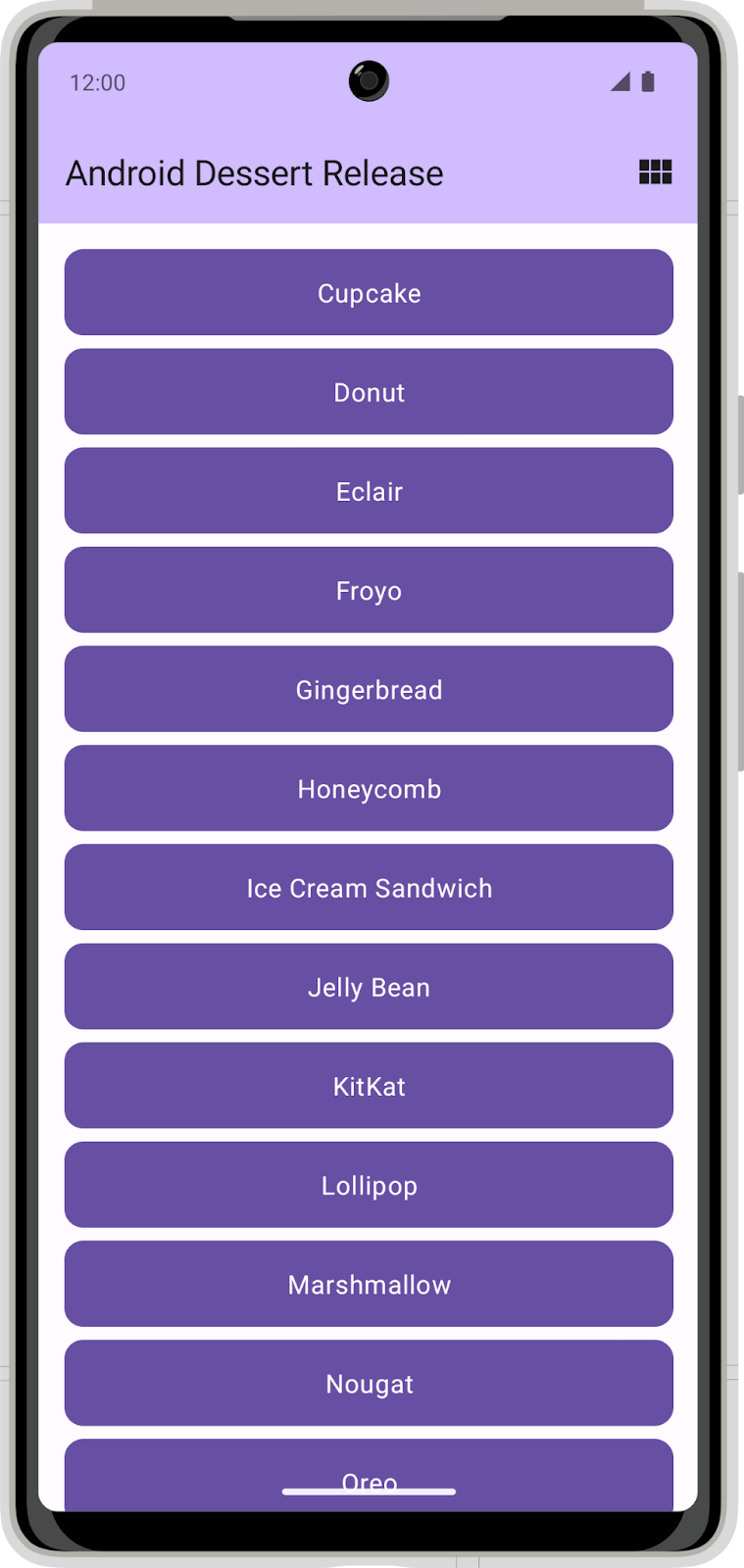
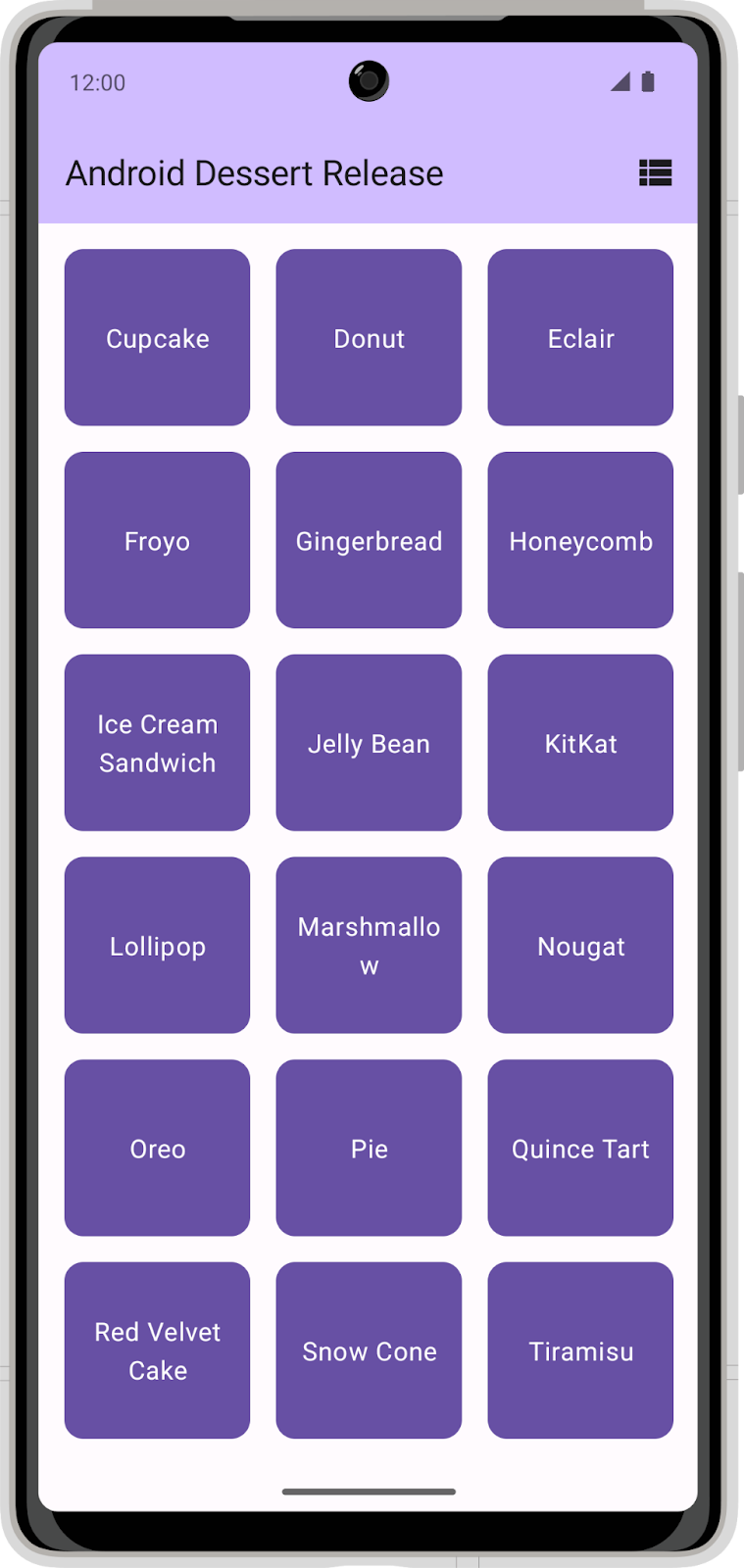
Congratulations! You successfully added Preferences DataStore to your app to save the user’s layout preference.
Solution code
Branch: main
Clone:
$ git clone https://github.com/google-developer-training/basic-android-kotlin-compose-training-dessert-release.git
$ cd basic-android-kotlin-compose-training-dessert-release
$ git checkout main