Unit 5 Pathway 1 Activity 5: Get data from the internet
Before you begin
Most Android apps connect to the internet to perform network operations, such as retrieving emails, messages, or other information from a backend server.
In this codelab, you will use open source and community-driven libraries to build a data layer and get data from a backend server. This greatly simplifies fetching the data and also helps the app follow Android best practices, such as perform operations on a background thread. You will also display an error message if the internet is slow or unavailable, which will keep the user informed about any network connectivity issues.
Prerequisites
Basic knowledge of how to create Composable functions.
Basic knowledge of how to use Android architecture components ViewModel.
Basic knowledge of how to use coroutines for long-running tasks.
Basic knowledge of how to add dependencies in build.gradle.kts.
What you’ll learn
What a Representational State Transfer (REST) web service is.
How to use the Retrofit library to connect to a REST web service on the internet and get a response.
How to use the Serialization (kotlinx.serialization) library to parse the JSON response into a data object.
What you’ll do
Modify a starter app to make a web service API request and handle the response.
Implement a data layer for your app using the Retrofit library.
Parse the JSON response from the web service into your app’s list of data objects with the kotlinx.serialization library, and attach it to the UI state.
Use Retrofit’s support for coroutines to simplify the code.
What you need
A computer with Android Studio
Starter code for the Mars Photos app
App overview
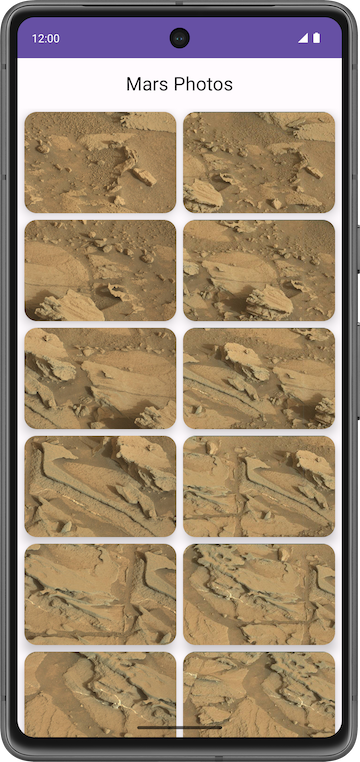
You work with the app named Mars Photos, which shows images of the Mars surface. This app connects to a web service to retrieve and display Mars photos. The images are real-life photos from Mars, captured from NASA’s Mars rovers. The following image is a screenshot of the final app, which contains a grid of images.
Note
The preceding image is a screenshot of the final app that you will build at the end of this unit, after additional updates in later codelabs. The screenshot is shown in this codelab to give you a better idea of the overall app functionality.
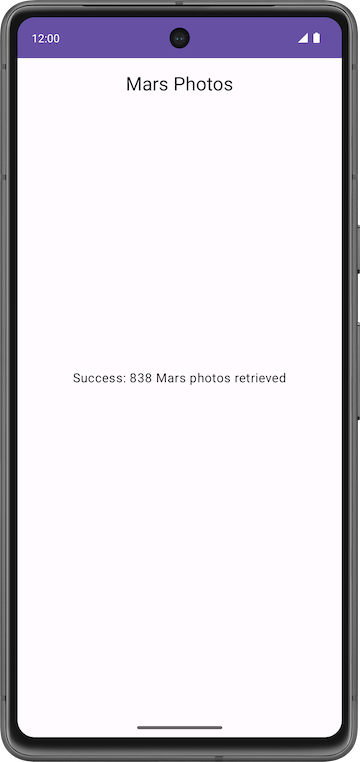
The version of the app you build in this codelab won’t have a lot of bling. This codelab focuses on the data layer part of the app to connect to the internet and download the raw property data using a web service. To ensure that the app correctly retrieves and parses this data, you can print the number of photos received from the backend server in a
Textcomposable.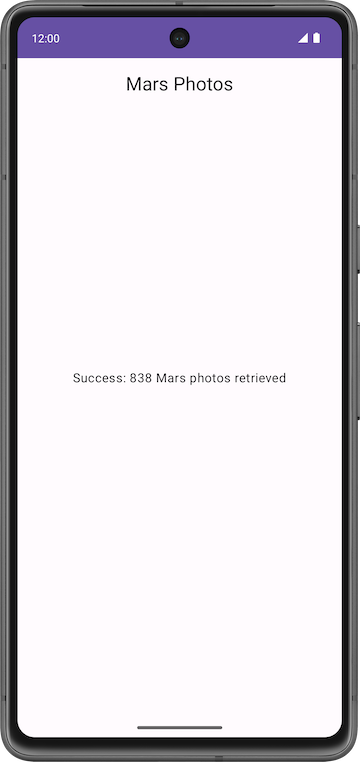
Solution code
Branch: repo-starter
Clone:
$ git clone https://github.com/google-developer-training/basic-android-kotlin-compose-training-mars-photos.git
$ cd basic-android-kotlin-compose-training-mars-photos
$ git checkout repo-starter
We’ll start with the solution code and learn how it works.
Solution code overview
network/MarsApiService.ktpackage com.example.marsphotos.network import com.example.marsphotos.model.MarsPhoto import com.jakewharton.retrofit2.converter.kotlinx.serialization.asConverterFactory import kotlinx.serialization.json.Json import okhttp3.MediaType.Companion.toMediaType import retrofit2.Retrofit import retrofit2.http.GET private const val BASE_URL = "https://android-kotlin-fun-mars-server.appspot.com" /** * Use the Retrofit builder to build a retrofit object using a kotlinx.serialization converter */ private val retrofit = Retrofit.Builder() // Creates a Retrofit object. The following lines add various functionality to this object. .addConverterFactory(Json.asConverterFactory("application/json".toMediaType())) // Adds functionality that converts the web service's response into Kotlin objects .baseUrl(BASE_URL) // Tells the Retrofit object which base URL to use when making web service requests .build() // builds the Retrofit object /** * Retrofit service object for creating api calls */ interface MarsApiService { // Gets the response from the web service, and returns it as a List of MarsPhoto objects. // The @GET annotation tells Retrofit that this is a GET request, and that the endpoint is "{BASE_URL}/photos" @GET("photos") suspend fun getPhotos(): List<MarsPhoto> } /** * A public Api object that exposes the lazy-initialized Retrofit service */ object MarsApi { val retrofitService: MarsApiService by lazy { retrofit.create(MarsApiService::class.java) } }
BASE_URLis the base URL for the web service.interface MarsApiServicedefines how Retrofit talks to the web server using HTTP requests. WhenevergetPhotos()is called:Retrofit makes a request to
{BASE_URL}/photos.Retrofit receives a response. This response is a JSON string.
Because of
.addConverterFactory(Json.asConverterFactory("application/json".toMediaType()))andfun getPhotos(): List<MarsPhoto>, Retrofit converts the JSON string intoList<MarsPhoto>, i.e. a list ofMarsPhotoobjects.
object MarsApiis a singleton object used to access the retrofit service. The app needs only one retrofit service, so this object is created to make sure that only one instance of the retrofit service is created.
ui/MarsPhotosApp.kt@file:OptIn(ExperimentalMaterial3Api::class) package com.example.marsphotos.ui import androidx.compose.foundation.layout.fillMaxSize import androidx.compose.material3.CenterAlignedTopAppBar import androidx.compose.material3.ExperimentalMaterial3Api import androidx.compose.material3.MaterialTheme import androidx.compose.material3.Scaffold import androidx.compose.material3.Surface import androidx.compose.material3.Text import androidx.compose.material3.TopAppBarDefaults import androidx.compose.material3.TopAppBarScrollBehavior import androidx.compose.runtime.Composable import androidx.compose.ui.Modifier import androidx.compose.ui.input.nestedscroll.nestedScroll import androidx.compose.ui.res.stringResource import androidx.lifecycle.viewmodel.compose.viewModel import com.example.marsphotos.R import com.example.marsphotos.ui.screens.HomeScreen import com.example.marsphotos.ui.screens.MarsViewModel @Composable fun MarsPhotosApp() { val scrollBehavior = TopAppBarDefaults.enterAlwaysScrollBehavior() Scaffold( modifier = Modifier.nestedScroll(scrollBehavior.nestedScrollConnection), topBar = { MarsTopAppBar(scrollBehavior = scrollBehavior) } ) { Surface( modifier = Modifier.fillMaxSize() ) { val marsViewModel: MarsViewModel = viewModel() HomeScreen( marsUiState = marsViewModel.marsUiState, contentPadding = it ) } } } @Composable fun MarsTopAppBar(scrollBehavior: TopAppBarScrollBehavior, modifier: Modifier = Modifier) { CenterAlignedTopAppBar( scrollBehavior = scrollBehavior, title = { Text( text = stringResource(R.string.app_name), style = MaterialTheme.typography.headlineSmall, ) }, modifier = modifier ) }
MarsPhotosAppdisplays the contents on the screen: the top app bar, theHomeScreencomposable, etc.
screens/MarsViewModel.ktpackage com.example.marsphotos.ui.screens import androidx.compose.runtime.getValue import androidx.compose.runtime.mutableStateOf import androidx.compose.runtime.setValue import androidx.lifecycle.ViewModel import androidx.lifecycle.viewModelScope import com.example.marsphotos.model.MarsPhoto import com.example.marsphotos.network.MarsApi import kotlinx.coroutines.launch import retrofit2.HttpException import java.io.IOException /** * UI state for the Home screen */ sealed interface MarsUiState { data class Success(val photos: String) : MarsUiState object Error : MarsUiState object Loading : MarsUiState } class MarsViewModel : ViewModel() { /** The mutable State that stores the status of the most recent request */ var marsUiState: MarsUiState by mutableStateOf(MarsUiState.Loading) private set /** * Call getMarsPhotos() on init so we can display status immediately. */ init { getMarsPhotos() } /** * Gets Mars photos information from the Mars API Retrofit service and updates the * [MarsPhoto] [List] [MutableList]. */ fun getMarsPhotos() { viewModelScope.launch { marsUiState = MarsUiState.Loading marsUiState = try { val listResult = MarsApi.retrofitService.getPhotos() MarsUiState.Success( "Success: ${listResult.size} Mars photos retrieved" ) } catch (e: IOException) { MarsUiState.Error } catch (e: HttpException) { MarsUiState.Error } } } }
This file is the corresponding view model for the
MarsPhotosApp.This class contains a
MutableStateproperty namedmarsUiState. It stores the status of the most recent request.
screens/HomeScreen.ktpackage com.example.marsphotos.ui.screens import androidx.compose.foundation.Image import androidx.compose.foundation.layout.Arrangement import androidx.compose.foundation.layout.Box import androidx.compose.foundation.layout.Column import androidx.compose.foundation.layout.PaddingValues import androidx.compose.foundation.layout.fillMaxSize import androidx.compose.foundation.layout.fillMaxWidth import androidx.compose.foundation.layout.padding import androidx.compose.foundation.layout.size import androidx.compose.material3.Text import androidx.compose.runtime.Composable import androidx.compose.ui.Alignment import androidx.compose.ui.Modifier import androidx.compose.ui.res.painterResource import androidx.compose.ui.res.stringResource import androidx.compose.ui.tooling.preview.Preview import androidx.compose.ui.unit.dp import com.example.marsphotos.R import com.example.marsphotos.ui.theme.MarsPhotosTheme @Composable fun HomeScreen( marsUiState: MarsUiState, modifier: Modifier = Modifier, contentPadding: PaddingValues = PaddingValues(0.dp), ) { when (marsUiState) { is MarsUiState.Loading -> LoadingScreen(modifier = modifier.fillMaxSize()) is MarsUiState.Success -> ResultScreen( marsUiState.photos, modifier = modifier.fillMaxWidth() ) is MarsUiState.Error -> ErrorScreen( modifier = modifier.fillMaxSize()) } } /** * The home screen displaying the loading message. */ @Composable fun LoadingScreen(modifier: Modifier = Modifier) { Image( modifier = modifier.size(200.dp), painter = painterResource(R.drawable.loading_img), contentDescription = stringResource(R.string.loading) ) } /** * The home screen displaying error message with re-attempt button. */ @Composable fun ErrorScreen(modifier: Modifier = Modifier) { Column( modifier = modifier, verticalArrangement = Arrangement.Center, horizontalAlignment = Alignment.CenterHorizontally ) { Image( painter = painterResource(id = R.drawable.ic_connection_error), contentDescription = "" ) Text(text = stringResource(R.string.loading_failed), modifier = Modifier.padding(16.dp)) } } /** * ResultScreen displaying number of photos retrieved. */ @Composable fun ResultScreen(photos: String, modifier: Modifier = Modifier) { Box( contentAlignment = Alignment.Center, modifier = modifier ) { Text(text = photos) } } @Preview(showBackground = true) @Composable fun LoadingScreenPreview() { MarsPhotosTheme { LoadingScreen() } } @Preview(showBackground = true) @Composable fun ErrorScreenPreview() { MarsPhotosTheme { ErrorScreen() } } @Preview(showBackground = true) @Composable fun PhotosGridScreenPreview() { MarsPhotosTheme { ResultScreen(stringResource(R.string.placeholder_success)) } }
This file contains the
HomeScreenandResultScreencomposables. TheResultScreenhas a simpleBoxlayout that displays the value ofmarsUiStatein aTextcomposable.
MainActivity.kt:The only task for this activity is to load the
ViewModeland display theMarsPhotosAppcomposable.
Introduction to web services
In this codelab, you’ll create a layer for the network service that communicates with the backend server and fetches the required data. You’ll use a third-party library, called Retrofit, to implement this task.
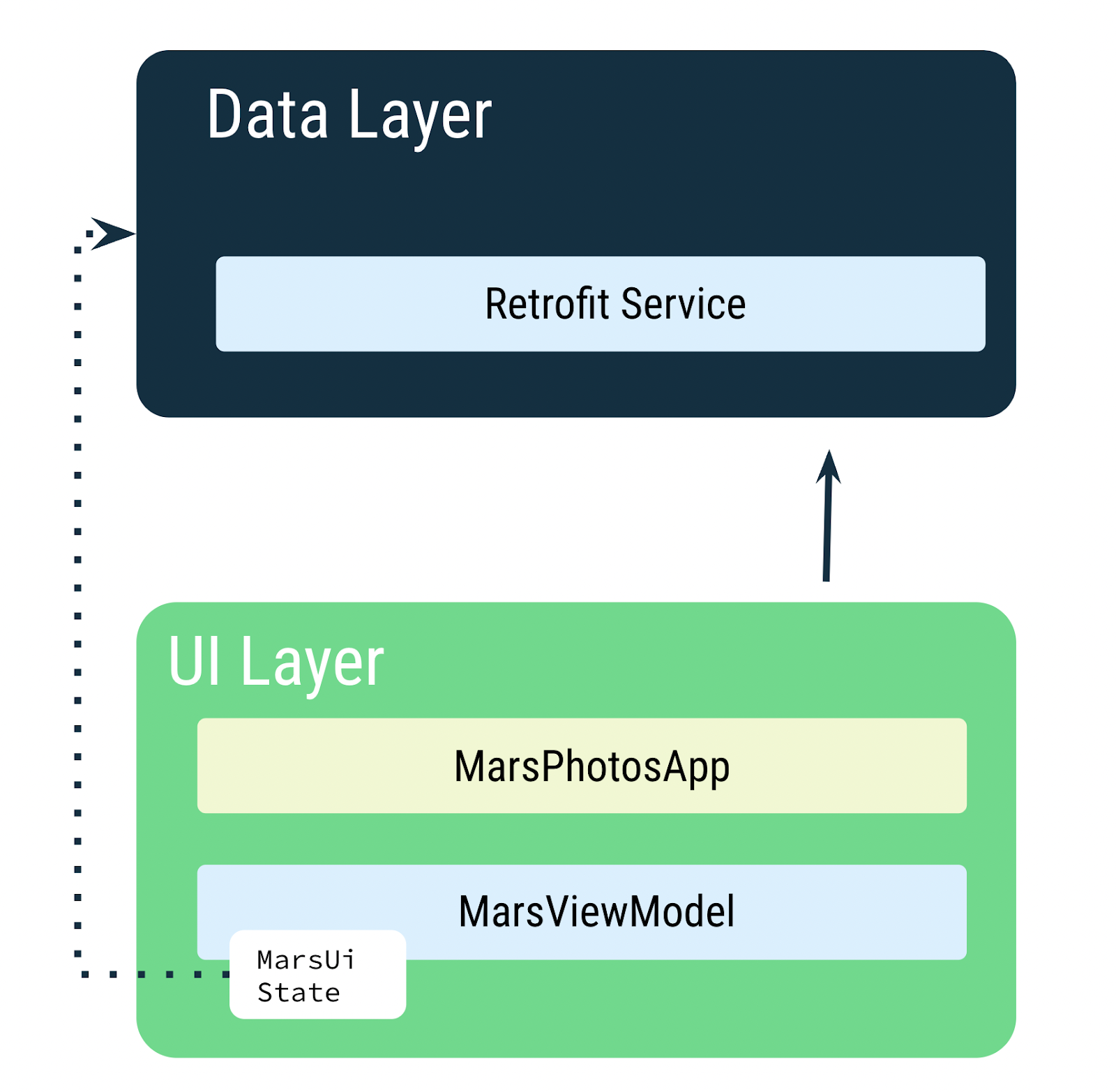
The
MarsViewModelis responsible for making the network call to get the Mars photos data. In theViewModel, you useMutableStateto update the app UI when the data changes.Note
In later codelabs, you will add a Repository to your data layer. The Repository then communicates with the Retrofit service to fetch the data. The Repository is responsible for exposing the data to the rest of the app.
Web services and Retrofit
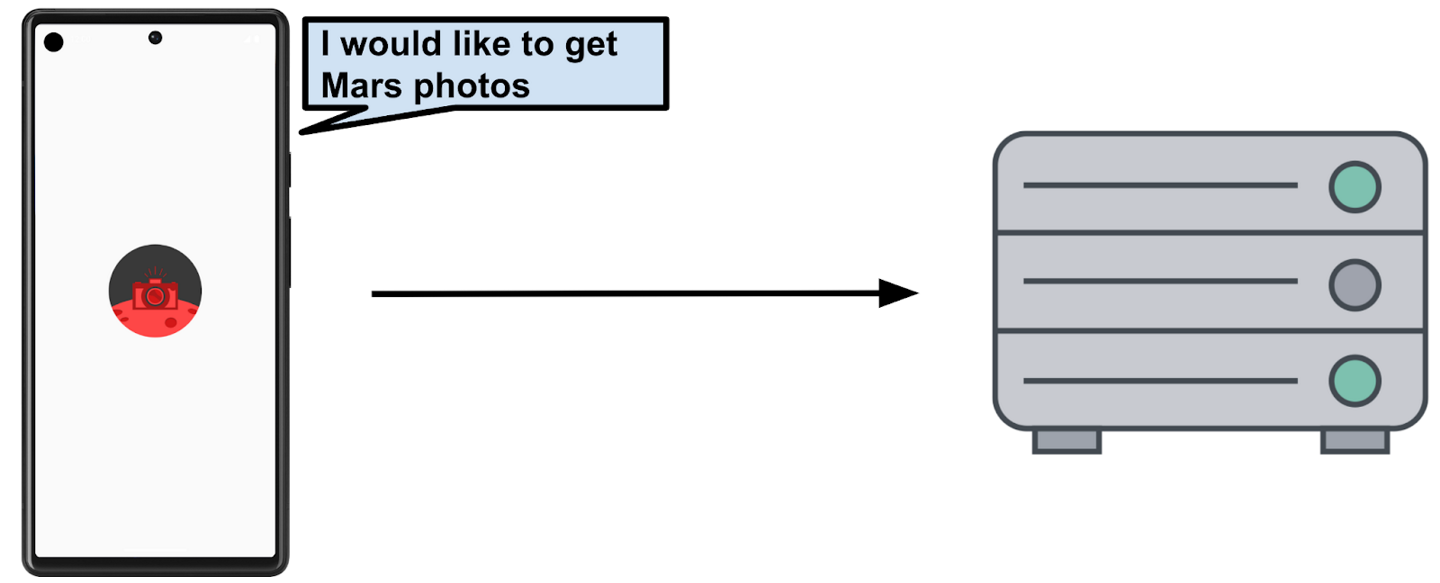
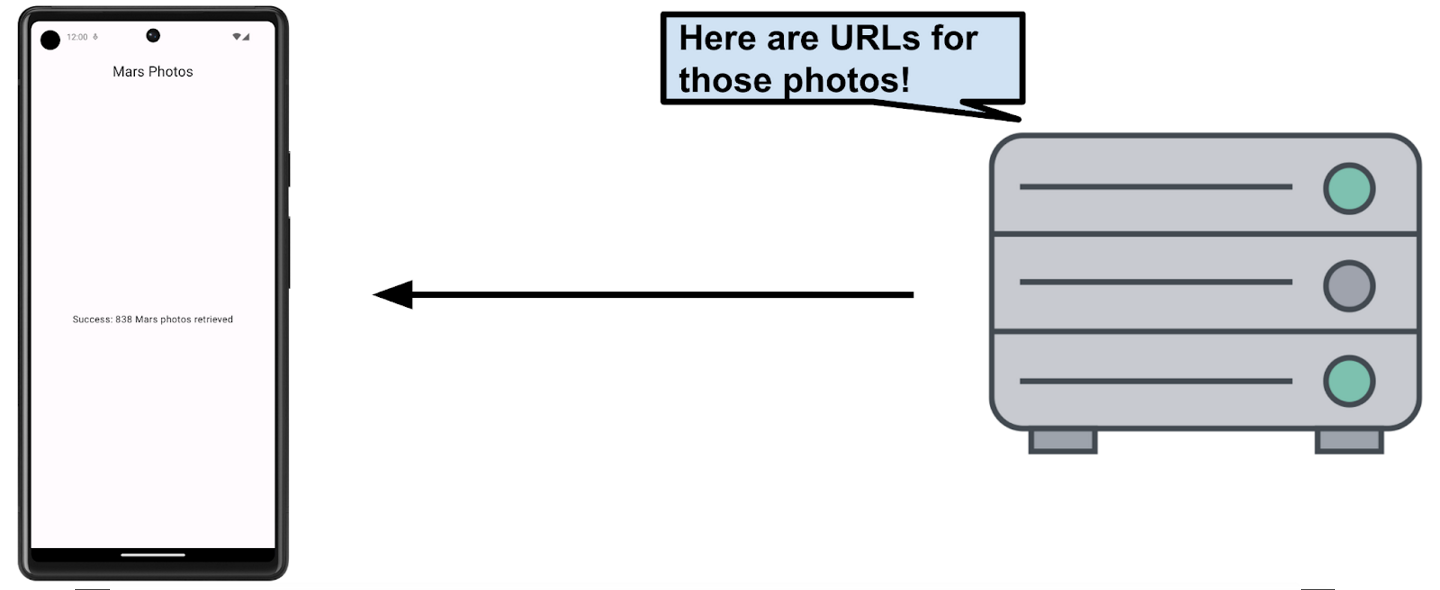
The Mars photos data is stored on a web server. To get this data into your app, you need to establish a connection and communicate with the server on the internet.
Note
In this codelab, you only retrieve the URLs, not the Mars photos. In a later codelab, you retrieve the Mars photos and display them in a grid.
Most web servers today run web services using a common stateless web architecture known as REpresentational State Transfer (REST). Web services that offer this architecture are known as RESTful services.
Requests are made to RESTful web services in a standardized way, via Uniform Resource Identifiers (URIs). A URI identifies a resource in the server by name, without implying its location or how to access it. For example, in the app for this lesson, you retrieve the image URLs using the following server URI. This server hosts both Mars real estate and Mars photos:
Note
This server is being accessed by a different sample app where it showcases Mars real estate, so this server has two different endpoints: one for Mars real estate and one for photos. For this course, you use the server to retrieve Mars photos.
A URL (Uniform Resource Locator) is a subset of a URI that specifies where a resource exists and the mechanism for retrieving it. For example:
This URL gets a list of available real estate properties on Mars: https://android-kotlin-fun-mars-server.appspot.com/realestate
This URL gets a list of Mars photos: https://android-kotlin-fun-mars-server.appspot.com/photos
These URLs refer to an identified resource, such as /realestate or /photos, that is obtainable via the Hypertext Transfer Protocol (http:) from the network. You are using the /photos endpoint in this codelab. An endpoint is a URL that allows you to access a web service running on a server.
Note
The familiar web URL is actually a type of URI. This course uses both URL and URI interchangeably.
Web service request
Each web service request contains a URI and is transferred to the server using the same HTTP protocol that’s used by web browsers, like Chrome. HTTP requests contain an operation to tell the server what to do.
Common HTTP operations include:
GET for retrieving server data.
POST for creating new data.
PUT for updating existing data.
DELETE for deleting data.
Your app makes an HTTP GET request to the server for the Mars photos information, and then the server returns a response to your app, including the image URLs.
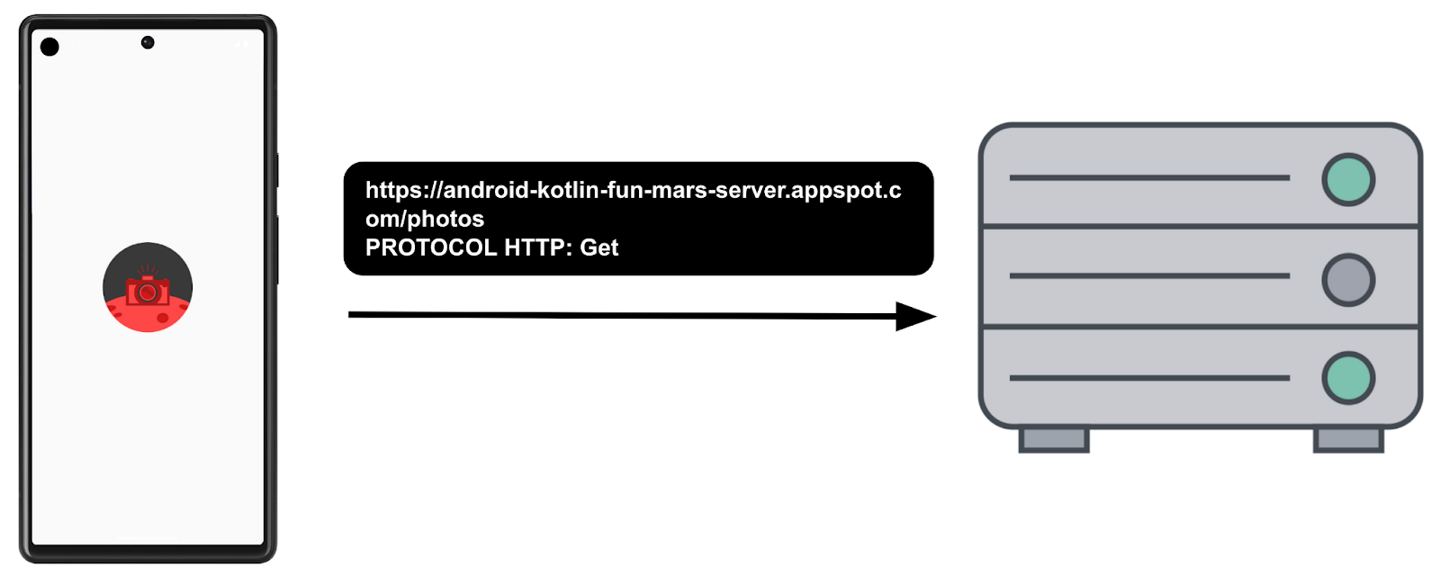
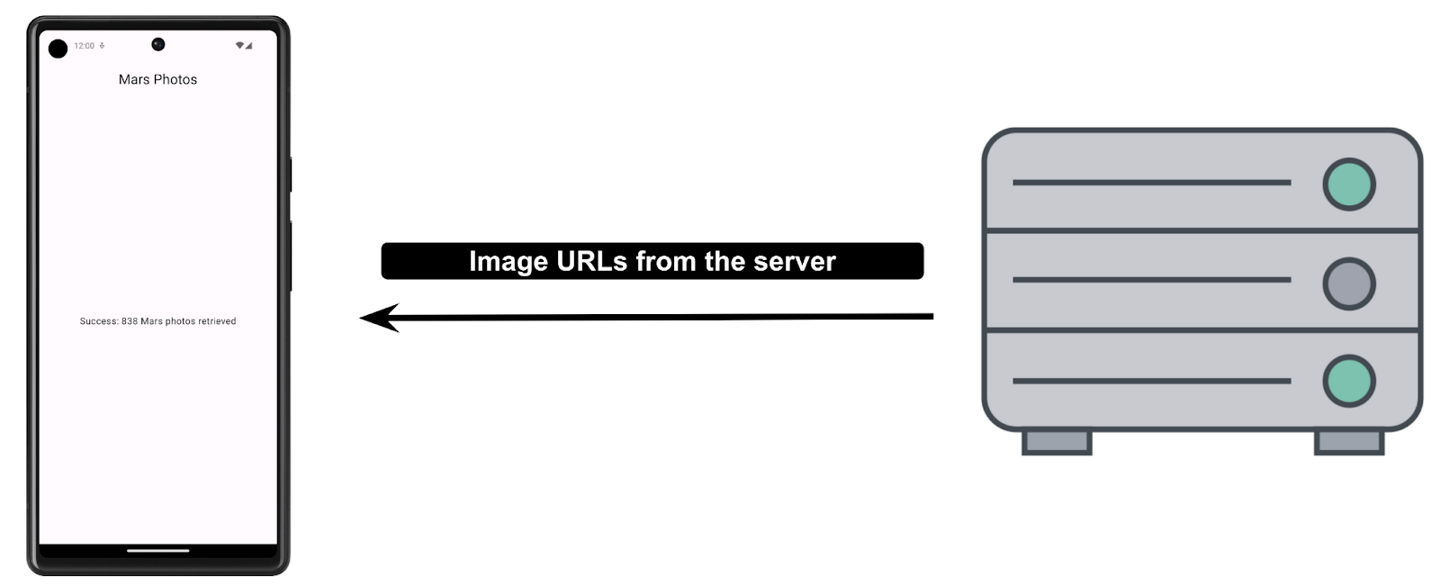
The response from a web service is formatted in one of the common data formats, like XML (eXtensible Markup Language) or JSON (JavaScript Object Notation). The JSON format represents structured data in key-value pairs.
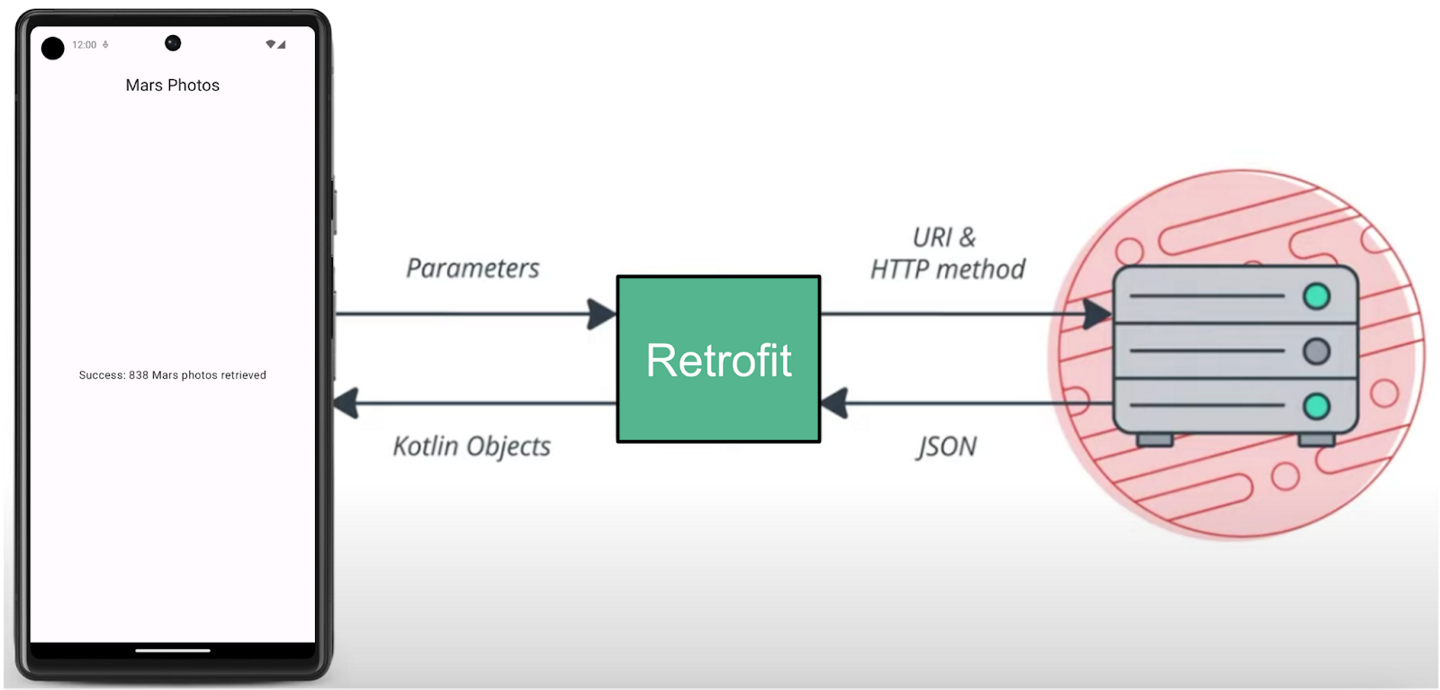
The app establishes a network connection to the server, sends a request, and receives a JSON response. The Retrofit library takes care of the communication with the server.
External Libraries
External libraries, or third-party libraries, are like extensions to the core Android APIs. The libraries you use in this course are open source, community-developed, and maintained by the collective contributions from the huge Android community around the world. These resources help Android developers like you to build better apps.
Warning
Using community-developed and maintained libraries can be a huge timesaver. However, choose these libraries wisely because your app is ultimately responsible for what the code does in these libraries.
Retrofit Library
The Retrofit library that you use in this codelab to talk to the RESTful Mars web service is a good example of a well-supported and maintained library. You can tell this by looking at its GitHub page and reviewing the open and closed issues (some are feature requests). If the developers are regularly resolving the issues and responding to the feature requests, the library is likely well-maintained and a good candidate to use in the app. You can also refer to Retrofit documentation to learn more about the library.
The Retrofit library communicates with the REST backend. It takes URIs and parameters as input.
Retrofit dependencies
Android Gradle lets you add external libraries to your project. In addition to the library dependency, you also need to include the repository where the library is hosted.
For Retrofit, the libraries are added in the
build.gradle.kts (Module :app)file:dependencies { // ... // Retrofit implementation("com.jakewharton.retrofit:retrofit2-kotlinx-serialization-converter:1.0.0") implementation("com.squareup.retrofit2:retrofit:2.9.0") implementation("com.squareup.okhttp3:okhttp:4.11.0") implementation("io.coil-kt:coil-compose:2.4.0") // ... }
Connecting to the Internet
Retrofit fetches data from the web service, and converts it to some othe format (in this case, JSON). Retrofit includes built-in support for popular data formats, such as XML and JSON. Retrofit ultimately creates the code to call and consume this service for you, including critical details, such as running the requests on background threads.
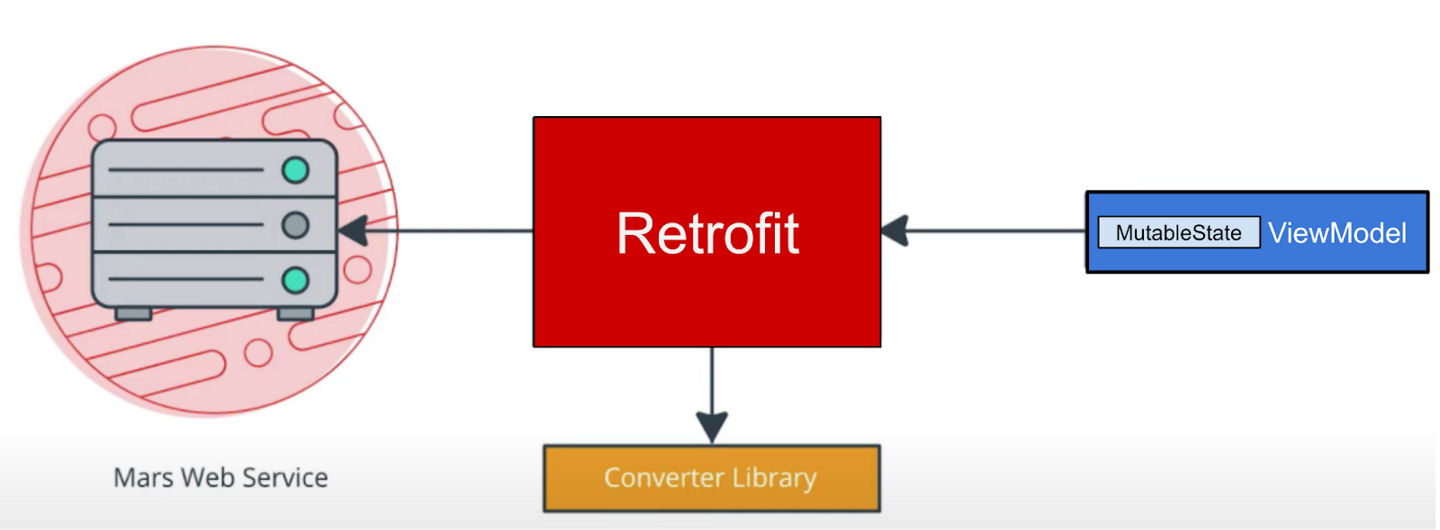
In
network/MarsApiService.kt, this code creates a singleton object calledMarsApithat initializes the Retrofit service. The singleton pattern ensures that one, and only one, instance of the retrofit object is created.object MarsApi { val retrofitService : MarsApiService by lazy { retrofit.create(MarsApiService::class.java) } }
by lazycauses the retrofit object to be lazily initialized. Lazy initialization is when object creation is purposely delayed, until you actually need that object, to avoid unnecessary computation or use of other computing resources. Kotlin has first-class support for lazy instantiation.
Warning
Singleton pattern is not a recommended practice. Singletons represent global states that are hard to predict, particularly in tests. Objects should define which dependencies they need, instead of describing how to create them.
Dependency injection is preferred over the singleton pattern. More on Dependency injection later.
ViewModelScope
A
viewModelScopeis the built-in coroutine scope defined for eachViewModelin your app. Any coroutine launched in this scope is automatically canceled if theViewModelis cleared.You can use
viewModelScopeto launch the coroutine and make the web service request in the background. SinceviewModelScopebelongs toViewModel, the request continues even if the app goes through a configuration change.Inside
getMarsPhotos(),viewModelScope.launchlaunches the coroutine:private fun getMarsPhotos() { viewModelScope.launch { marsUiState = MarsUiState.Loading marsUiState = try { val listResult = MarsApi.retrofitService.getPhotos() MarsUiState.Success( "Success: ${listResult.size} Mars photos retrieved" ) } catch (e: IOException) { MarsUiState.Error } catch (e: HttpException) { MarsUiState.Error } } }
Internet permissions
The purpose of permissions on Android is to protect the privacy of an Android user. Android apps must declare or request permissions to access sensitive user data, such as contacts, call logs, and certain system features, such as camera or internet.
In order for your app to access the Internet, it needs the
INTERNETpermission. Connecting to the internet introduces security concerns, which is why apps do not have internet connectivity by default. You need to explicitly declare that the app needs access to the internet. This declaration is considered a normal permission. To learn more about Android permissions and its types, please refer to the Permissions on Android.In
AndroidManifest.xml, here’s where the permission is declared:<manifest xmlns:android="http://schemas.android.com/apk/res/android" xmlns:tools="http://schemas.android.com/tools"> <uses-permission android:name="android.permission.INTERNET" /> <application android:allowBackup="true" android:icon="@mipmap/ic_launcher" android:label="@string/app_name" android:roundIcon="@mipmap/ic_launcher_round" android:supportsRtl="true" android:theme="@style/Theme.MarsPhotos" tools:targetApi="33"> <activity android:name=".MainActivity" android:exported="true" android:label="@string/app_name" android:theme="@style/Theme.MarsPhotos"> <intent-filter> <action android:name="android.intent.action.MAIN" /> <category android:name="android.intent.category.LAUNCHER" /> </intent-filter> </activity> </application> </manifest>
Exception Handling
Exceptions are errors that can occur during runtime, not compile time, and they terminate the app abruptly without notifying the user. This can result in a poor user experience. Exception handling is a mechanism by which you prevent the app from terminating abruptly and handle the situation in a user-friendly way.
Examples of potential issues while connecting to a server include the following:
The URL or URI used in the API is incorrect.
The server is unavailable, and the app could not connect to it.
A network latency issue.
Poor or no internet connection on the device.
These exceptions can’t be handled during compile time, but you can use a
try-catchblock to handle the exception in runtime.Example syntax for try-catch block
try {
    // some code that can cause an exception.
} catch (e: SomeException) {
    // handle the exception to avoid abrupt termination.
}
Inside the
tryblock, you add the code where you anticipate an exception. In your app, this is a network call. In thecatchblock, you need to implement the code that prevents abrupt termination of the app. If there is an exception, then thecatchblock executes to recover from the error instead of terminating the app abruptly.In
MarsViewModel.kt➜getMarsPhotos(), this code handlesIOExceptionandHttpExceptionexceptions, settingMarsUiStateaccordingly. What exactly isMarsUiState? Read on to find out.fun getMarsPhotos() { viewModelScope.launch { marsUiState = MarsUiState.Loading marsUiState = try { val listResult = MarsApi.retrofitService.getPhotos() MarsUiState.Success( "Success: ${listResult.size} Mars photos retrieved" ) } catch (e: IOException) { MarsUiState.Error } catch (e: HttpException) { MarsUiState.Error } } }
State UI
In the
MarsViewModelclass, the status of the most recent web request,marsUiState, is saved as a mutable state object. This class can represent 3 possible states:Loading: the app is waiting for data.
Success: the data was successfully retrieved from the web service.
Error: any network or connection errors.
To represent these three states in your application, a
sealed interfaceis used. Asealed interfacemakes it easy to manage state by limiting the possible values. InMarsViewModel.kt:sealed interface MarsUiState { data class Success(val photos: String) : MarsUiState object Error : MarsUiState object Loading : MarsUiState }
Using
sealed interfacelimits the values that themarsUiStateobject can have:When the response is successful, data is received from the server, and is stored in a newly created
data class Success.In the case of the
LoadingandErrorstates, we don’t need to store any data, just useobject Loadingandobject Error.
In
screens/HomeScreen.kt, we show a Loading, Result or Error screen depending on the value ofmarsUiState.import androidx.compose.foundation.layout.fillMaxSize fun HomeScreen( marsUiState: MarsUiState, modifier: Modifier = Modifier ) { when (marsUiState) { is MarsUiState.Loading -> LoadingScreen(modifier = modifier.fillMaxSize()) is MarsUiState.Success -> ResultScreen(marsUiState.photos, modifier = modifier.fillMaxWidth()) is MarsUiState.Error -> ErrorScreen( modifier = modifier.fillMaxSize()) } } @Composable fun LoadingScreen(modifier: Modifier = Modifier) { // ... } @Composable fun ErrorScreen(modifier: Modifier = Modifier) { // ... }
Note
If you implement
MarsUiStateinterface without asealedkeyword, it requires you to add a Success, Error, Loading andelsebranch. Since there is no fourth option (else), you use asealedinterface to tell the compiler that there are only three options (thus making the conditionals exhaustive).
Parse JSON with kotlinx.serialization
JavaScript Object Notation
Web services typically respond in one of the common data formats like Extensible Markup Language (XML) or JavaScript Object Notation (JSON). Each call returns structured data, and your app needs to know what that structure is in order to read the data from the response.
For example, in this app, you are retrieving the data from https://android-kotlin-fun-mars-server.appspot.com/photos. When you enter this URL in the browser, you see a list of IDs and image URLs of the surface of Mars in a JSON format!
Structure of sample JSON response
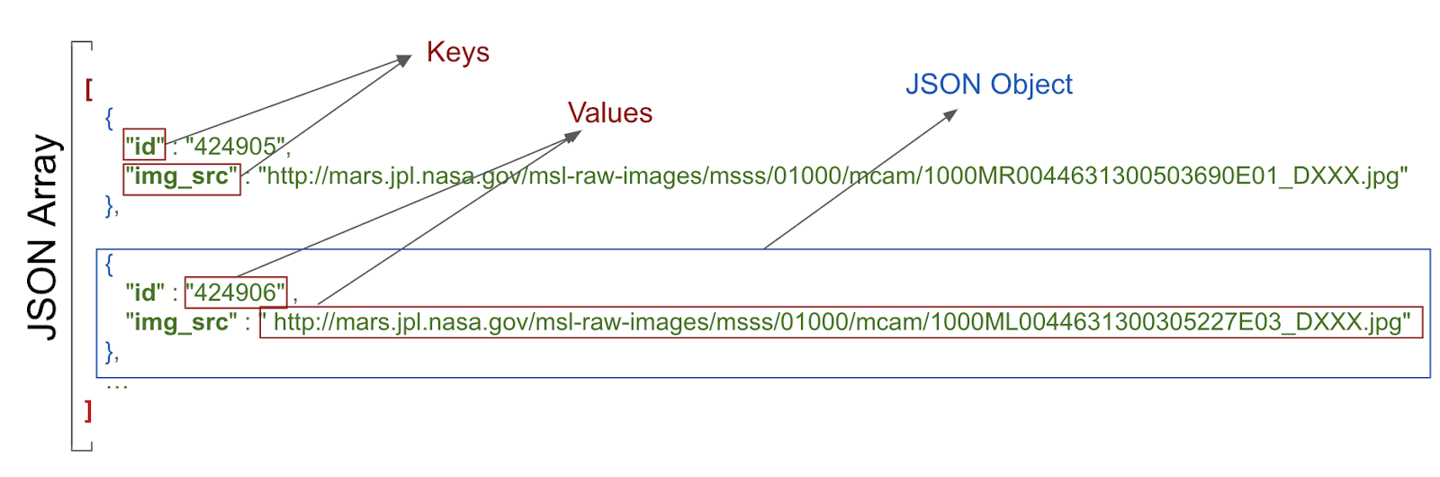
The structure of a JSON response has the following features:
JSON response is an array, indicated by the square brackets. The array contains JSON objects.
JSON objects are surrounded by curly brackets.
Each JSON object contains a set of key-value pairs separated by a comma.
A colon separates the key and value in a pair.
Names are surrounded by quotes.
Values can be numbers, strings, a boolean, an array, an object (JSON object), or null.
For example, the
img_srcis a URL, which is a string. When you paste the URL into a web browser, you see a Mars surface image.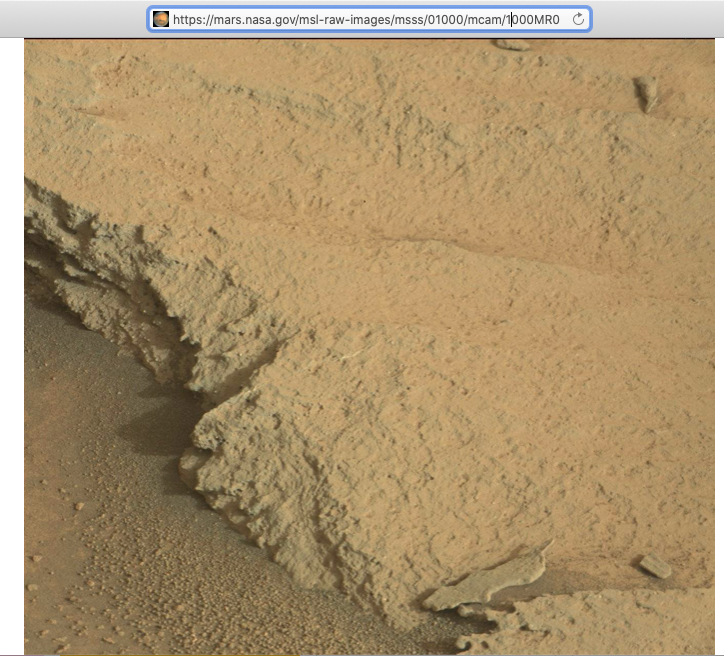
In the app, Retrofit gets a JSON response from the Mars web service, and then converts them to Kotlin objects. This process is called deserialization.
Serialization is the process of converting data used by an application to a format that can be transferred over a network. As opposed to serialization, deserialization is the process of reading data from an external source (like a server) and converting it into a runtime object. They are both essential components of most applications that exchange data over the network.
kotlinx.serializationprovides sets of libraries that convert a JSON string into Kotlin objects. There is a community developed third party library that works with Retrofit, Kotlin Serialization Converter.
kotlinx.serialization library dependencies
Here are the dependencies in
build.gradle.kts (Module :app)plugins { // ... id("org.jetbrains.kotlin.plugin.serialization") version "1.9.10" } dependencies { // ... implementation("com.jakewharton.retrofit:retrofit2-kotlinx-serialization-converter:1.0.0") implementation("com.squareup.okhttp3:okhttp:4.11.0") implementation("org.jetbrains.kotlinx:kotlinx-serialization-json:1.6.0") // ... }
The Mars Photo data class
A sample entry of the JSON response you get from the web service looks something like the following:
[ { "id":"424906", "img_src":"http://mars.jpl.nasa.gov/msl-raw-images/msss/01000/mcam/1000ML0044631300305227E03_DXXX.jpg" }, ...]In the example above, notice that each Mars photo entry has the following JSON key and value pairs:
id: the ID of the property, as a string. Since it is wrapped in quotes (" "), it is of the typeString, notInteger.img_src: The image’s URL, as a string.
kotlinx.serializationparses this JSON data and converts it into Kotlin objects. To do this,kotlinx.serializationneeds to have a Kotlin data class to store the parsed results.In
model/MarsPhoto.kt, the data class is:@Serializable data class MarsPhoto( val id: String, @SerialName(value = "img_src") val imgSrc: String )
The
@Serializableannotation is used to make the class serializable, which means it can be converted to and from a JSON string.Notice that each of the variables in the
MarsPhotoclass corresponds to a key name in the JSON object. To match the types in our specific JSON response, you useStringobjects for all the values.When
kotlinx serializationparses the JSON, it matches the keys by name and fills the data objects with appropriate values.
@SerialName Annotation
Sometimes the key names in a JSON response can make confusing Kotlin properties or may not match recommended coding style. For example, in the JSON file, the
img_srckey uses an underscore, whereas Kotlin convention for properties uses upper and lowercase letters (camel case).To use variable names in a data class that differ from the key names in the JSON response, use the
@SerialNameannotation. Indata class MarsPhoto, the name of the variable in the data class isimgSrc. The variable can be mapped to the JSON attributeimg_srcusing@SerialName(value = "img_src").
MarsApiService and MarsViewModel
In
network/MarsApiService.kt,kotlinx.serialization.json.Jsonconverts JSON to Kotlin objects. The code:import kotlinx.serialization.json.Json private val retrofit = Retrofit.Builder() .addConverterFactory(Json.asConverterFactory("application/json".toMediaType())) .baseUrl(BASE_URL) .build()
In
MarsViewModel.kt:getMarsPhotos()callsMarsApi.retrofitService.getPhotos()MarsApi.retrofitService.getPhotos():Sends a request to https://android-kotlin-fun-mars-server.appspot.com/photos
If successful, the response from the server will be a JSON string.
The JSON string is converted to a list of zero or more
MarsPhotoobjects.The list of
MarsPhotoobjects is returned togetMarsPhotos().
fun getMarsPhotos() {
    viewModelScope.launch {
        marsUiState = MarsUiState.Loading
        marsUiState = try {
            val listResult = MarsApi.retrofitService.getPhotos()
            MarsUiState.Success(
                "Success: ${listResult.size} Mars photos retrieved"
            )
        } catch (e: IOException) {
            MarsUiState.Error
        } catch (e: HttpException) {
            MarsUiState.Error
        }
    }
}
When the app is run, it should show the number of photos retrieved:
Summary
REST web services
A web service is software-based functionality, offered over the internet, that enables your app to make requests and get data back.
Common web services use a REST architecture. Web services that offer REST architecture are known as RESTful services. RESTful web services are built using standard web components and protocols.
You make a request to a REST web service in a standardized way via URIs.
To use a web service, an app must establish a network connection and communicate with the service. Then the app must receive and parse response data into a format the app can use.
The Retrofit library is a client library that enables your app to make requests to a REST web service.
Use converters to tell Retrofit what to do with the data it sends to the web service and gets back from the web service. For example, the
ScalarsConvertertreats the web service data as aStringor other primitive.To enable your app to make connections to the internet, add the “android.permission.INTERNET” permission in the Android manifest.
Lazy initialization delegates the creation of an object to the first time it is used. It creates the reference but not the object. When an object is accessed for the first time, a reference is created and used every time thereafter.
JSON parsing
The response from a web service is often formatted in JSON, a common format to represent structured data.
A JSON object is a collection of key-value pairs.
A collection of JSON objects is a JSON array. You get a JSON array as a response from a web service.
The keys in a key-value pair are surrounded by quotes. The values can be numbers or strings.
In Kotlin, data serialization tools are available in a separate component, kotlinx.serialization. The kotlinx.serialization provides sets of libraries that convert a JSON string into Kotlin objects.
There is a community developed Kotlin Serialization Converter library for Retrofit: retrofit2-kotlinx-serialization-converter.
The kotlinx.serialization matches the keys in a JSON response with properties in a data object that have the same name.
To use a different property name for a key, annotate that property with the
@SerialNameannotation and the JSON keyvalue.